Service App Authorization Guide
Overview
Service apps provide a more robust and secure way to integrate Cloverhound Cloud with your Webex environment. Unlike individual user tokens that can expire when users leave or change roles, service apps are organization-level integrations that provide consistent, reliable access to your Webex data.
- Simplified Management: One organization-level authentication instead of managing multiple user tokens
- Enhanced Security: Centralized control over permissions and access
- Reduced Maintenance: No concerns about individual user token expiration
- Audit Compliance: Clear audit trail of service app authorization and usage
Prerequisites
- Full Administrator role in your organization's Webex Control Hub
- Active licenses for Webex Calling and/or Webex Contact Center
Authorization Process
The Cloverhound Cloud service app will be submitted to your organization for approval. Once submitted, follow these steps to authorize it:
Step 1: Access Control Hub
- Log in to your organization's Control Hub at https://admin.webex.com
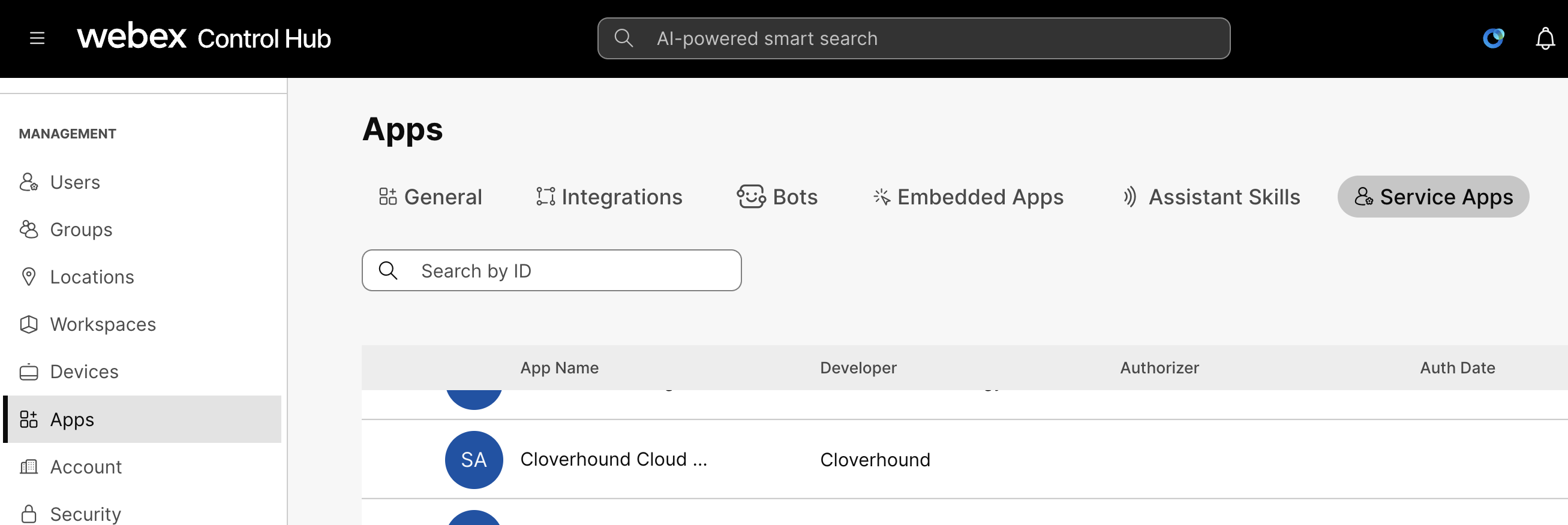
- Navigate to Management > Apps > Service Apps
Step 2: Locate Cloverhound Cloud
- Look for "Cloverhound Cloud" in the list of service apps
- If you cannot see the service app, contact Cloverhound support to ensure it has been submitted for authorization
Step 3: Review Service App Details
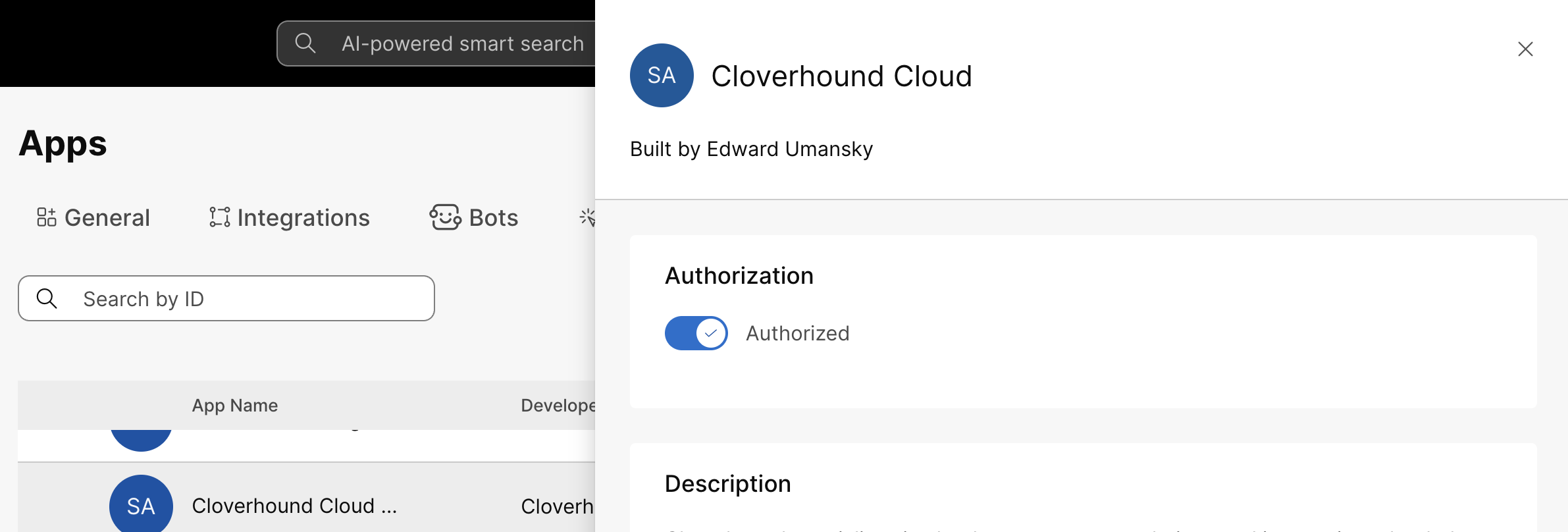
- Click on the "Cloverhound Cloud" service app
- Review the service app's description, developer information, and requested scopes
- Verify this is the official Cloverhound application
Step 4: Authorize the Service App
- When ready to authorize, click "Authorize"
- Click "Save" to confirm the authorization
- Your name will be shown as the authorizing user in Control Hub
- An entry in AdminAudit events will be created documenting the authorization
Configuring in Cloverhound Cloud
Once the service app is approved in Control Hub, you can configure it in Cloverhound Cloud:
Enable Service App Authentication
- Log into your Cloverhound Cloud account
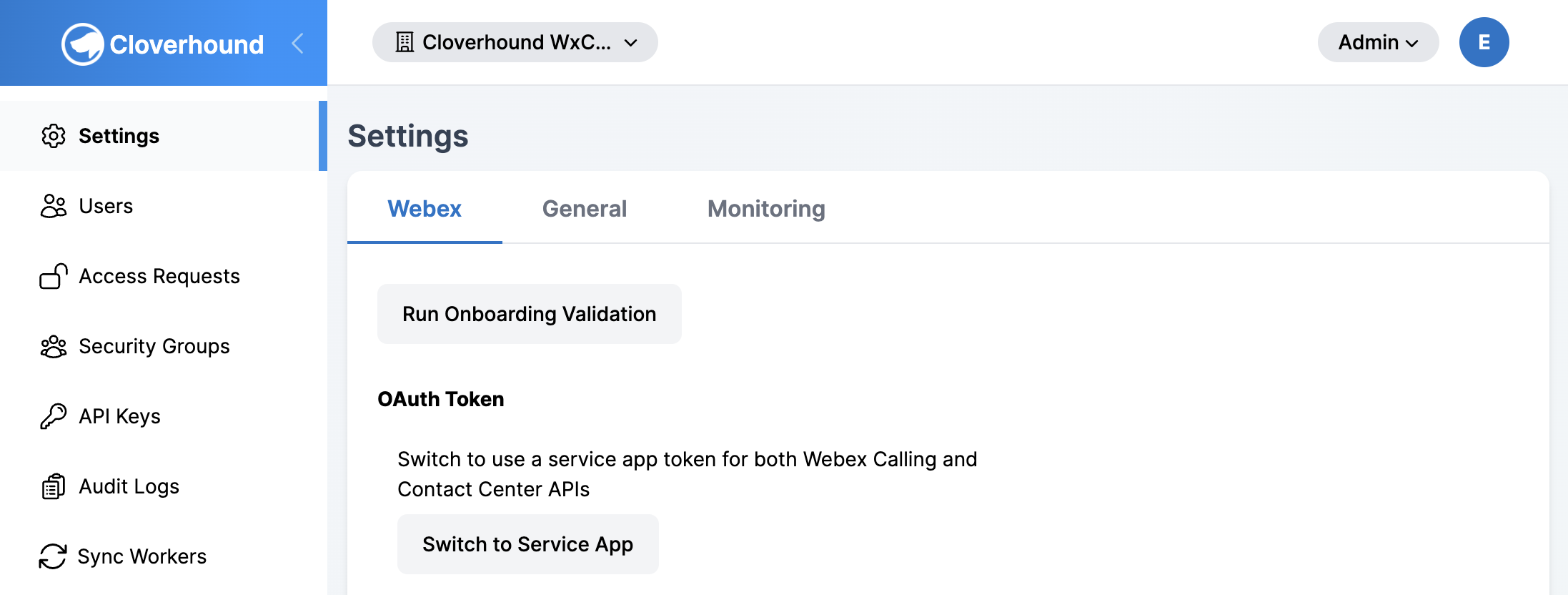
- Navigate to Settings > Webex tab
- Look for the "Switch to Service App" button
- Click the button to enable service app authentication
- Verify that the OAuth token dropdown shows "- Service App Token -"
Verification Steps
To confirm the service app is working correctly:
- Check Token Status: The settings page should show "✓ Using Service App Token"
- Run Onboarding Validation: Click "Run Onboarding Validation" to test API access
- Monitor Data Sync: Verify that data synchronization continues normally
- Check Audit Logs: Review Control Hub audit logs for service app activity
Managing the Service App
Viewing Authorization Details
In Control Hub, you can:
- View when the service app was authorized and by whom
- See the current permission scopes
- Monitor usage through audit logs
- Modify or revoke authorization if needed
Updating Permissions
If Cloverhound Cloud releases updates that require additional permissions:
- The updated app will appear in your App Hub
- You'll need to approve the new permission requests
- The service app will continue using existing permissions until updated
Revoking Access
To remove the service app:
- Go to Control Hub > Management > Apps > Service Apps
- Find "Cloverhound Cloud" in the list
- Click the app and select "Remove" or "Revoke Authorization"
- Confirm the removal
Removing service app authorization will immediately stop all Cloverhound Cloud integrations with your Webex environment. Ensure you have alternative authentication configured if needed.
Troubleshooting
App Not Found in App Hub
If you can't find "Cloverhound Cloud" in the App Hub:
- Verify you're signed in to the correct organization
- Check that you have Full Administrator privileges
- Contact Cloverhound support to confirm app availability
Installation Fails
If installation fails:
- Ensure you have Full Administrator privileges
- Check that your organization has appropriate Webex licenses
- Verify browser settings allow the installation process
Service App Not Appearing in Control Hub
If the app doesn't appear after App Hub installation:
- Wait a few minutes for synchronization
- Refresh your Control Hub session
- Check the Service Apps section specifically (not regular Apps)
Permission Errors
If you see permission-related errors:
- Verify you have Full Administrator role
- For compliance scopes, ensure you also have Compliance Officer role
- Check that the requested scopes match your organization's licenses
Authentication Issues in Cloverhound Cloud
If the service app doesn't work after approval:
- Verify the app shows "Active" status in Control Hub
- Try clicking "Switch to Service App" again in Cloverhound Cloud settings
- Run the onboarding validation to test API connectivity
- Check for any error messages in the browser console
Support
If you encounter issues during installation or configuration:
- Documentation: Review this guide and the main Webex integration documentation
- Cloverhound Support: Contact cloud-support@cloverhound.com
- Webex Support: For App Hub or Control Hub issues, contact Cisco support
When contacting support, please include:
- Your organization's Webex organization ID
- Screenshots of any error messages
- Steps you've already attempted
- Your administrator role and permissions
Next Steps
After successful installation:
- Team Training: Inform your team about the change from user tokens to service app
- Monitor Integration: Watch for any data sync issues in the first few days
- Documentation: Update any internal procedures that reference individual user tokens
- Backup Plan: Keep documentation on how to revert to user tokens if needed
The service app provides a more robust foundation for your Webex integration with Cloverhound Cloud, ensuring reliable data synchronization and simplified management.