Managing Prompts
Prompts are the voice recordings and text-to-speech messages your IVR flows play to callers (for example, greetings, menu options, queue announcements, and closed-hours messages). Each prompt belongs to an entity and can hold one or more locale variants so the same prompt plays in the right language for each caller. Prompts live on the Prompts tab of an entity's details page in the Operations module.
This page covers creating, editing, and deleting prompts. For adding audio files, text-to-speech content, and managing per-language variants, see Managing Prompt Locales.
Accessing Prompts
-
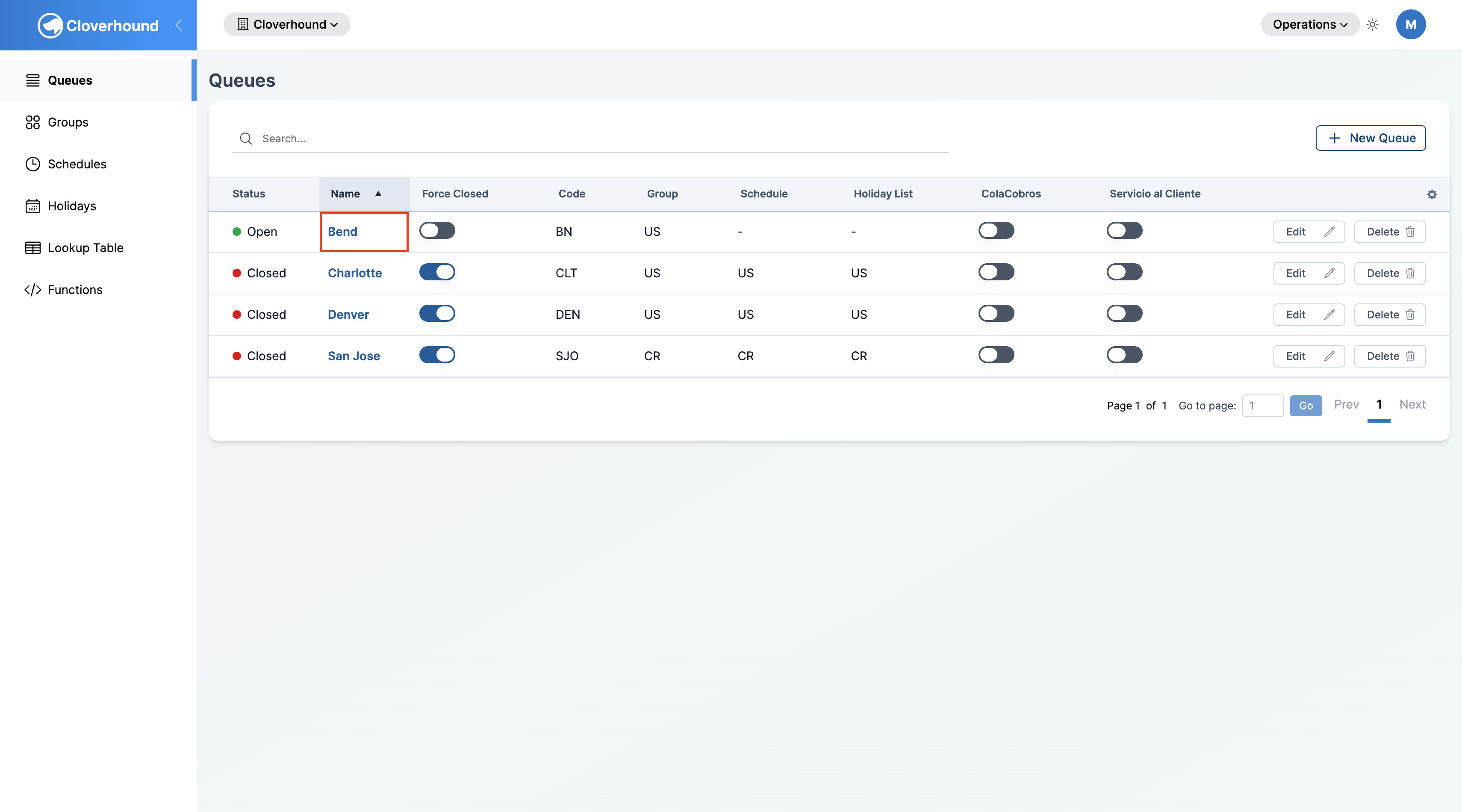
Navigate to the Operations module and open the Entities page.
-
Select the entity whose prompts you want to manage.
-
Open the Prompts tab on the entity's details page.
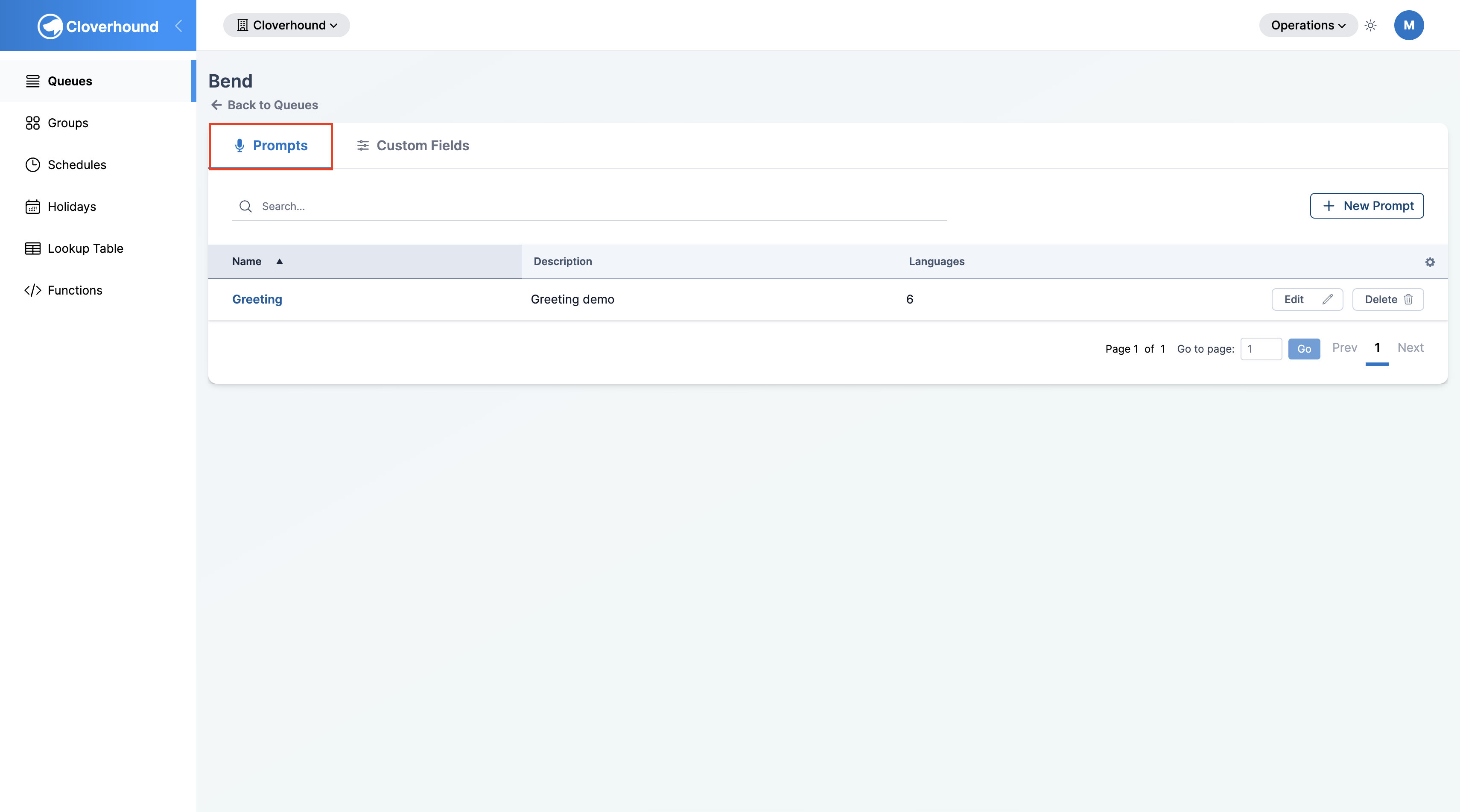
The tab lists every prompt defined for that entity, along with its description and the number of locale variants configured.
Creating a Prompt
A prompt is a named container for one or more locale variants. You create the prompt first, then add locales to it.
-
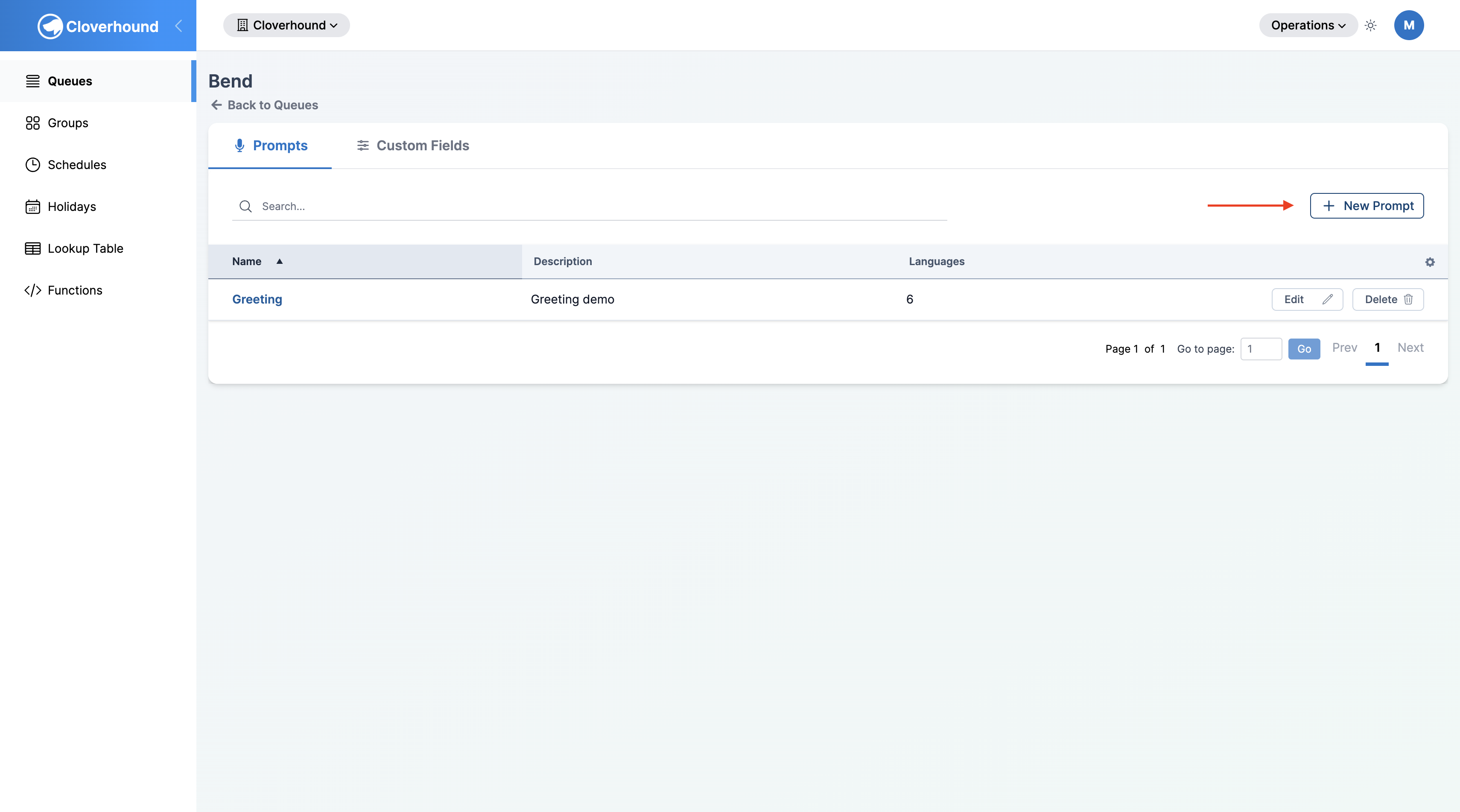
Click the + New Prompt button in the top-right corner of the Prompts tab.
-
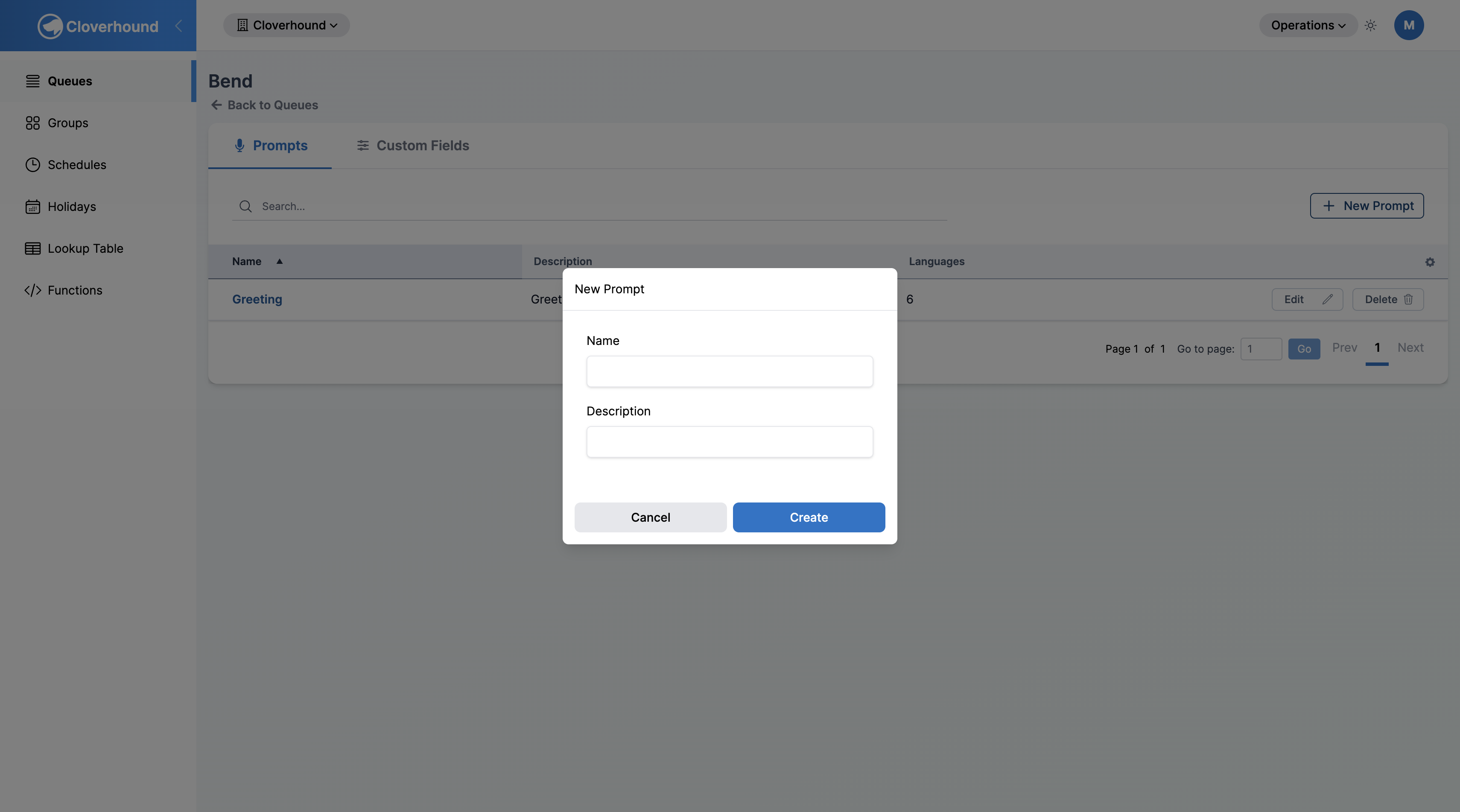
Fill out the form:
- Name — a unique, descriptive name for the prompt within this entity (for example,
main-greetingorafter-hours). Required. - Description — a short explanation of what the prompt says or when it is played. Optional but recommended.
- Name — a unique, descriptive name for the prompt within this entity (for example,
-
Click Create.
The new prompt appears in the list with zero locale variants. Open it to add audio or text-to-speech content.
Prompt names must be unique within the same organization and entity. If you try to reuse a name, Cloverhound Cloud shows a validation error.
Editing a Prompt
- Locate the prompt in the list and click Edit on its row.
- Update the Name or Description fields.
- Click Save.
Changes apply immediately. Editing a prompt's name or description does not affect any of its locale variants or the audio files already uploaded.
Deleting a Prompt
- Locate the prompt in the list and click Delete on its row.
- Confirm the deletion in the dialog.
Deleting a prompt also deletes every locale variant attached to it, including any audio files stored in Webex Contact Center. IVR flows that reference the prompt will fail to play audio until you point them at a different prompt.
With the Prompts tab, you can build a library of named voice recordings per entity, add per-language variants, and keep the audio that your callers hear in sync with your contact center operations.