Managing Lookup Table Fields
Lookup Table Fields are the columns of a Lookup Table. Each field has a name, a human-readable label, and a type that controls what values entries can store for that column. Use this page to add, edit, or remove columns on an existing table. For an overview of Lookup Tables, see Introduction to Lookup Tables.
Every table has one lookup key field, created with the table, that identifies rows. The lookup key field cannot be edited or deleted from this tab; all other fields can.
Accessing the Fields Tab
-
Navigate to the Operations module.
-
Open the Lookup Tables page and click the name of the table you want to edit.
-
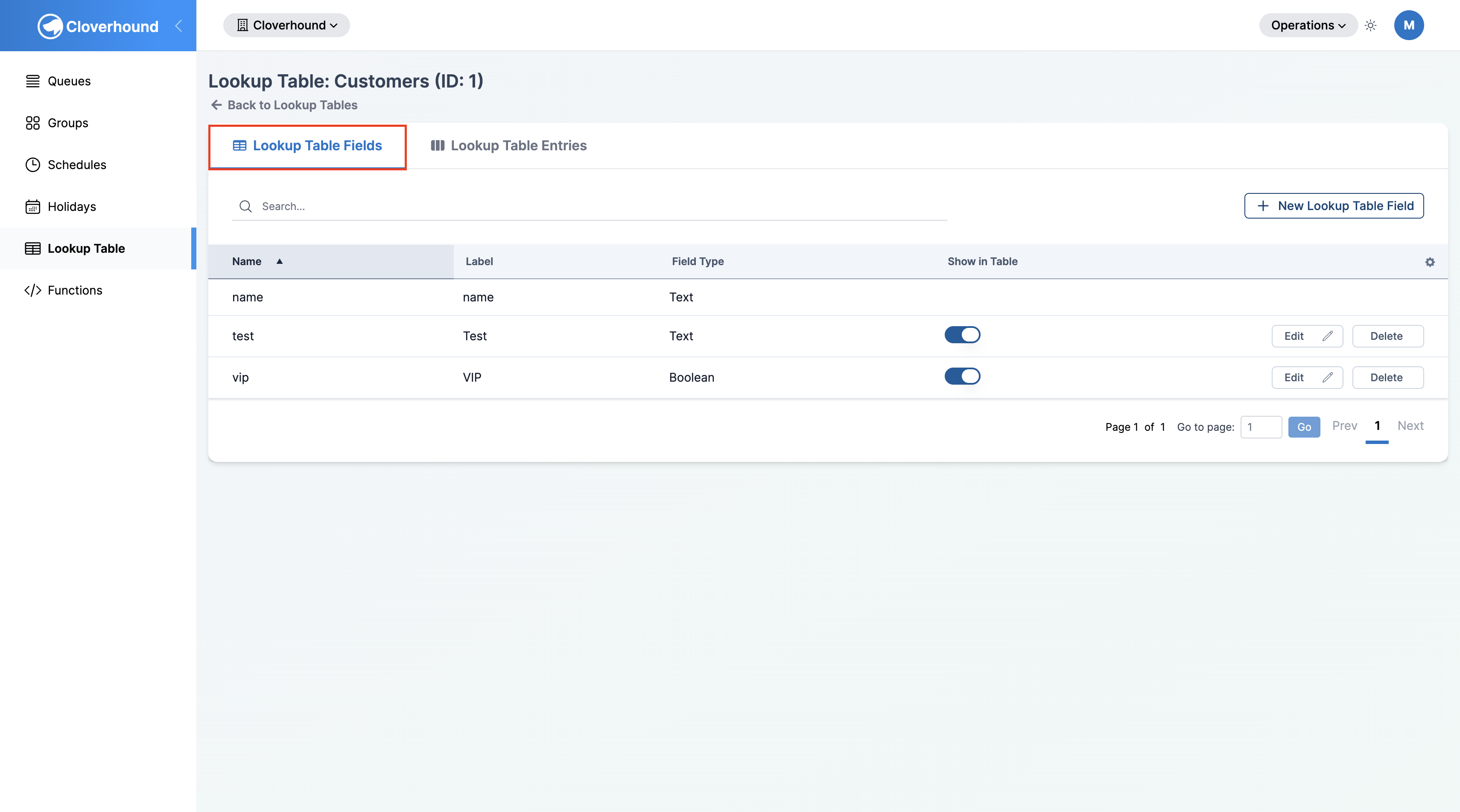
Open the Lookup Table Fields tab. The tab lists every column defined on the table, with its name, label, field type, and whether it is shown on the Entries tab.
-
Search by name using the search box, or sort the table by any column header.
Adding a Field
-
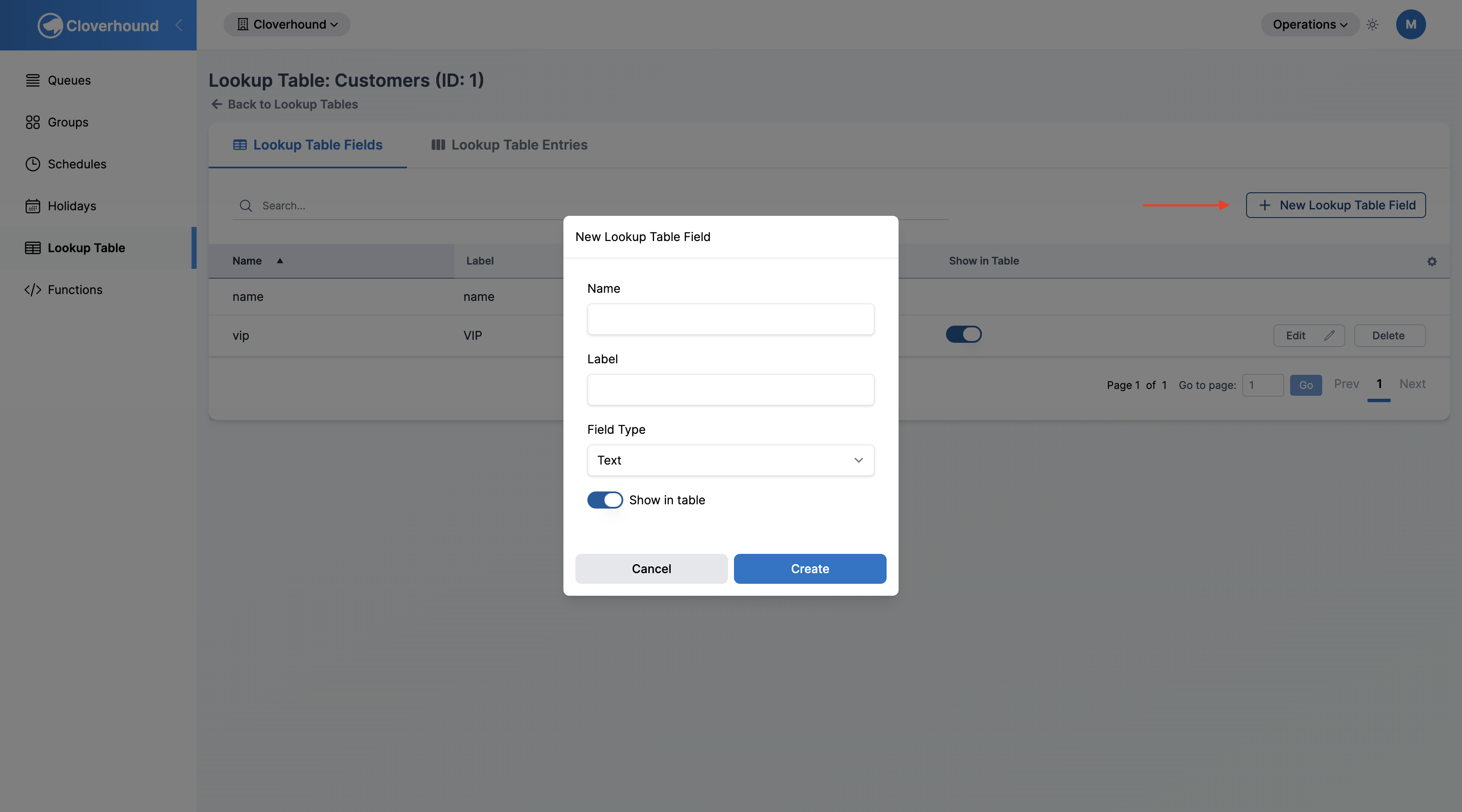
Click the New Lookup Table Field button.
-
Fill out the form:
- Name — the internal field name used when the table is queried. Lowercase letters (
a-z), numbers (0-9), dashes (-), and underscores (_) only. Must be unique within the table. - Label — the human-readable column header shown in the UI.
- Field Type — one of:
- Text — any string value.
- Number — numeric values.
- Boolean —
trueorfalse.
- Show in table — when on, the column appears on the Entries tab. Defaults to on.
- Name — the internal field name used when the table is queried. Lowercase letters (
-
Click Create. Cloverhound Cloud adds the new column to every existing entry with a
nullvalue.
Validation Rules
If a field fails to save, Cloverhound Cloud shows an error message naming the validation failures (for example, Name must contain only lowercase letters...).
- Name is required, must be unique within the table, and must contain only lowercase letters, numbers, dashes, and underscores.
Account ID,accountID, andaccount idare all invalid;account_idandaccount-idare valid. - A field whose Name matches another column on the same table (including the lookup key field) is rejected.
- The field type cannot be left blank. Text is a safe default for free-form values.
Editing a Field
-
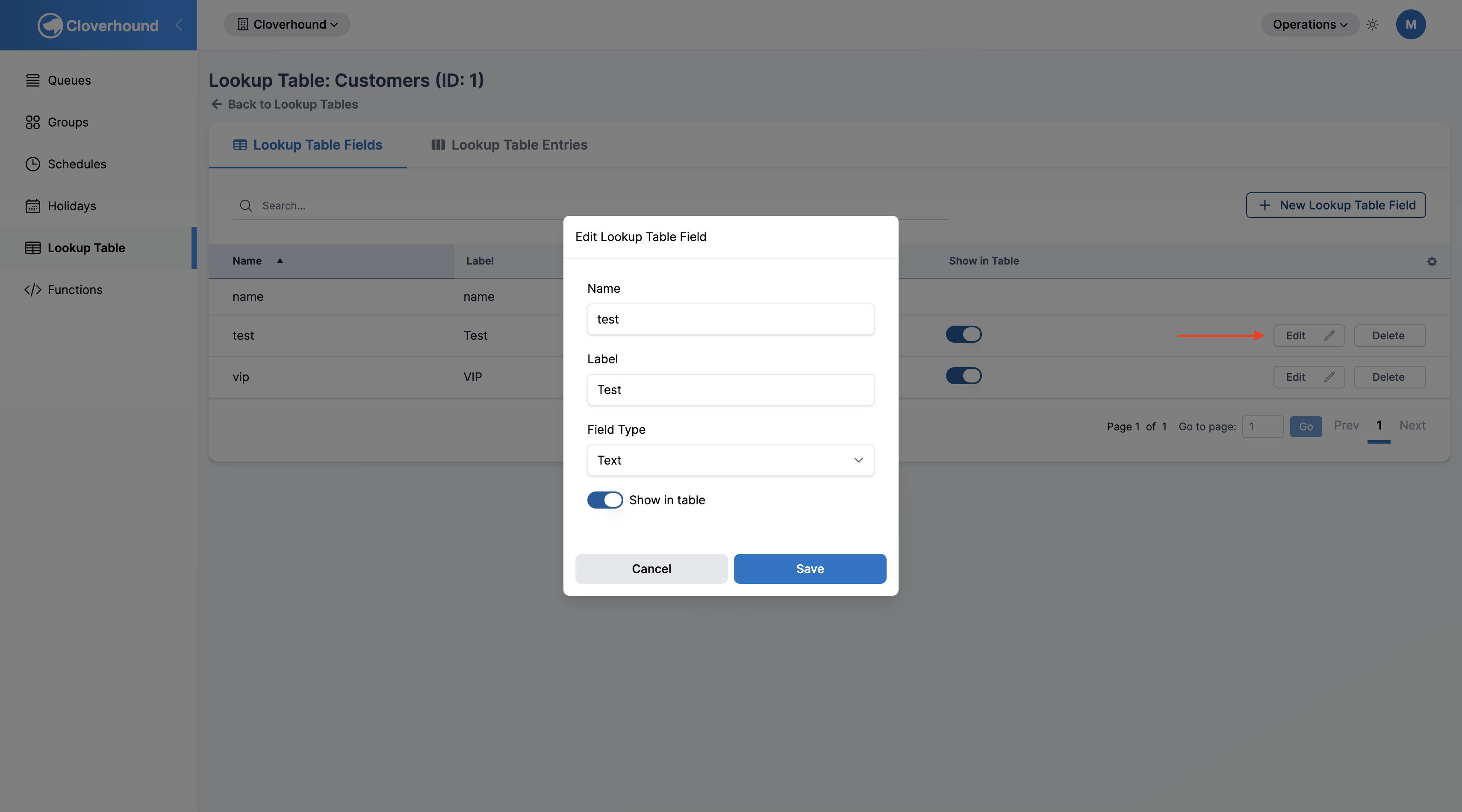
Click Edit on the field's row.
-
Change any of the Name, Label, Field Type, or Show in table values.
-
Click Save.
Renaming a field also renames the matching key in every entry's stored values. Any flow or integration that references the old name stops resolving until it is updated to the new name.
Changing a Field's Type
Cloverhound Cloud does not coerce or re-validate values already stored in entries when you change a field's Field Type. For example, a column switched from Text to Number may still hold string values from existing rows. After changing a type, review the Entries tab and update any rows whose values no longer match the new type.
If you need to reshape the data in a column, the safest path is to export the table's entries to CSV, delete and re-add the field with the new type, and re-import the cleaned data.
Toggling Show in Table
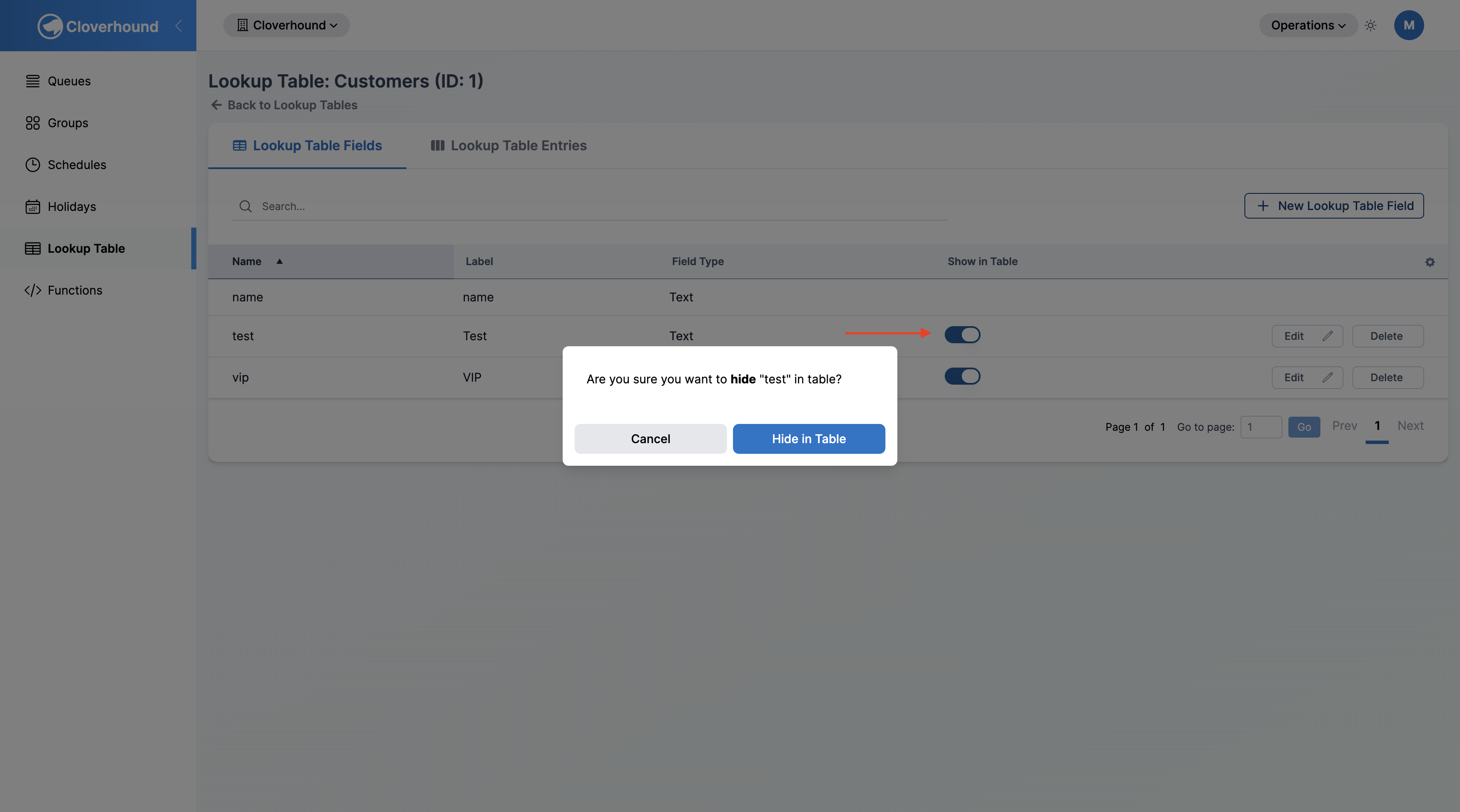
You can toggle Show in table directly from the Fields tab without opening the edit form. Click the toggle on the field's row and confirm. The column is immediately hidden or shown on the Entries tab; existing values are preserved either way.
Deleting a Field
-
Click Delete on the field's row.
-
Confirm the deletion in the dialog. The dialog names the field and the table it belongs to.
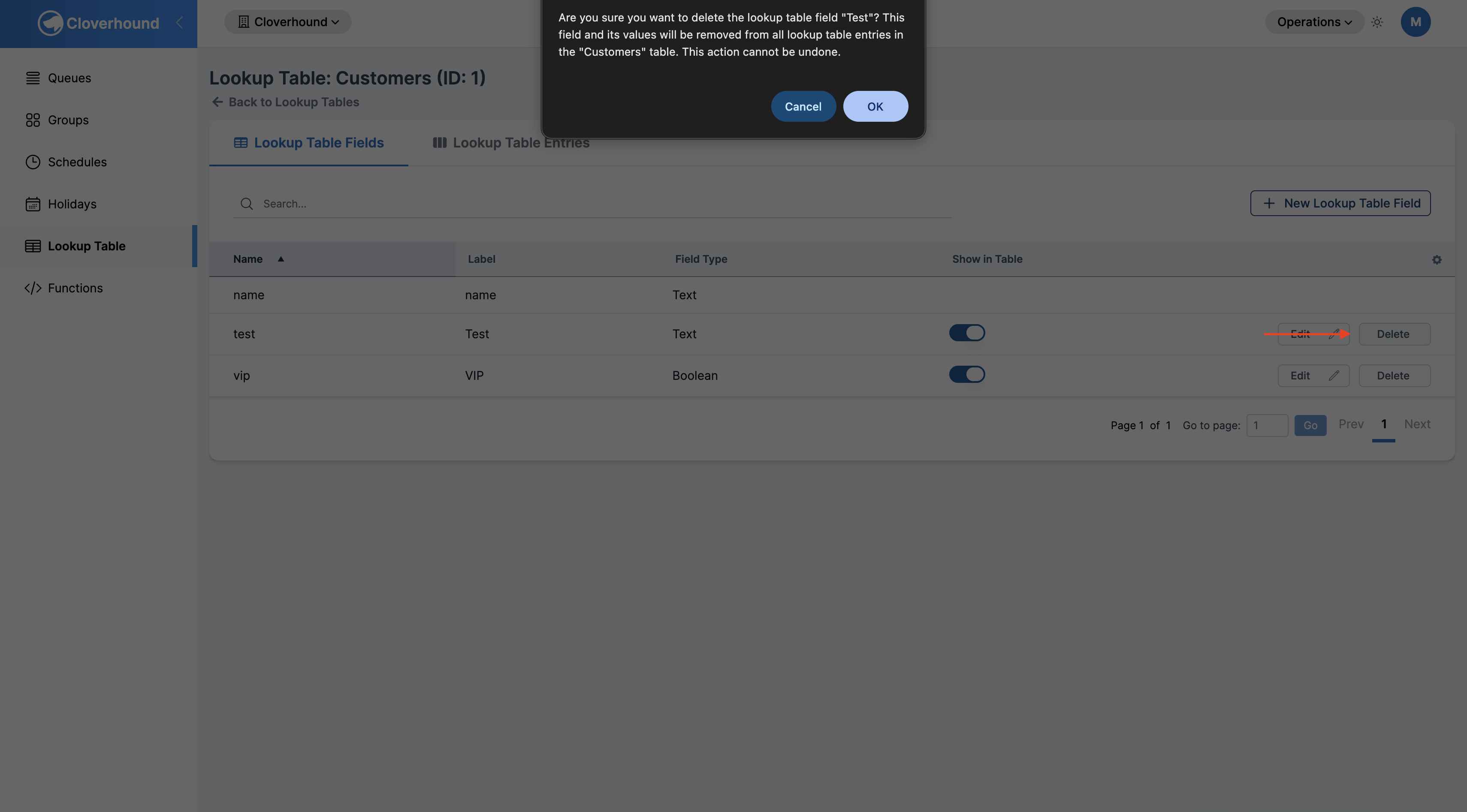
Deleting a field removes its value from every entry in the table. This cannot be undone. Flows that read the deleted field stop returning a value for it.
The Lookup Key Field
The lookup key field is created with the table and is always of type Text. It is listed on the Fields tab but has no Edit, Delete, or Show in table controls: it is always shown on the Entries tab and is always used to identify rows. To change which column is the lookup key, create a new Lookup Table.
With the right columns defined, you can populate the table from the Lookup Table Entries tab and query it from your flows. See Introduction to Lookup Tables for the end-to-end flow.