Introduction to Lookup Tables
Lookup Tables are user-defined reference tables of columns and rows that your flows can query at runtime. Use them to keep business data — such as account tiers, store codes, holiday overrides, or routing numbers — outside of flow logic, so you can update the data without editing the flow.
A Lookup Table has three parts:
- A table, identified by a name and a single lookup key field.
- A set of fields (columns), each with a name, label, and type (
Text,Number, orBoolean). - A set of entries (rows), each storing one value per field and a unique lookup key.
Flows query a table by the value of its lookup key and get back the row's other fields.
Accessing Lookup Tables
-
Navigate to the Operations module.
-
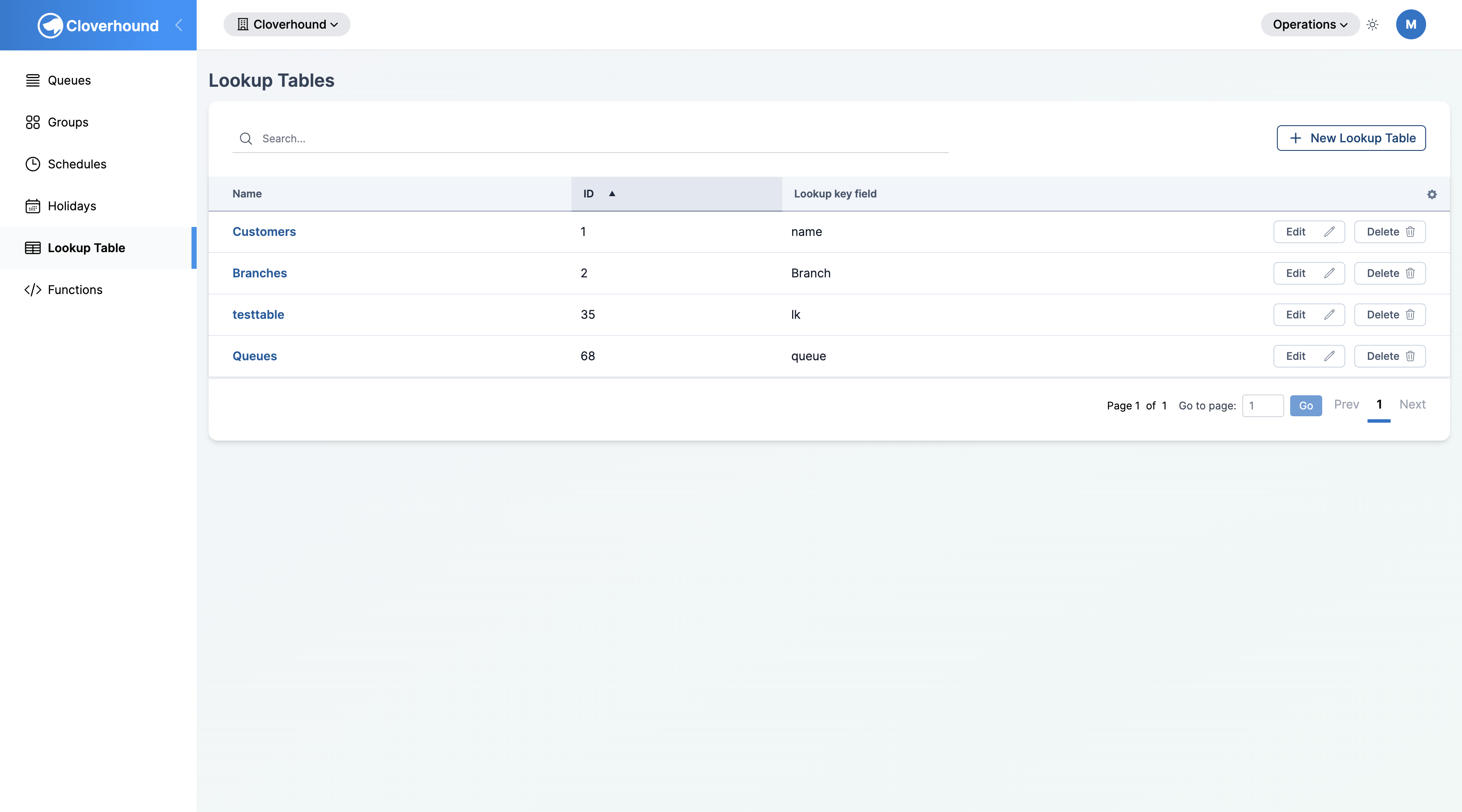
Open the Lookup Tables page. The index lists every Lookup Table in your organization, with its name, ID, and lookup key field.
-
Search by name, or click a table's name to open its detail page.
Creating a Lookup Table
-
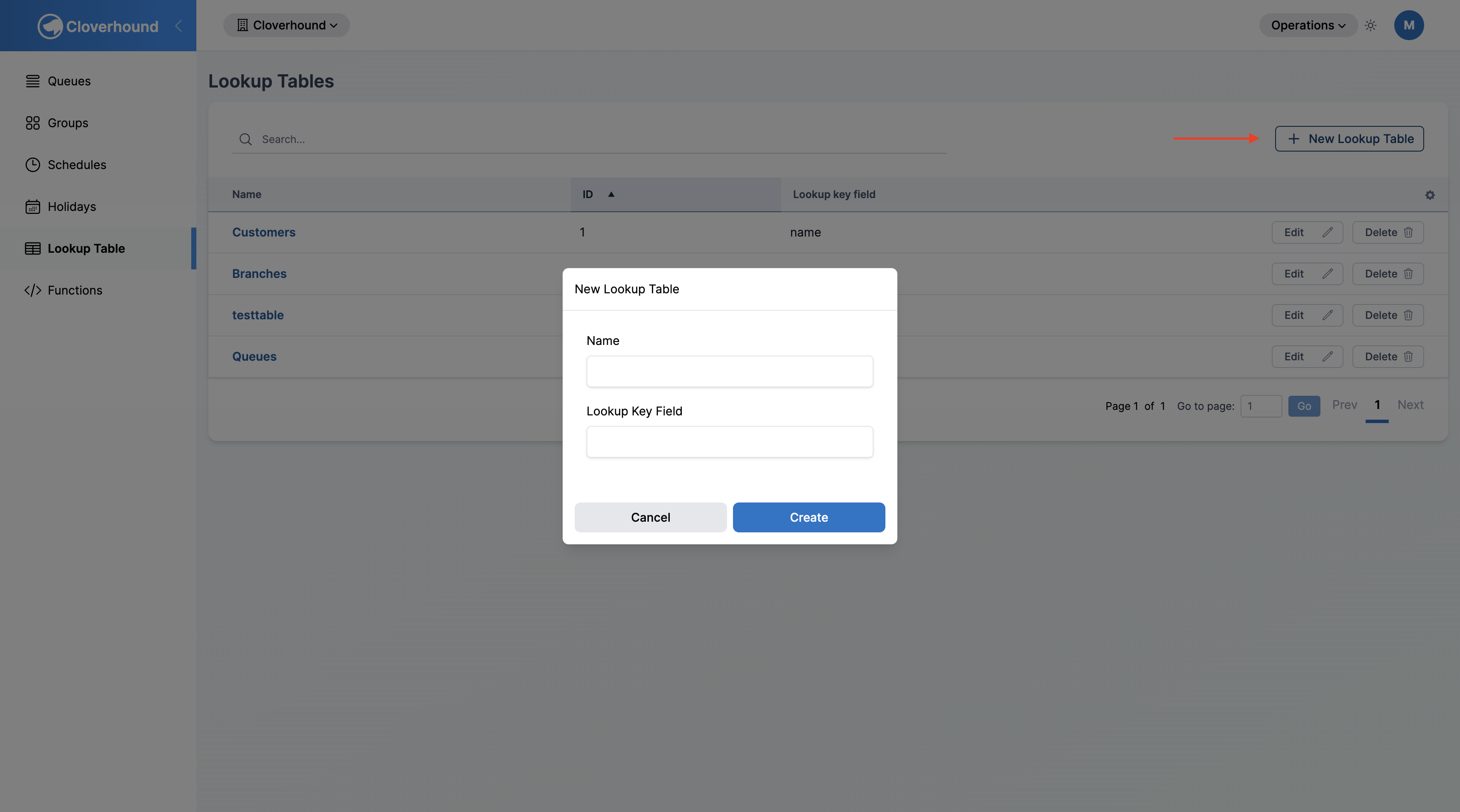
Click the New Lookup Table button on the Lookup Tables index page.
-
Fill out the form:
- Name — a unique display name for the table within your organization.
- Lookup Key Field — the column used to search the table at query time. When a flow looks up a row, it supplies a value for this column (for example, the caller's phone number) and Cloverhound Cloud returns the matching row. Only lowercase letters, numbers, dashes, and underscores are allowed (for example,
phone_number). This field cannot be changed after the table is created.
-
Click Create. Cloverhound Cloud creates the table and a matching Text field for the lookup key. You are returned to the index.
The lookup key field is always created as a Text column and is used to look up rows. Entry values for this column must be unique within the table (case-insensitive).
Defining Fields and Adding Entries
Once the table is created, open it from the index to define its columns and populate its rows. For details see Managing Lookup Table Fields and Managing Lookup Table Entries.
Using a Lookup Table in a Flow
Once a table has fields and entries, flows can query it by its lookup key and read any of its fields.
- Identify the table and lookup key field you want to query (from the Lookup Tables index).
- In your flow, add a lookup step that references the table and supplies a value for the lookup key.
- Use the returned fields to drive routing or set variables.
The read path is exposed over the IVR API at:
GET /ivr_api/:organization_id/lookup_tables/:id/:lookup_value
It returns the row's fields as JSON, or 404 if no entry matches. Matching on the lookup key is case-insensitive.
Managing a Lookup Table
From the index, use the row actions to:
- Edit — rename the table. The lookup key field is read-only on existing tables.
- Delete — remove the table along with all of its fields and entries.
Deleting a Lookup Table also deletes every field and entry it contains. Flows that still reference the table will fail to resolve lookups until they are updated.
With a Lookup Table in place, you can change the data your flows depend on by editing rows in the UI instead of editing flow logic. The sibling pages in this section walk through field management, entry management, and CSV imports in more detail.