Entity Custom Fields
The Custom Fields tab on an entity's detail page lets you view and edit the values of your organization's custom fields for that specific entity. Custom fields are defined once for your organization under Admin > Settings > Custom Fields and appear on every entity automatically — here you set the value each entity holds for each field.
Accessing the Custom Fields Tab
-
Navigate to the Operations module and open the Entities page.
-
Click the name of the entity you want to update.
-
Open the Custom Fields tab on the entity's detail page.
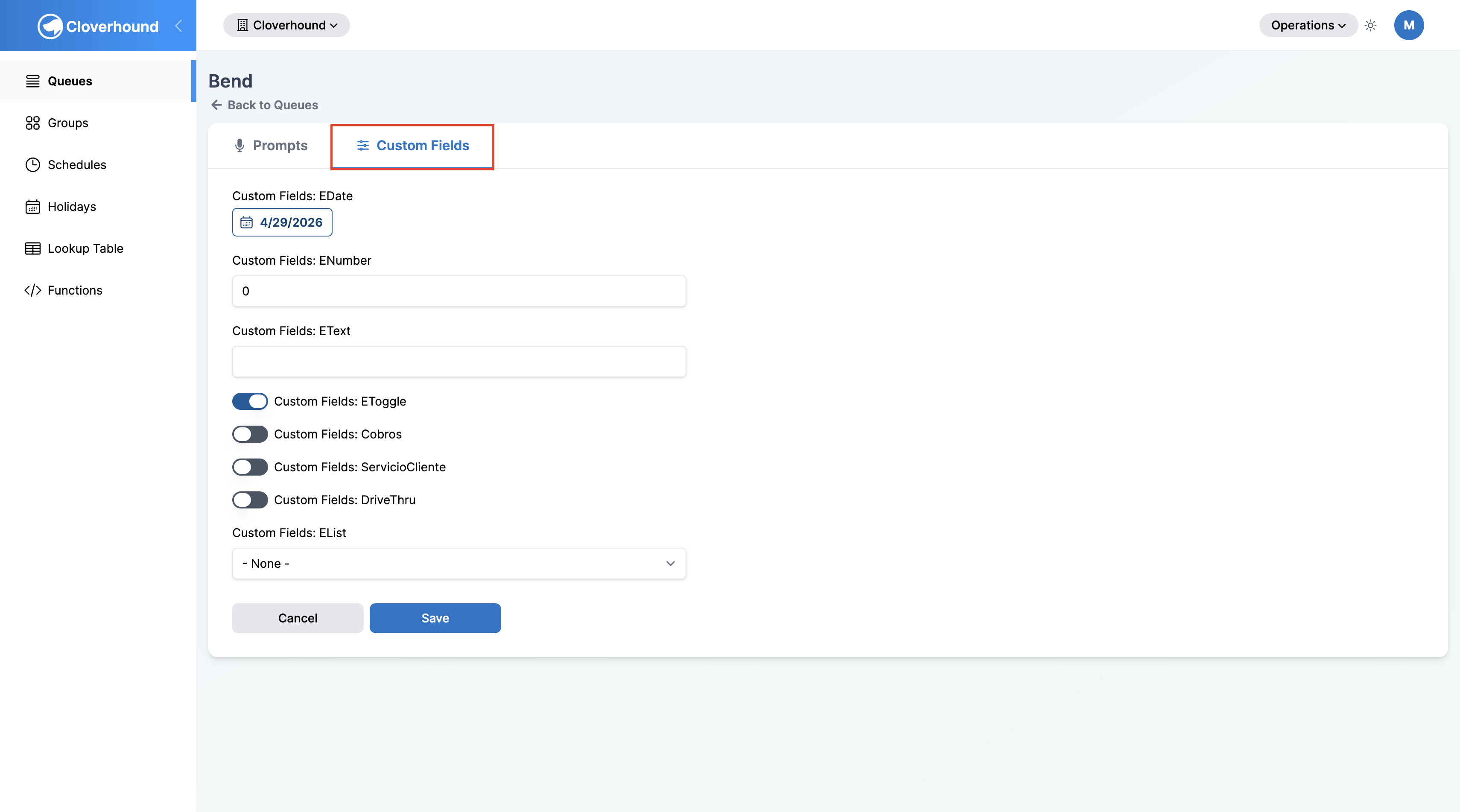
The tab shows one input per active custom entity field defined for your organization.
Editing Custom Field Values
-
Update the fields you want to change. The input type matches the field's type:
- Text — a single-line text input.
- Number — a numeric input.
- Date — a date picker.
- Toggle — an on/off switch.
- List — a dropdown of the allowed values defined for that field.
-
Click Save to apply the changes, or Cancel to discard them.
If no custom entity fields have been defined for your organization, the tab will be empty. Ask an administrator to create them under Admin > Settings > Custom Fields.