Managing Screen Monitor Recordings
Screen Monitor recordings are the screen captures that the Cloverhound Screen Monitor desktop app produces during Webex Contact Center (WxCC) calls. Once a recording finishes and is transcoded, it is attached to the matching interaction in Cloverhound Cloud so that you can play it back alongside the audio recording and other call data.
This page covers how to find, play, and control the retention of these recordings from the Cloverhound Cloud UI.
Contact Cloverhound Cloud support to enable screen monitoring for your organization.
Finding Recordings
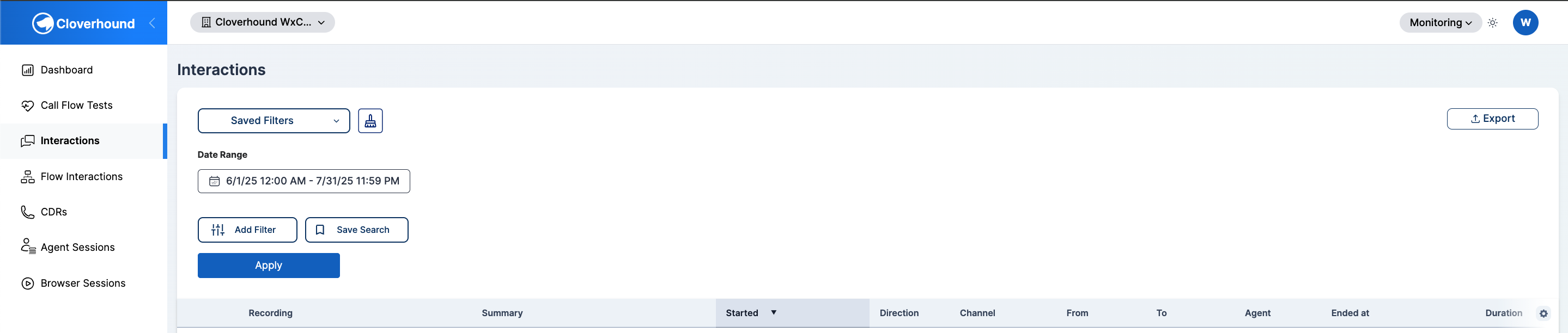
Recordings are listed on the Interactions page. Each interaction that has a completed screen recording shows it inside the interaction's details.
-
Navigate to the Analytics module and open the Interactions page. Or Navigate to the Monitoring module and open the Interactions page.
-
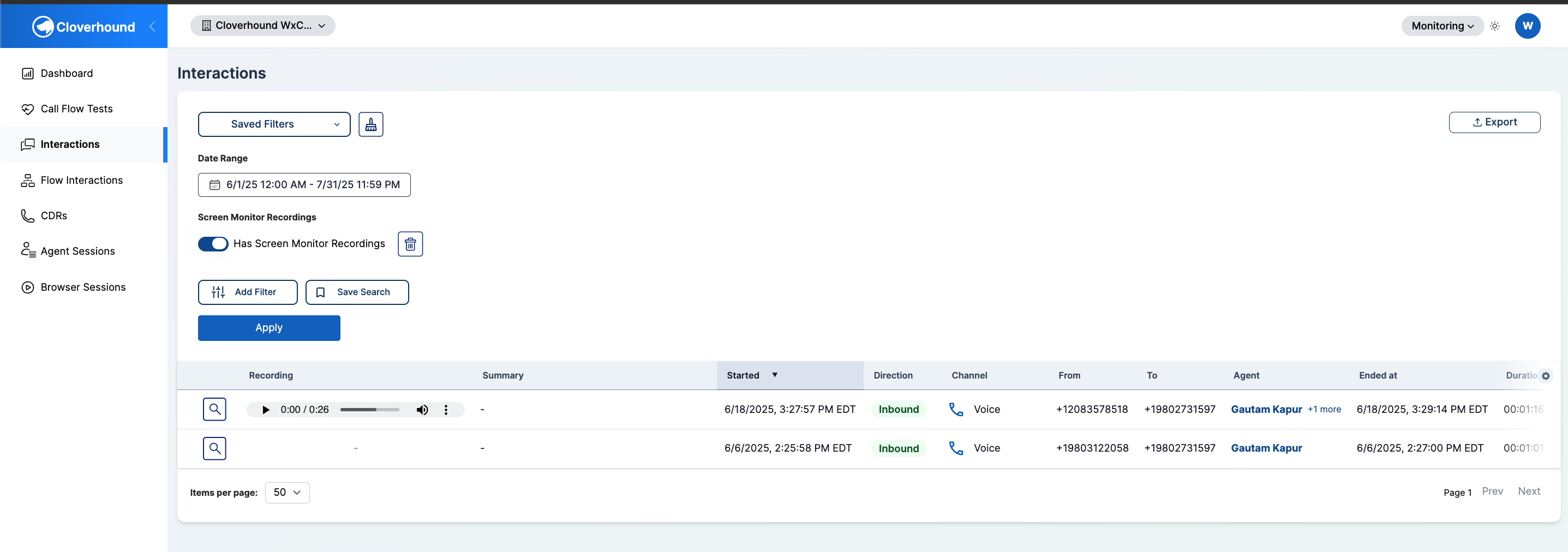
Filter to interactions that have a screen recording:
- Open the filters panel on the left side of the table.
- Toggle on Has Screen Monitor Recordings.
- The table reloads and only shows interactions that have at least one completed recording attached.
 info
infoThe Has Screen Monitor Recordings toggle only appears when your organization has screen monitoring enabled. If you do not see it, contact Cloverhound support to confirm that screen monitor recording is turned on for your organization.
-
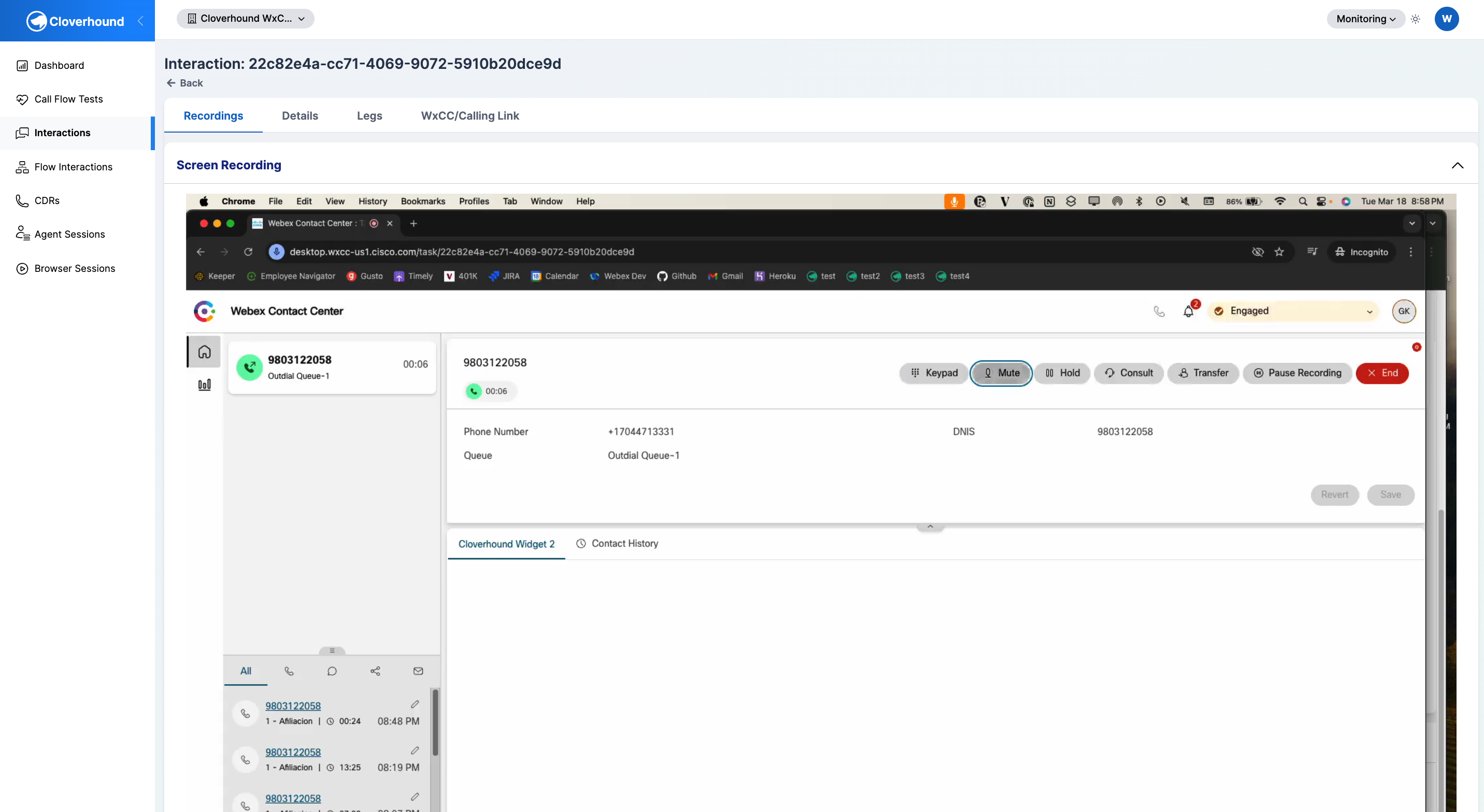
Select an interaction to open its details page. If a screen recording exists for the interaction, it appears in the Screen Recording card near the top of the page. Interactions without a recording show only the audio recording card.
Playing Back a Recording
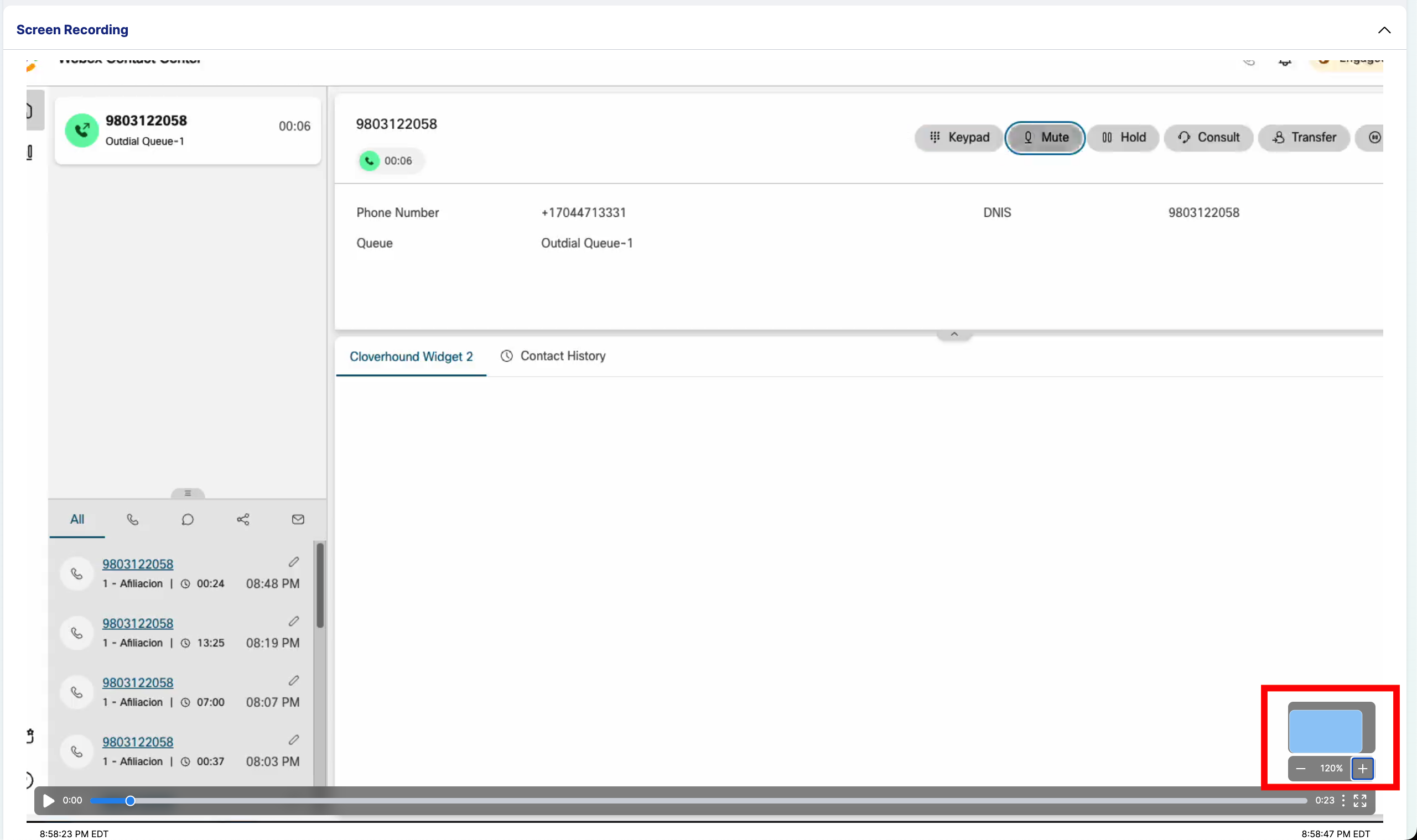
Playback is handled by the Screen Recording card on the interaction details page. The video stays in sync with the audio recording on the same page, so seeking or pausing one updates the other.
-
Open the interaction that contains the recording.
-
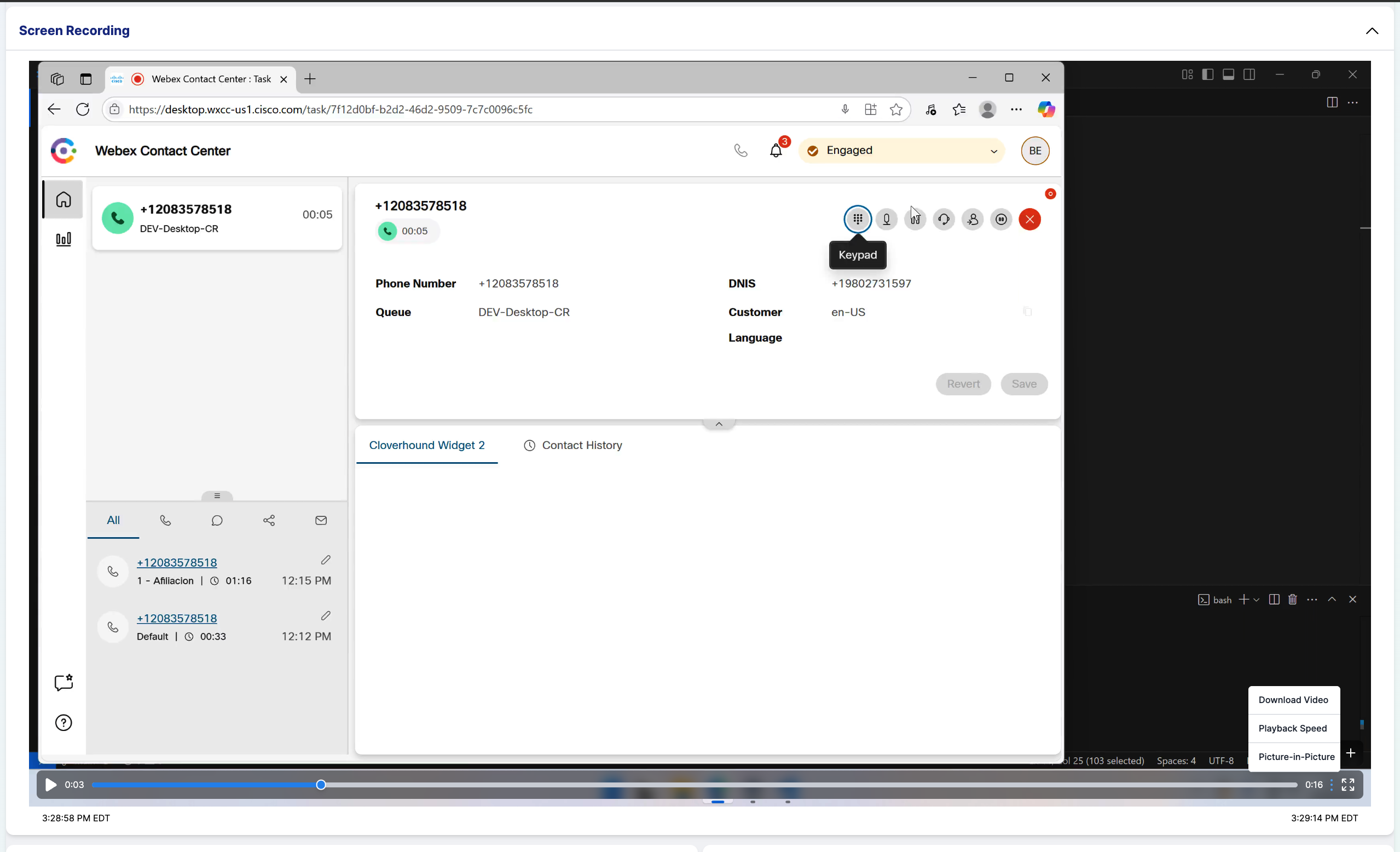
Use the video player controls to play, pause, seek, and adjust playback speed:
- Play / Pause — toggles playback of the screen capture.
- Seek bar — click or drag to jump to a specific point in the recording.
- Playback speed — change the rate at which both the video and the audio recording play.
- Zoom — magnify the video to inspect screen detail. Use the zoom control to zoom in + or out -, then click and drag on the video to pan around the zoomed view.
- Timestamps — the labels beneath the player show the local start and end time of the capture in your organization's time zone.
-
Play the audio recording in the adjacent card. The video jumps to the matching moment automatically, and changes to the playback speed apply to both streams. Pausing either one also pauses the other.
Only the first available screen recording for an interaction is shown. If an agent's session was split across multiple chunks, Cloverhound Cloud merges them into a single video during transcoding before attaching it to the interaction.
Controlling Recording Behavior and Retention
Screen Monitor recording behavior — whether recording is enabled for the organization, how long each recording chunk can be, whether recordings are linked to calls, and desktop-app log retention — is configured by Cloverhound support on your behalf. Contact support to request changes to these settings.
Turning off screen monitor recording does not remove recordings that were already captured. Existing recordings remain attached to their interactions until they are removed through a support request.
Removing a Recording
There is no in-product action to delete an individual screen recording. If you need a recording removed (for example, to honor a data subject request), open a support ticket with Cloverhound Cloud support and include:
- The organization name.
- The interaction or call ID the recording is attached to.
- The reason for the removal request.
Support will remove the recording from storage and detach it from the interaction. Once removed, the Screen Recording card no longer appears on that interaction's details page, and the interaction drops out of results when the Has Screen Monitor Recordings filter is applied.
Recording removal is irreversible. Confirm the correct interaction before submitting the request.
With recordings available on every interaction that has one, a single filter on the Interactions page, and a small set of application settings to control capture and retention, you can find, review, and govern screen recordings without leaving Cloverhound Cloud.