Managing Call Flow Tests
Call Flow Tests are end-to-end synthetic tests that place real calls into your platform and verify that each step behaves as expected. Use them to catch breakage in IVRs, auto attendants, queues, and agent routing before your callers do. This page covers how to create, edit, enable or disable, and delete the top-level test definition. Each test is a container for Test Cases, Schedules, and Runs.
Accessing Call Flow Tests
-
Navigate to the Monitoring module.
-
Open the Call Flow Tests page.
-
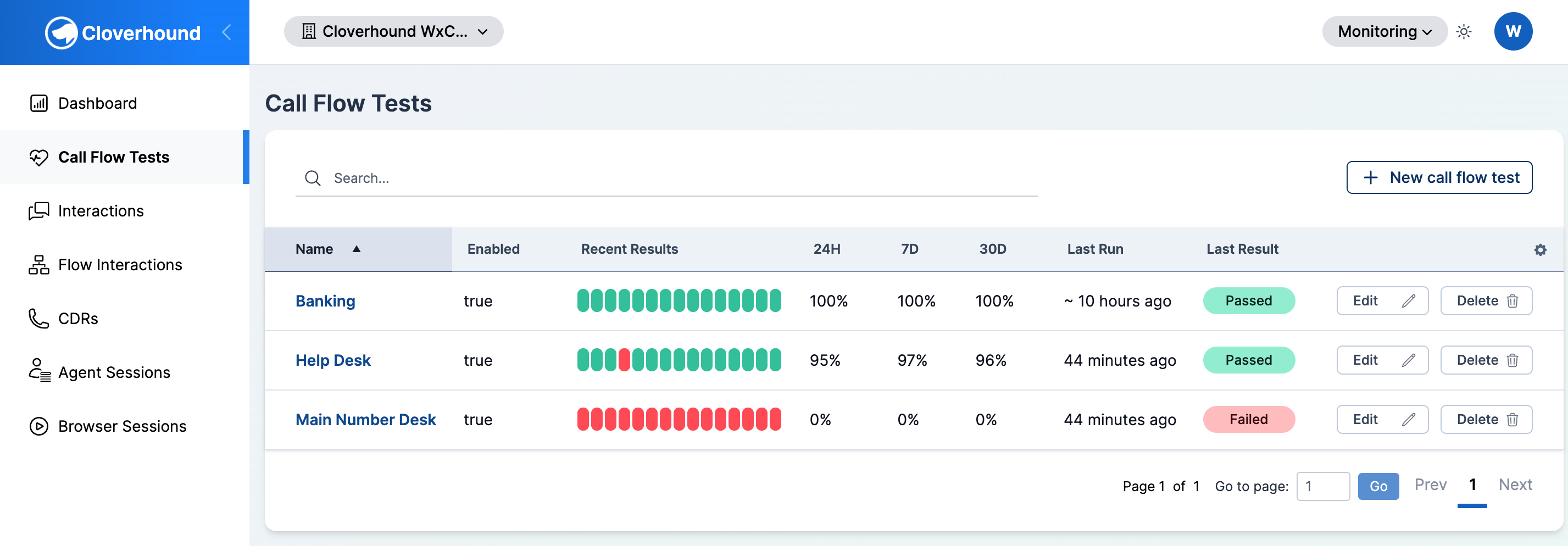
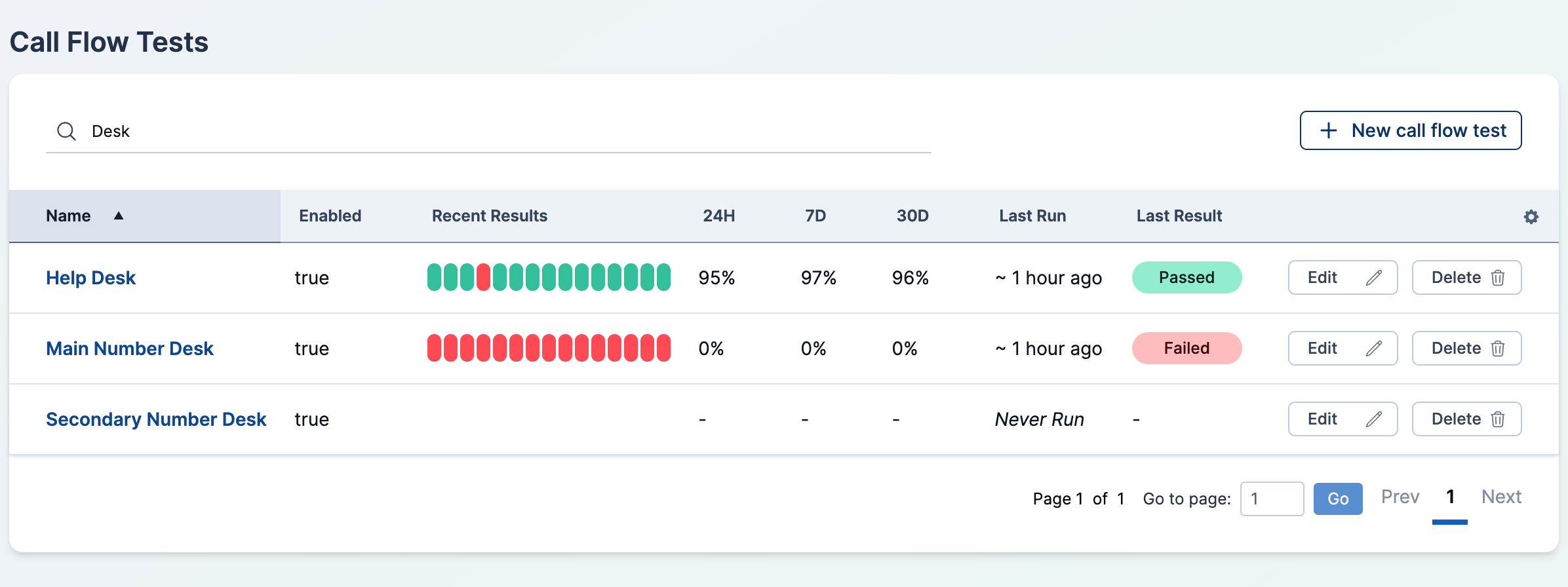
Review the table. Each row summarizes one test:
- Name — the label you gave the test. Click it to open the detail page.
- Enabled —
trueif the test runs on its schedule,falseif paused. - Recent Results — a strip of up to 15 colored dots, one per recent run. Hover a dot to see the run's outcome, failure reason, and timestamp; click to jump to the run detail.
- 24H, 7D, 30D — pass rate over the last 24 hours, 7 days, and 30 days. A dash (
-) means no completed runs in that window. - Last Run — relative time of the most recent completed run, or
Never Runif the test has never executed. - Last Result — a status pill showing whether the last run passed, failed, or ended in another state.
Creating a Call Flow Test
-
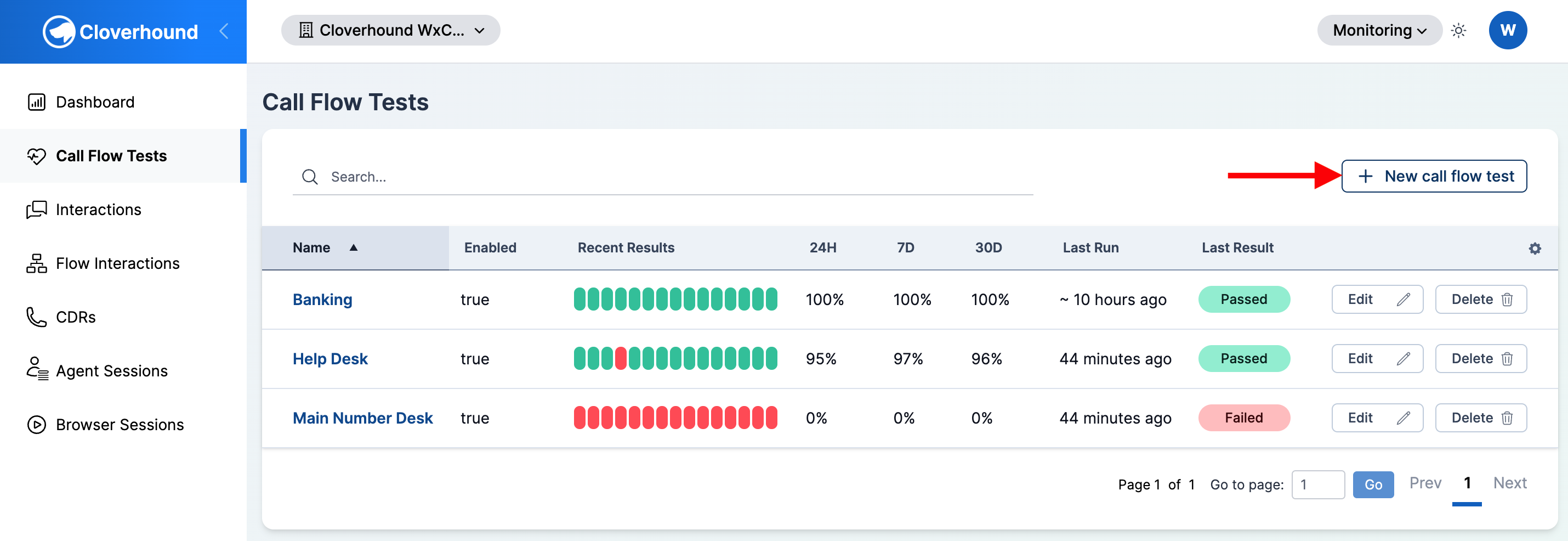
Click the New call flow test button in the top right of the index page.
-
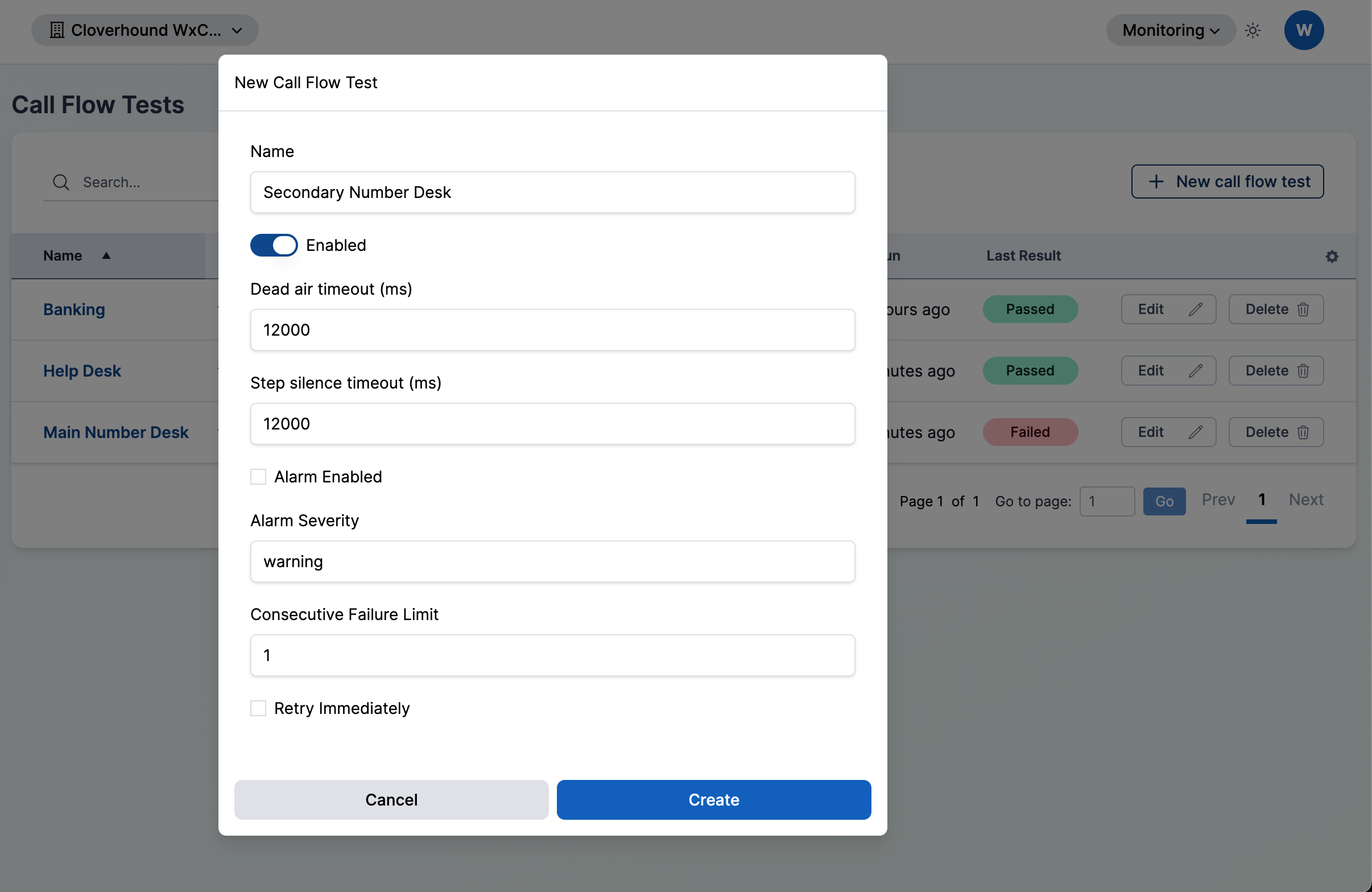
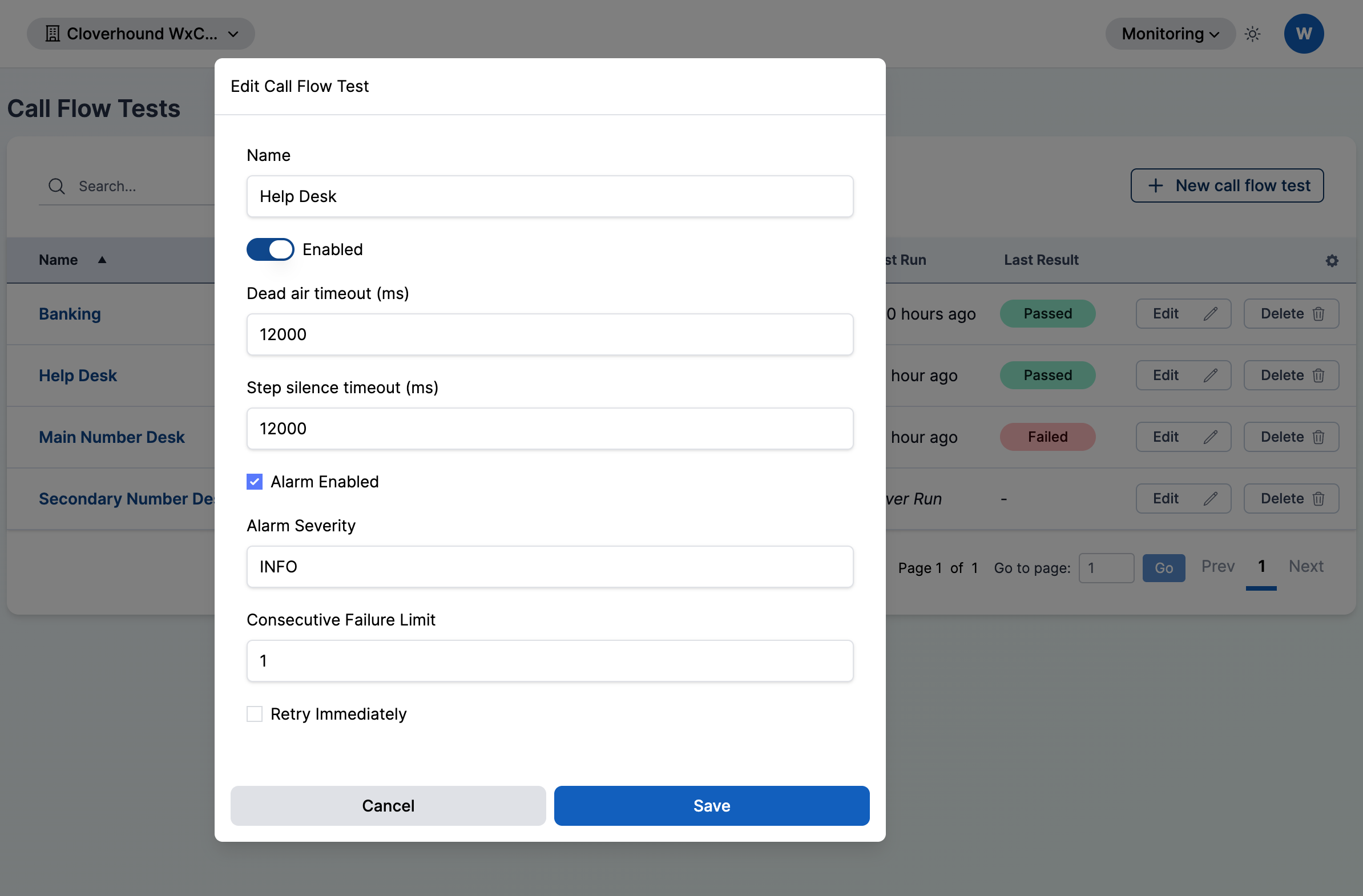
Fill out the form:
- Name — a short, descriptive label for the test. Required.
- Enabled — toggle that controls whether schedules attached to this test run automatically. Leave off while you are still configuring test cases.
- Dead air timeout (ms) — maximum silence tolerated on the call before the run fails. Defaults to
12000(12 seconds). Minimum5000. - Step silence timeout (ms) — maximum silence tolerated within a single test case step. Defaults to
12000. Minimum5000. - Alarm enabled — when checked, failed runs raise an alarm visible in the platform's alerting surfaces.
- Alarm severity — free-text severity label attached to raised alarms (for example,
criticalorwarning). - Consecutive failure limit — number of back-to-back failed runs that must occur before the alarm fires. Minimum
1. - Retry immediately — when checked, a failed run is retried once right away instead of waiting for the next scheduled run.
-
Click Save.
After saving, Cloverhound Cloud returns you to the index page with the new test listed. Open it to add test cases and schedules.
Opening a Call Flow Test
-
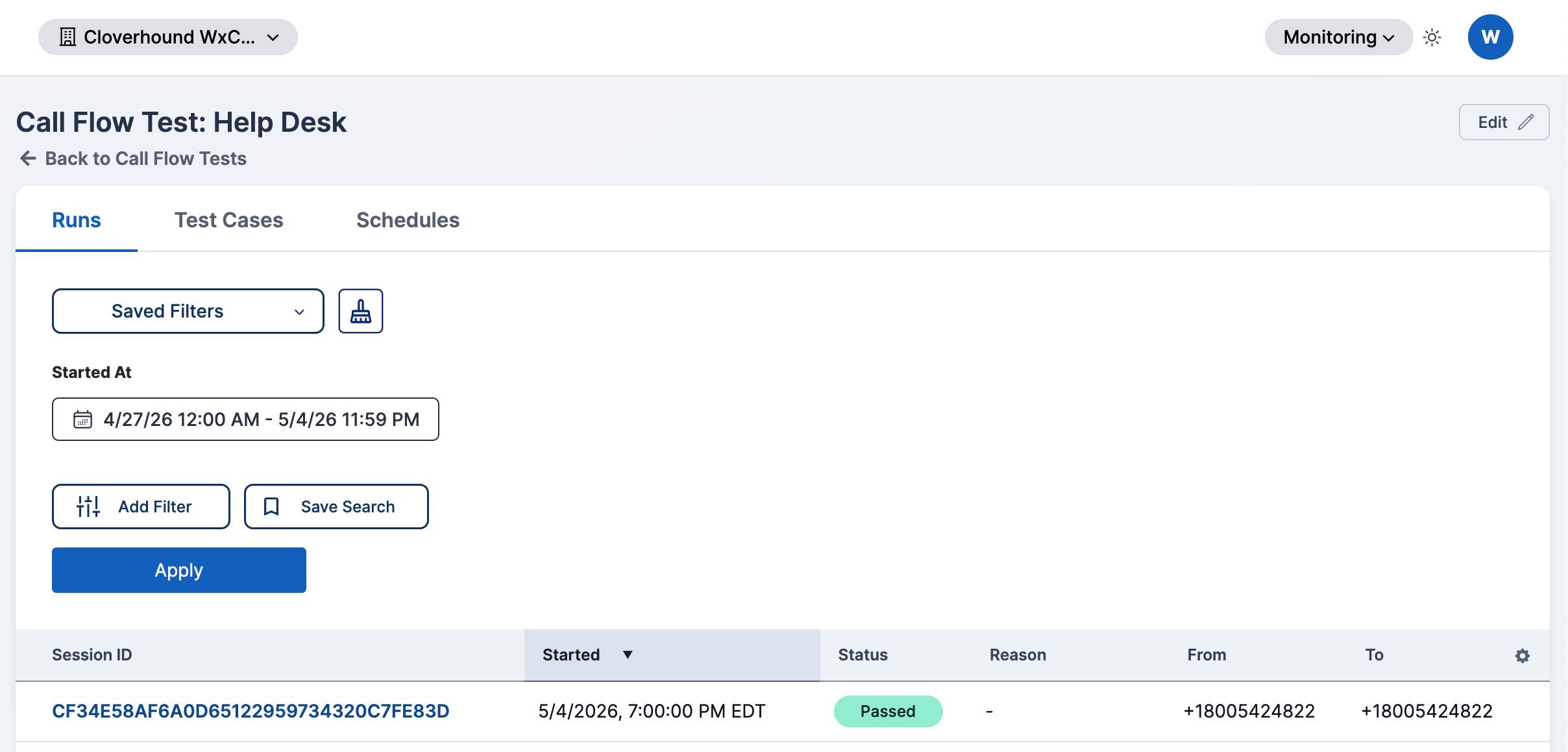
Click the test's name in the table to open its detail page.
-
Use the tabs to work with the test's contents:
- Runs — history of past runs, pass/fail status, and drill-down into individual run steps. See Viewing Runs.
- Test Cases — the individual call scripts evaluated on each run. See Managing Test Cases.
- Schedules — when and how often the test runs. See Managing Schedules.
Editing a Call Flow Test
-
Click the Edit button on the test's row in the index, or use the Edit button in the top right of the detail page.
-
Update any of the fields described in Creating a Call Flow Test.
-
Click Save.
Enabling or Disabling a Call Flow Test
The Enabled toggle on the test form controls whether scheduled runs fire. Disabling a test leaves its configuration, test cases, schedules, and run history intact; it only pauses automatic execution.
- Click Edit on the test.
- Toggle Enabled off (to pause) or on (to resume).
- Click Save.
Disabled tests are skipped on the index page's status summary and do not contribute to the 24H, 7D, or 30D pass-rate columns.
Deleting a Call Flow Test
-
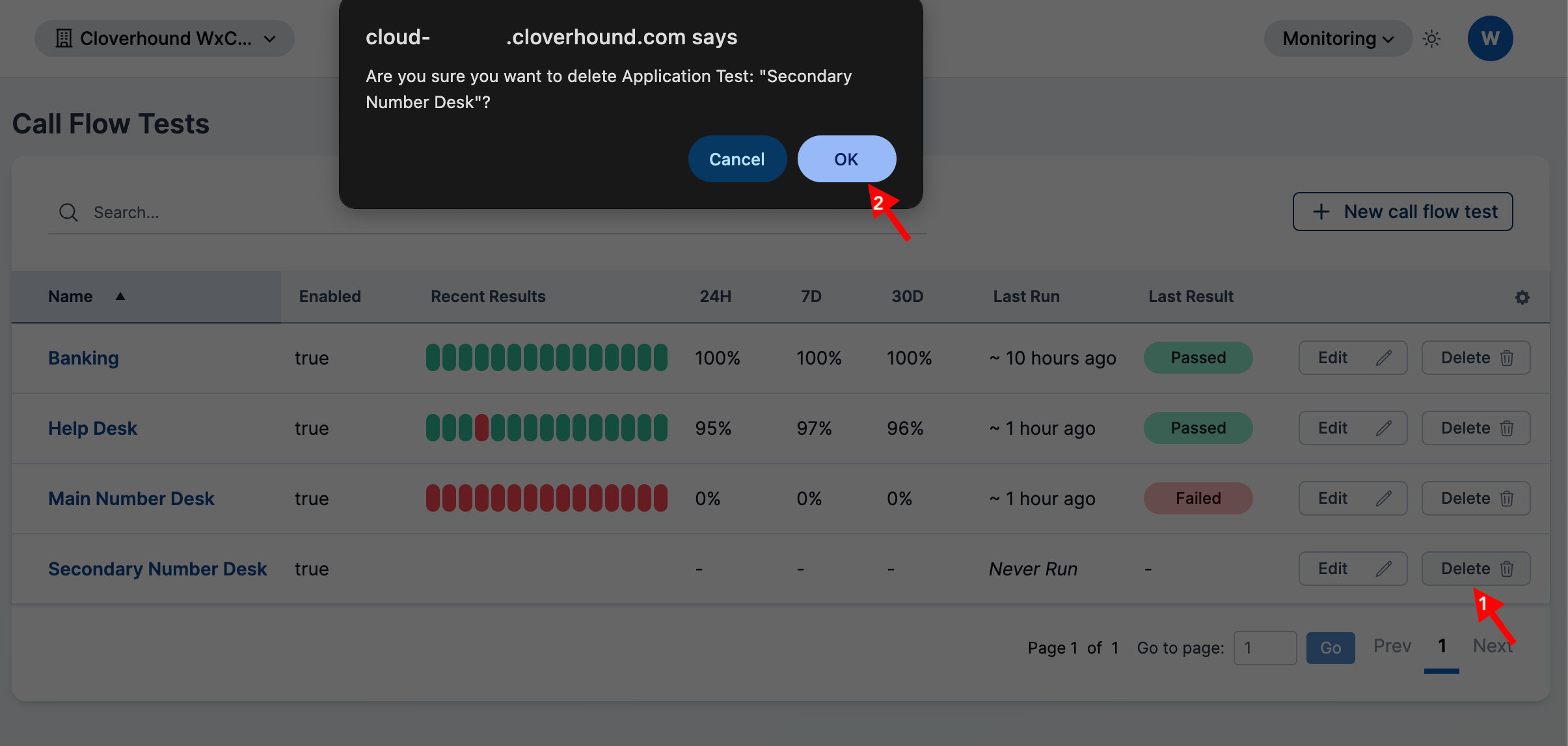
Click the Delete button on the test's row in the index.
-
Confirm the action in the prompt.
Deleting a test permanently removes its test cases, schedules, and complete run history. This action cannot be undone. If you only want to stop the test from running, disable it instead.
Searching and Sorting
-
Search by name using the search box above the table. Results update as you type and the page resets to the first page of results.
-
Sort by clicking a column header. The Name, Enabled, 24H, 7D, 30D, Last Run, and Last Result columns are all sortable. Click the same header again to toggle ascending or descending order.
With a Call Flow Test defined, continue by adding Test Cases that describe the calls to place and the prompts to verify, then attach Schedules to run it on a cadence.