Managing Test Schedules
Application test schedules run an Application Test on a recurring basis so your team does not have to trigger each run by hand. A schedule ties a single Application Test to a cadence (every few minutes, hours, or days), a source and destination phone number, a set of active weekdays, and an optional time-of-day window.
Schedules are managed from the Schedules tab of an individual Application Test. Each test can have multiple schedules, which is useful for covering different numbers, hours, or subsets of test cases.
Accessing the Schedules tab
-
Navigate to the Monitoring module and open Application Tests.
-
Click the test you want to schedule.
-
Select the Schedules tab.
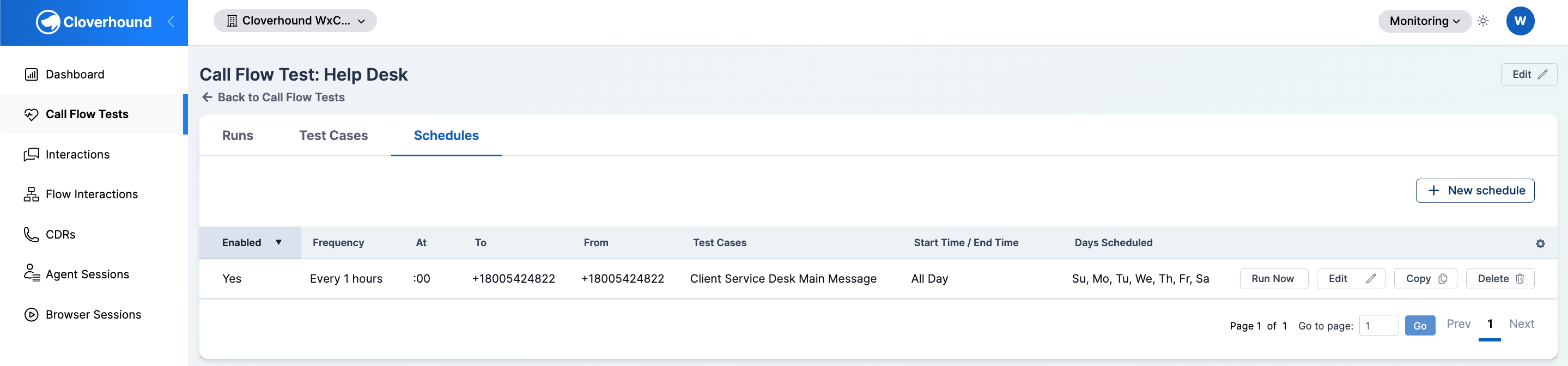
The tab lists every schedule defined for the test, with its cadence, numbers, time window, active days, and enabled status.
Creating a Schedule
-
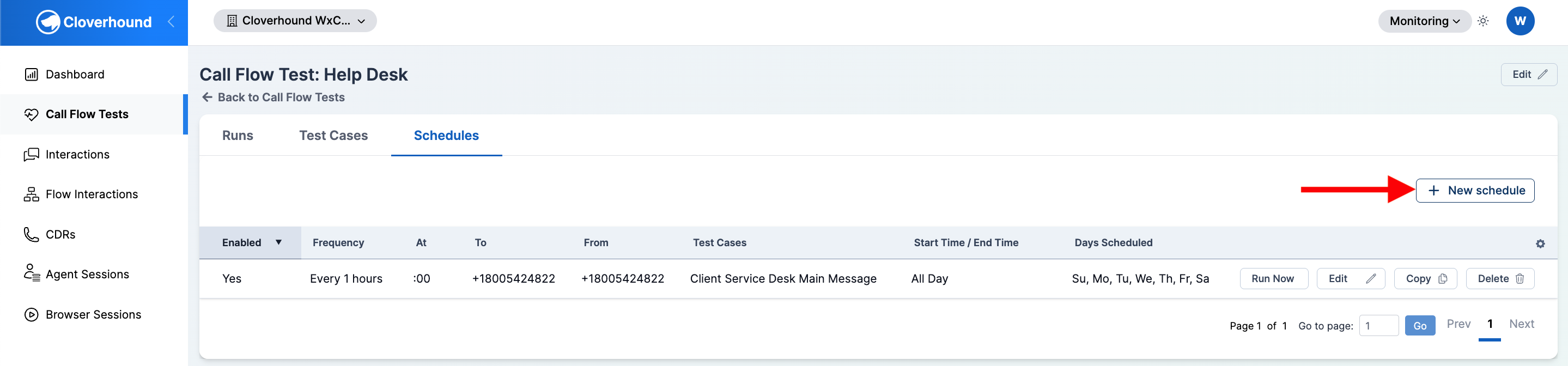
Click the + New schedule button in the top right of the Schedules tab.
-
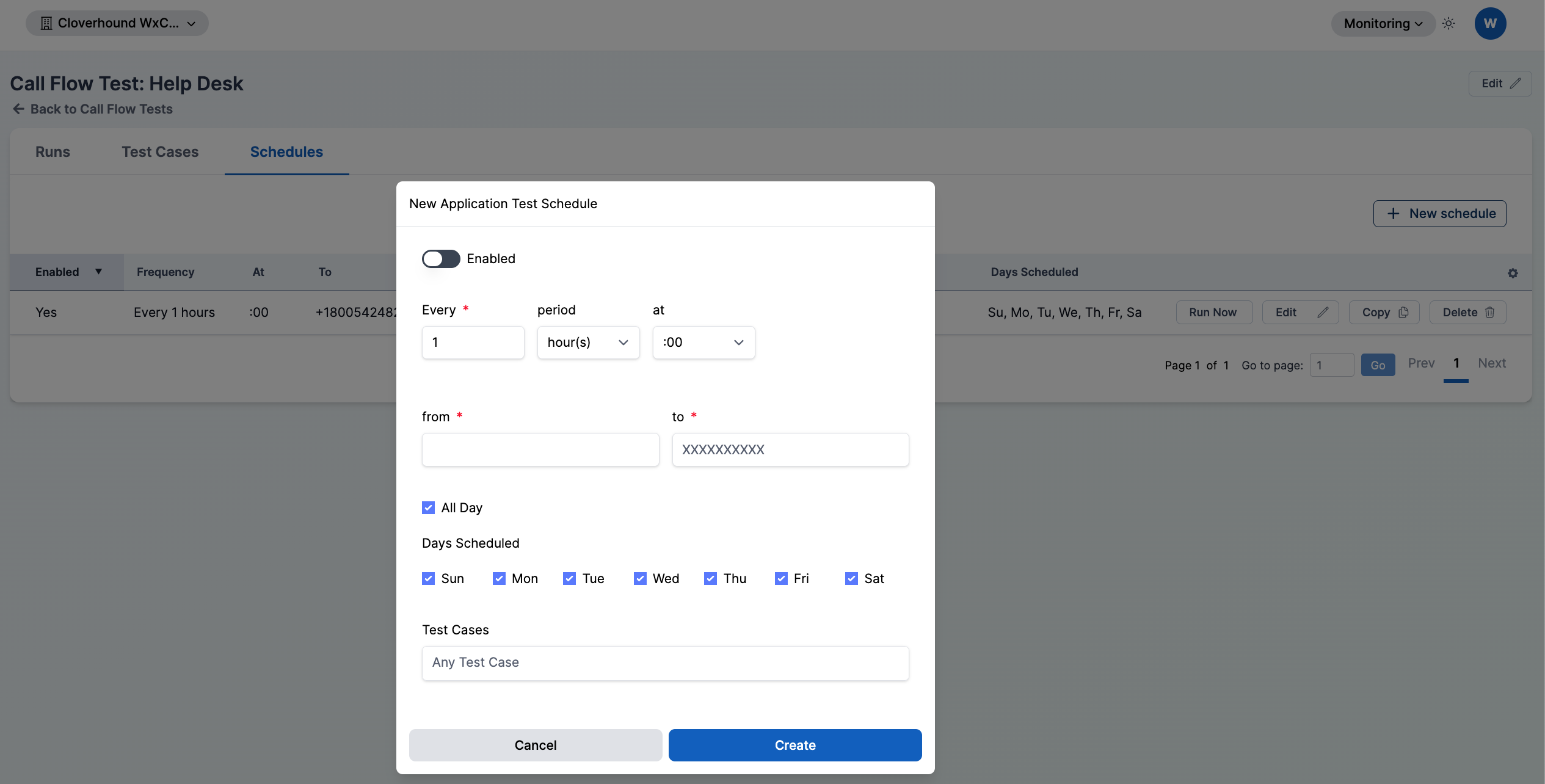
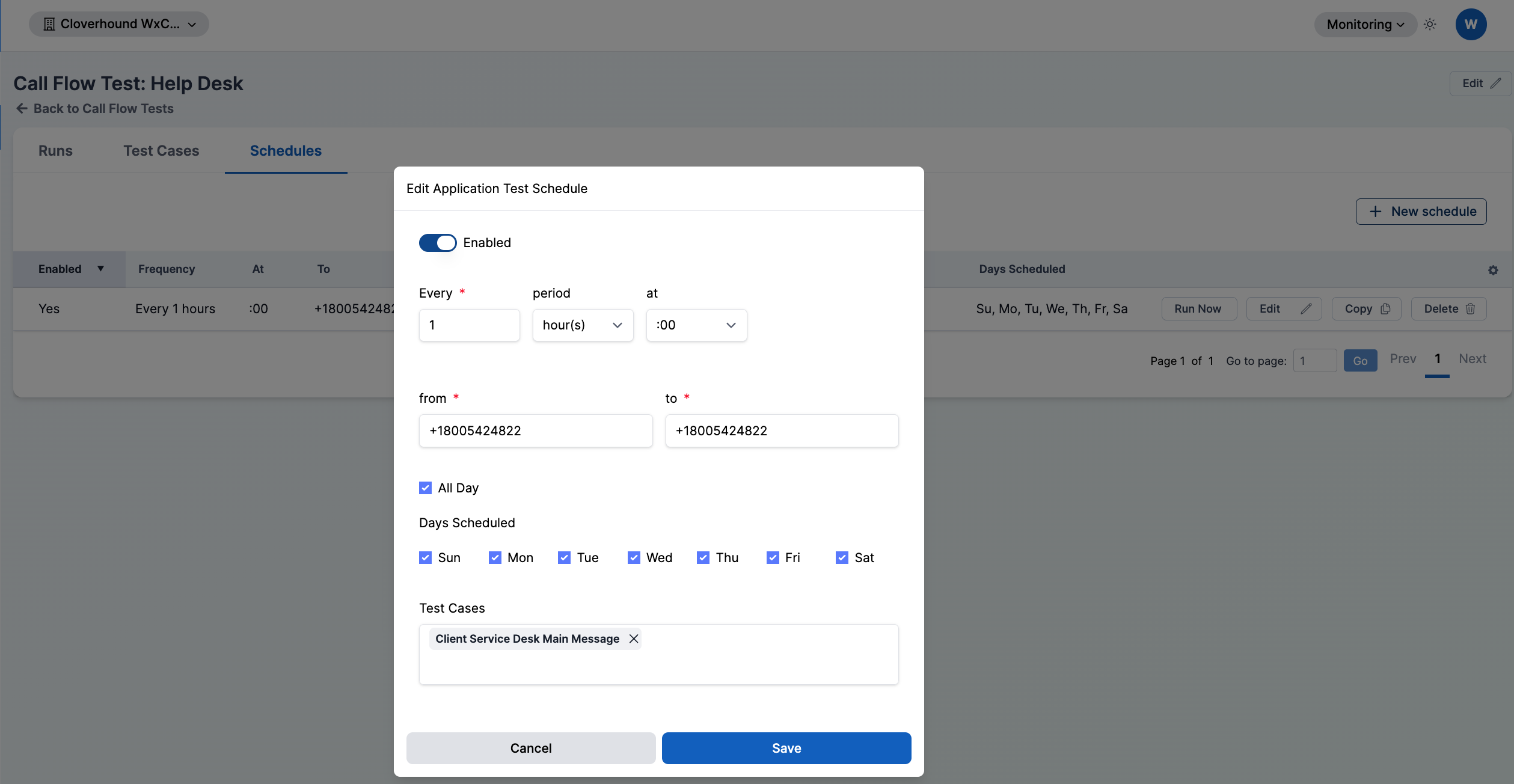
Fill out the schedule form:
-
Enabled — toggle the schedule on or off. Disabled schedules stay configured but do not run.
-
Every and period — set the cadence. Pick a number and a period of hour(s) or day(s). minute(s) is available only if your organization has per-minute scheduling enabled.
- at — when the cadence is every 1 hour, pick the minute within the hour to fire (for example,
:15). - starting at — when the cadence is multiple hours or any number of days, pick the time of day the sequence starts from.
- at — when the cadence is every 1 hour, pick the minute within the hour to fire (for example,
-
from — the source phone number the test call is placed from.
-
to — the destination phone number the test calls.
-
All Day — when checked, the schedule is eligible to run at any time on its active days. Uncheck to expose Start Time and End Time and restrict runs to a window.
-
Days Scheduled — check the weekdays the schedule is active on. All seven days are selected by default.
-
Test Cases — pick one or more test cases to run. Leave empty to run every test case defined on the test.
-
-
Click Save.
The new schedule appears in the table and begins running on its next matching tick, in the organization's time zone.
Phone numbers must be valid US or Canadian numbers unless international dialing is enabled for your organization.
Editing, Copying, and Deleting
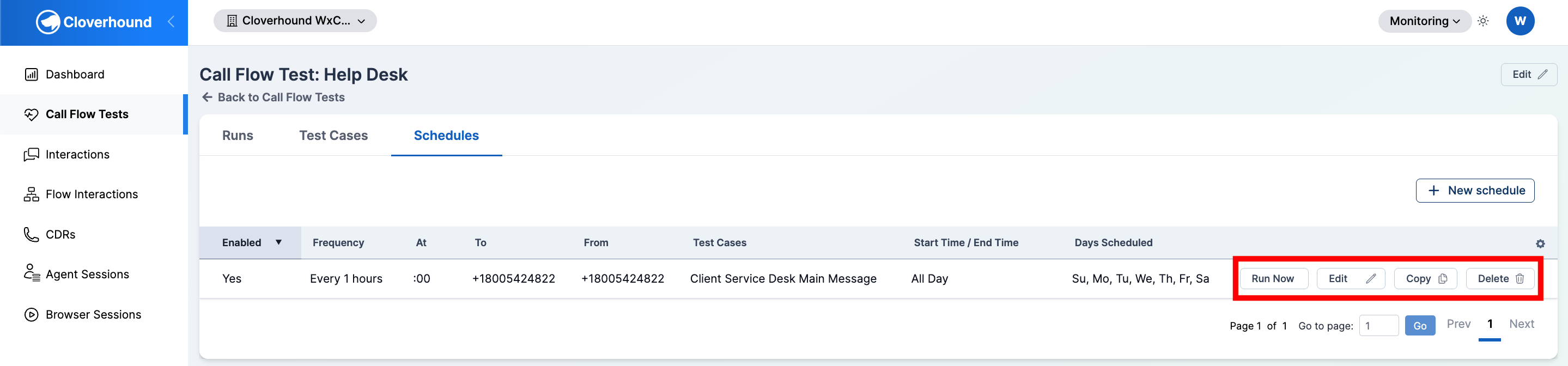
Each row in the Schedules tab has actions on the right side:
-
Run Now — triggers an immediate run of the schedule, independent of its cadence. Useful for verifying a new configuration.
-
Edit — opens the schedule form with its current values.
-
Copy — opens the form prefilled from an existing schedule as a new schedule. Useful for covering a second number or a different time window.
-
Delete — removes the schedule. Past runs remain on the Runs tab.
Editing a Schedule
To change a schedule's cadence, numbers, time window, days, or test cases, click Edit on the row to reopen the schedule form prefilled with its current values. Adjust any fields and click Save to apply the changes on the next matching tick.
Enabling and Disabling
To pause a schedule without losing its configuration, edit it and turn off the Enabled toggle. Disabled schedules remain in the table for reference and can be re-enabled at any time.
Deleting a schedule is permanent. If you only need to pause it, disable it instead.
Once saved, a schedule runs its Application Test automatically on the cadence and days you set, and each execution appears on the test's Runs tab for review.