Kiosk Tokens and Playlists
A kiosk display shows a dashboard on a screen that nobody operates, such as a TV on a contact center wall. It opens from a private web address, so the screen never needs a username or password. This page explains how organization administrators create those addresses and how to rotate several dashboards on one screen.
Two things make this work:
- A kiosk token is an address for one dashboard.
- A kiosk playlist is an address that rotates through several dashboards.
Both are managed by organization administrators. The Kiosk Tokens and Kiosk Playlists pages only appear for administrators.
Anyone who has a kiosk address can see that dashboard without signing in. Treat the address like a password, and only share it with the screens that should show it. If an address is shared by mistake, or a screen is lost, revoke it.
A kiosk display never shows the stat panel links described in Opening the Records Behind a Number. It is meant for watching numbers, not for navigating.
Choosing Dashboards for a Screen
Any dashboard in your organization can be shown. Dashboards built for a wall display work best:
- Queue Wallboard: a live queue board.
- Agent Status Grid: live agent states.
- Contact Center Overview: live call and agent tiles with today's totals.
See Sharing Dashboards and Using Templates for the full list of templates.
Creating a Kiosk Token
-
Navigate to the Dashboards module.
-
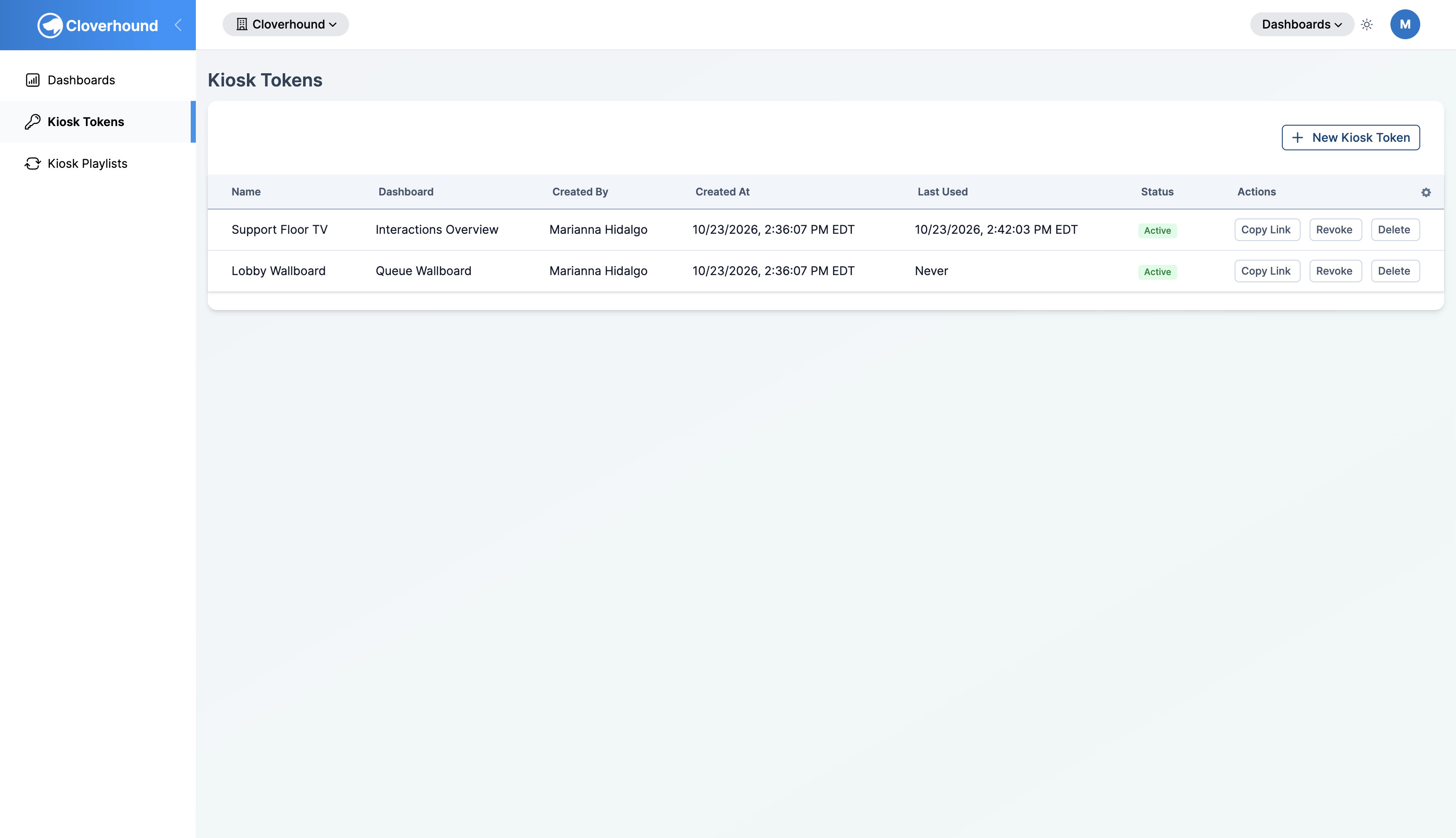
Open the Kiosk Tokens page.
-
Click New Kiosk Token.
-
Fill in the form:
- Token Name (optional): a label to recognize the screen, for example
Lobby TV. - Dashboard (optional): the dashboard this address shows. If you leave it blank, the token is created without a dashboard yet.
- Variable Bindings (optional JSON): leave this empty unless Cloverhound Support asks you to use it.
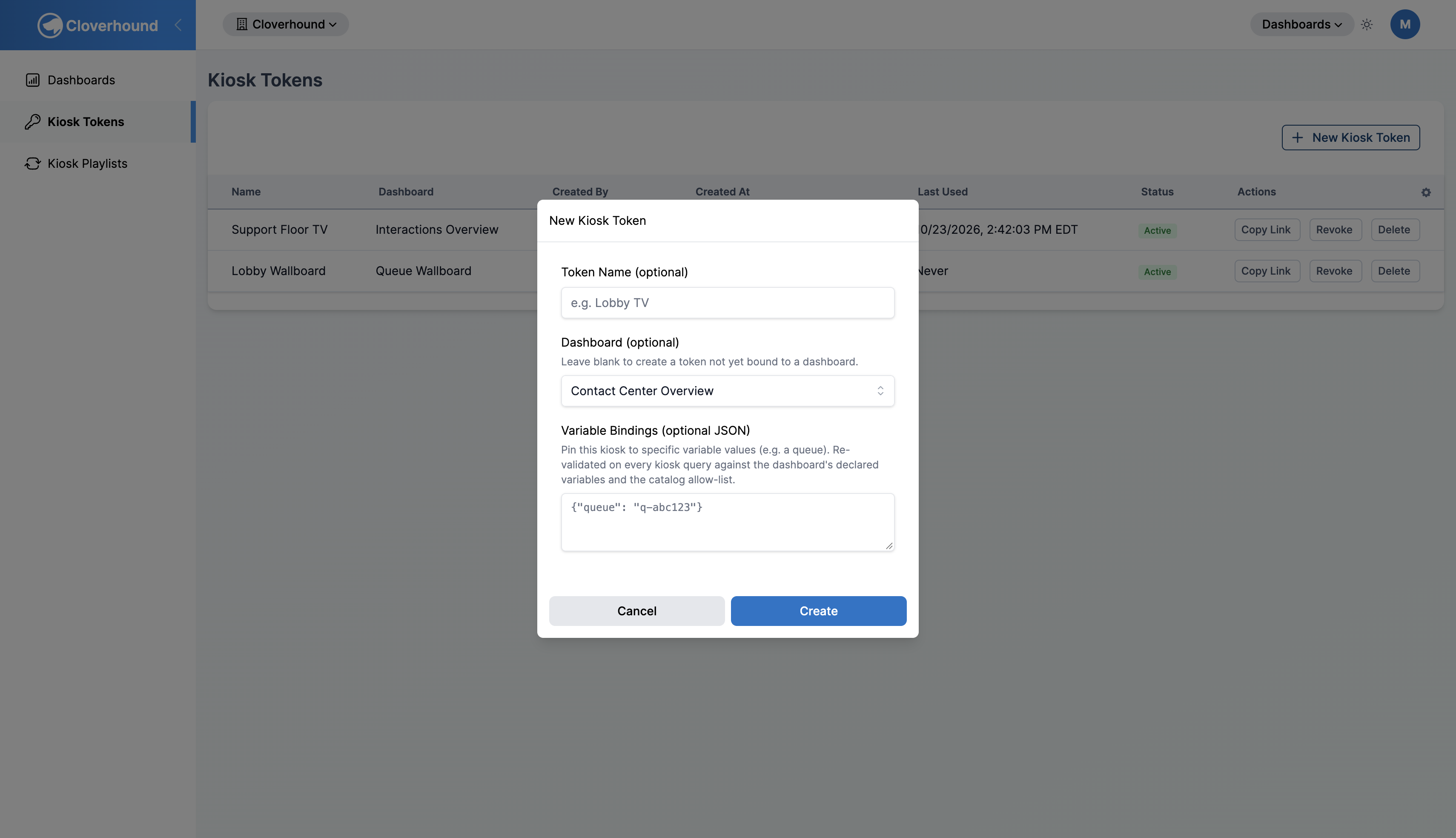
- Token Name (optional): a label to recognize the screen, for example
-
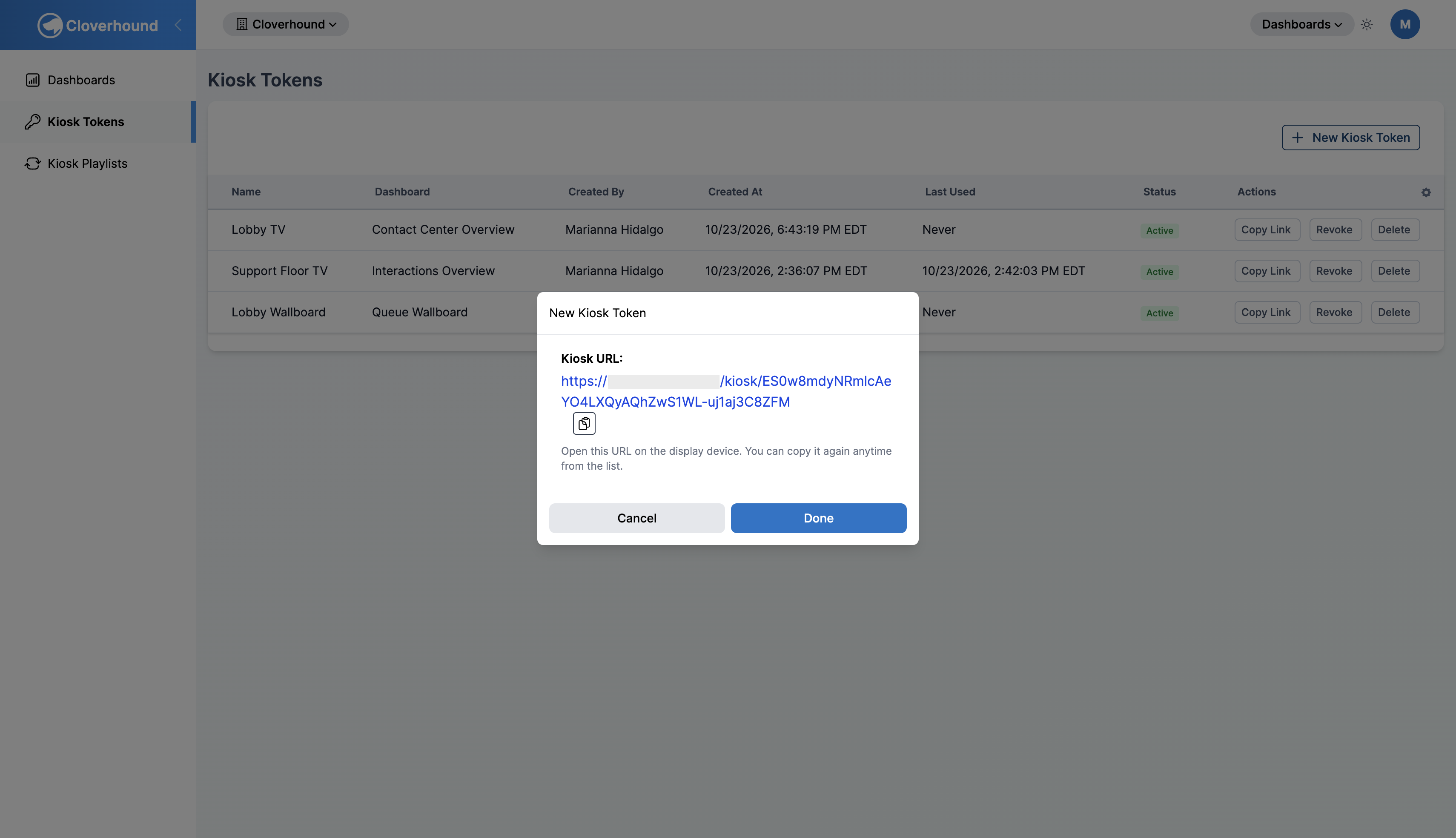
Click Create. The confirmation shows the Kiosk URL.
-
Copy the Kiosk URL and open it in the browser of the screen that will show the dashboard.
You can copy a token's address again later from the Kiosk Tokens page with Copy Link.
What the Token List Shows
| Column | Meaning |
|---|---|
| Name | The label you entered. |
| Dashboard | The dashboard the address shows. |
| Created By | The administrator who created it. |
| Created At | When it was created, in your organization's time zone. |
| Last Used | When a screen last opened it. |
| Status | Active, or Revoked with the revocation date. |
| Actions | Copy Link, Revoke, and Delete. |
If you have not created any, the page shows No kiosk tokens yet.
Creating a Kiosk Playlist
A playlist shows its dashboards one after another and starts over at the end.
-
Navigate to the Dashboards module.
-
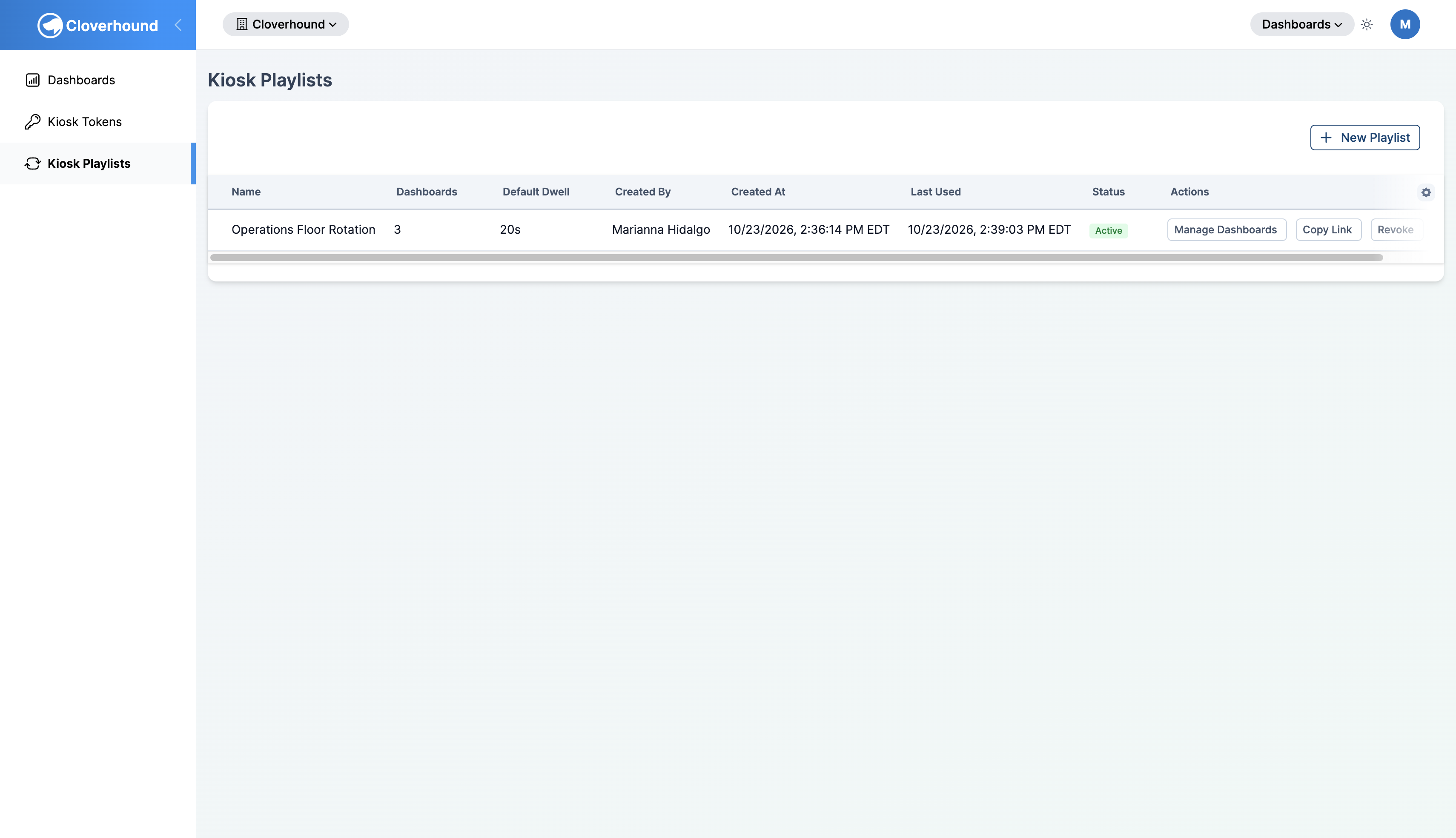
Open the Kiosk Playlists page.
-
Click New Playlist.
-
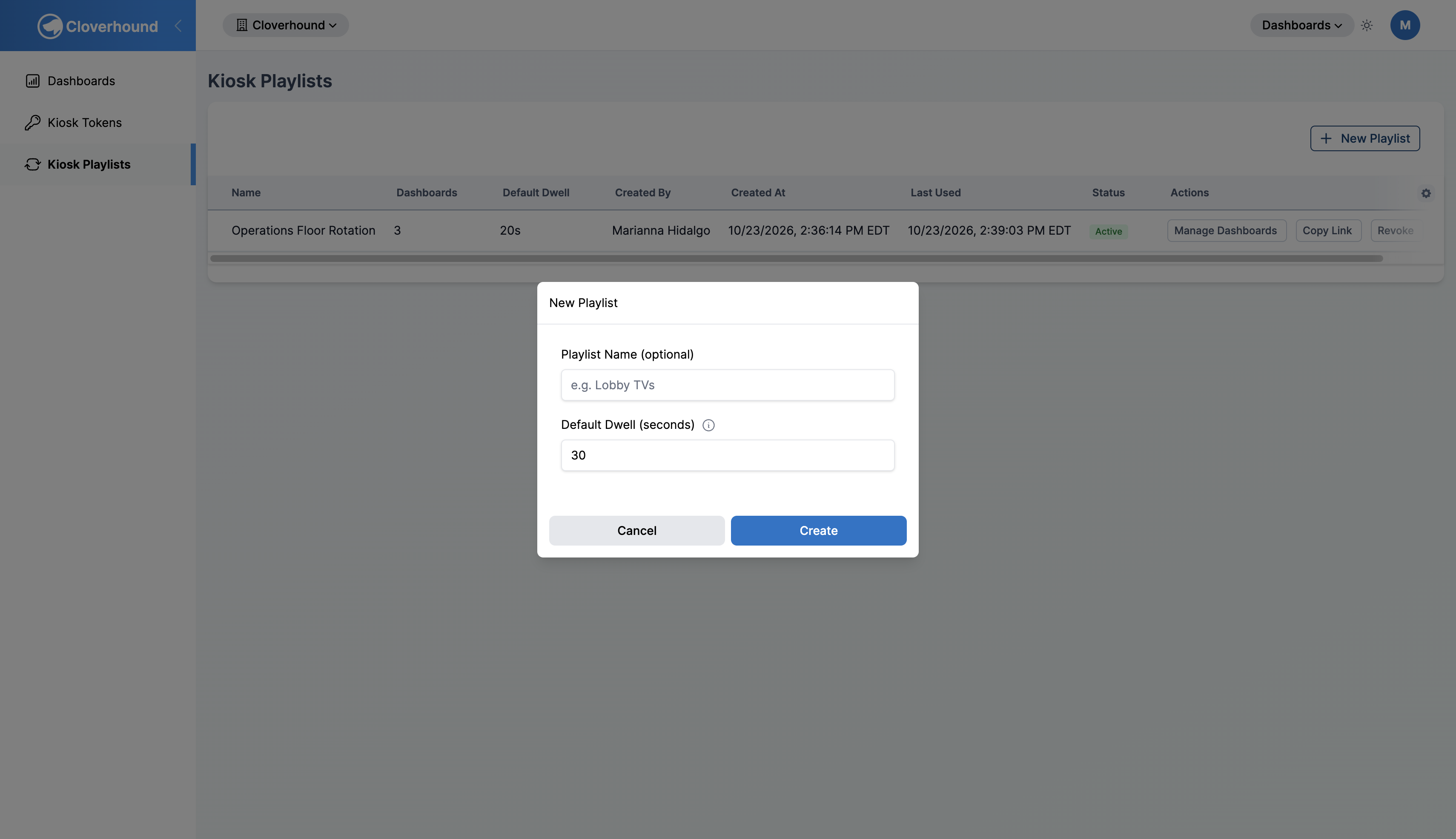
Fill in the form:
- Playlist Name (optional): a label, for example
Lobby TVs. - Default Dwell (seconds): how long each dashboard displays before the next one appears. Individual dashboards can override it.
- Playlist Name (optional): a label, for example
-
Click Create. The confirmation shows the Playlist URL. Copy it for the screen.
Choosing the Dashboards in a Playlist
-
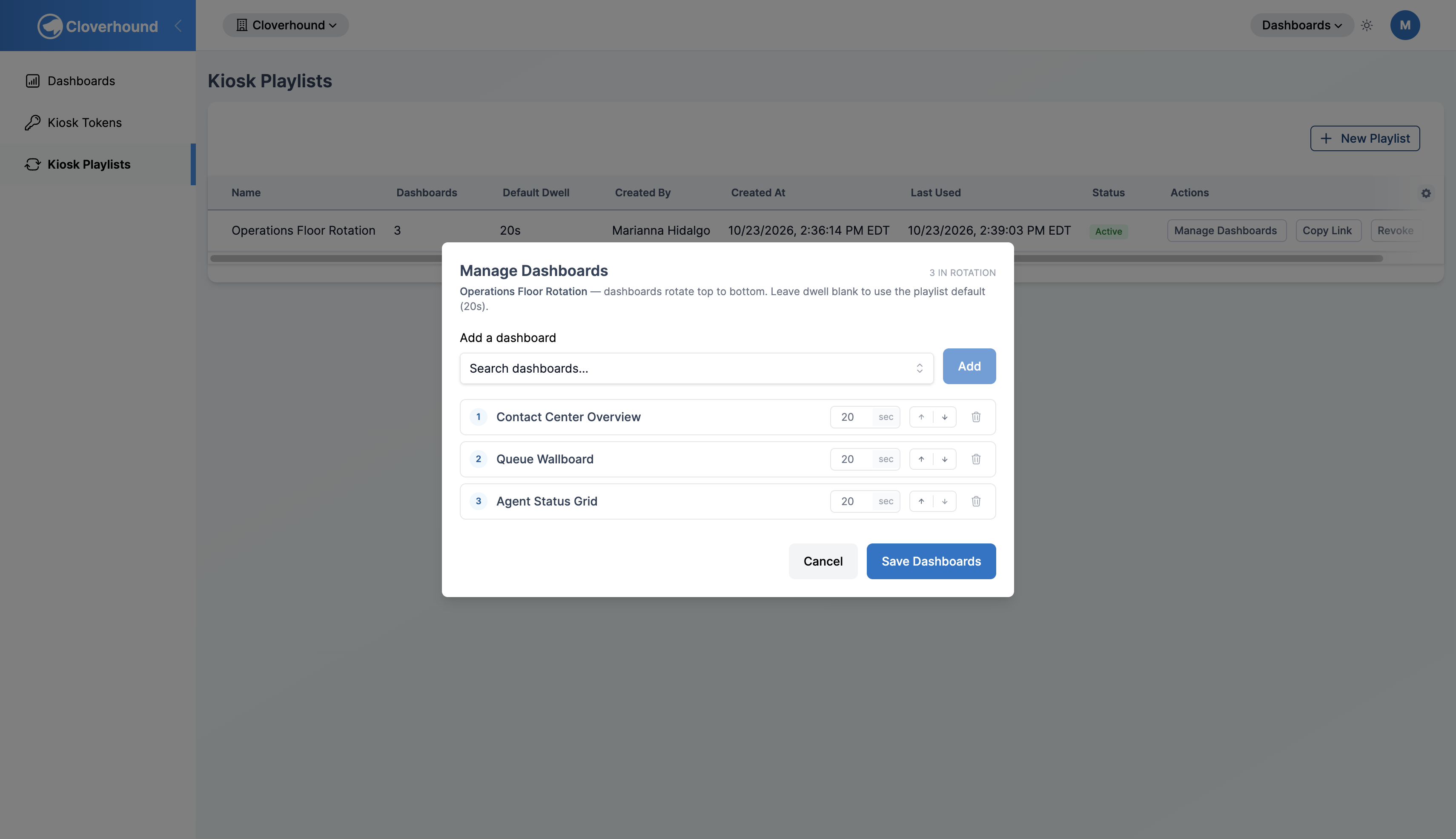
Click Manage Dashboards on the playlist's row.
-
Choose a dashboard under Add a dashboard and click Add. Repeat for each dashboard.
-
Reorder the list with Move up and Move down. Dashboards rotate from top to bottom.
-
Set a dwell time on any dashboard that should stay on screen for a different time. Leave it blank to use the playlist's default.
-
Remove a dashboard with its Remove dashboard control.
-
Click Save Dashboards. The page confirms with Playlist dashboards updated.
What the Playlist List Shows
| Column | Meaning |
|---|---|
| Name | The label you entered. |
| Dashboards | How many dashboards the playlist rotates through. |
| Default Dwell | The default time on each dashboard, in seconds. |
| Created By, Created At, Last Used | Who created it, when, and when a screen last opened it. |
| Status | Active, or Revoked with the revocation date. |
| Actions | Manage Dashboards, Copy Link, Revoke, and Delete. |
If you have not created any, the page shows No kiosk playlists yet.
What the Screen Shows
The screen opens the dashboard full width, with your organization's name, a Live indicator, and a clock. It refreshes by itself, the same way a dashboard does in your own browser, and uses a dark theme that is easy to read from a distance.
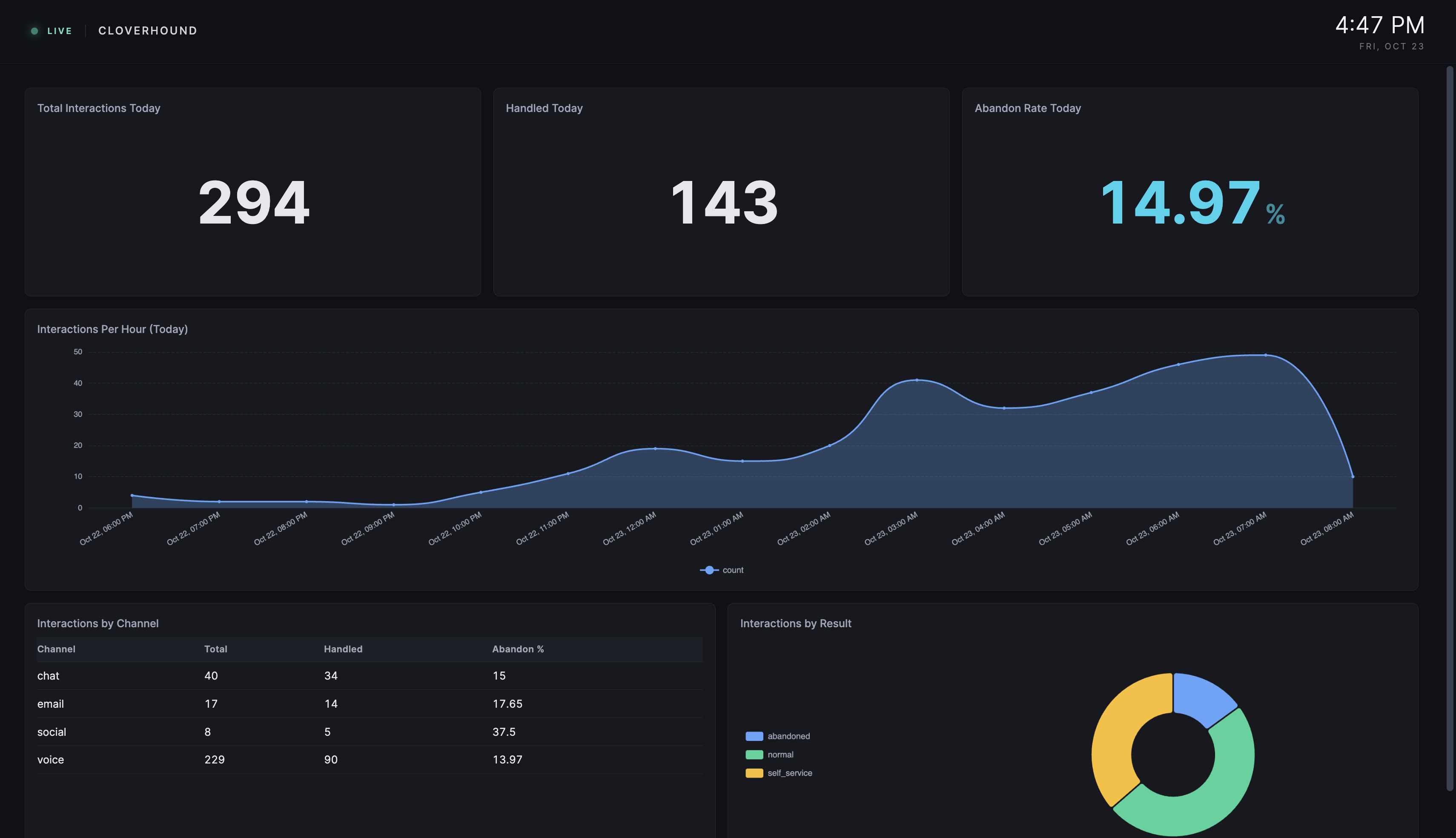
A playlist shows only the dashboard that is currently on screen, then moves to the next one after its dwell time.
If a token has no dashboard yet, or a playlist has none, the screen shows a message instead: Nothing to display yet or No dashboards in this playlist.
Revoking or Deleting an Address
- Open the Kiosk Tokens or Kiosk Playlists page.
- Click Revoke on the row. Cloverhound Cloud asks you to confirm, because the address stops working immediately on every screen that uses it. The page confirms with Kiosk token revoked. or Playlist revoked.
- Click Delete if you also want to remove the row. This cannot be undone.
A revoked address cannot be turned back on. Create a new token or playlist and update the screen with the new address.