Sharing Dashboards and Using Templates
Every dashboard has a visibility setting that decides who can open it. This page explains the three visibility options, how to share a dashboard with specific people or roles, how cloning works, and what the ready-made templates contain.
Who Can See a Dashboard
| Visibility | Who can view the dashboard |
|---|---|
| Personal | Only you (the creator). Organization administrators can also see it. |
| Everyone | Every member of your organization. |
| Restricted | Only the people and roles you grant access to. |
A new dashboard starts as Personal. Only organization administrators and the person who created a dashboard can change its visibility. Templates cannot be shared or changed.
Changing Visibility from the List
The actions on a dashboard's card depend on what you are allowed to do. If you can manage the dashboard, its card shows Make public or Make private, Share, and Delete, along with Clone.
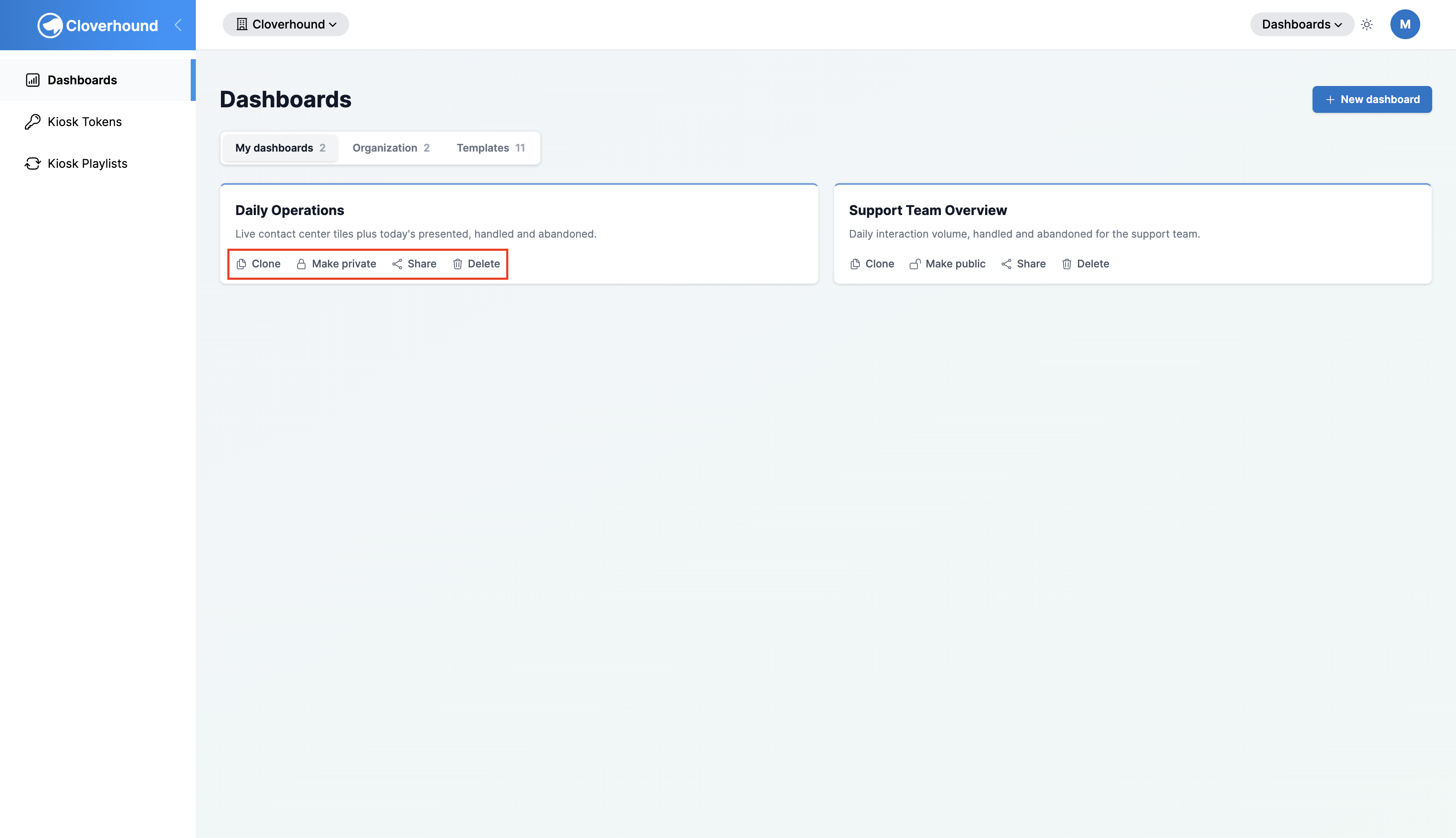
- Make public changes a Personal dashboard to Everyone.
- Make private changes an Everyone or Restricted dashboard back to Personal.
Use Share when you want something in between.
Sharing with Specific People or Roles
-
Go to the Dashboards page.
-
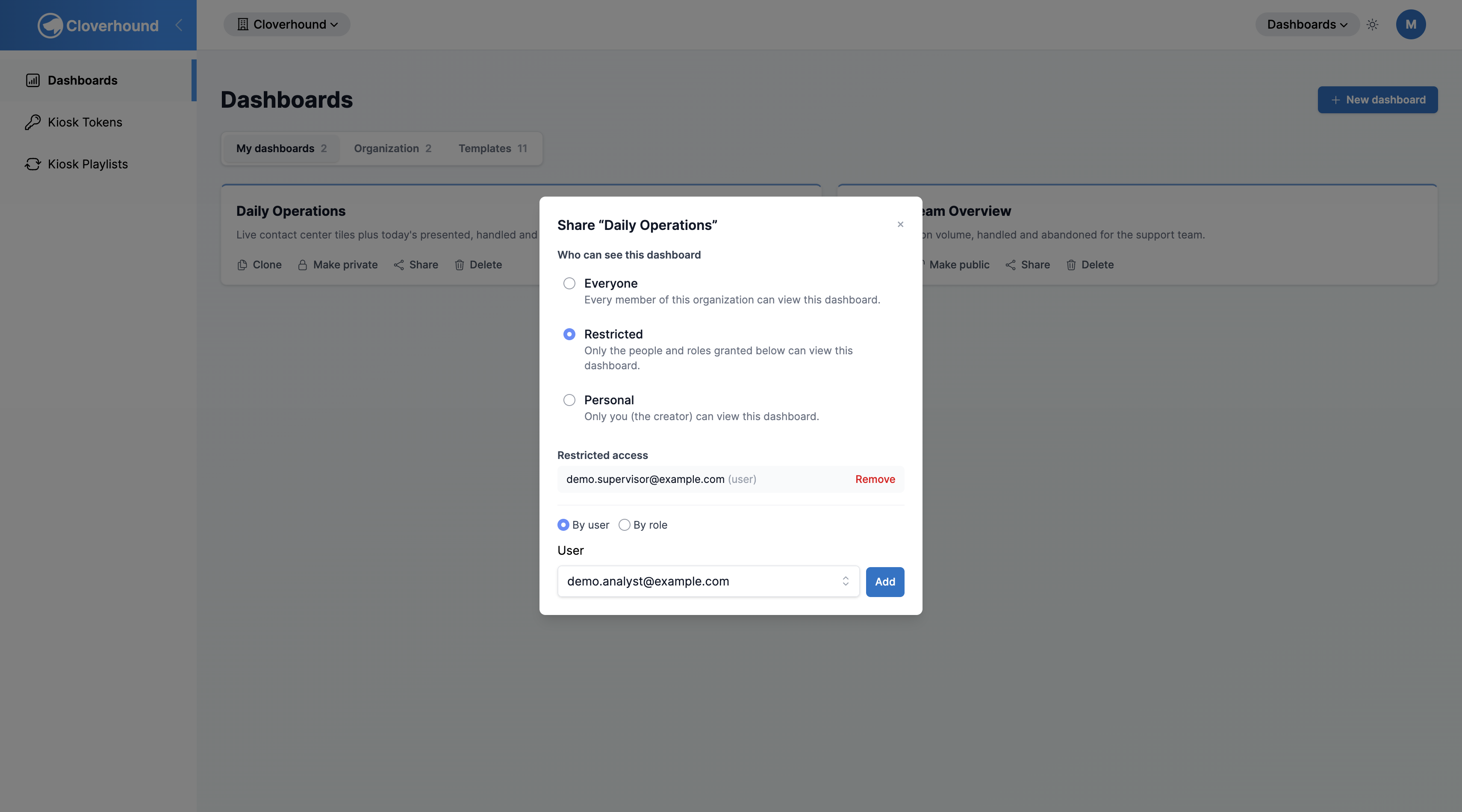
Click Share on the dashboard's card. The Share dialog opens.
-
Select Restricted under Who can see this dashboard.
-
Choose how to grant access: By user or By role.
-
Pick the person or role.
- For By user, use the User list and select someone by email. Only members of your organization appear.
- For By role, use the Role list. It offers the roles held by members of your organization.
-
Click Add.
The dialog lists everyone who has access, marked (user) or (role). To take access away, click Remove next to the entry. If nobody has been added yet, the dialog says No one has been granted access yet.
Access grants only take effect while the dashboard is set to Restricted. You can prepare the list first and switch the visibility afterwards. Switching a dashboard to Everyone or Personal keeps the list, but ignores it.
A role grant covers everyone who currently holds that role, including people who receive it later.
Cloning a Dashboard
Cloning makes your own editable copy of any dashboard you can see, including templates. It is also the way to start a dashboard if you are not an administrator.
-
Go to the Dashboards page and find the dashboard or template.
-
Click Clone on its card.
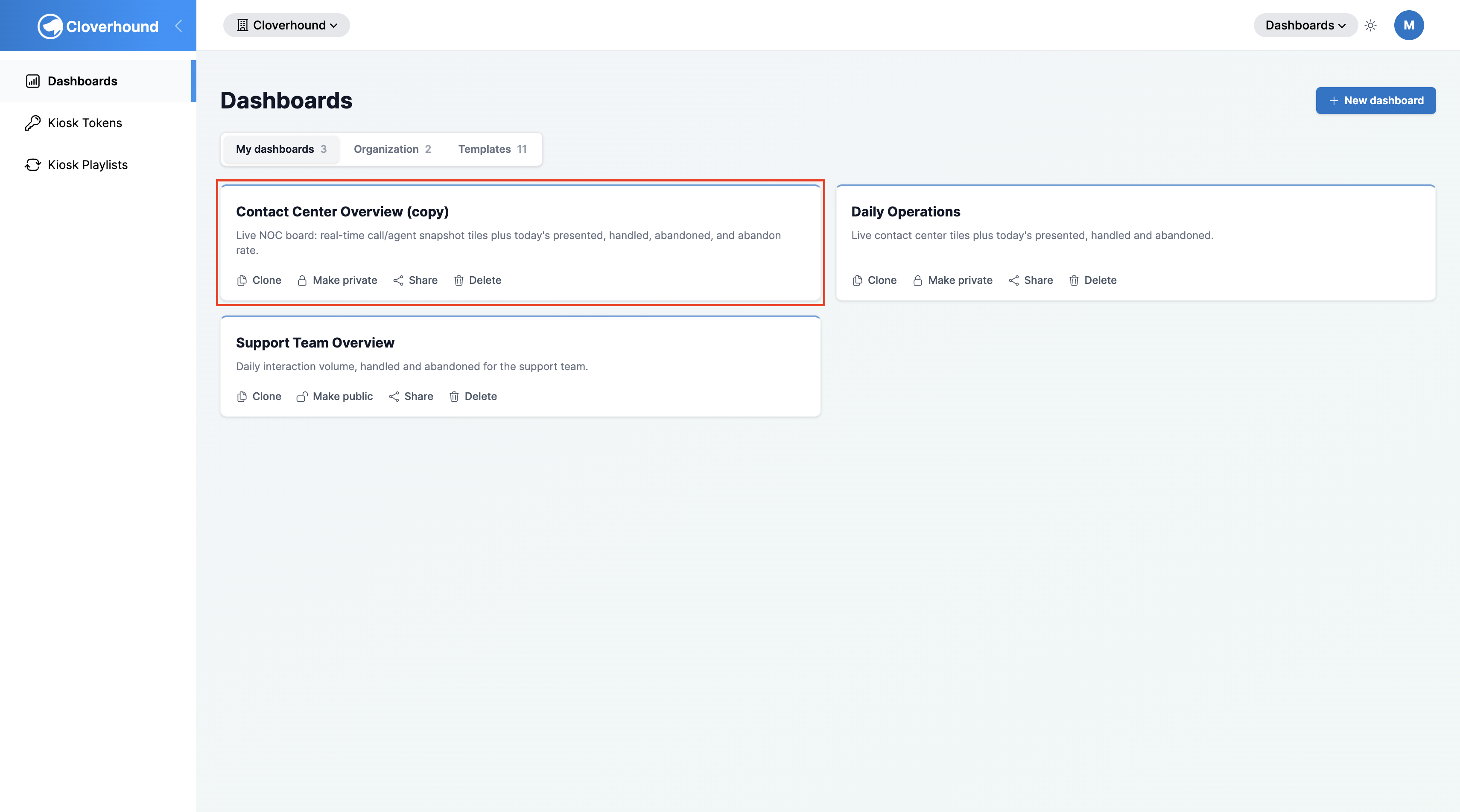
The copy appears on the My dashboards tab. It is named after the original with (copy) added, and you are its owner.
-
Open the copy and click Edit layout to change it. See Building a Dashboard.
The copy includes the panels, their layout, and their time ranges and filters. It does not copy any people or roles you had granted access to.
The copy of a template, or of an Everyone dashboard, is visible to everyone in your organization as soon as you clone it. Click Make private on the new card first if you want to work on it privately. Copies of Personal and Restricted dashboards start as Personal.
Templates
Templates are ready-made dashboards. They appear on the Templates tab and carry a Template badge.
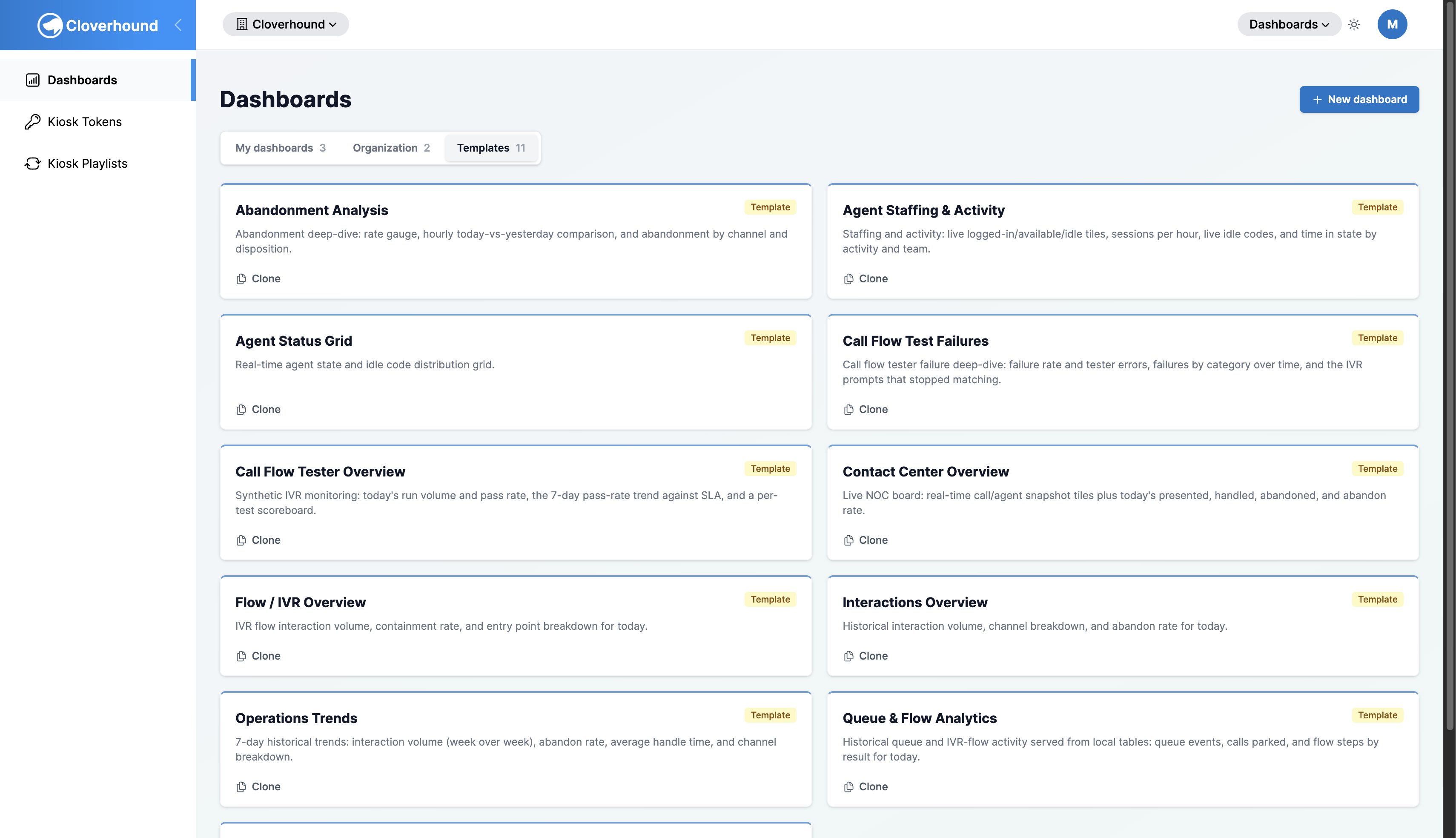
- Templates are read-only. You can open and clone them, but not edit, share, or delete them.
- Cloverhound Cloud maintains the templates and may update them over time. Your copies are independent and do not change.
- A template's panels keep the time range and filters it was built with, and a clone inherits them. Template panel titles usually include the range, for example Presented Today.
Which templates you see can vary by organization, because templates added over time may not yet exist in older organizations.
Available templates
| Template | What it shows | Time range |
|---|---|---|
| Interactions Overview | Interaction volume, channel breakdown, and abandon rate | Today |
| Queue Wallboard | A live queue board with alerts for calls in queue and wait times | Live |
| Agent Status Grid | Live agent states and idle-code distribution | Live |
| Flow / IVR Overview | IVR flow volume, containment rate, and breakdown by entry point | Today |
| Contact Center Overview | Live call and agent tiles, plus today's presented, handled, and abandoned interactions and the abandon rate | Live and today |
| Abandonment Analysis | The abandon rate, an hourly comparison with yesterday, and abandonment by channel and disposition | Today |
| Operations Trends | Interaction volume week over week, abandon rate, average handle time, and channel breakdown | Last 7 days |
| Agent Staffing & Activity | Logged-in, available, and idle agents, sessions per hour, idle codes, and time in state by activity and team | Live and today |
| Queue & Flow Analytics | Queue events, calls parked, and flow steps by result | Today |
| Call Flow Tester Overview | Call flow test run volume and pass rate, a 7-day pass-rate trend, and a scoreboard per test | Today and last 7 days |
| Call Flow Test Failures | Failure rate, tester errors, failures by category over time, and the IVR prompts that stopped matching | Last 24 hours and last 7 days |
The two Call Flow templates summarize the results of the tests described in Managing Call Flow Tests.