Setting Up SFTP Automated Import
SFTP Automated Import lets a Dialer Campaign pull CSV record files from an SFTP server on a recurring schedule, so your campaign list stays in sync with an upstream system without manual uploads. You configure the feature from the SFTP Settings tab on a Dialer Campaign and monitor each run from the Imports tab on the same campaign.
Before you begin, confirm the following:
- At least one SFTP connection is configured in the Admin section and marked Active.
- You know the remote directory and file-name pattern that your source system writes to.
- The remote files are CSV and each file is no larger than 10 MB. Up to 10 matching files are processed per run.
How the Import Runs
At the configured frequency, Cloverhound Cloud connects to the selected SFTP server, lists the import directory, and picks up any CSV file that:
- Matches the configured File Pattern.
- Has not already been processed for this campaign, or has been modified on the SFTP server since it was last processed.
Matching files are processed oldest-first, up to 10 files per run. Each file passes through the same validation and record-creation pipeline used by manual CSV uploads, so column names and data requirements are identical to a manual import. A row's customer reference ID determines whether the row is treated as a new record or a duplicate, and Duplicate Handling controls what happens when a match is found.
Accessing the SFTP Settings Tab
-
Navigate to the Campaigns module and open the Dialer Campaign you want to configure.
-
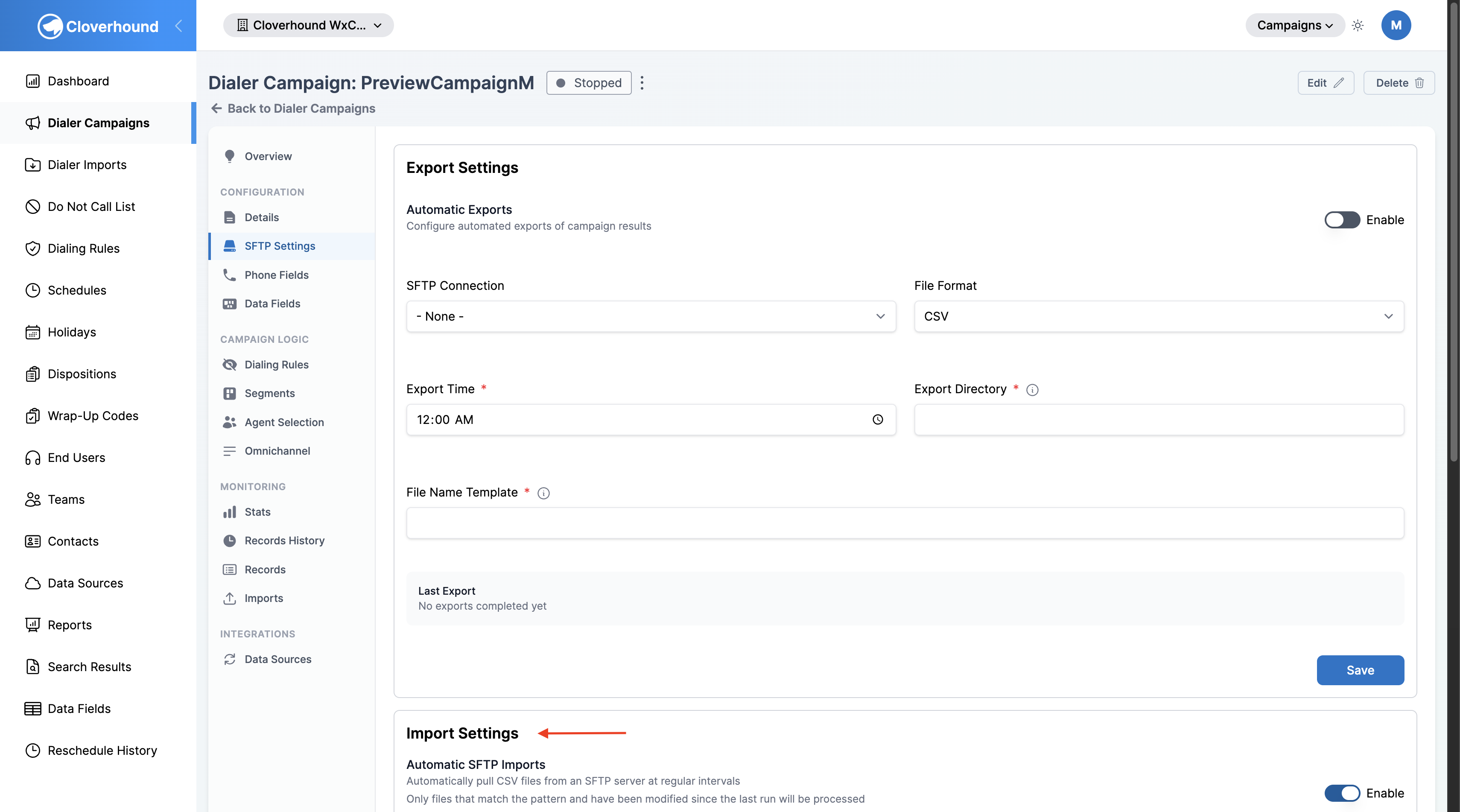
Click the SFTP Settings tab in the campaign's left-hand navigation.
-
Scroll to the Import Settings section. Export and import are configured on the same tab but are independent — you can enable either or both.
Configuring the Import
-
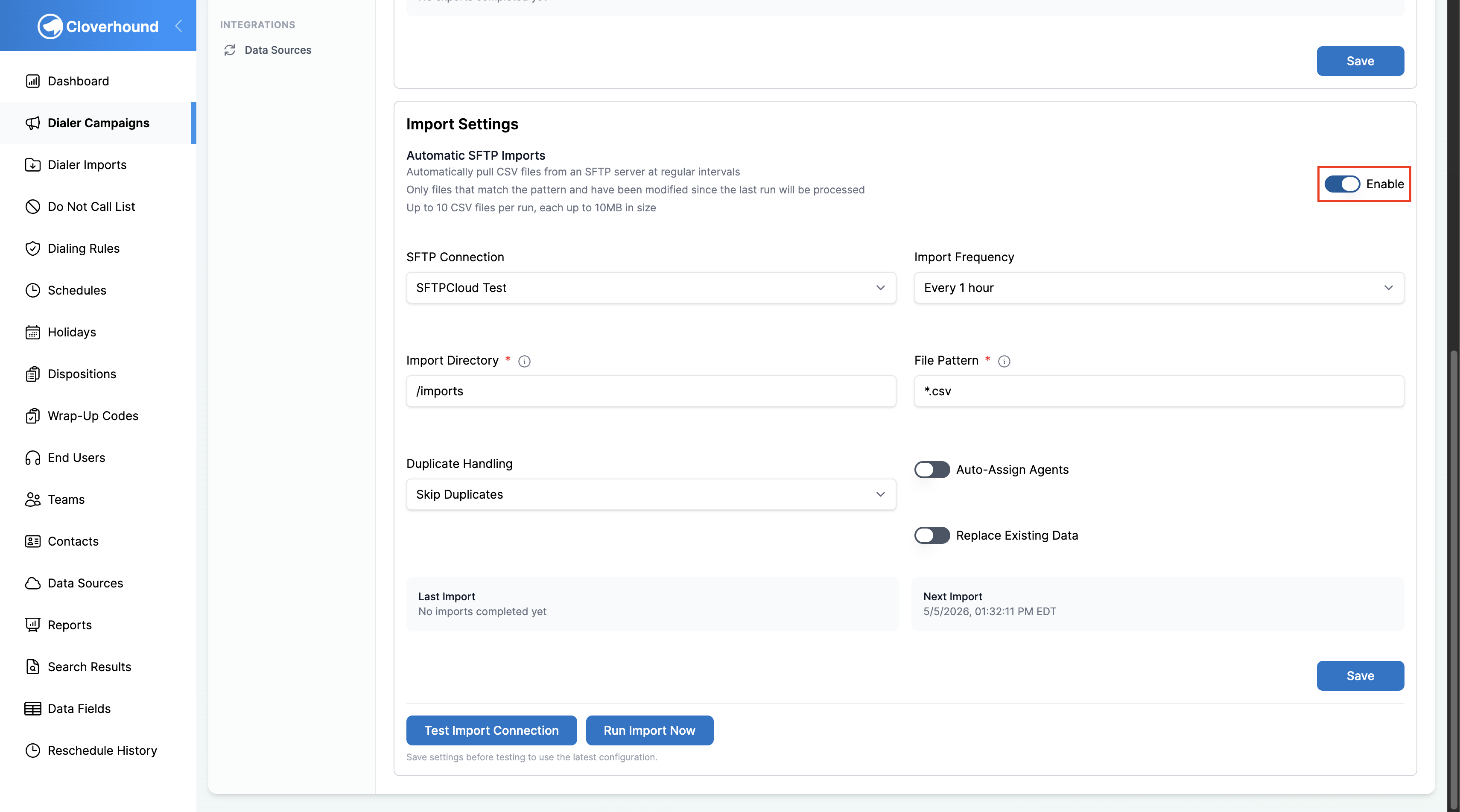
Toggle Enable on in the Import Settings header to turn on automatic imports for this campaign. Your configuration is saved even when the toggle is off, so you can prepare settings before going live.
-
Fill out the configuration fields:
- SFTP Connection — select one of the SFTP connections configured for your organization. If the dropdown is empty, create a connection first under Admin > SFTP Connections.
- Import Frequency — how often Cloverhound Cloud checks the remote directory. Options are Every 5 minutes, Every 10 minutes, Every 30 minutes, and Every 1 hour.
- Import Directory — the folder on the SFTP server to scan. This path is appended to the connection's base path. For example,
imports/recordsresolves to<base_path>/imports/records. Parent-directory references (..) are rejected. - File Pattern — a glob pattern used to match file names inside the directory. The pattern must end in
.csv. Examples:*.csv,campaign_*.csv,records_2026_*.csv. - Duplicate Handling — what happens when an imported record's customer reference ID already exists in the campaign:
- Skip Duplicates leaves the existing record unchanged.
- Overwrite Existing Records replaces the existing record entirely with the data from the file.
- Update Record updates only the data fields and phone numbers. Call attempts, status, dispositions, agent assignments, and scheduled callbacks are preserved.
-
Set the import behavior toggles:
- Auto-Assign Agents — when on, imported records are assigned to agents based on the campaign's assignment rules. When off, records are imported without an agent.
- Replace Existing Data — when on, every existing record in the campaign is deleted before the import runs, and the campaign is fully replaced with the contents of the incoming files.
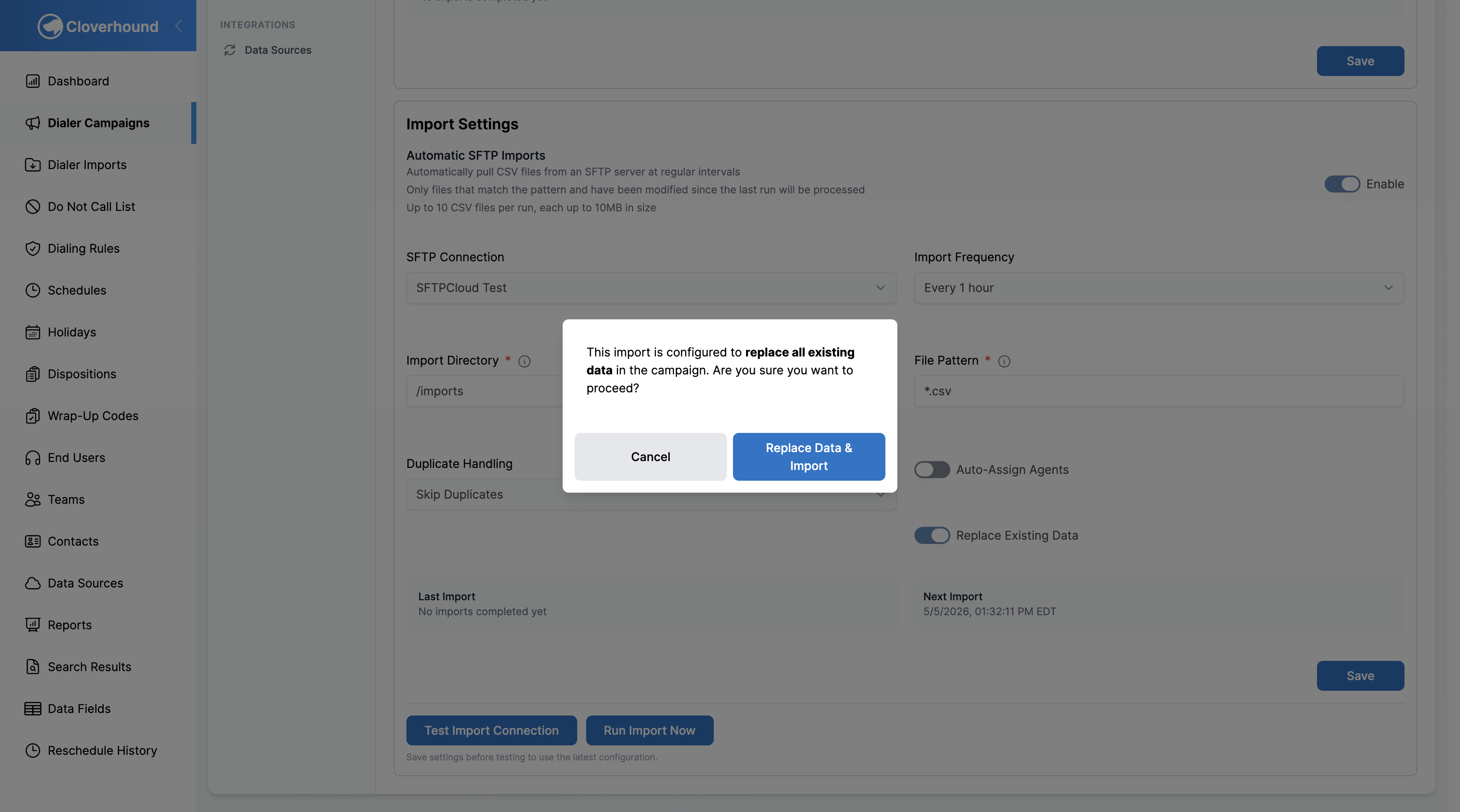
warningReplace Existing Data is destructive. Every record currently in the campaign is deleted on each run. A confirmation prompt appears before a manual run executes when this toggle is on.
-
Click Save at the bottom of the Import Settings section. The next scheduled run uses the saved configuration.
Testing the Connection
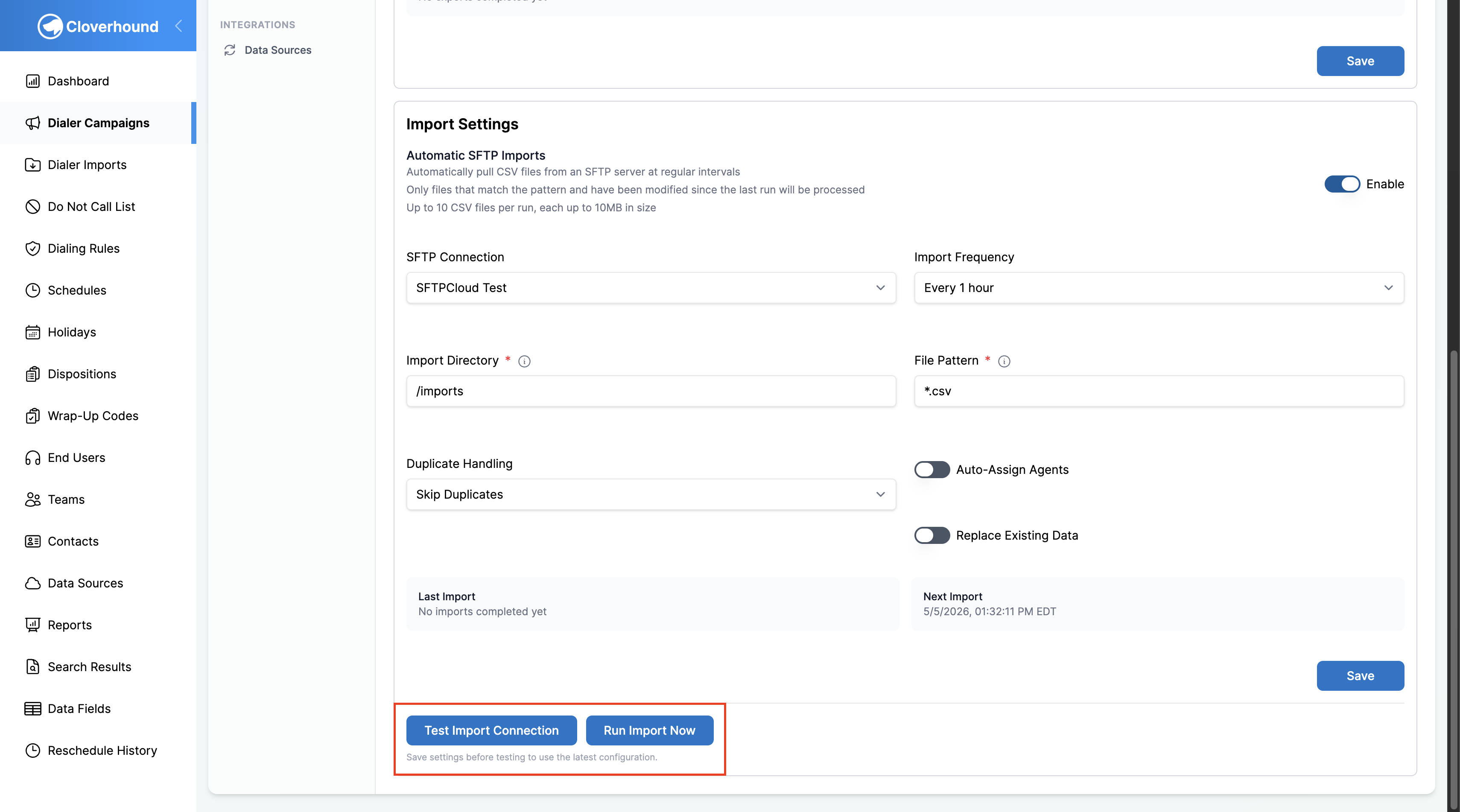
Use Test Import Connection to validate the SFTP connection, directory, and file pattern without importing any records. The test returns the number of files that currently match the pattern.
-
Save the Import Settings first. The test button reads the latest saved values, not unsaved form changes.
-
Click Test Import Connection at the bottom of the Import Settings section.
-
Review the result banner:
- A green banner confirms the connection succeeded and shows Files matching pattern: N.
- A red banner shows the error reported by the server (for example, a missing directory or bad credentials).
Running an Import on Demand
Run Import Now queues an import job immediately, outside the normal schedule. This is useful when you need to pull in a file right away, retry after a failure, or confirm a configuration change.
-
Confirm the Enable toggle is on. The button is disabled when automatic imports are disabled.
-
Click Run Import Now.
-
Confirm the replace prompt if it appears. When Replace Existing Data is enabled, a modal asks you to confirm before the run starts.
-
Check the flash message at the top of the page for confirmation that the job has been queued. The run appears in the Imports tab once processing begins.
Monitoring Imports
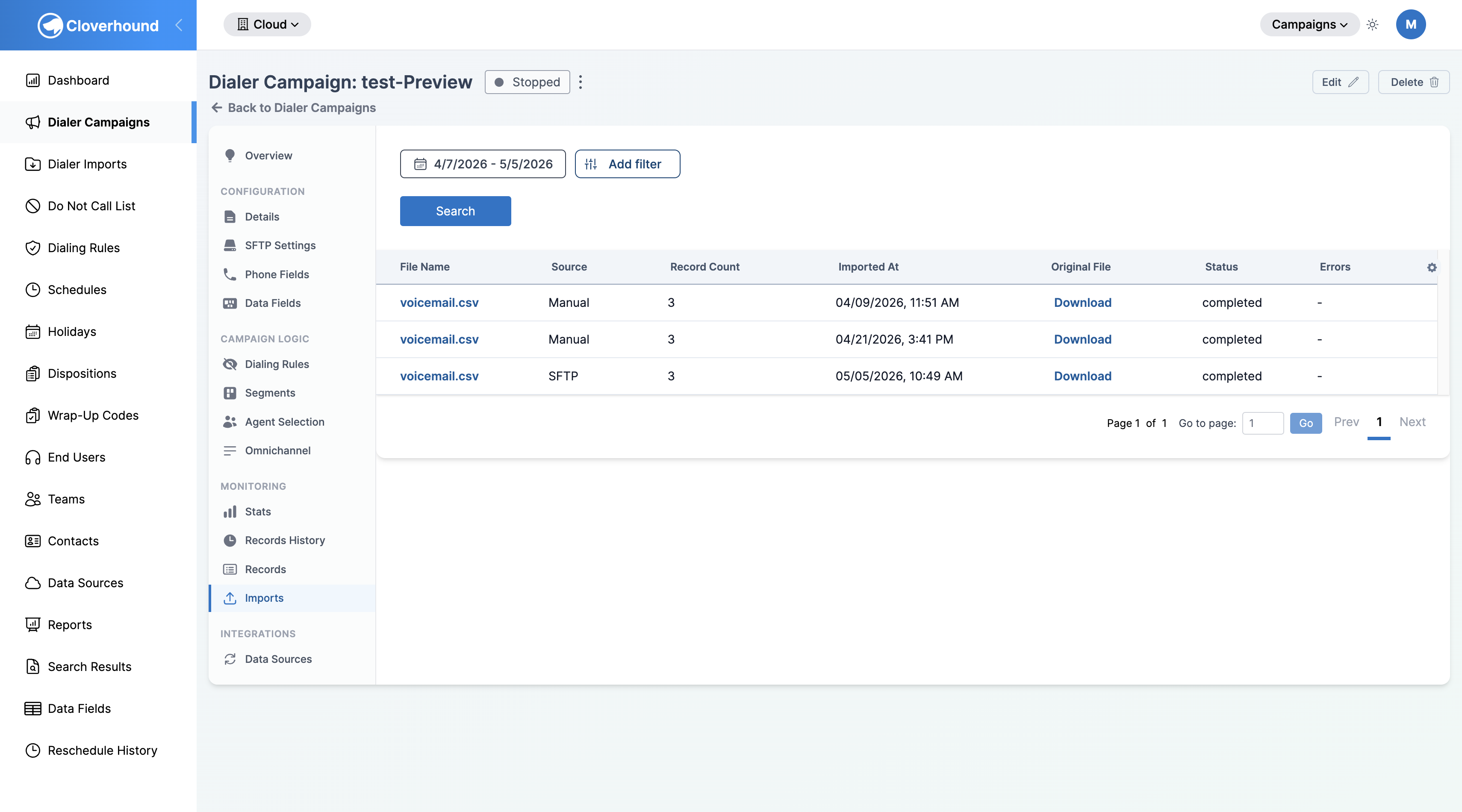
Each automated or on-demand run creates a record on the Imports tab of the campaign. Use this tab to verify a run succeeded, check record counts, and inspect errors.
-
Open the Imports tab on the same Dialer Campaign.
-
Filter by date range, filename, record count, campaign ID, or status to find a specific run.
-
Review each column:
- File Name — the name of the file pulled from the SFTP server. Click it to open the import's detail page.
- Source — the origin of the import. Automated SFTP runs show SFTP; manual uploads show Manual.
- Record Count — the number of rows processed from the file.
- Imported At — when the run finished.
- Original File — a Download link to the CSV that was imported, when available.
- Status — the outcome of the run.
- Errors — click Show errors to open a modal with the full error message for a failed run.
The Import Settings section also shows two status tiles that summarize the latest activity:
- Last Import — the date and time of the most recent completed run, or "No imports completed yet."
- Next Import — the date and time of the next scheduled run, or "Not scheduled" when automatic imports are off.
Handling Repeated Failures
Once the import has failed five times in a row, a yellow banner appears in the Import Settings section showing the failure count and the timestamp of the last failure.
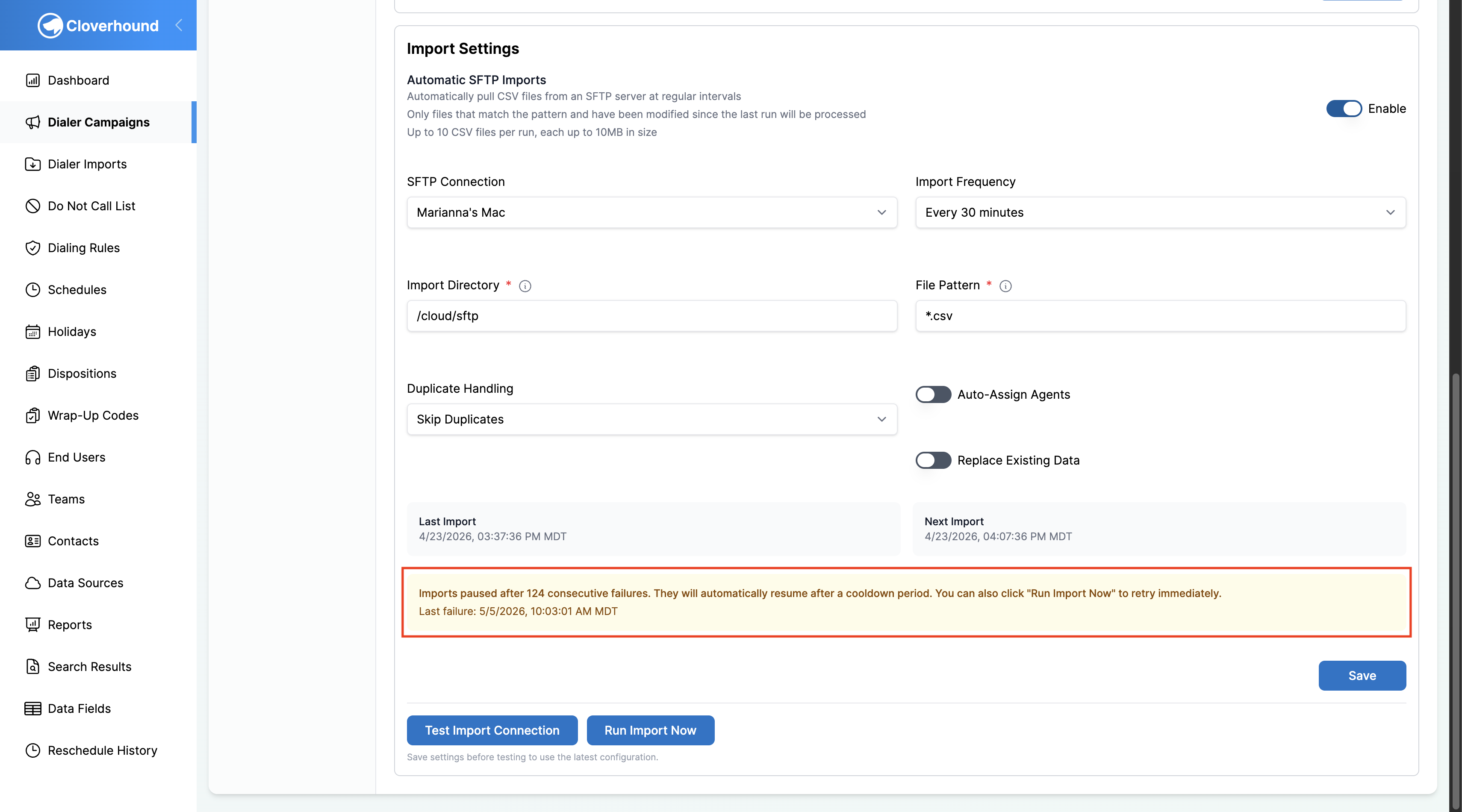
At that point the import enters a 1-hour cooldown: the next scheduled run is skipped, and after an hour Cloverhound Cloud tries again automatically. If that attempt also fails, the counter increments, another 1-hour cooldown begins, and the cycle repeats. The counter never resets on its own — it only goes back to zero when a run succeeds.
This means a campaign can accumulate dozens or hundreds of consecutive failures if the underlying issue (bad credentials, wrong directory, unreachable server) is never fixed. The failure count in the banner reflects the total number of failed attempts across all cooldown cycles, not just the most recent burst.
To stop the cycle, fix the root cause and click Run Import Now. A successful manual run resets the counter and clears the banner.
Files that match the pattern but have not been modified since the last run are skipped. To reprocess a file, re-upload it to the SFTP server or change its modification time.
Troubleshooting
- "SFTP connection not found" on test. The connection was deleted or the campaign still references an inactive connection. Pick another connection from the dropdown, save, and test again.
- "File pattern must end with a safe extension". Only
.csvis permitted. Update File Pattern so it ends in.csv(for example,records_*.csv). - "Import directory cannot contain parent directory references". Paths that include
..are rejected to prevent traversal. Use a path relative to the SFTP connection's base path. - No files are picked up even though the test reports a match. Files must have been modified on the server since the last run and must not have been processed before. Re-upload the file or touch its modification time to reprocess.
- Imports are stuck at zero records. Open the import on the Imports tab and click Show errors to see the validation or parsing error for that run.
Related Pages
- Export Settings — configure automatic daily exports of campaign results on the same tab.
- Managing SFTP Connections — create, test, and manage the SFTP servers available to campaigns.
With these steps, you can pull campaign records from an SFTP server on a schedule, trigger runs on demand, and monitor every import from one place.