Configuring Scheduled Reports
Creating a scheduled report in the Campaigns module is straightforward. Reports are generated based on the active filters you have applied, so you always receive precisely the data you need.
Prerequisites: You must have access to the Campaigns module and at least one Dialer Result or Dialer Campaign with records. Contact your administrator if you do not see the "+ Schedule Report" button.
Steps to Create a Scheduled Report
-
Navigate to the Campaigns Module:
- Open the Campaigns section from the main menu.
- Select the Dialer Results or Dialer Campaigns section depending on the data you want to report on.
-
Go to the Records Tab:
- Inside the selected Dialer Result or Dialer Campaign, navigate to the Records tab.
-
Apply Filters:
- Use the available filtering options to refine the data shown in the Records tab. These filters determine the content of the scheduled report.
-
Create a Scheduled Report:
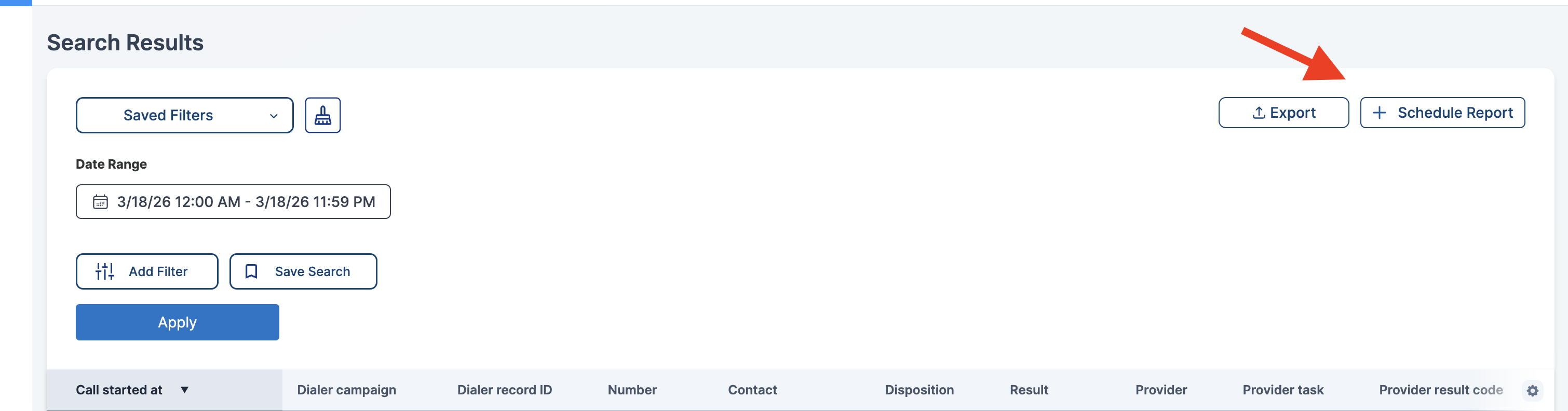
- Click the "+ Schedule Report" button. This button is context-sensitive and will create a report for the current Records view you are on — either for a Dialer Result or a Dialer Campaign.
-
Customize Your Report:
- Specify details such as the report's name, frequency, recurrence type (e.g., daily, weekly, custom intervals), and the time at which the report should be generated.
-
Add Email Recipients:
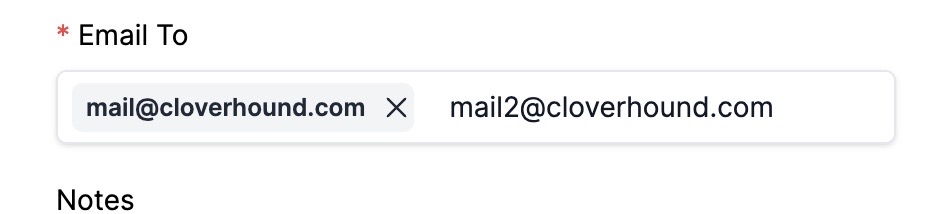
- Enter one or more email addresses to receive the report. You can add multiple recipients by pressing Enter after each email address.
-
Save Your Scheduled Report:
- Once all details are configured, save your scheduled report by clicking the Create button. It will now run automatically based on the configured schedule.

Key Features
-
Filter Reflection: Any filters applied in the Records tab (e.g., date ranges, record status, specific criteria) will be reflected in the report sent via email. This ensures recipients receive accurate and relevant data.
-
Context-Sensitive Reports: Reports are generated based on the current Records view. If you are viewing records for a Dialer Result, the report will focus on that data. If you are viewing records for a Dialer Campaign, the report will focus on those records instead.
-
Error Handling: If a report fails to generate (e.g., due to a configuration issue or an empty result set), no email will be sent for that run. You can check the report's status in the Scheduled Reports list and update its settings if needed. See Managing Scheduled Reports for details.
Related Sections
- Customizing Scheduled Reports — full reference for all report inputs and frequency options.
- Email Notifications — details on what the delivered email looks like.
- Managing Scheduled Reports — how to edit or delete reports after creation.