Viewing Reschedule Histories
The Reschedule History page is an audit trail of every time a dialer record was given a callback time, had its scheduled call time changed, or had its schedule cleared. Use it to see who rescheduled a record, when the change was made, and what the previous and new scheduled times were.
Each entry is tied to a campaign and a record reference ID, and records one of three actions: Scheduled, Rescheduled, or Cleared.
Entries on this page are generated automatically whenever a record's scheduled call time changes — for example, when an end user sets a callback from the desktop widget, when a supervisor edits a record's scheduled time, or when an import or dialing rule clears a previously scheduled callback. For more on how records are scheduled, see the Records Overview.
Accessing the Reschedule History
-
Navigate to the Campaigns module.
-
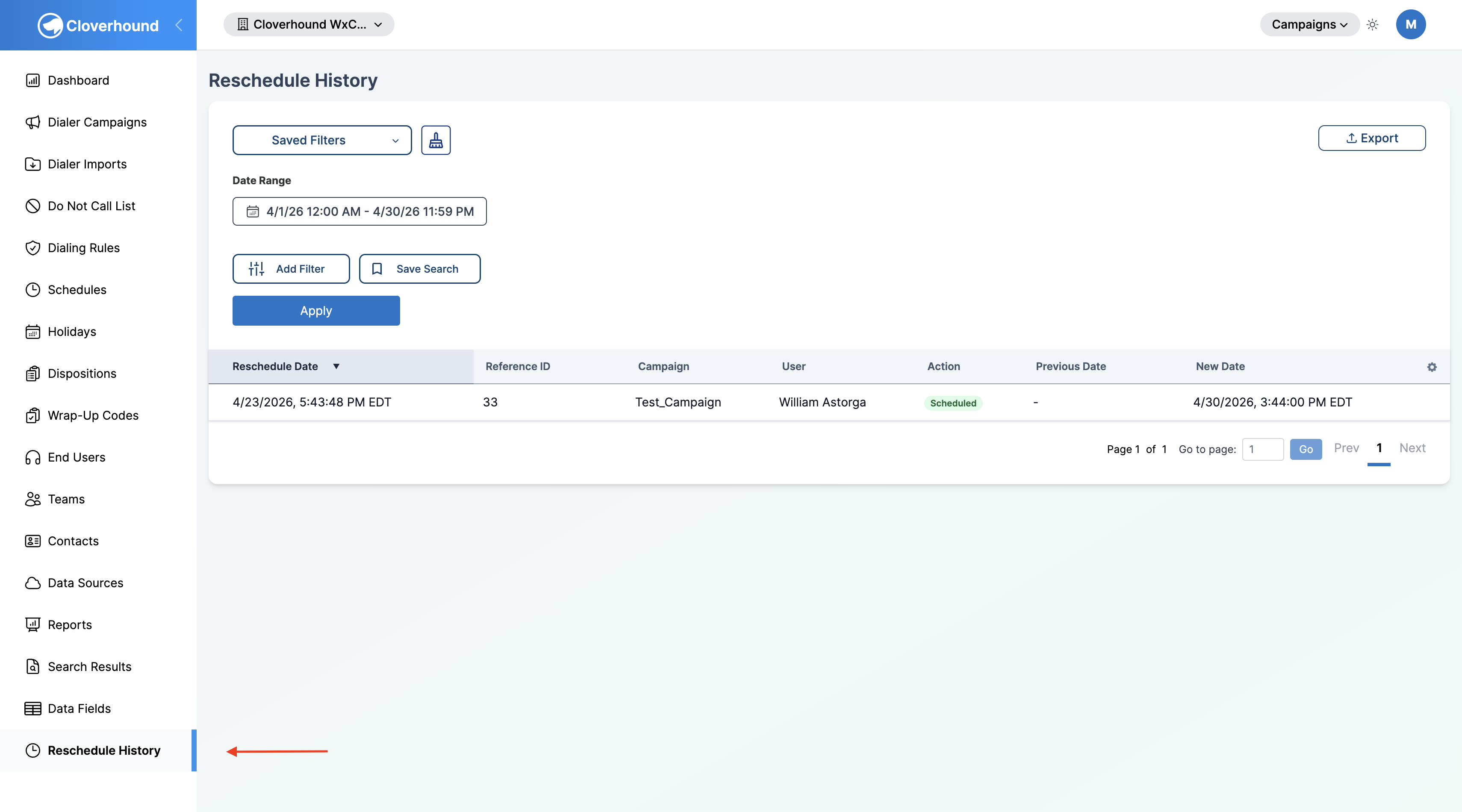
Open the Reschedule History page from the left navigation.
-
Review the table. By default, it shows entries from the current day, sorted by Reschedule Date with the most recent first.
Understanding the Table Columns
Each row represents a single reschedule event for a record:
- Reschedule Date — When the reschedule action occurred, shown in your organization's time zone.
- Reference ID — The customer reference ID of the dialer record that was rescheduled.
- Campaign — The dialer campaign the record belongs to.
- User — Who triggered the action. Cloverhound Cloud resolves this in priority order: end user first, then application user, then a stored name if neither is linked. A dash is shown when none is available.
- Action — A colored badge indicating the action type:
- Scheduled (green) — A callback time was set on a record that did not have one.
- Rescheduled (blue) — An existing scheduled time was changed.
- Cleared (red) — A scheduled time was removed.
- Previous Date — The scheduled call time before the action. Blank for Scheduled entries.
- New Date — The scheduled call time after the action. Blank for Cleared entries.
Click any sortable column header to toggle the sort direction. A small arrow in the header marks the active sort column. Use the pagination controls at the bottom of the table to move between pages or change the page size.
Filtering the History
Use the filter panel on the left to narrow the list.
-
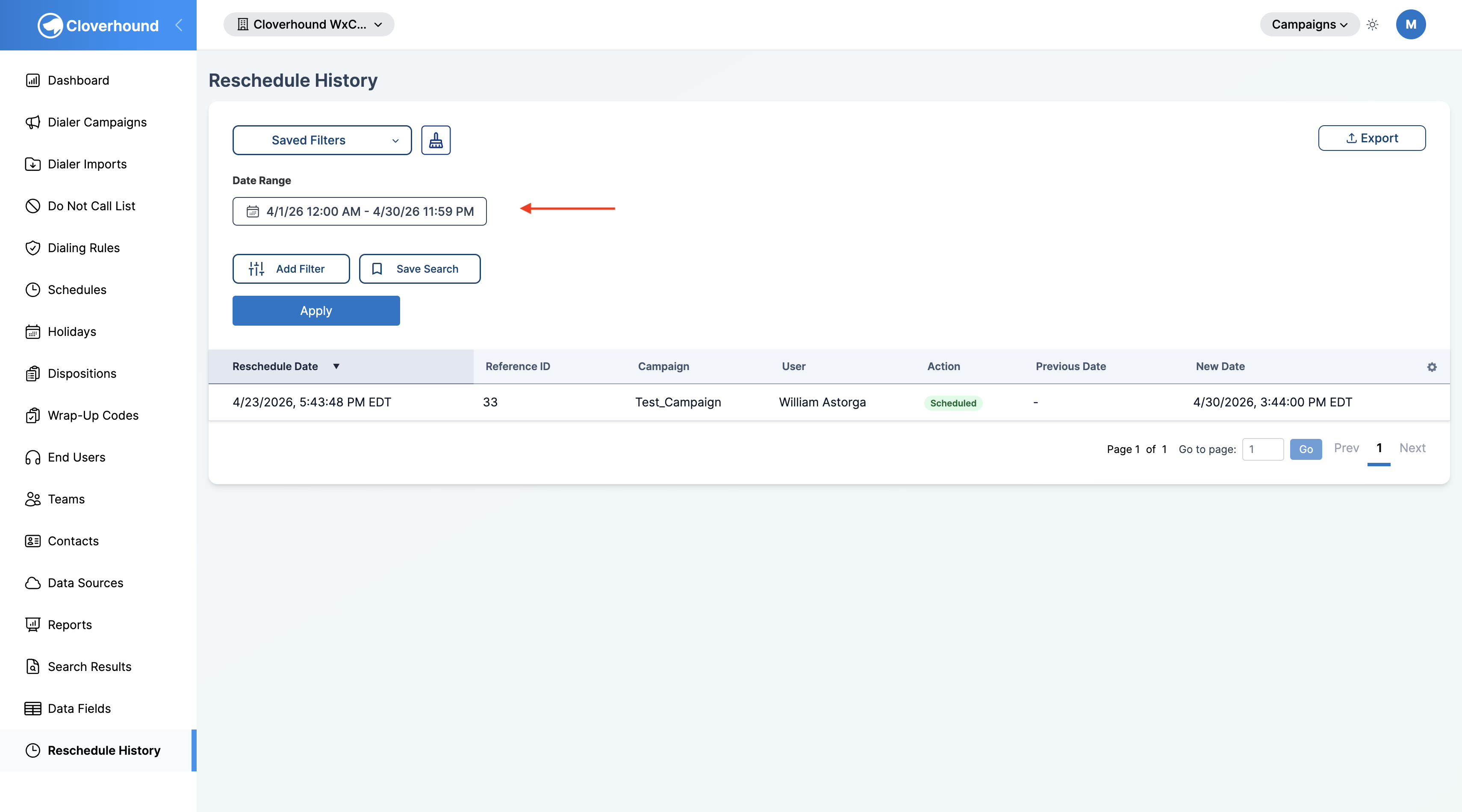
Set the Date Range. The Date Range filter is always on. Pick start and end dates (with times) to limit entries to a specific window.
-
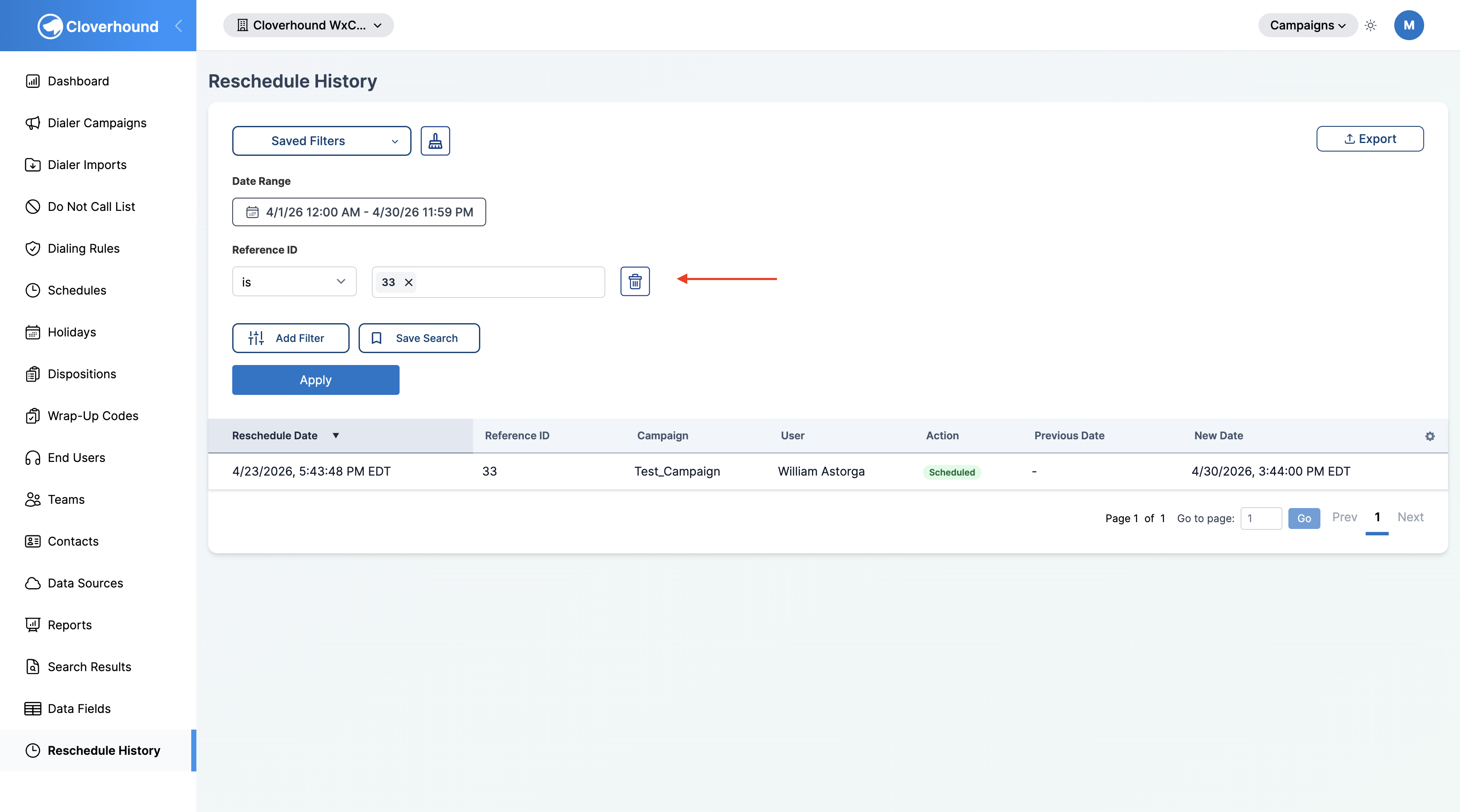
Filter by Reference ID. Add the Reference ID filter to find every reschedule event for a specific record. Enter one or more reference IDs.
-
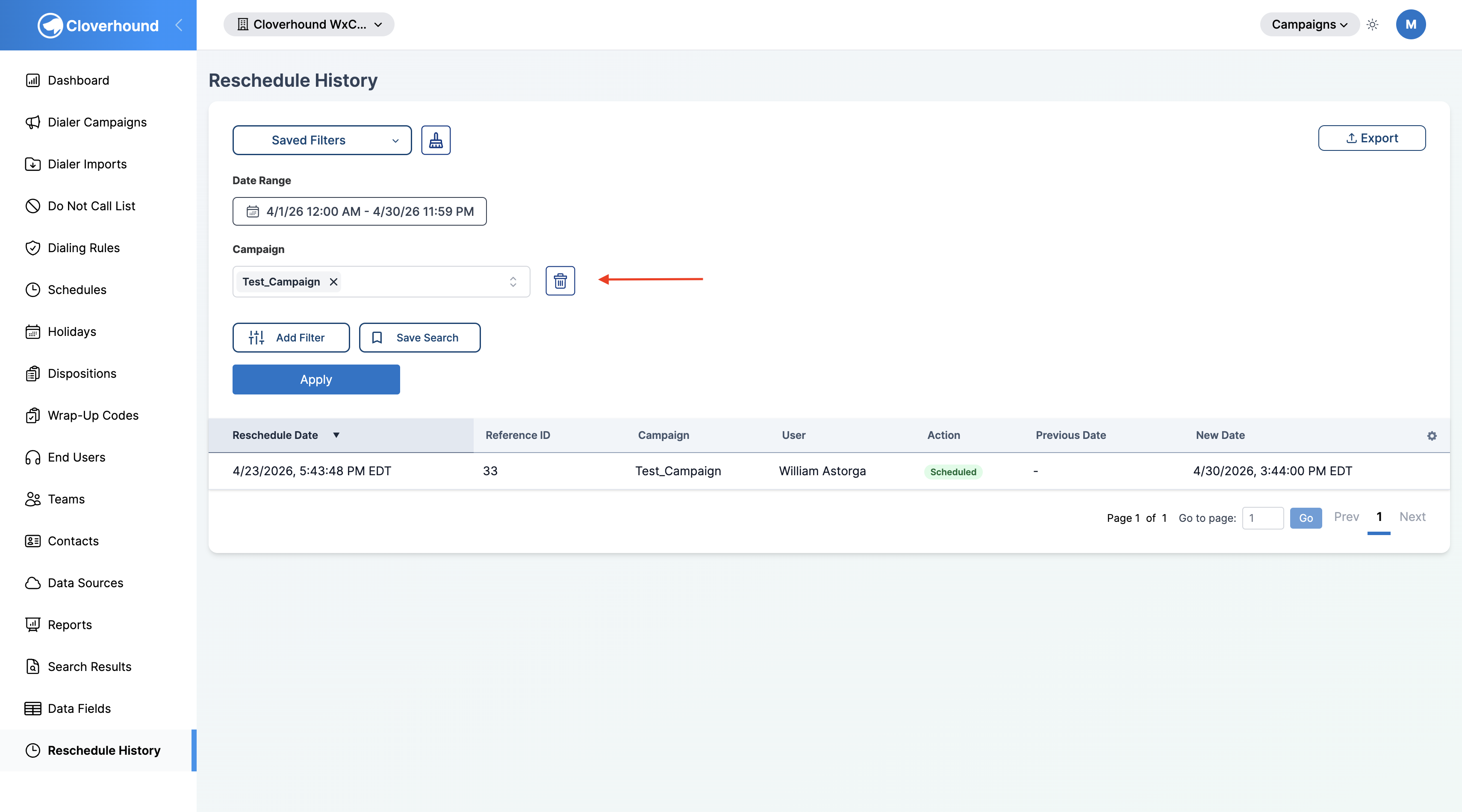
Filter by Campaign. Add the Campaign filter to limit results to one or more dialer campaigns. Select campaigns from the multi-select dropdown.
-
Apply or remove filters. Click Apply to run the query. To remove a filter, click the trash icon next to it.
You can save and reload a filter configuration using Save Search and Saved Filters, the same way as on the Calls Table. Saved filters are scoped to this page.
Exporting the History
Use the Export dropdown in the top-right of the table to download the currently filtered results.
-
Click the Export dropdown.
-
Choose a format:
- Export as CSV — plain text, one row per event.
- Export as Excel —
.xlsxworkbook with a Reschedule History worksheet. - Export as PDF — formatted report, limited to the first 1,000 rows.
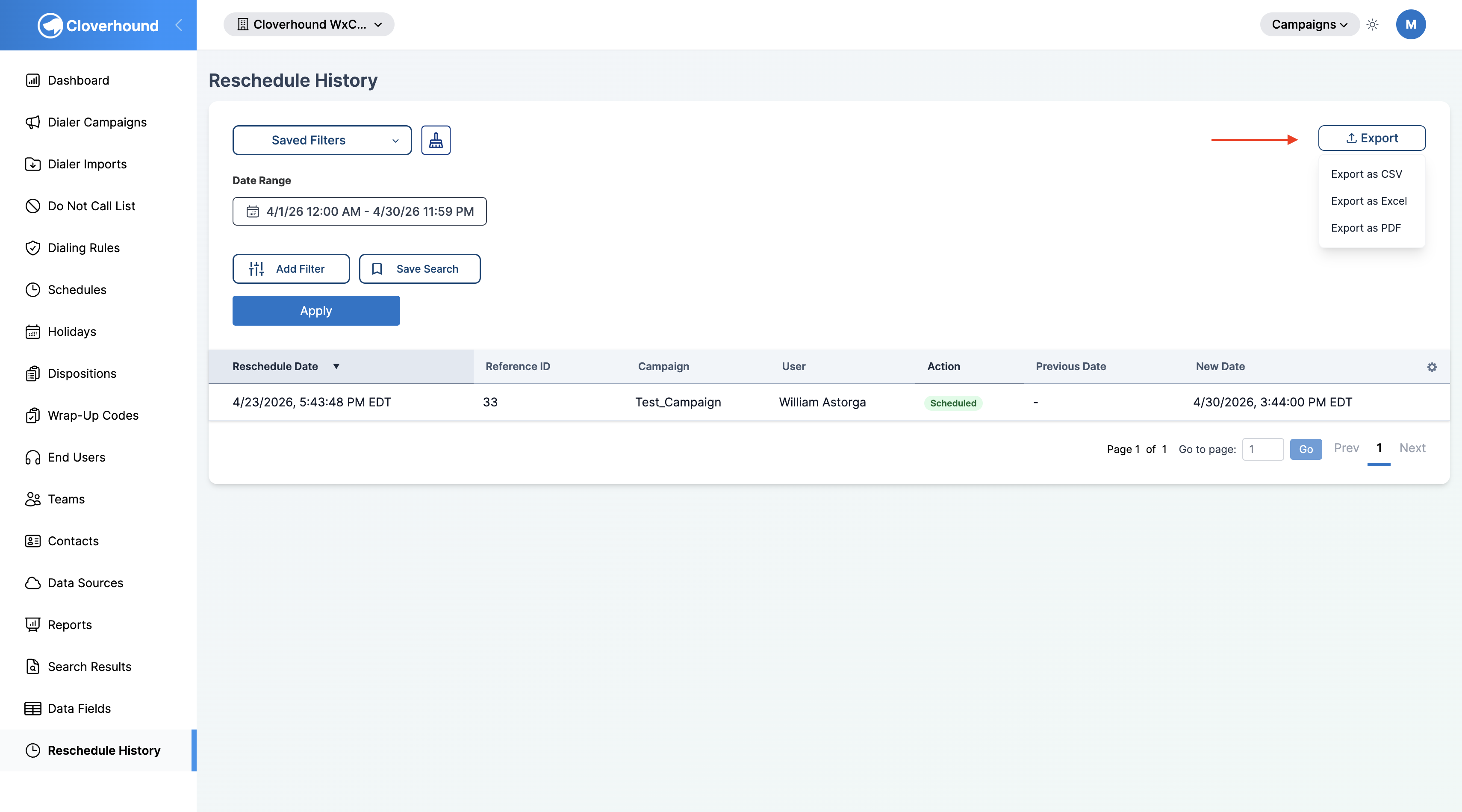
The export honors your active filters, date range, and sort order. CSV and Excel exports include up to 10,000 rows per download; PDF exports include up to 1,000 rows. The exported file contains the following columns: Reschedule Date, Record Created At, Reference ID, Dialer Campaign, User, Action, Previous Date, and New Date.
If a record has been deleted from its campaign, its reschedule history entries remain visible here, but the Record Created At column in the export will be blank. Narrow the date range before exporting to keep the file size manageable when auditing busy campaigns.
With the Reschedule History page you can audit every callback and reschedule change made across your campaigns, filter it down to a specific record or campaign, and export the results for reporting.