Do Not Call List
The Do Not Call (DNC) List is where your organization tracks phone numbers that campaigns must not dial. Keeping this list current helps you meet regulatory requirements and stops your dialer from attempting records on numbers that have opted out. The list is split into two sources: your organization's own DNC list, which you manage from the Campaigns module, and the Federal DNC list, which is maintained by the Federal Trade Commission (FTC).
Accessing the Do Not Call List
-
Navigate to the Campaigns module.
-
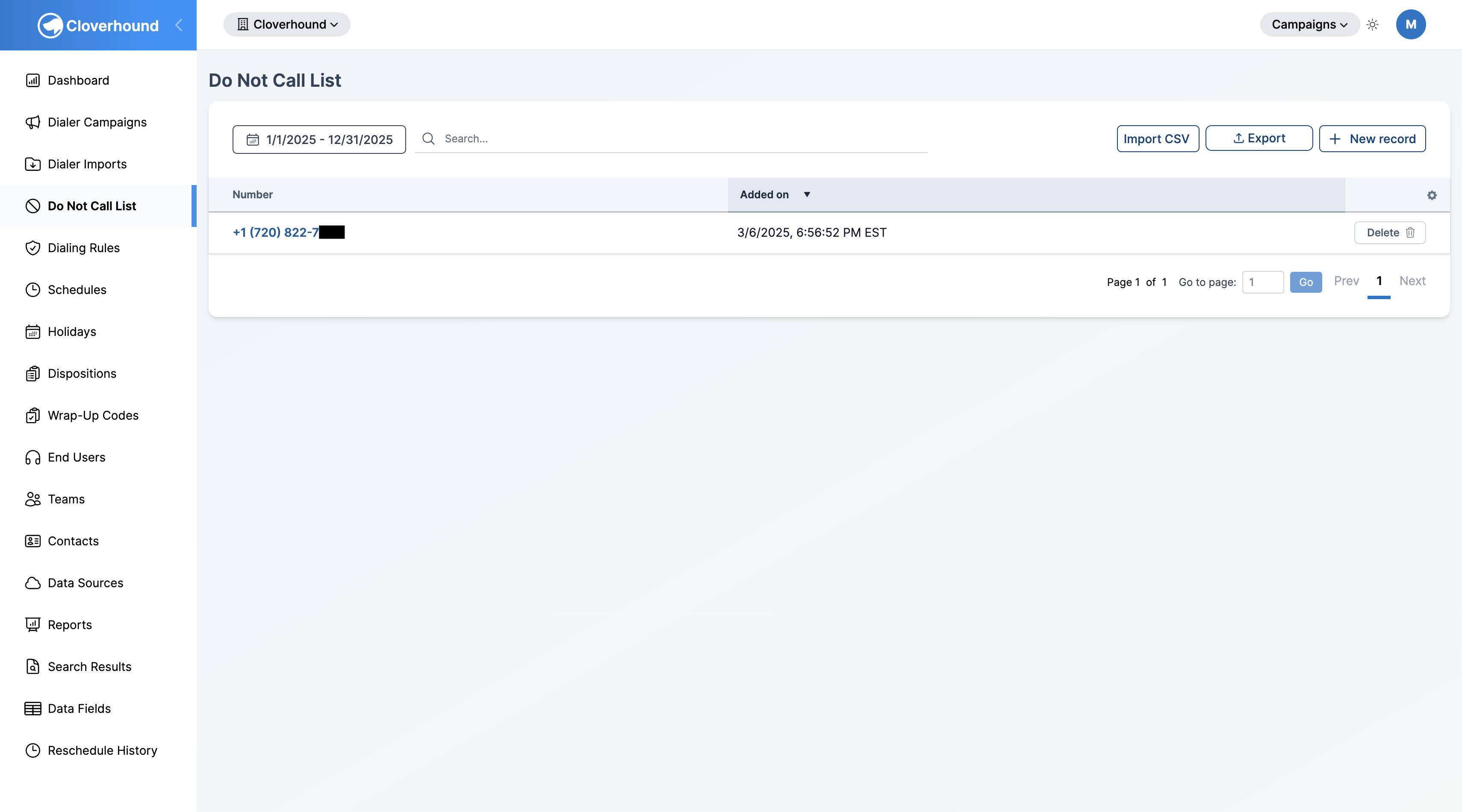
Open the Do Not Call List page from the sidebar.
-
Use the date range picker and search box to narrow the list to the numbers you care about.
Organization Do Not Call List
The Organization DNC list is specific to your organization. When a number is on this list, any campaign records that contain it are flagged so the dialer skips it.
Adding a Single Number
-
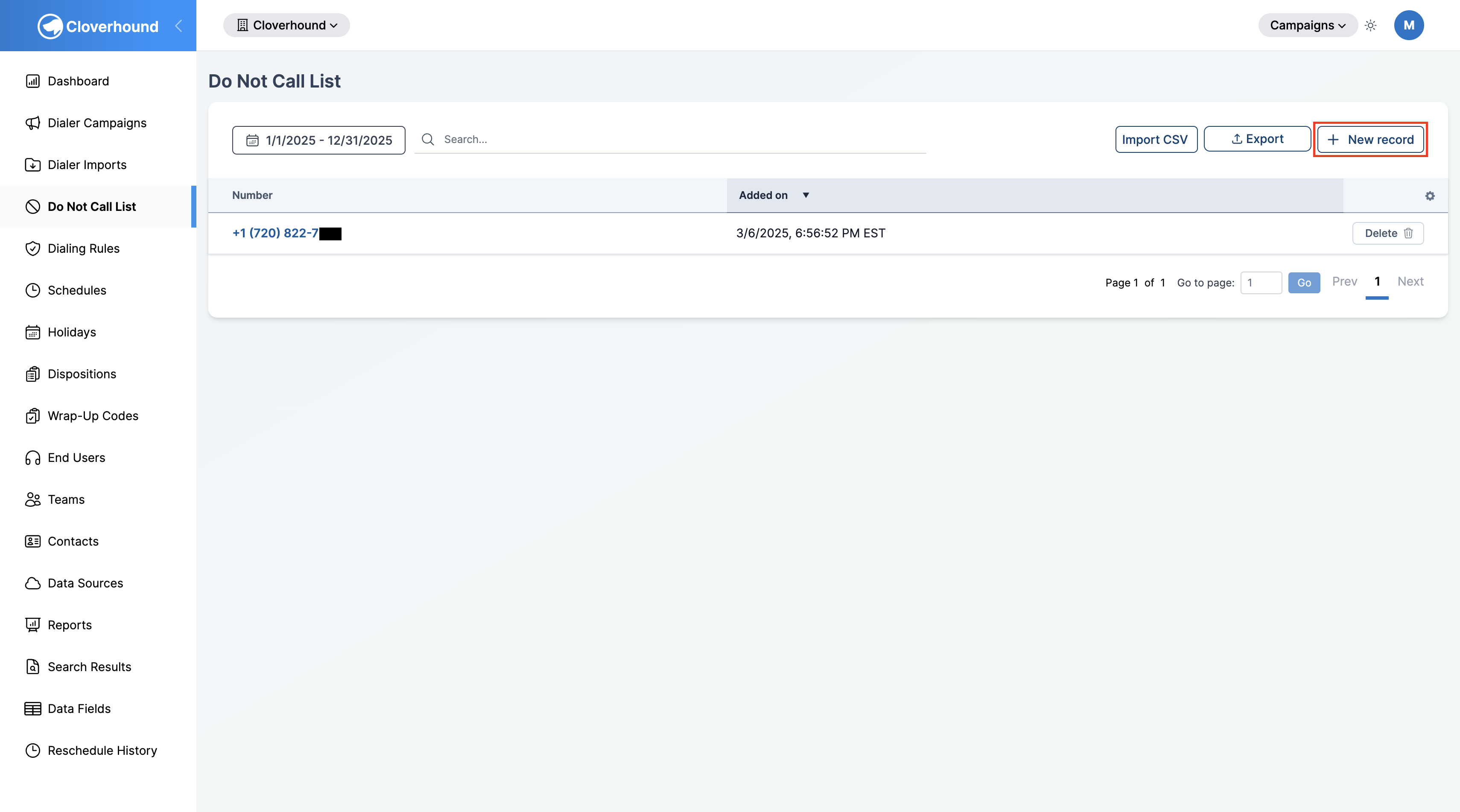
Click the New record button.
-
Enter the phone number in the Phone Number field.
-
Click Create. The number is added to your organization's DNC list and is skipped on subsequent dial attempts.
Importing Numbers from a CSV
Use the CSV import when you have a batch of numbers to add.
-
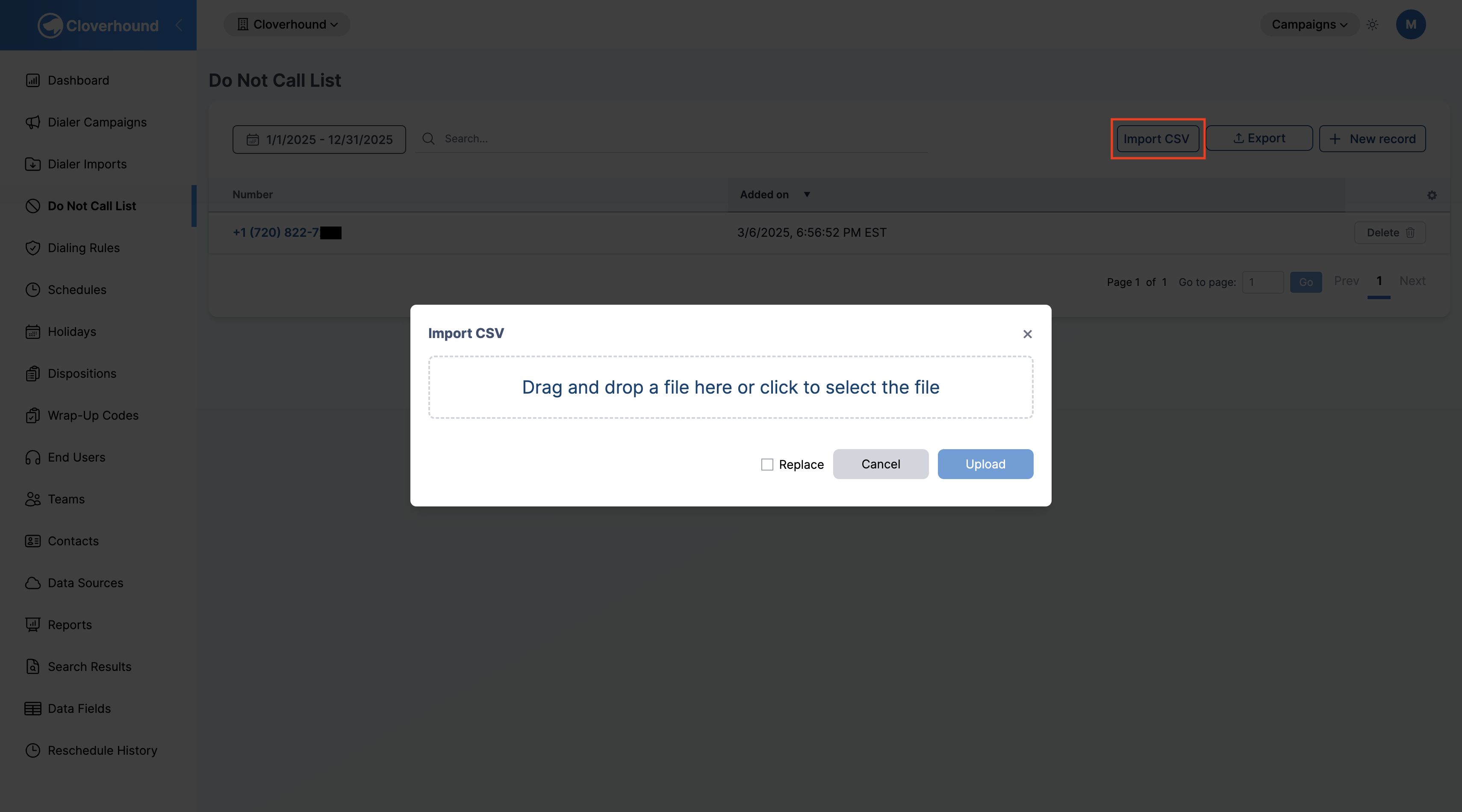
Click the Import CSV button.
-
Select a CSV file that contains a
numbercolumn by dragging and dropping it onto the modal or clicking to browse your files. -
Check the Replace checkbox if you want to delete all existing numbers from your organization's DNC list before importing the new file. Leave it unchecked to add the new numbers on top of what is already there.
-
Click Upload. Cloverhound Cloud validates the file and shows a data preview.
-
Review the preview. If Replace is unchecked, numbers that already exist on the DNC list are highlighted and will be skipped during import. If Replace is checked, no highlights appear — all numbers in the file will be imported.
-
Click Save to complete the import. Invalid entries (numbers failing format validation) are skipped and logged; the rest of the file is still imported.
Enabling Replace permanently deletes every number currently on your organization's DNC list before the import runs. This action cannot be undone. Use it only when you intend to fully replace the list with the contents of the new file.
Exporting the Organization DNC List
-
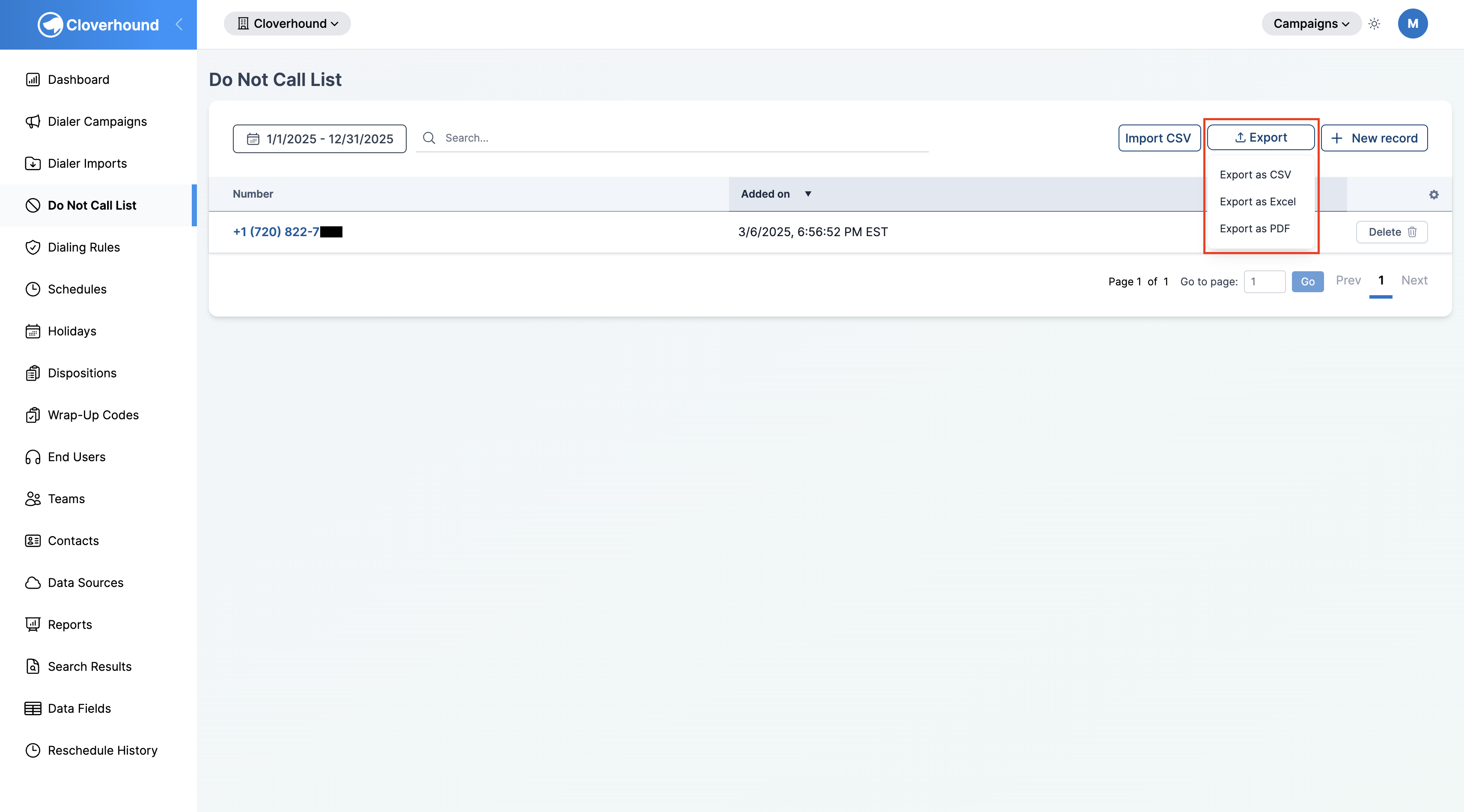
Click the Export dropdown.
-
Choose a format: CSV, XLSX, or PDF.
-
Save the file when the download completes. The export reflects any filters and date range currently applied to the table.
Removing a Number
- Locate the number in the table. Use the search box or date range filter to find it.
- Click the Delete button in that row.
- Confirm the removal. The number is removed from the DNC list and becomes eligible for future dial attempts.
Federal Do Not Call List
The Federal DNC list is maintained by the FTC. Access is gated by the FTC, not by Cloverhound Cloud.
- Apply for access to the Federal DNC list with the FTC.
- Receive a unique Subscription Account Number (SAN) once the FTC approves your application.
- Provide the SAN to Cloverhound support so we can enable Federal DNC checks for your organization.
Your organization is responsible for keeping its FTC subscription current. If the subscription lapses, Federal DNC checks stop working until you renew.
Once the DNC List is populated, campaigns automatically skip matching numbers so your organization stays compliant with contact restrictions.