Managing Disposition Mappings
Disposition mappings translate the raw call results reported by an upstream provider (for example, Webex Contact Center) into the campaign dispositions your organization uses to drive record handling, retries, and Do Not Call behavior. Each mapping ties one provider result to exactly one disposition, so that every call outcome feeds a consistent downstream rule.
Cloverhound Cloud seeds mappings for the system provider and for Webex Contact Center (WxCC) the first time they are needed. You manage all of them from the Provider Result Mappings tab on the Dispositions page.
Accessing Disposition Mappings
-
Navigate to the Campaigns module.
-
Open the Dispositions page from the sidebar.
-
Select the Provider Result Mappings tab.
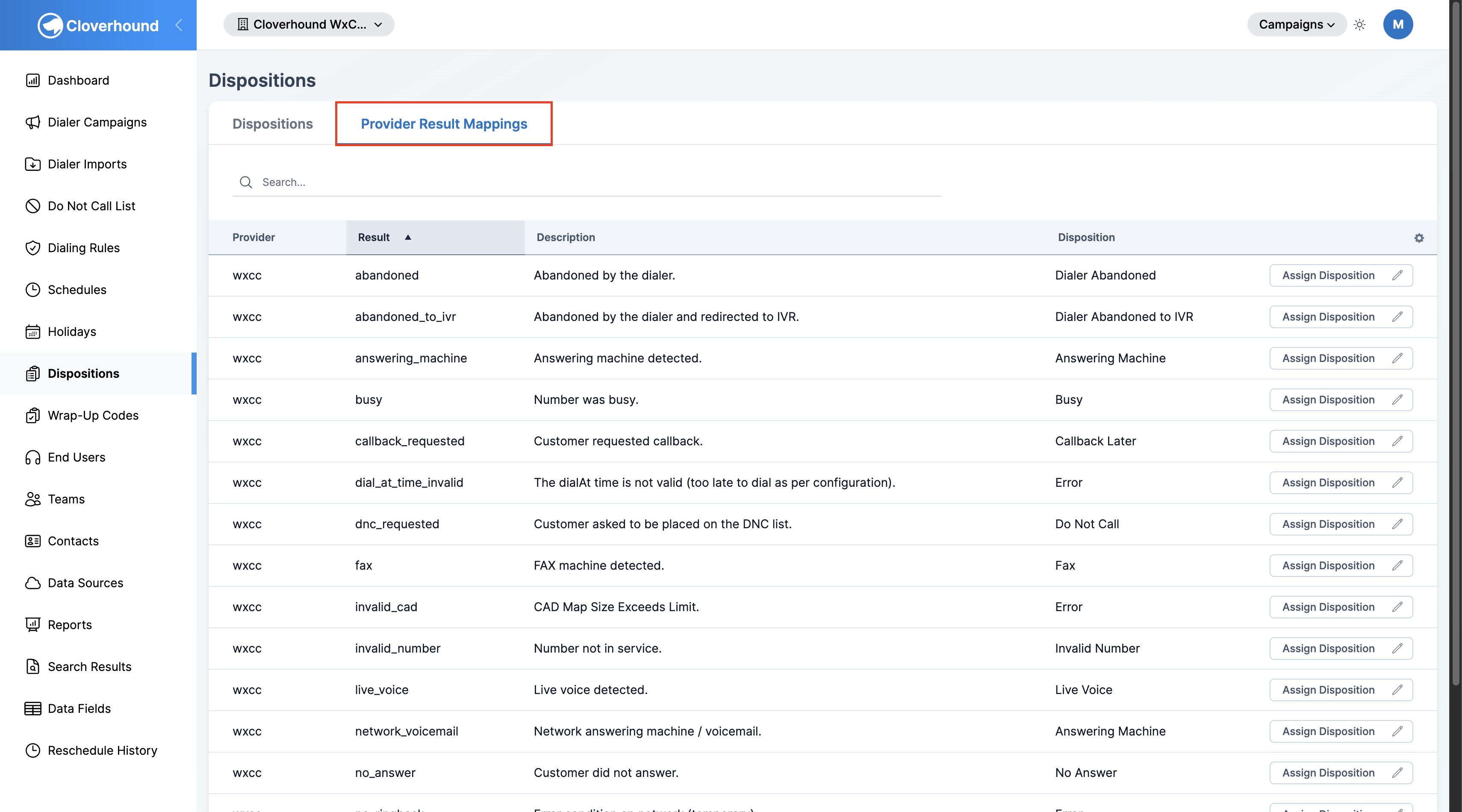
The table lists every provider result known to your organization, with its current disposition assignment.
Reading the Mappings Table
Each row represents one provider result:
- Provider — The upstream system that produced the result (for example,
wxccorsystem). Read-only. - Result — The provider's result code (for example,
answering_machine,dnc_requested). Read-only. - Description — A short explanation of when the provider emits this result.
- Disposition — The campaign disposition this result maps to. Shows
-when no disposition is assigned.
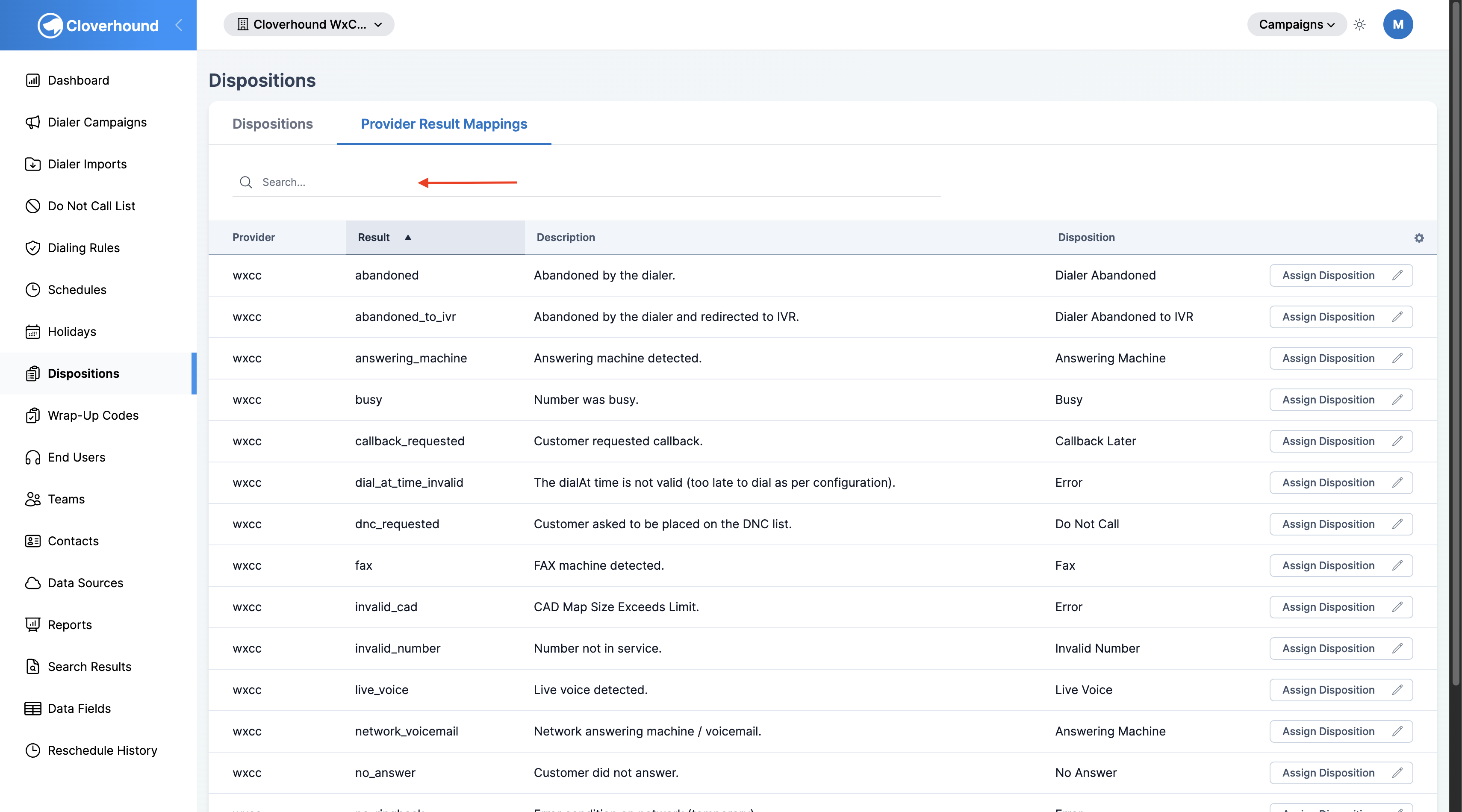
Use the search box above the table to filter rows by the result code, and click any column header to sort. The table paginates at 50 rows by default.
Assigning a Disposition to a Provider Result
-
Locate the provider result you want to map. Use the search box if the list is long.
-
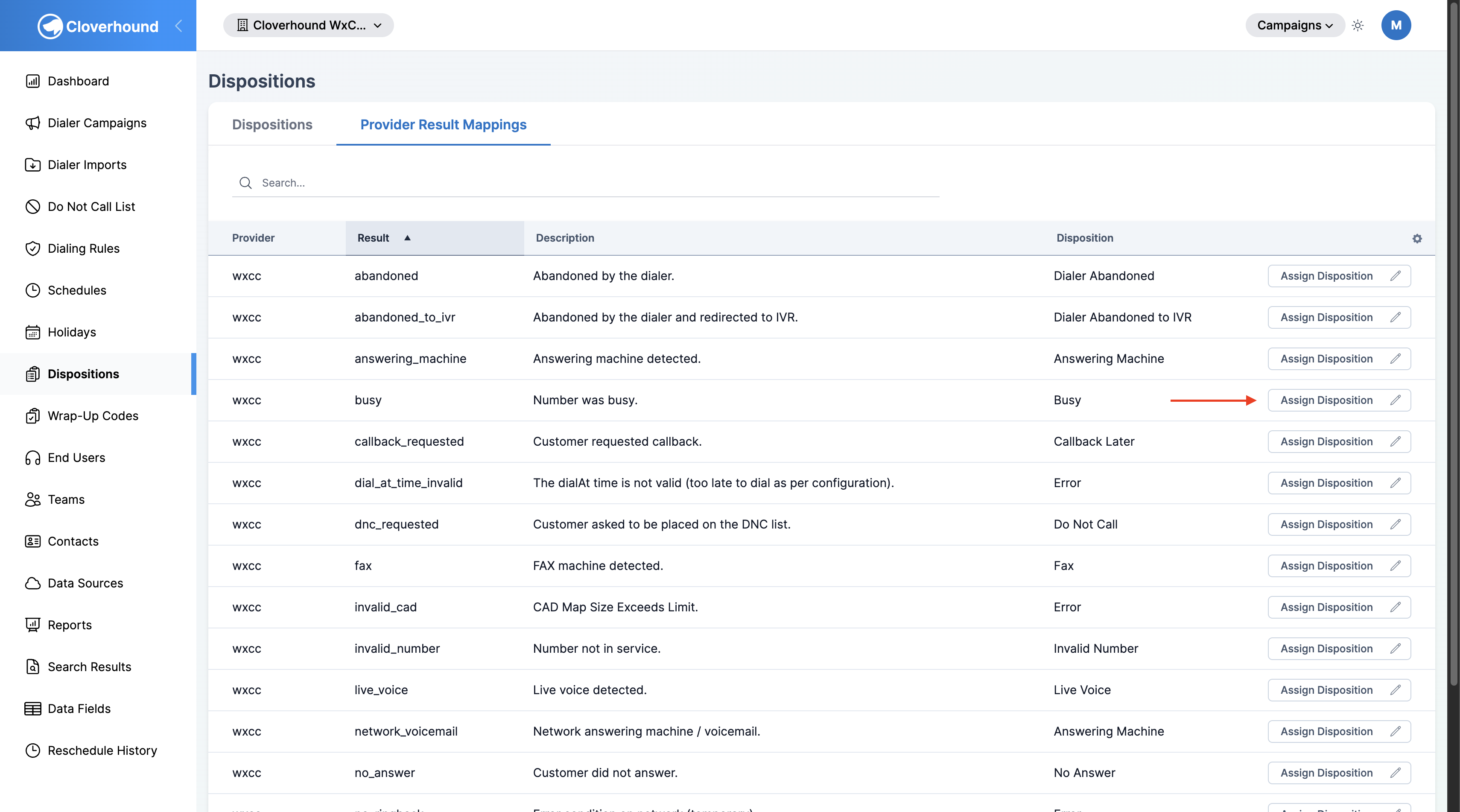
Click the Assign Disposition button at the end of the row.
-
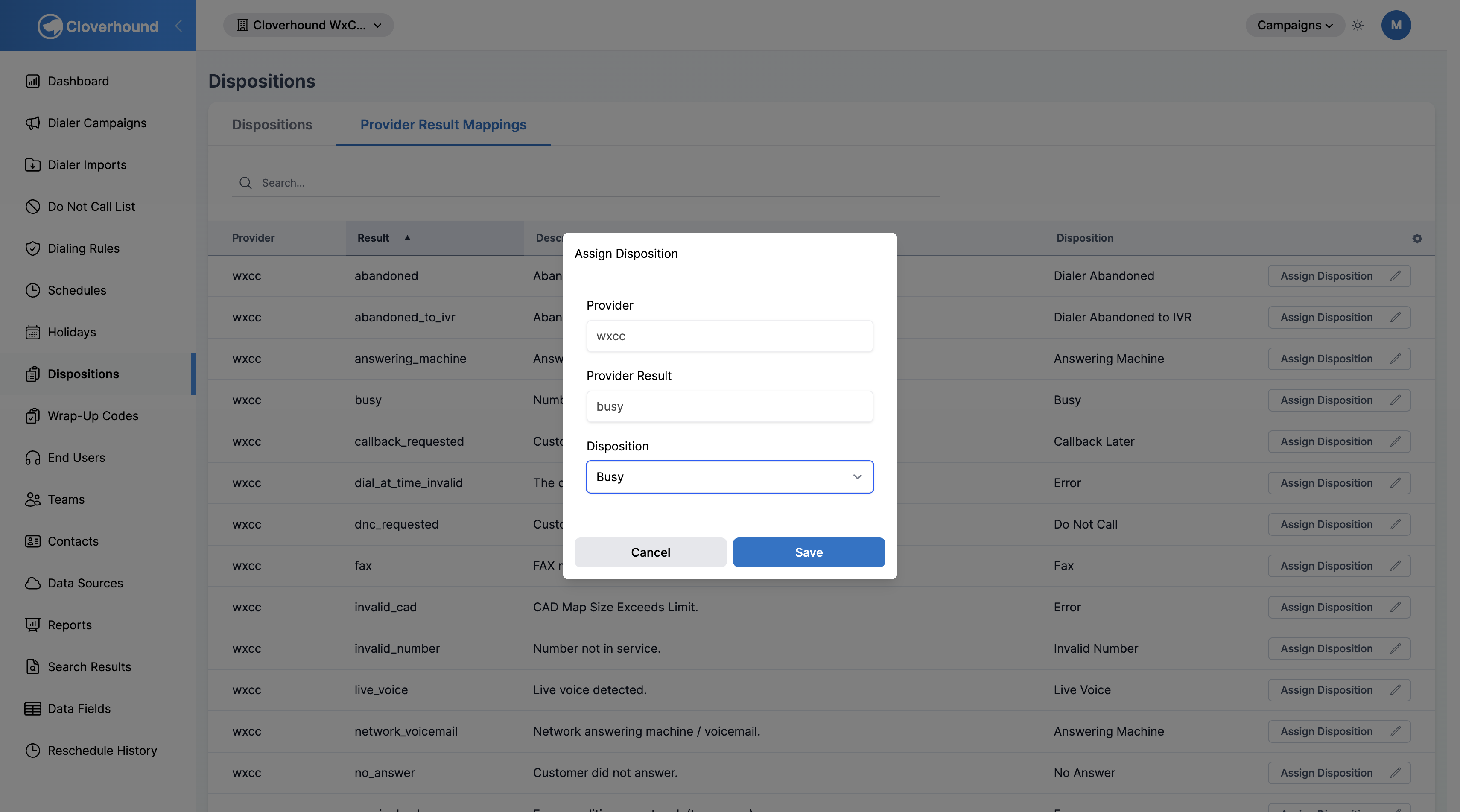
Select a disposition from the Disposition dropdown. The list shows every disposition defined for your organization.
-
Click Save.
The table refreshes and the new disposition appears in the row.
Changing an Existing Mapping
- Click Assign Disposition on the row you want to change.
- Pick a different disposition from the dropdown.
- Click Save.
The previous disposition is replaced immediately; there is no separate confirmation step.
Changing a mapping affects every future call that returns the matching provider result. Records already closed with the previous disposition are not re-evaluated.
Default Mappings
Cloverhound Cloud creates two sets of mappings automatically so you have working defaults before you place your first call:
- System mappings cover internal results the dialer produces when it cannot place a call — for example,
no_numbers_availableanderror. - WxCC mappings cover the Webex Contact Center outcomes returned from a dial attempt. See the WXCC Mappings table on the Dispositions page for the full list.
You can reassign any default mapping at any time by following the steps above. If you create additional dispositions for your organization, use this tab to route provider results to them.
Unassigned Results
A row with - in the Disposition column is not yet mapped. When a provider returns a result that has no mapping, Cloverhound Cloud cannot apply a disposition-driven action to the record — the call is logged, but retry, close, and Do Not Call rules are skipped for that outcome.
Review the Provider Result Mappings tab whenever you:
- Add a new provider integration to your organization.
- See unexpected
-entries appear after a campaign run. - Create a new disposition that should replace an existing default mapping.
WxCC mappings are seeded when your organization is first created. If a provider returns a result that does not appear in this table, contact Cloverhound support to have it added.
With mappings in place, every result from your dialing provider is funneled into a disposition that your campaign dispositions and dialing rules can act on.