Viewing Dialer Results
The Dialer Results page lists every dial attempt made by your outbound campaigns. Each row represents a single attempt against a record's phone number, with the provider outcome, wrap-up code, agent, and call timing. Use this page to investigate individual dials, audit campaign activity, and export attempt-level data for reporting.
Dialer Results live in the Campaigns module, on the Search Results page (also reachable from the Dialer Records tab of a campaign through the View Results action).
Accessing Dialer Results
-
Navigate to the Campaigns module.
-
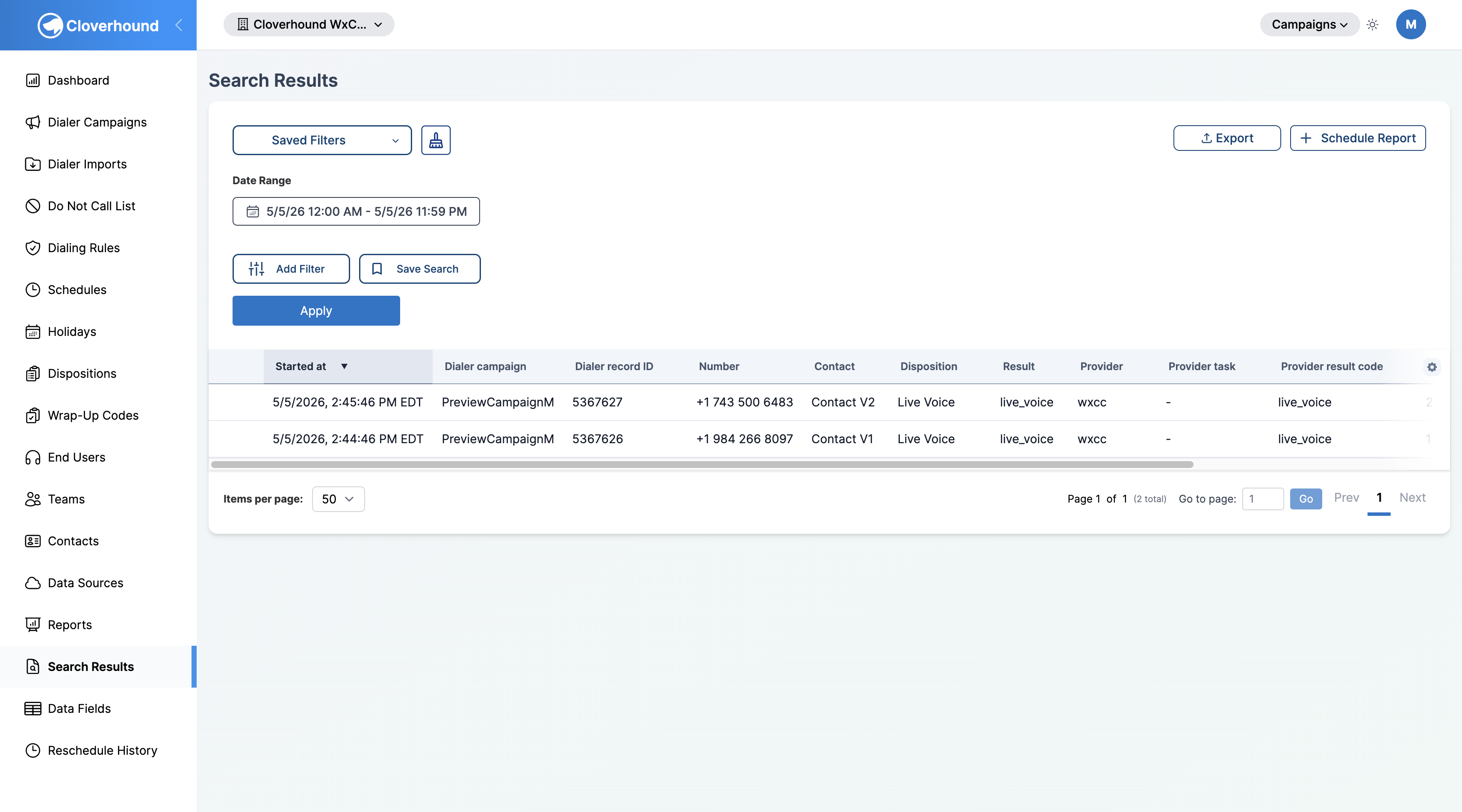
Open the Search Results page from the Campaigns sidebar.
-
Review the results table. By default, the page shows attempts from the current day across all your campaigns, sorted by start time (newest first).
Understanding the Table Columns
Each row in the Dialer Results table shows the following fields:
-
Started at — when the call started, in your organization's time zone. For attempts with no start time (for example,
CUSTOMER_UNAVAILABLE), the record's creation time is shown instead. -
Dialer campaign — the campaign that produced the attempt.
-
Dialer record ID — the ID of the campaign record that was dialed.
-
Number — the phone number that was dialed.
-
Contact — the full name of the matched contact, if any.
-
Disposition — the campaign disposition assigned to the attempt.
-
Result — the normalized outcome (for example, Live Voice, No Answer, Busy, Answering Machine).
-
Provider — the dialing provider (WxCC or WxConnect).
-
Provider task — the provider's task identifier for the attempt.
-
Provider result code — the raw outcome code returned by the provider.
-
Wrap-Up code — the wrap-up code entered by the agent, if any.
-
End user — the agent who handled the call, if it was answered.
-
Duration — call duration as
MM:SS, based on call start and end times.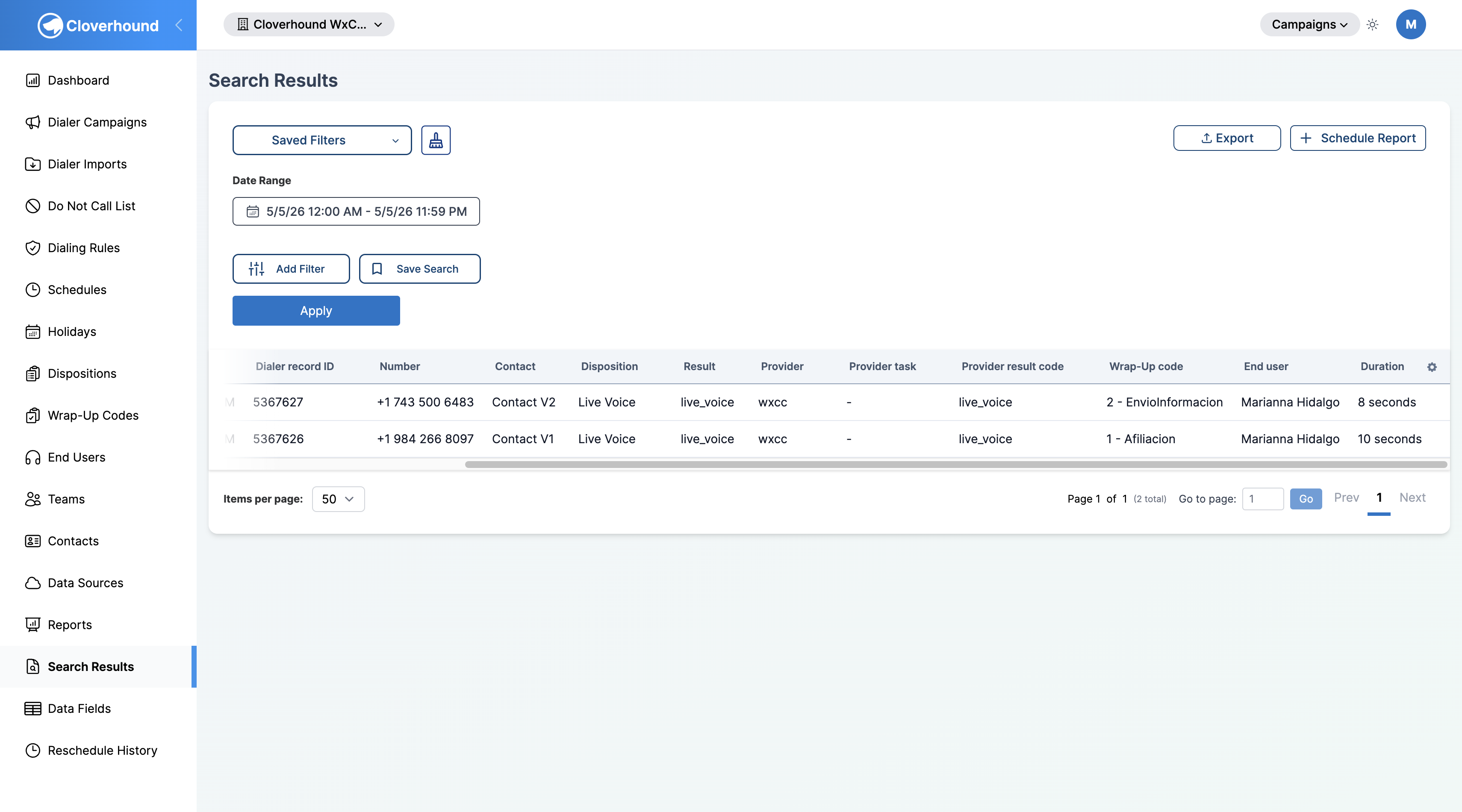
If the Contact Center Analytics module is enabled and an attempt is linked to an interaction, a details icon appears at the start of the row that opens the interaction's detail page.
Sorting and Paginating
-
Click a column header to sort by that column. Click again to reverse the sort direction.
-
Use the pagination controls at the bottom of the table to move between pages, and the per-page selector to change how many rows are shown at once.
Filtering Results
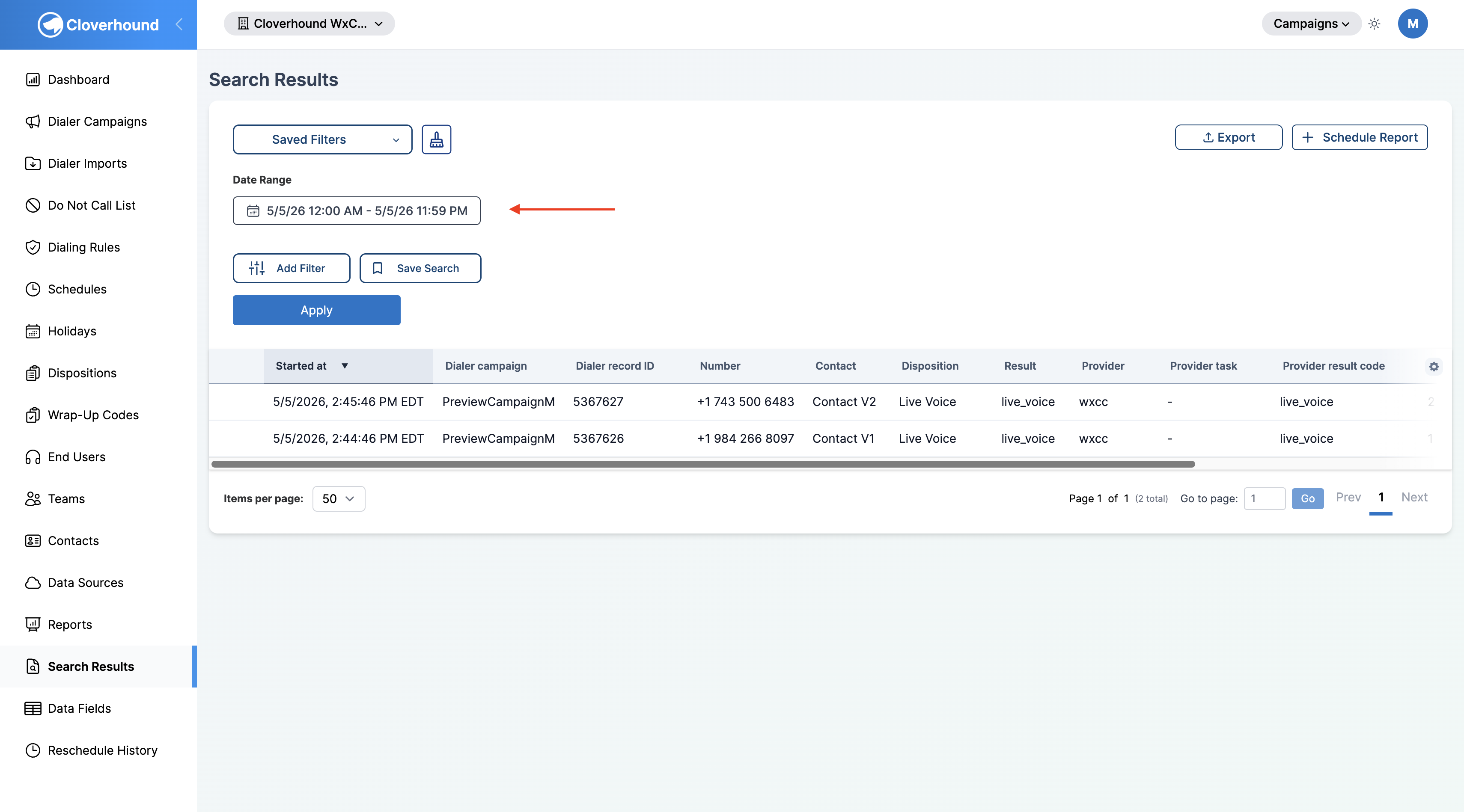
Dialer Results supports a fixed set of filters, shown on the left side of the page. All filters are combined with AND.
-
Set the Date Range (required). The Date Range filter is always active and cannot be removed.
-
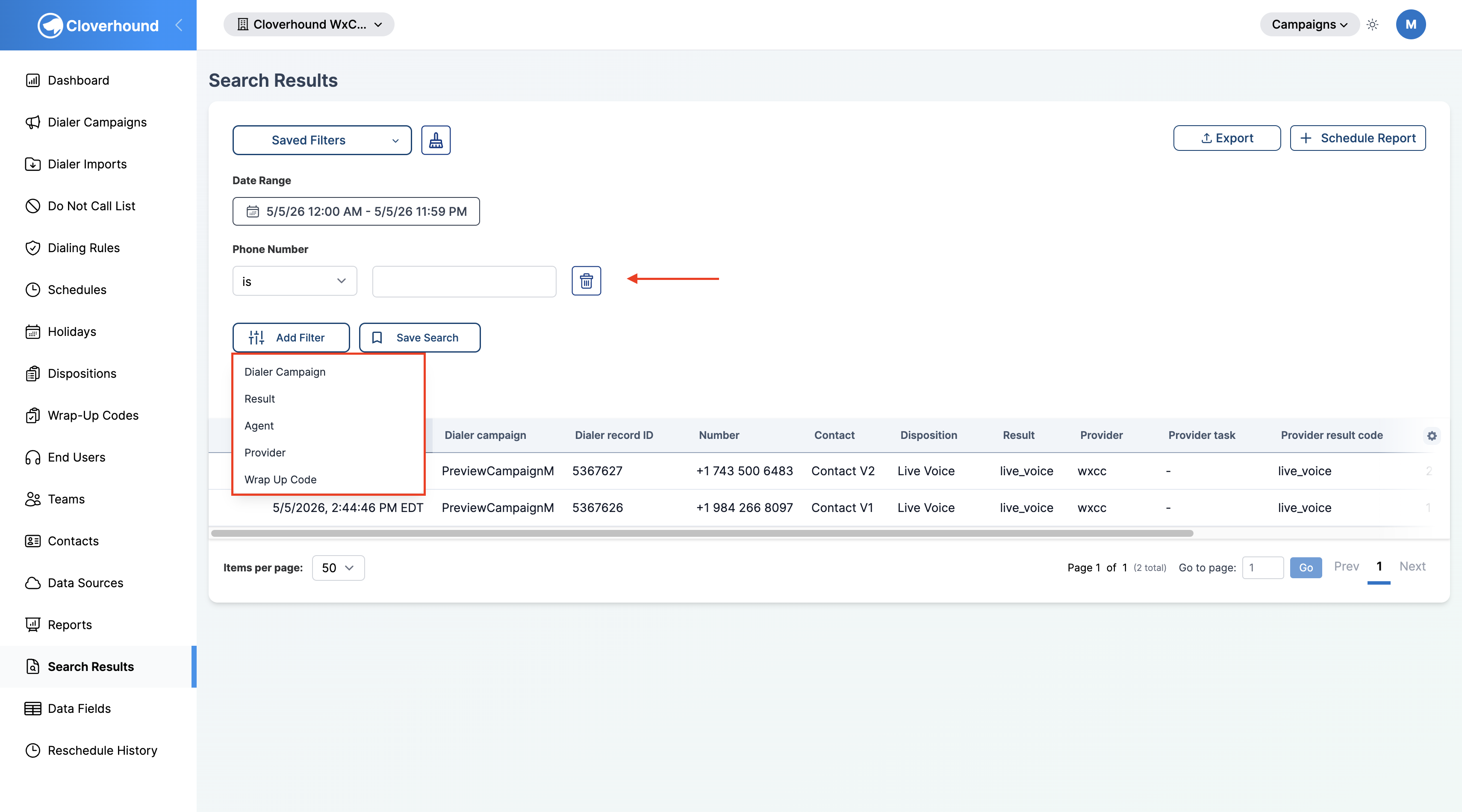
Add one or more additional filters from the filter list:
- Phone Number — match the dialed number using is, is not, contains, doesn't contain, starts with, or ends with.
- Dialer Campaign — pick one or more campaigns from your organization.
- Result — pick one or more normalized outcomes, including Live Voice, Invalid Number, No Answer, Busy, Fax, Answering Machine, Network Voicemail, No Ringback, Operator Intercept, Callback Requested, Abandoned, Abandoned to IVR, Flushed Campaign Stop, Guard Time Expiry, Flushed Error, DNC Requested, Invalid CAD, and Dial At Time Invalid.
- Agent — pick one or more end users from your organization.
- Provider — pick WxCC, WxConnect, or both.
- Wrap Up Code — pick one or more wrap-up codes.
-
Apply the filters. The table refreshes to show only attempts that match every active filter.
-
Remove a filter by clicking the trash icon next to it.
Changing any filter or the date range resets the table to page 1 so you see the newest matches right away.
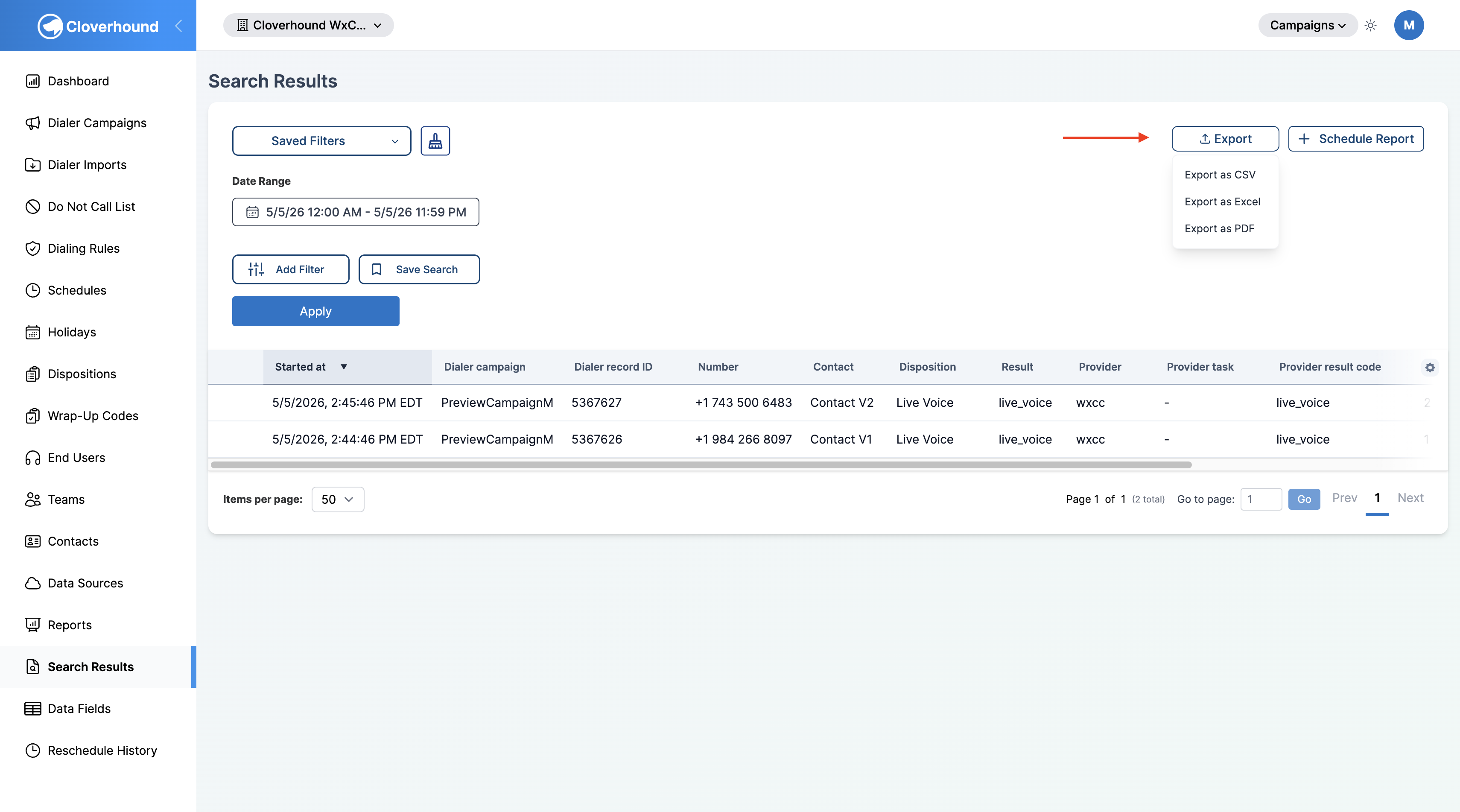
Exporting Dialer Results
-
Click the Export button above the table.
-
Choose a format:
- CSV — for spreadsheet tools and data pipelines.
- XLSX — Excel workbook with a separate sheet listing the date range.
- PDF — landscape-formatted report.
The export respects the filters, date range, and sort order currently applied to the table. Exports include these columns: Started At, Dialer Result ID, Dialer Campaign, Number, Contact, Campaign Disposition, Result, Provider, Provider Result Code, End User, and Duration.
Exports are capped per request: up to 10,000 rows for CSV and XLSX, and up to 1,000 rows for PDF. Narrow the date range or add filters if you need more records than fit in a single export.
Scheduling a Report
If your organization has scheduled reports enabled, a Schedule Report button appears next to Export. Use it to configure a recurring Dialer Result report that runs with the current filters. See Scheduled Reports for details on delivery and formats.
With Dialer Results you can audit individual dial attempts, investigate agent outcomes, and export attempt-level data to the format your workflow needs.