Viewing Agent Stats
The Agent Summary tab on the Dialer Reports page shows per-agent activity across one or more dialer campaigns for a given time window. Use it to compare how many records each agent has already dialed against how many are still scheduled for them, so you can spot workload imbalances and unused capacity.
This page lives under the Campaigns module, in the Reports section of the main menu. The Dialer Reports page also contains the Result Summary and Charts tabs; this page covers only the Agent Summary tab.
The Agent Summary tab lets you:
- Filter by campaign, date range, and optionally a single agent.
- Compare dialed versus non-dialed record counts side by side per agent.
- Sort and page through large agent rosters.
- Export the filtered view to CSV, XLSX, or PDF.
Accessing the Agent Summary
-
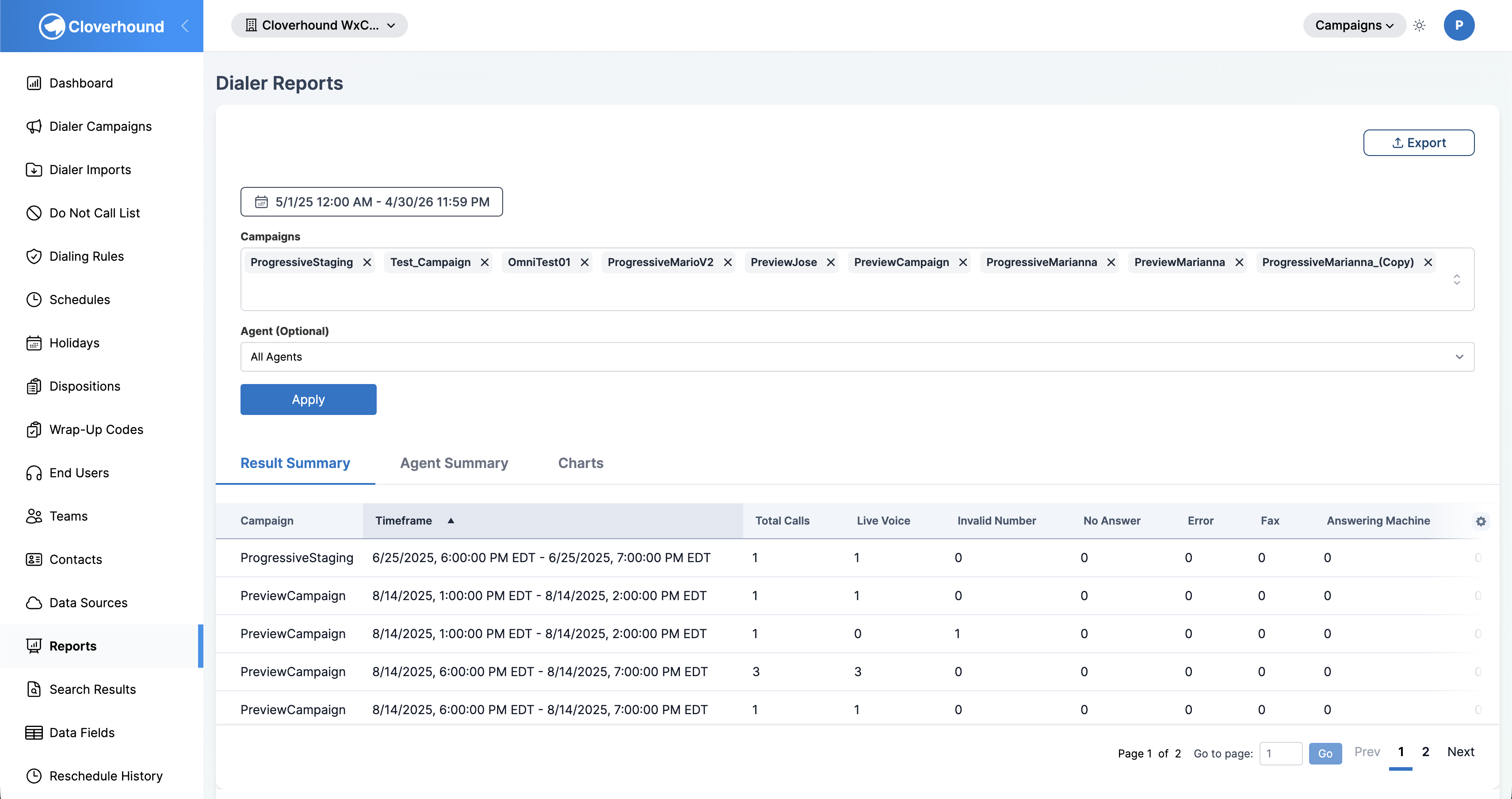
Navigate to the Campaigns module.
-
Open the Reports page from the side menu.
-
Click the Agent Summary tab. The tab loads once you have selected at least one campaign and a date range.
Filtering the Report
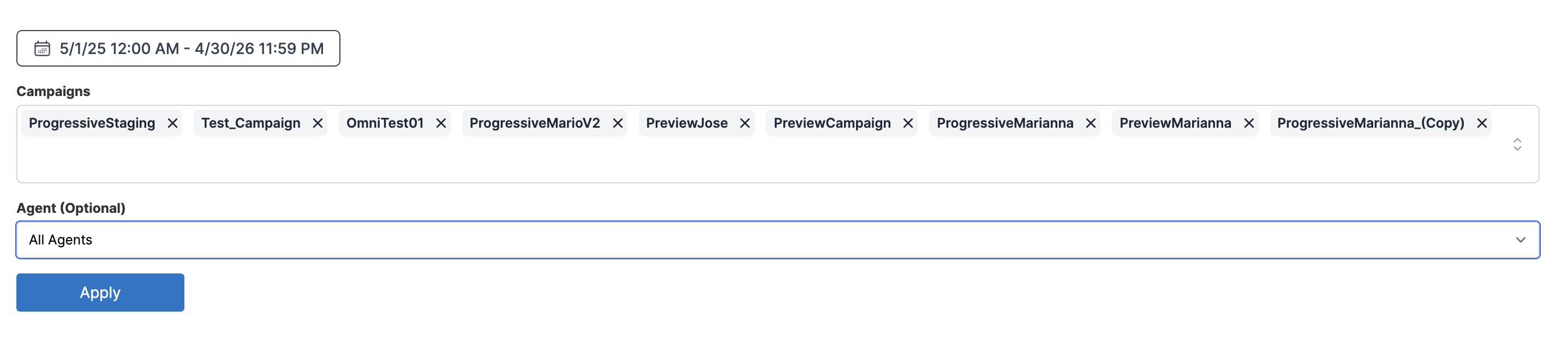
The left side of the page holds the filters that apply to every tab, including Agent Summary.
-
Pick a date range in the Date Picker. Both date and time of day are supported. The range defaults to the current day in your organization's time zone.
-
Select one or more campaigns in the Campaigns combobox. You can only see campaigns your role allows you to read.
-
Select an agent (optional) in the Agent dropdown. Leave it on All Agents to see every agent that has activity in the selected campaigns.
-
Click the Apply button to run the report.
Changing filters does not refresh the table until you click Apply. The Apply button is disabled while a request is in flight.
Reading the Table
Each row represents one agent / campaign pair in the selected time range.
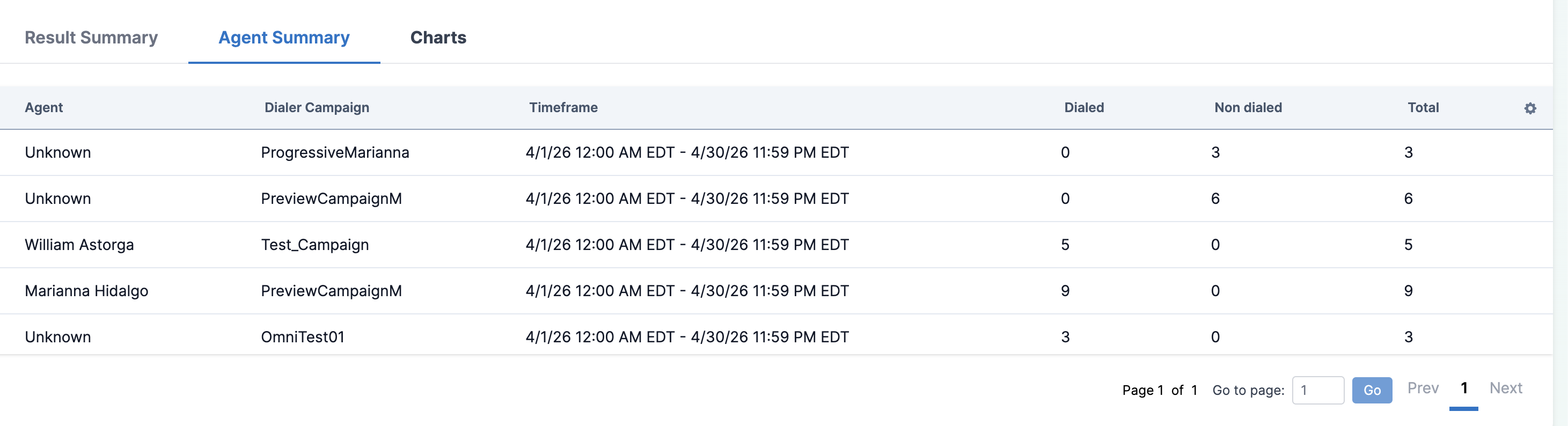
- Agent — the agent's full name. Records with no assigned agent appear as Unknown.
- Dialer Campaign — the campaign the row's numbers belong to.
- Timeframe — the start and end of the report window, formatted in your organization's time zone.
- Dialed — the count of unique records the agent has already dialed in this campaign during the time range. Uniqueness is determined by the underlying record when available, otherwise by the phone number, so multiple attempts against the same record count once.
- Non dialed — the count of records still pending or queued for retry that are scheduled for this agent in the time range.
- Total — Dialed plus Non dialed. This represents the agent's total assigned workload for the window.
Rows appear for every agent that has either dialed at least one record or has at least one pending or retry record scheduled in the window. An agent with no activity and no scheduled records will not appear.
How the Counts Are Calculated
- Dialed counts dialer results whose call started timestamp falls within the selected range and whose campaign is in the selected list. Each record contributes at most once, even if the agent dialed it multiple times.
- Non dialed counts dialer records in pending or retry status whose scheduled for timestamp (or, if none, the next dialable at timestamp) falls within the selected range.
- When an agent is selected in the filter, Dialed is scoped to results owned by that agent and Non dialed is scoped to records scheduled for that agent.
Sorting and Paging
- Click any column header to sort ascending, click again to sort descending.
- Use the pager at the bottom of the table to move through pages, or change the page size from the page-size control.
Exporting the Report
You can export the current Agent Summary view to a file.
-
Make sure the Agent Summary tab is the active tab. The export respects the active tab.
-
Click the Export dropdown in the top-right of the page.
-
Choose a format:
- CSV for spreadsheet tools.
- XLSX for Excel, which preserves column types.
- PDF for a printable snapshot.
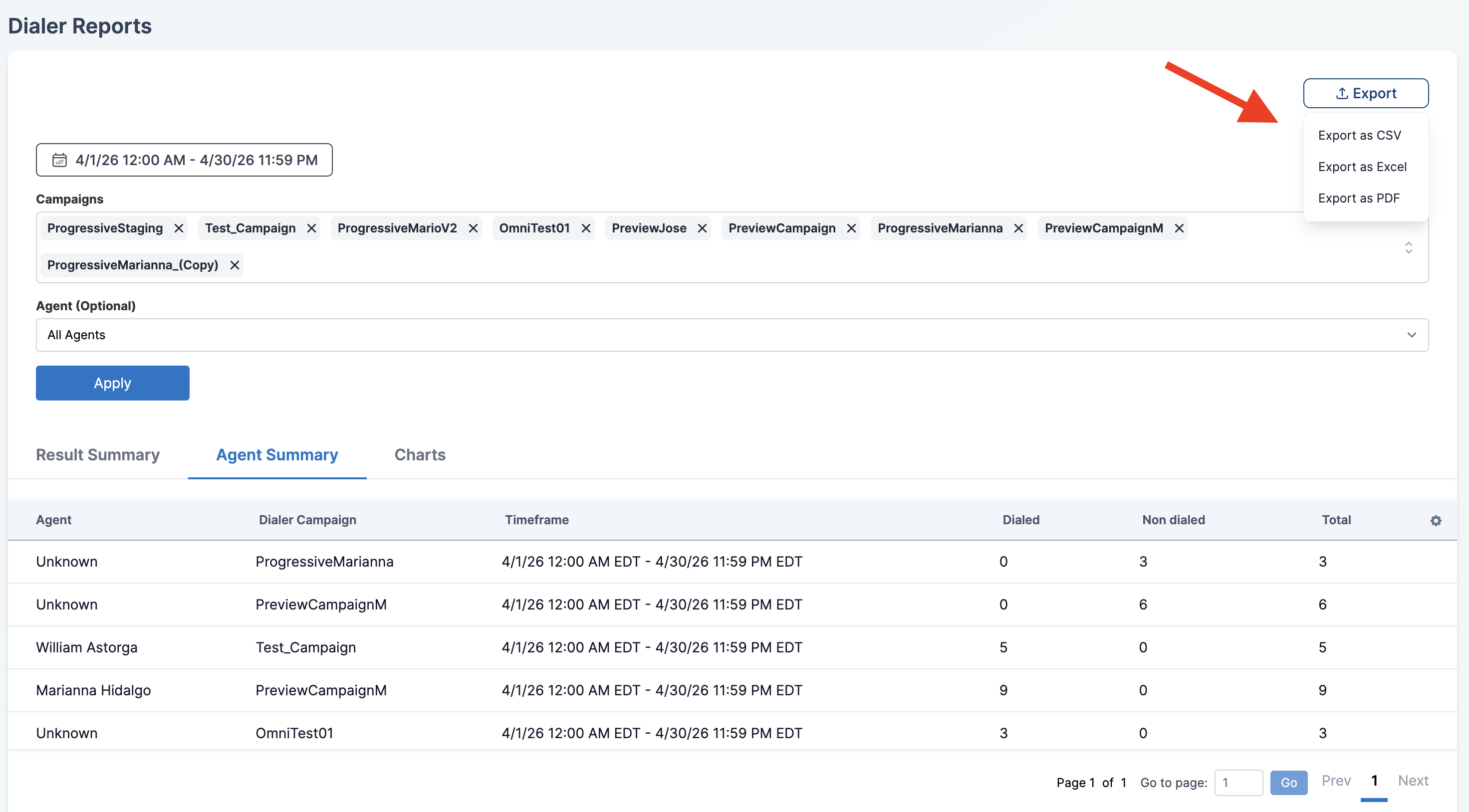
The exported file reflects the same campaigns, agent, and date range as the on-screen table and is named agent_summary-<date>.<ext>.
Rate Limits
The Agent Summary endpoint is rate-limited to protect the database from expensive queries.
Each user may run at most 25 Agent Summary requests per minute. If you exceed the limit, the page shows a "Rate limit exceeded" error and you must wait up to a minute before retrying. Narrow the date range or the campaign list to reduce load.
Troubleshooting
- Table shows "No agent summary data yet" — the combination of campaigns, agent, and date range has no dialed records and no pending or retry records scheduled in the window. Widen the date range or pick a different campaign.
- An agent you expected to see is missing — the agent has no dialed results and no records scheduled for them in the window. Switch the agent filter to All Agents to confirm.
- A row shows the agent as "Unknown" — the underlying records have no assigned agent, which commonly happens for historical data imported before the agent was set up.
With the Agent Summary tab you can now see exactly how much work each agent has done and how much is still queued for them, across any combination of your dialer campaigns.