Managing Salesforce Data Sources
A Data Source is a saved, filtered view of a single Salesforce object (Contact or Lead) that campaigns can pull records from. Each data source defines which object to read, which records to include via filter conditions, and whether it is enabled. Campaigns reuse data sources through Data Source Links, and each object is backed by a shared Salesforce Org Sync that keeps Cloverhound Cloud in step with Salesforce.
The Data Sources page is where you:
- See the current status of each Salesforce Org Sync for your organization.
- Create, edit, and delete data sources.
- Enable or disable individual data sources without deleting them.
- See how many campaigns each data source is linked to.
Before you create a data source, your organization must have a Salesforce connection configured on the Integrations page. If no connection is found, the Data Sources page shows a prompt to configure one and hides the rest of the UI.
Accessing Data Sources
-
Navigate to the Campaigns module.
-
Open the Data Sources page.
-
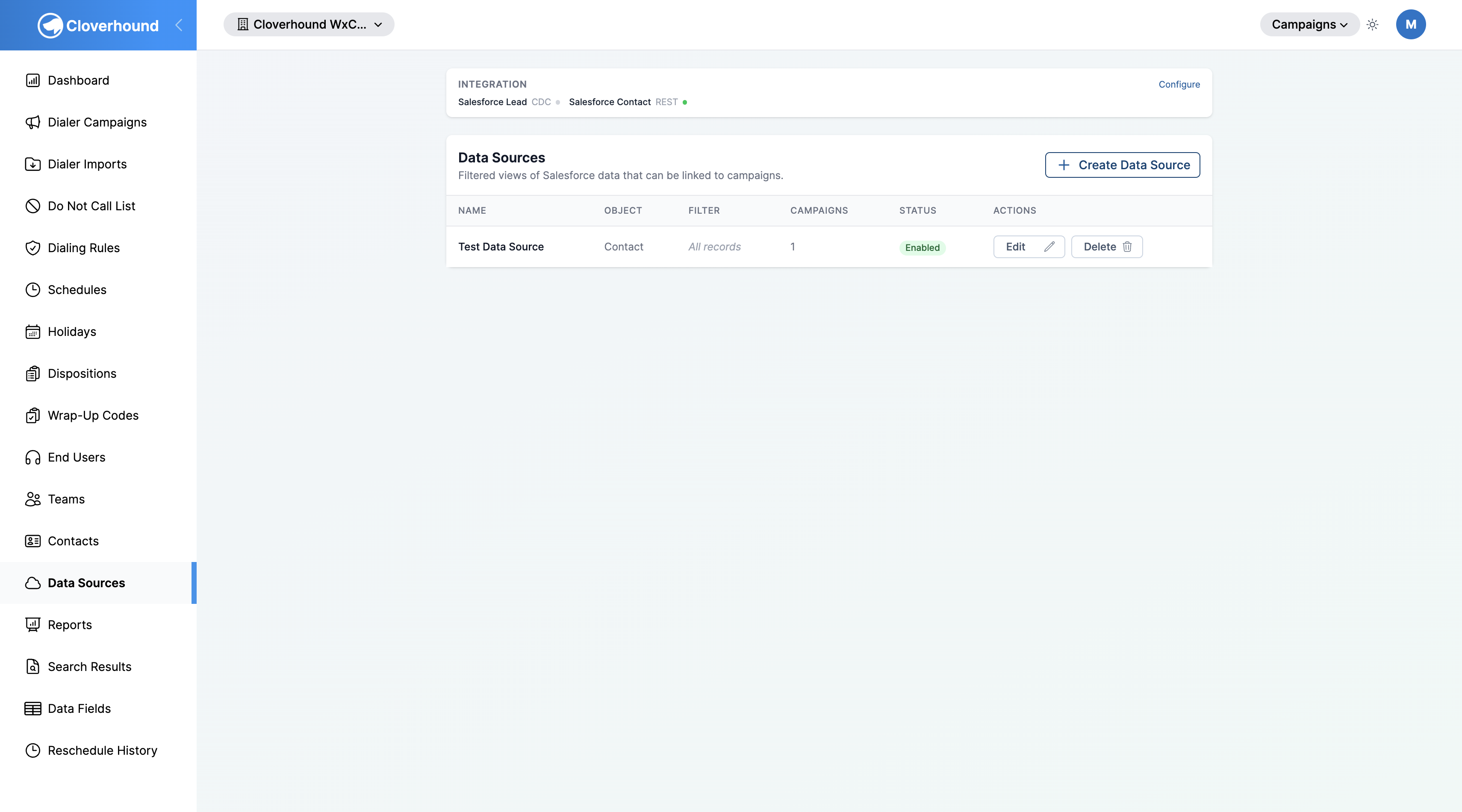
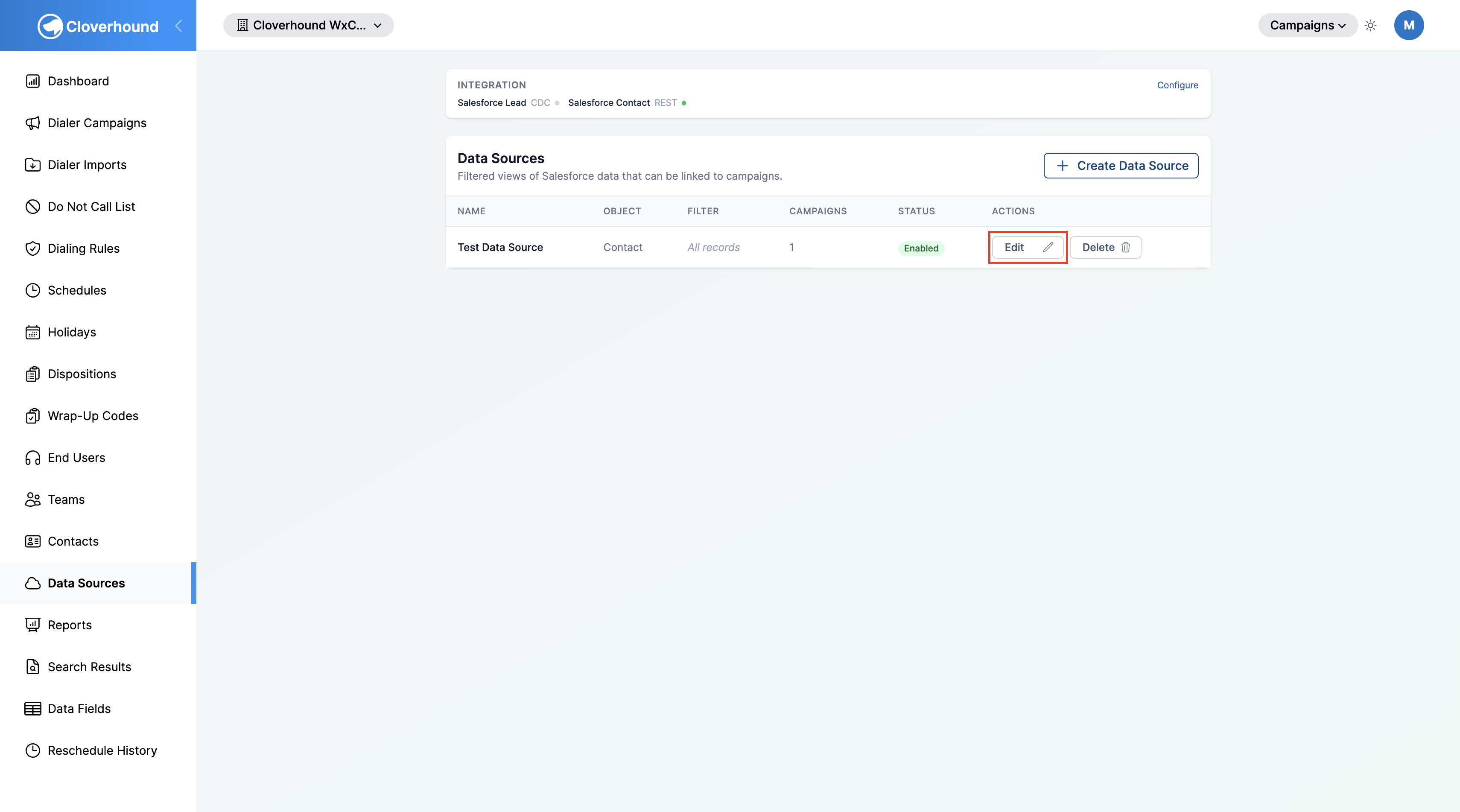
Review the Integration card at the top of the page. It lists each Salesforce object currently synced, the sync method (CDC or REST), and a colored status dot:
- Green — the org sync is active and enabled.
- Red — the org sync is in error or the circuit breaker is open.
- Gray — the org sync is disabled or paused.
Click Configure on the card to open the Integrations page, where you manage Salesforce Org Syncs.
-
Review the Data Sources list. Each row shows:
- Name and description.
- Object —
ContactorLead. - Filter — a summary of the data source's filter conditions, or
All recordsif none are set. - Campaigns — the number of campaigns currently linked to this data source.
- Status — Enabled or Disabled.
- Actions — the Edit and Delete buttons.
Creating a Data Source
-
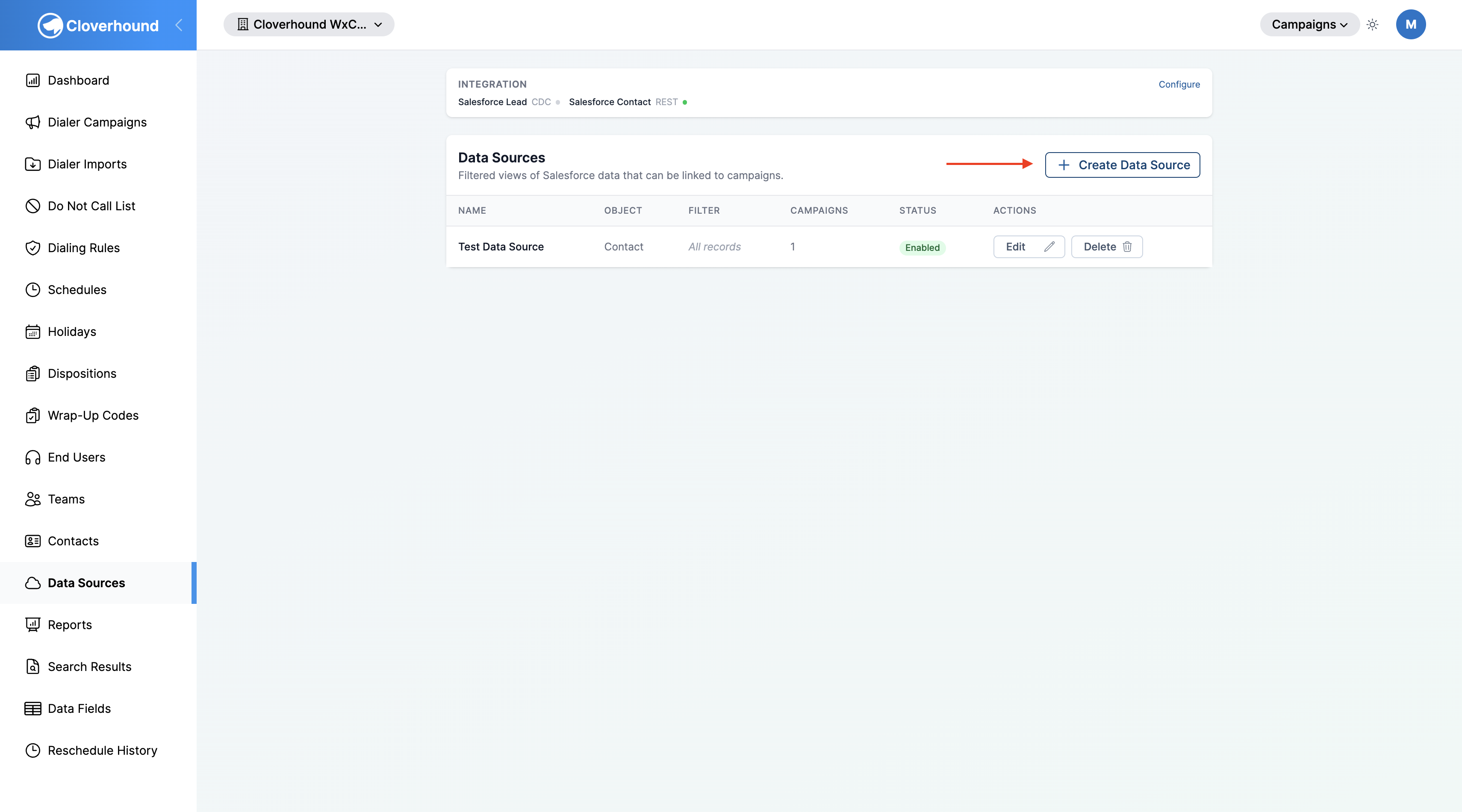
Click the Create Data Source button in the top-right of the Data Sources list.
-
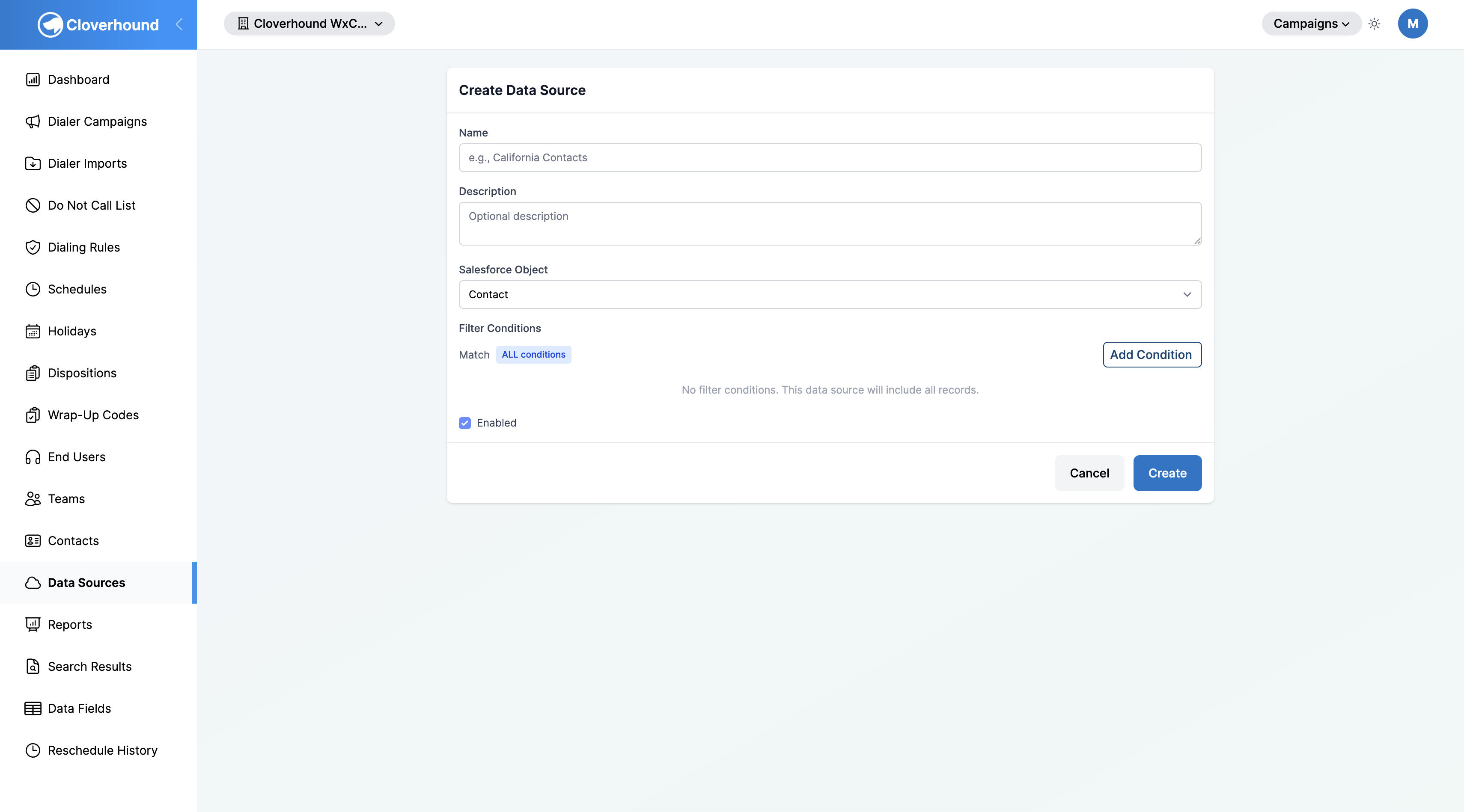
Fill out the form:
- Name — a short label for the data source (for example,
California Contacts). Required. - Description — an optional longer description.
- Salesforce Object — the object to query. Choose Contact or Lead. This field is only shown when creating a new data source.
- Filter Conditions — optional rules that limit which records the data source includes. See Building Filter Conditions below.
- Enabled — when checked, campaigns linked to this data source receive records from it. Defaults to checked.
- Name — a short label for the data source (for example,
-
Click Create.
The first time you create a data source for a Salesforce object, Cloverhound Cloud automatically creates a Salesforce Org Sync for that object using the CDC sync method. Subsequent data sources for the same object reuse the existing org sync.
Building Filter Conditions
Filter conditions let you narrow a data source down to a subset of the Salesforce object. A data source with no conditions includes every record of its object.
-
Choose the Match mode by clicking the pill next to the Add Condition button:
- ALL conditions — a record must satisfy every condition (logical AND).
- ANY condition — a record must satisfy at least one condition (logical OR).
-
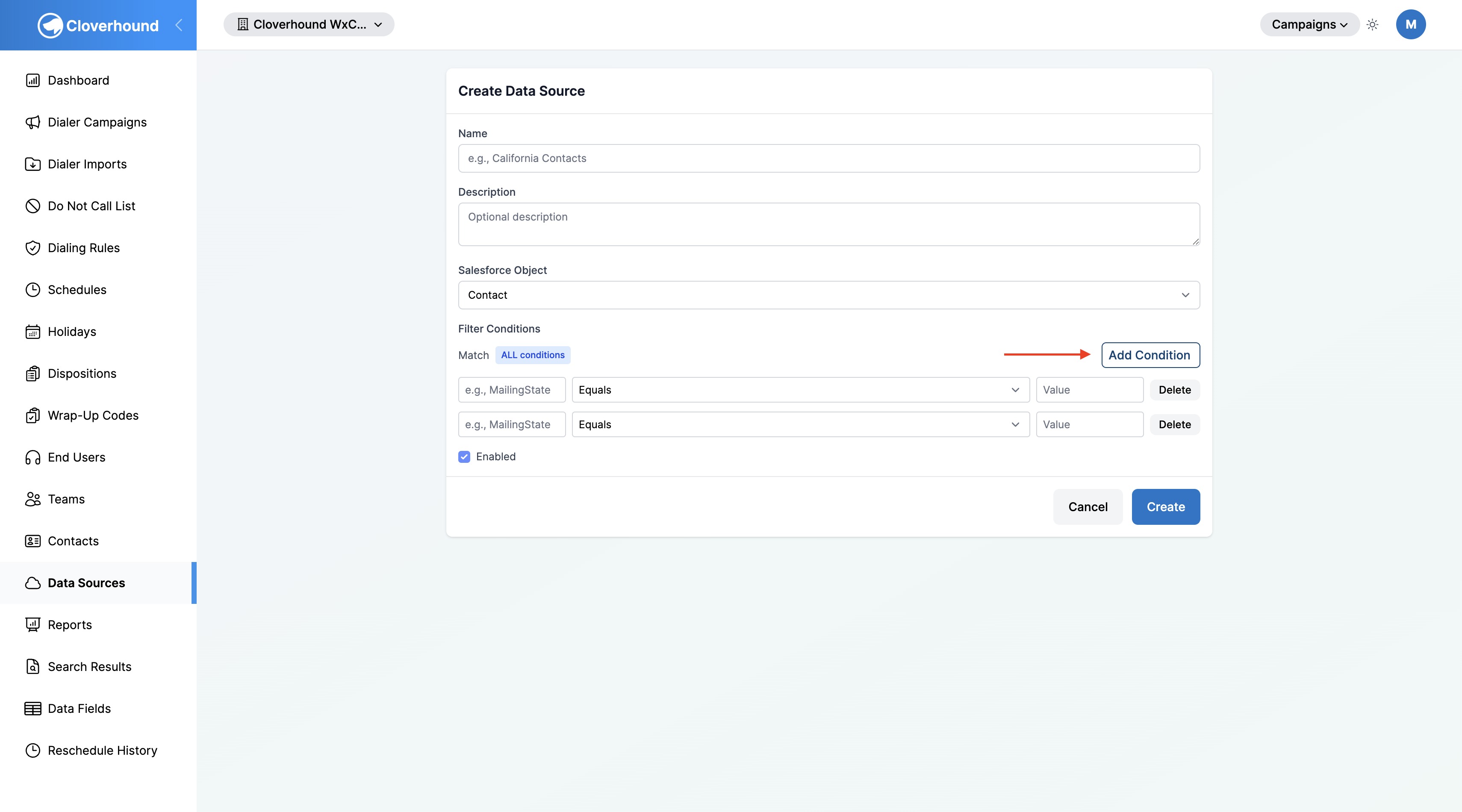
Click Add Condition for each rule you want to add.
-
Configure each condition:
- Field name — the Salesforce API name of the field (for example,
MailingState,Status,LeadSource). Letters, numbers, and underscores only; no spaces. The name must start with a letter and be 40 characters or shorter. - Operator — one of:
- Equals, Not Equals — single-value comparison.
- In List, Not In List — match against a comma-separated list of values.
- Contains, Not Contains, Starts With, Ends With — text matching.
- Is Empty, Is Not Empty — no value input required.
- Greater Than, Less Than — numeric or date comparison.
- Value or Values — the comparison input. For list operators, enter a comma-separated list.
- Field name — the Salesforce API name of the field (for example,
-
Click Delete on a condition row to remove it.
Examples:
- A Contacts data source scoped to California addresses: one condition with field
MailingState, operator Equals, valueCA, match mode ALL conditions. - A Leads data source that excludes converted leads from specific sources: two conditions, field
IsConvertedEqualsfalseand fieldLeadSourceIn ListWeb, Referral, match mode ALL conditions.
Filter summaries for each data source appear both on the Data Sources list and on every campaign link that references it, so reviewers can see the scope at a glance.
Field names must match the Salesforce API name exactly and follow Salesforce's naming rules (letters, numbers, and underscores; no spaces). Invalid field names fail validation when you save the data source.
Editing a Data Source
-
Click the Edit button on the data source row.
-
Update the Name, Description, Filter Conditions, or Enabled fields. The Salesforce Object cannot be changed after creation; create a new data source if you need to switch objects.
-
Click Update.
Testing the Salesforce Connection
Connection testing is performed at the Salesforce Org Sync level, not on each data source. If records are not arriving as expected, open the Integrations page and use the Test action on the relevant org sync to confirm the OAuth token can query the object. See Managing Salesforce Org Syncs for the full workflow.
Disabling a Data Source
Set Enabled to unchecked and save. Disabled data sources remain configured but stop contributing records to any campaign they are linked to. Re-enable by editing the data source and checking the box again.
The Status column on the Data Sources list shows Enabled or Disabled for each entry.
Deleting a Data Source
-
Click the Delete button on the data source row.
-
Confirm the prompt. Deleting a data source also removes every Data Source Link that references it, so linked campaigns stop receiving records from this source.
Deleting a data source cannot be undone. Campaign records that were previously imported from this source remain in their campaigns, but no further updates flow to them.
With Salesforce data sources defined, you can link them to campaigns from the campaign's Data Sources tab. See Managing Data Source Links to configure field mappings and duplicate handling for each link, and Managing Salesforce Org Syncs to adjust how Cloverhound Cloud pulls data from Salesforce.