Viewing Counter Snapshots
Cloverhound Cloud captures a snapshot of each enabled campaign's record counts every hour and plots the results on the Records History tab. Use this tab to see how pending, active, retry, completed, and failed record counts have changed over time for a single campaign.
Snapshots are captured for campaigns whose status is Running or Idle, and are retained for three months. Disabled campaigns do not accumulate new snapshots.
Accessing Records History
-
Navigate to the Campaigns module.
-
Open the campaign you want to review from the campaigns list. This takes you to the campaign page and its tabbed sidebar.
-
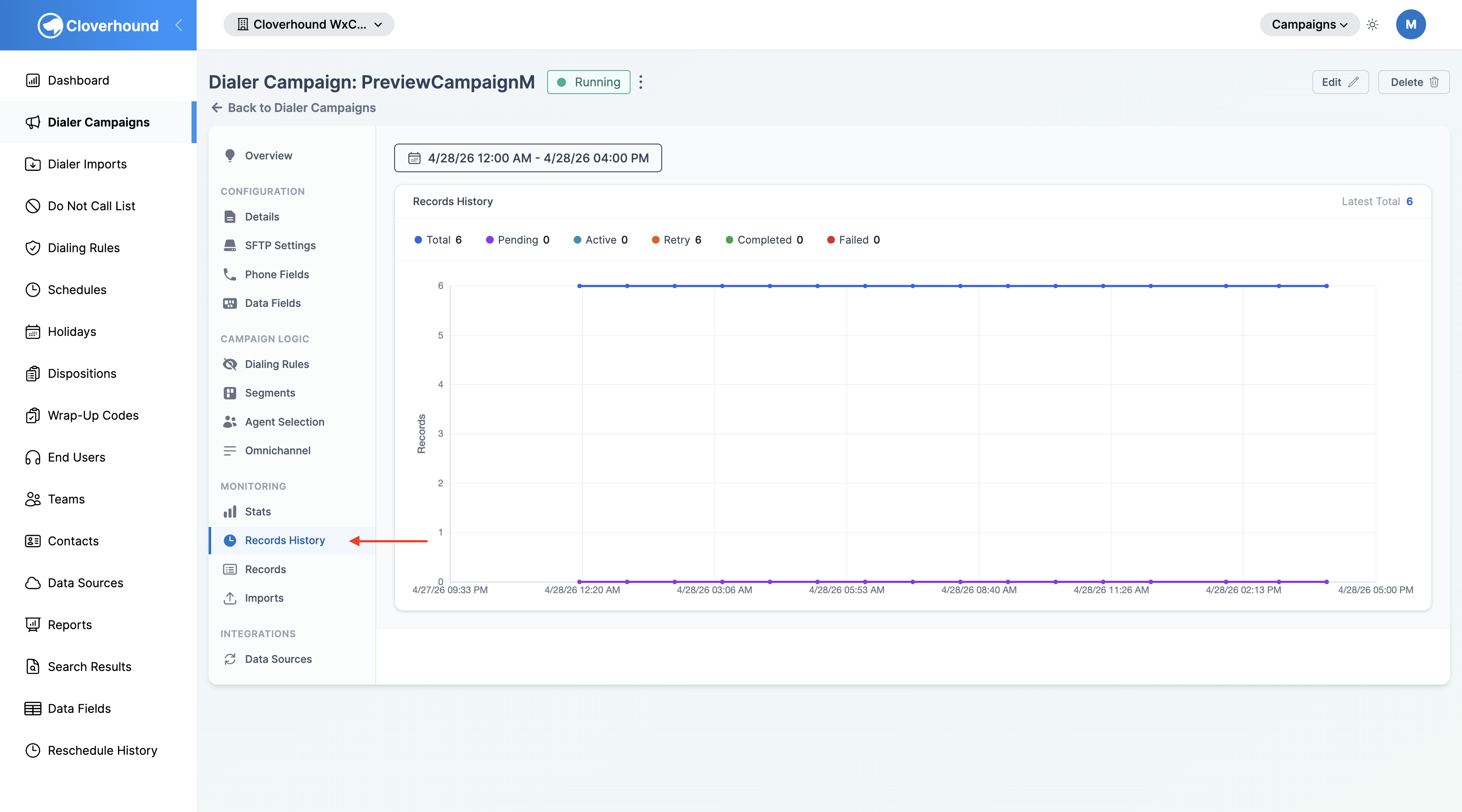
Select the Records History tab in the Monitoring group of the campaign sidebar.
-
Review the chart. It loads with the last 24 hours of data by default, so you immediately see recent activity without adjusting any filters.
Selecting a Date Range
-
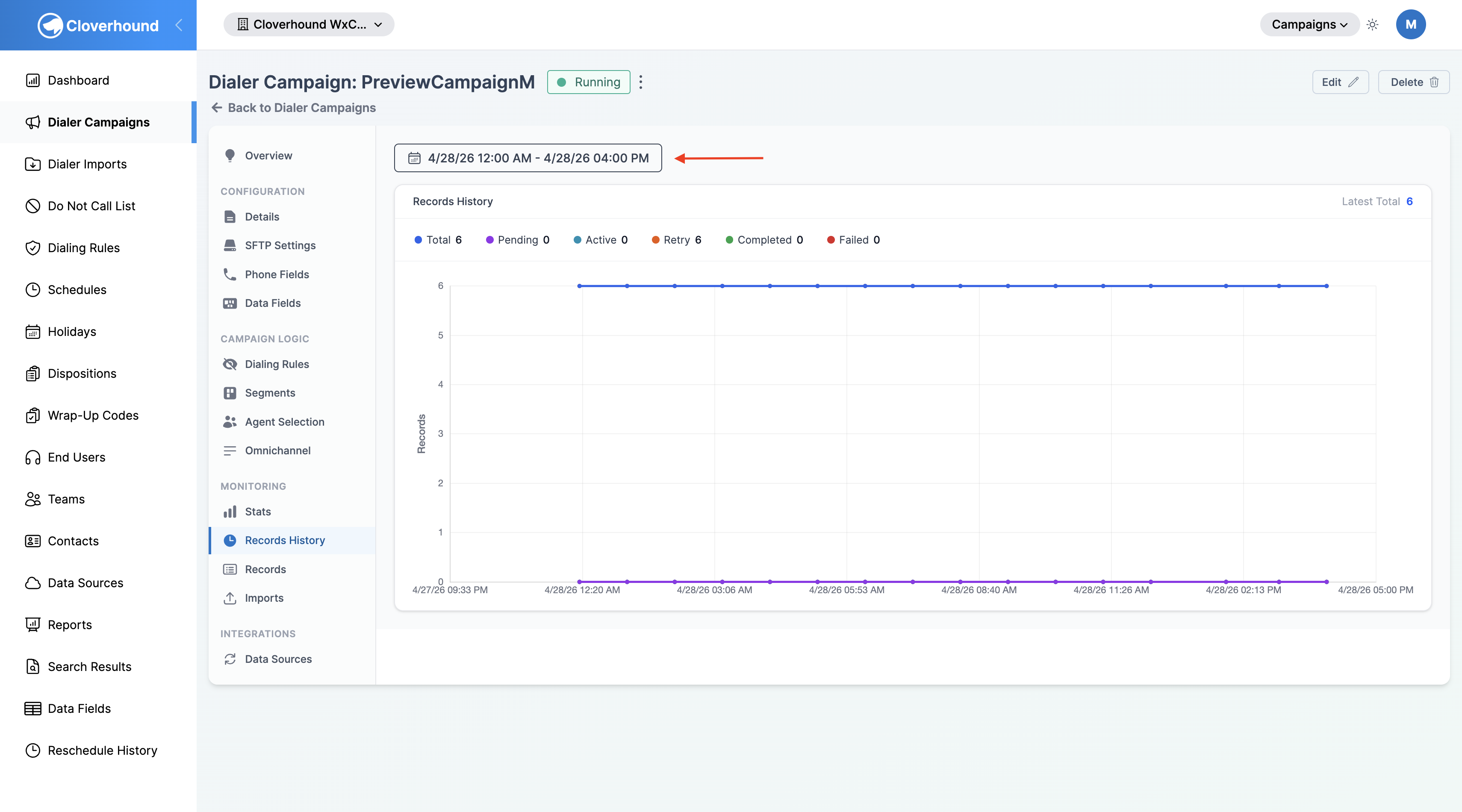
Click the date picker above the chart.
-
Choose a start and end date and time. The picker lets you include a time component, so you can zoom in on a specific window within a day.
-
Apply the range. The chart refetches automatically, and the tab cancels any in-flight request from the previous range so only the latest selection is shown.
All times on the Records History tab are rendered in your organization's time zone, so values line up with the schedules and reports you see elsewhere in the Campaigns module.
Date ranges are capped at 90 days. If you select a longer span, Cloverhound Cloud trims the end date to 90 days after the start date.
Reading the Chart
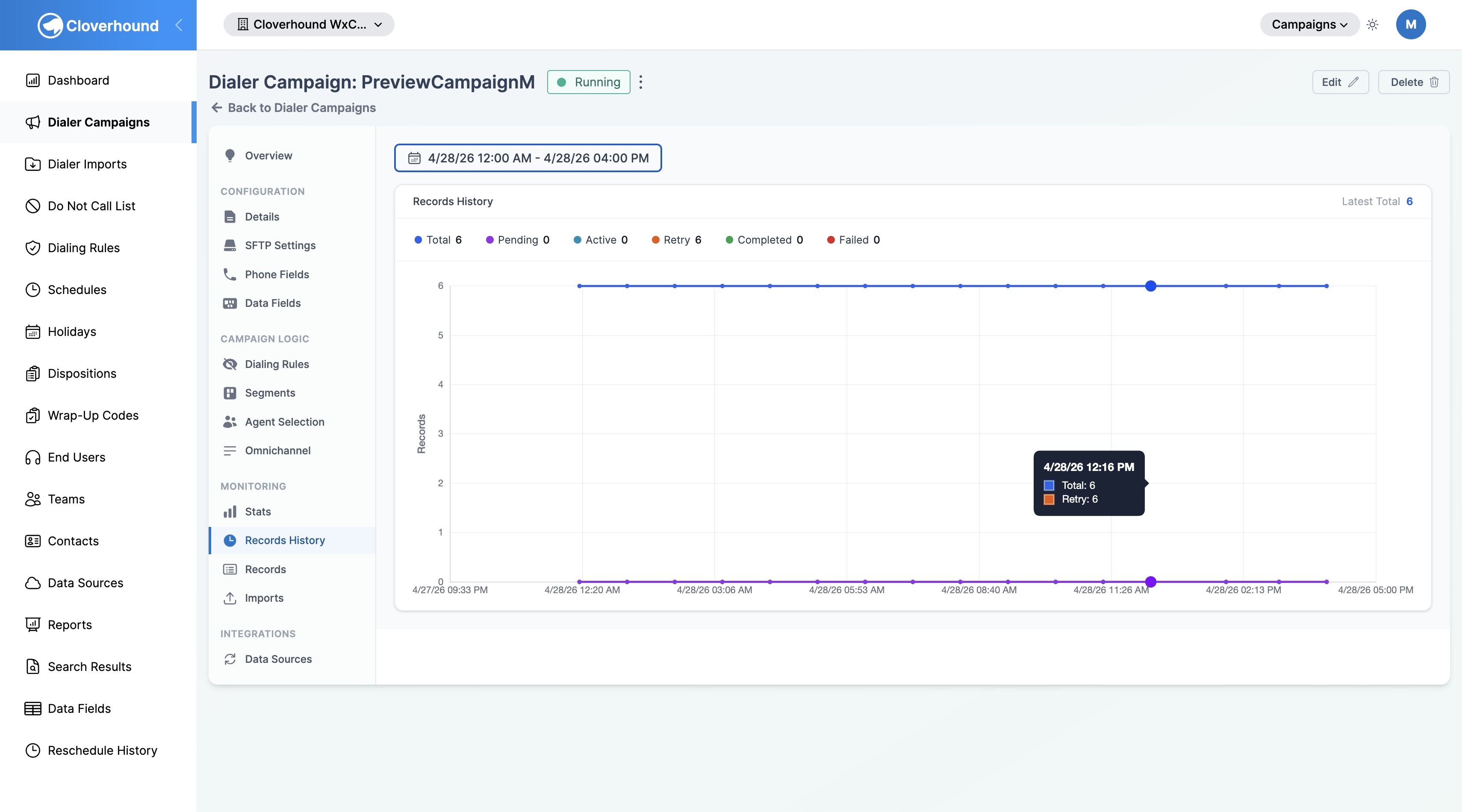
The chart plots six series, each showing the record count for one state at the time of capture:
- Total — every record in the campaign.
- Pending — records waiting for their first attempt.
- Active — records currently being dialed.
- Retry — records scheduled for another attempt.
- Completed — records that finished successfully.
- Failed — records that exhausted retries or failed permanently.
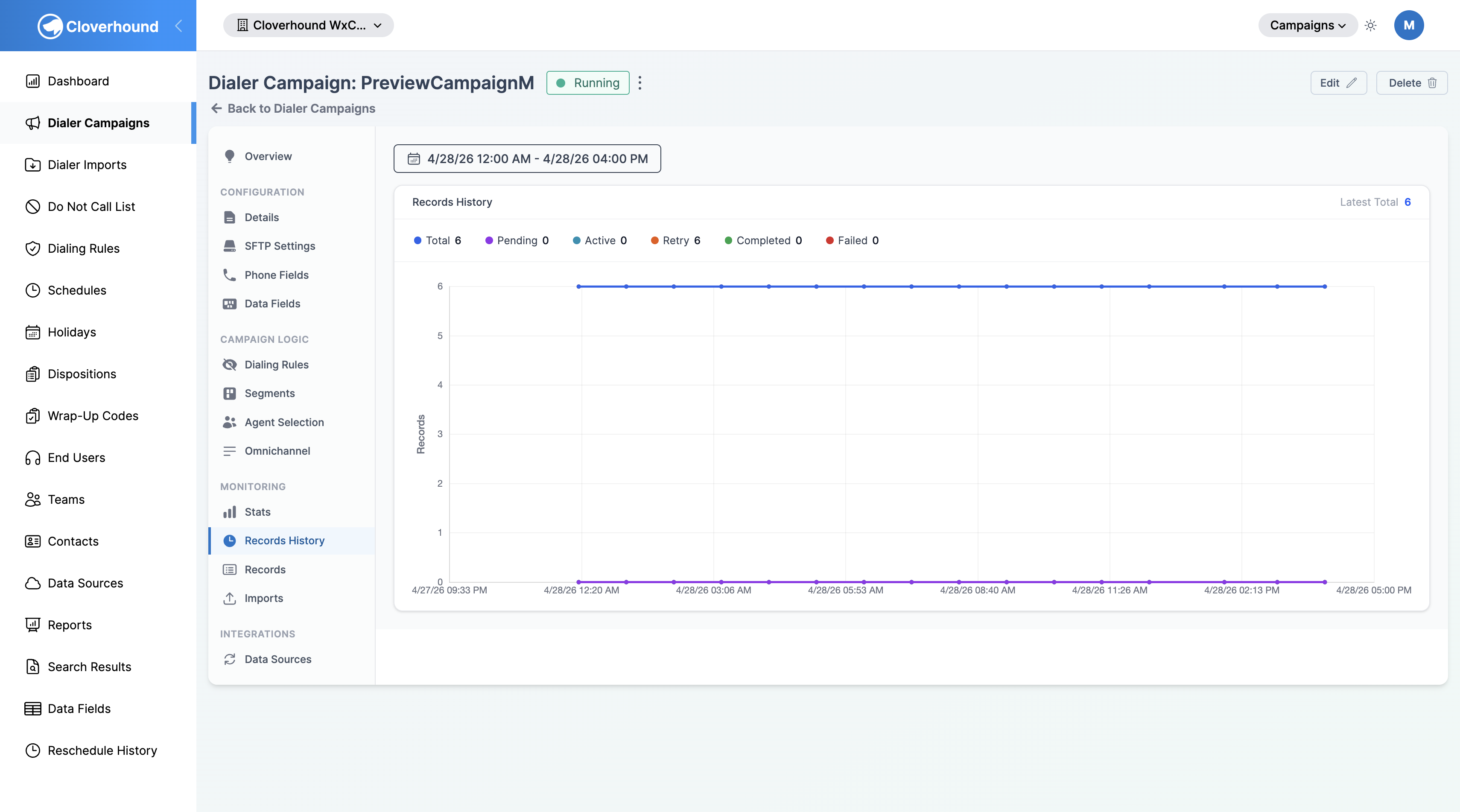
The header shows the Latest Total — the total record count from the most recent snapshot in the selected range. The legend under the header lists every series with its latest value.
Showing or Hiding a Series
-
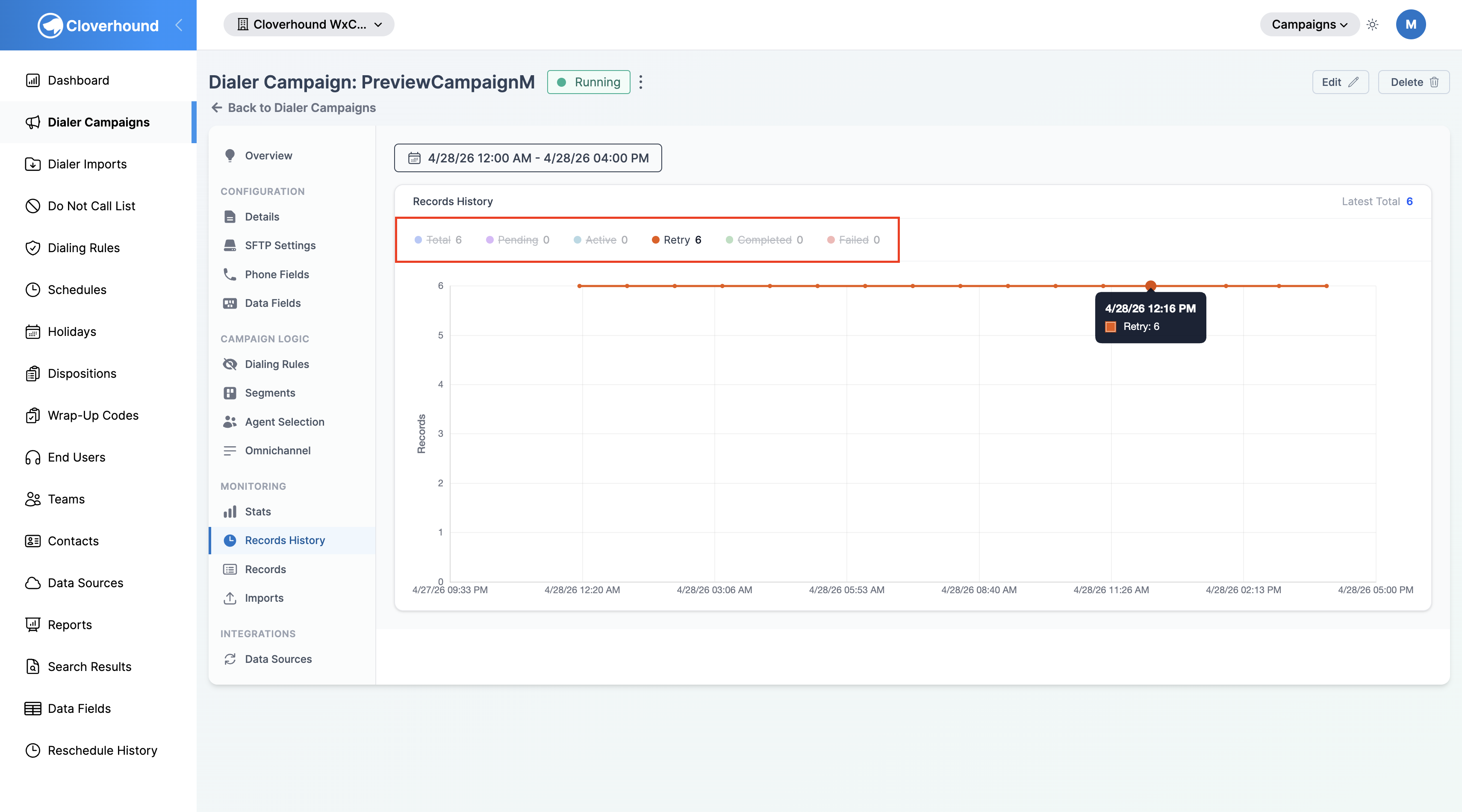
Click a series name in the legend to hide it. Hidden series are dimmed and struck through.
-
Click it again to bring the series back.
Inspecting a Point in Time
Hover over the chart to open a tooltip listing the value of each visible series at that snapshot, with the capture time in your organization's time zone.
Empty and Error States
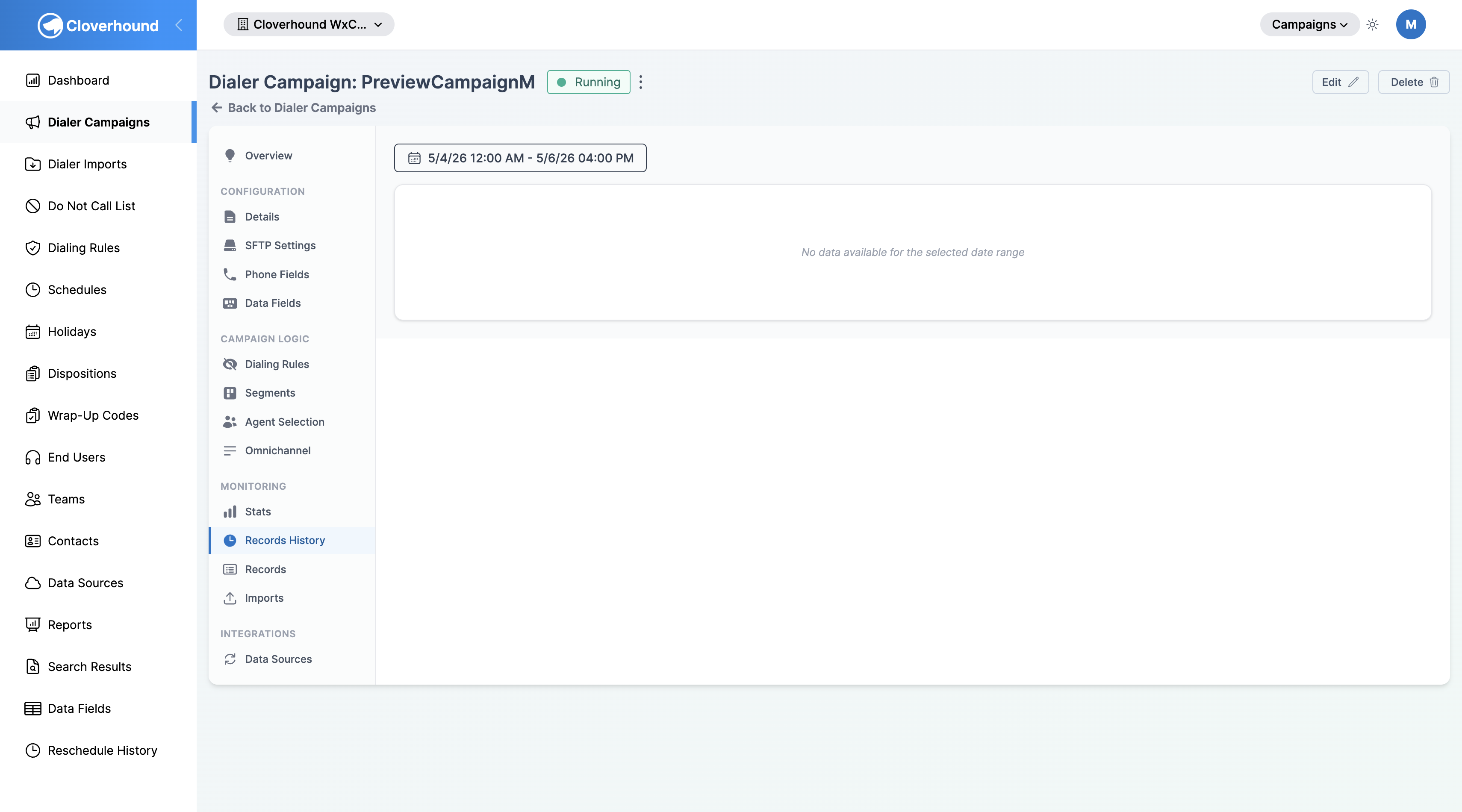
If there are no snapshots in the selected range, the chart area shows No data available for the selected date range. This happens when the campaign was disabled during the window, or the window is entirely before the campaign's first snapshot.
If the request fails, the chart shows an error message with a Retry button. Click Retry to reload the chart with the same date range.
New campaigns will not show data until the hourly snapshot job has run at least once after the campaign was enabled. Snapshots are only written while the campaign is Running or Idle.
When Snapshots Are Captured
Cloverhound Cloud captures snapshots automatically. You do not need to configure anything to start seeing data on this tab.
- Snapshots run once per hour for every campaign in your organization that is enabled and either Running or Idle.
- Each snapshot records the campaign's Total, Pending, Active, Retry, Completed, and Failed counts at the moment of capture.
- Snapshots older than three months are removed by a daily cleanup job, which sets the maximum window of history you can chart.
Disabling a campaign stops new snapshots from being written. Historical snapshots captured while the campaign was enabled remain available for three months, but the chart will flat-line after the point of disablement.
With the Records History tab you can track how a campaign's record pipeline has moved through pending, active, retry, completed, and failed states over the last three months.