Managing Application Team Settings
Application Team Settings are team-scoped overrides for Cloverhound Cloud Widget behavior. They let you tune widget settings such as auto-answer, preview time, skip rules, and callback handling for one Webex Contact Center team without changing the Desktop Layout or the organization defaults.
Team settings are edited from the Settings tab of each team's detail page in the Campaigns module. There is no standalone admin list page for application team settings — the controller only exposes create and reset endpoints that the Teams UI calls on your behalf.
Team settings take precedence over the Desktop Layout and the shipped defaults. See Introduction to Teams for the full precedence chain and the Cloverhound Cloud Widget configuration reference.
Accessing Team Settings
-
Navigate to the Campaigns module.
-
Open the Teams page.
-
Select the team you want to configure. You can either click the team name or click the Settings button in the team's row.
-
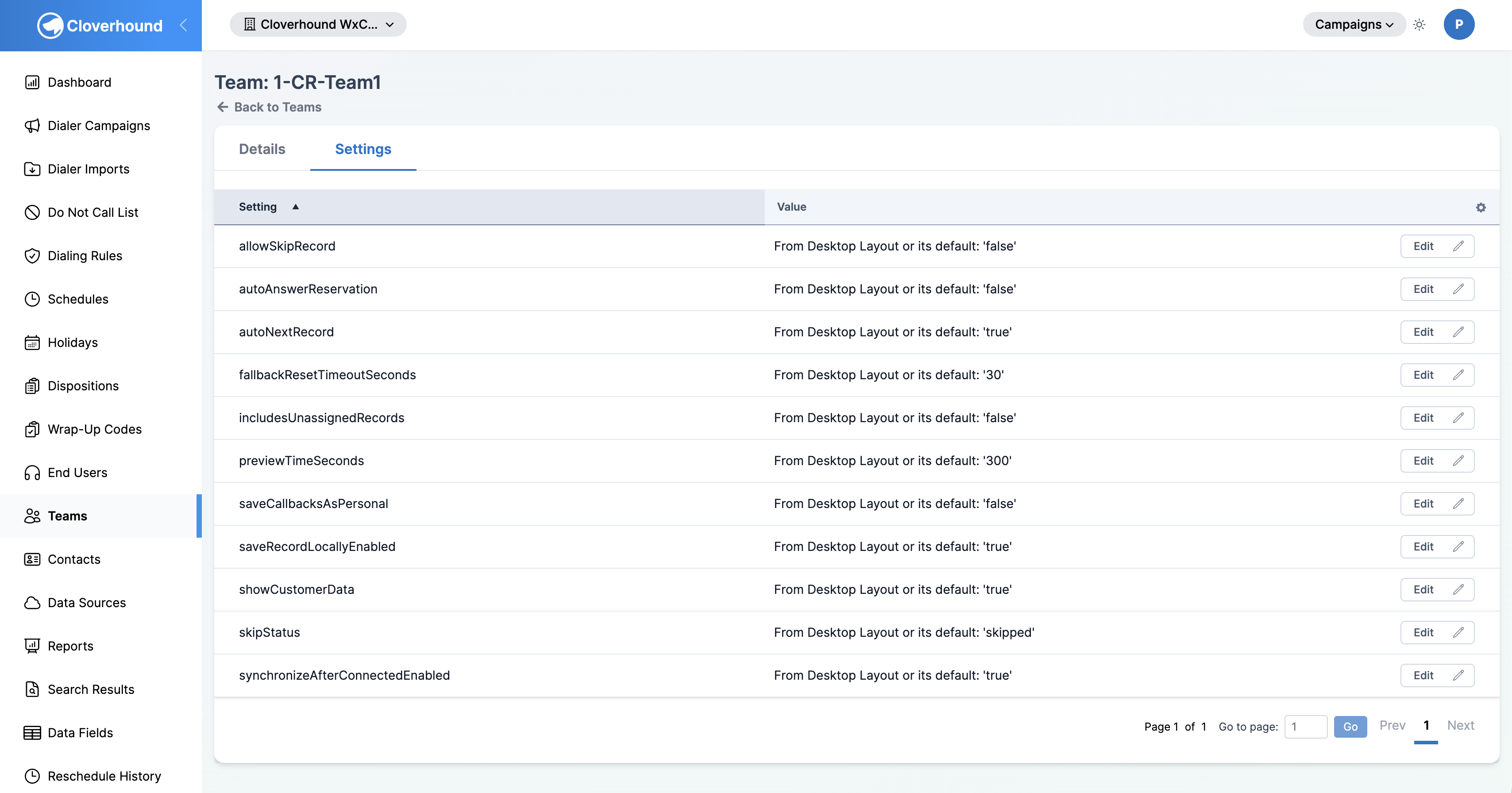
Open the Settings tab on the team detail page.
-
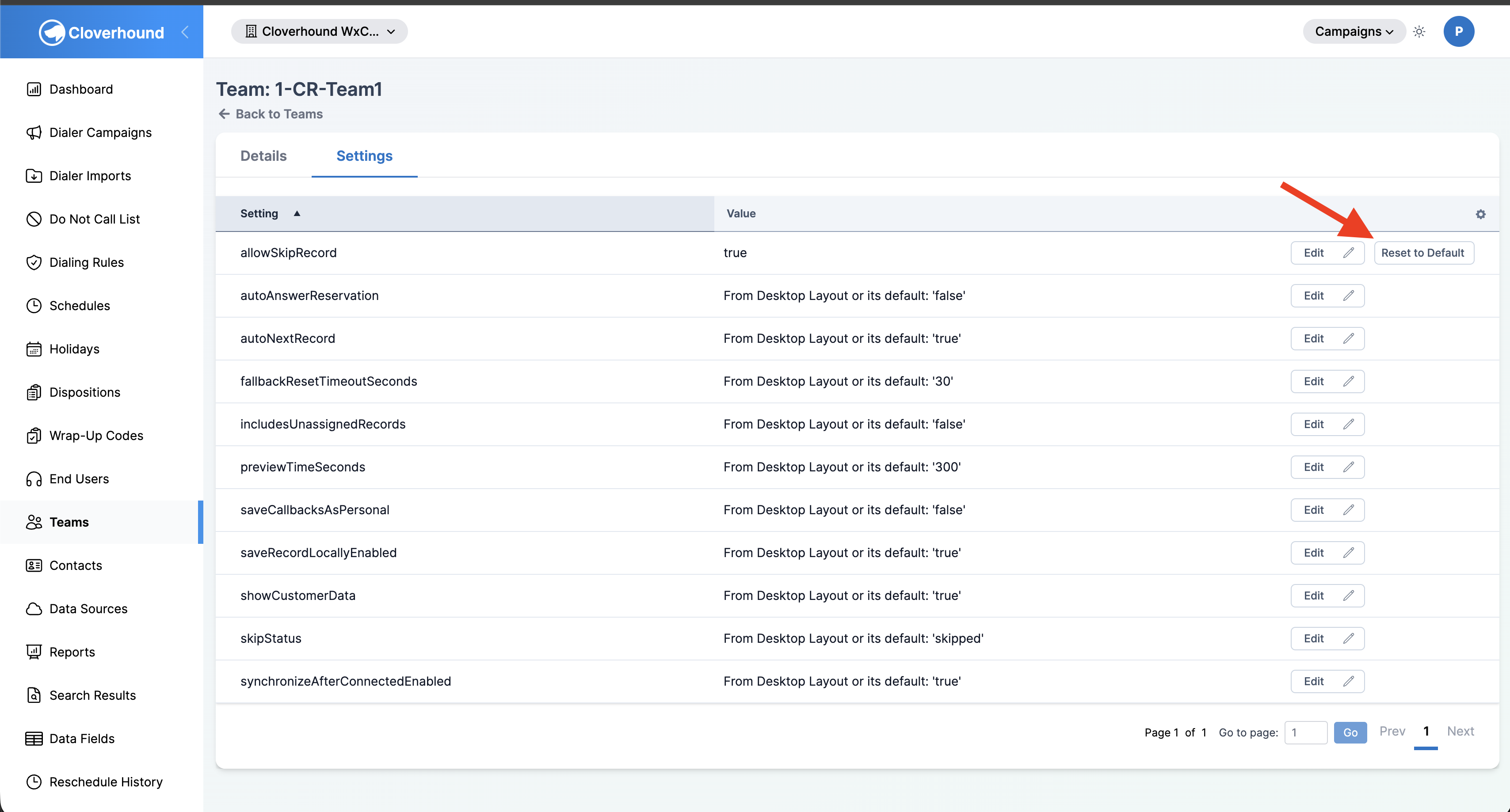
Review the table. Each row shows the setting key, the current value, and whether the value is an override or still coming from the Desktop Layout or the shipped default.
Editing a Team Setting
-
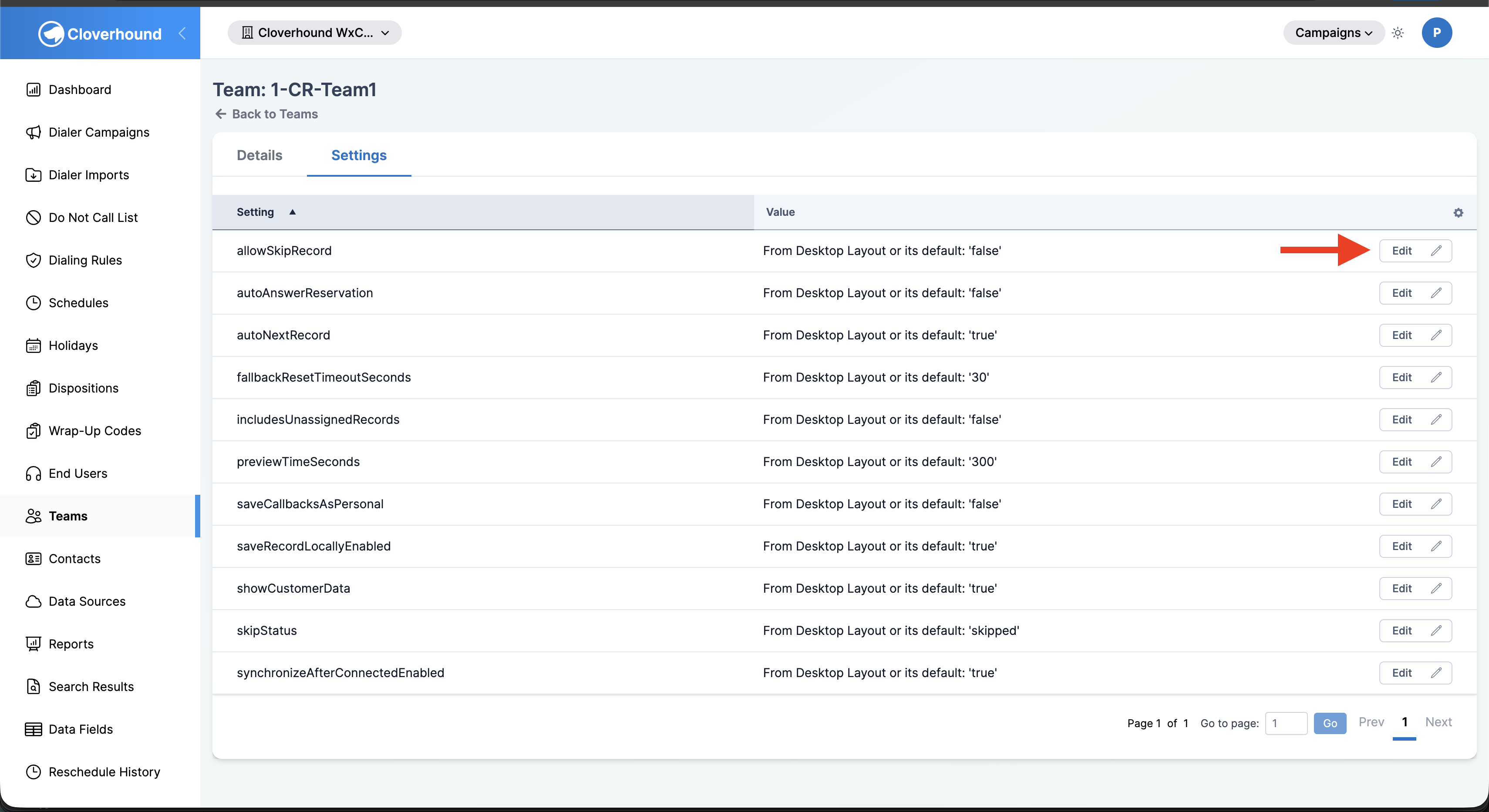
Click the Edit button in the setting's row.
-
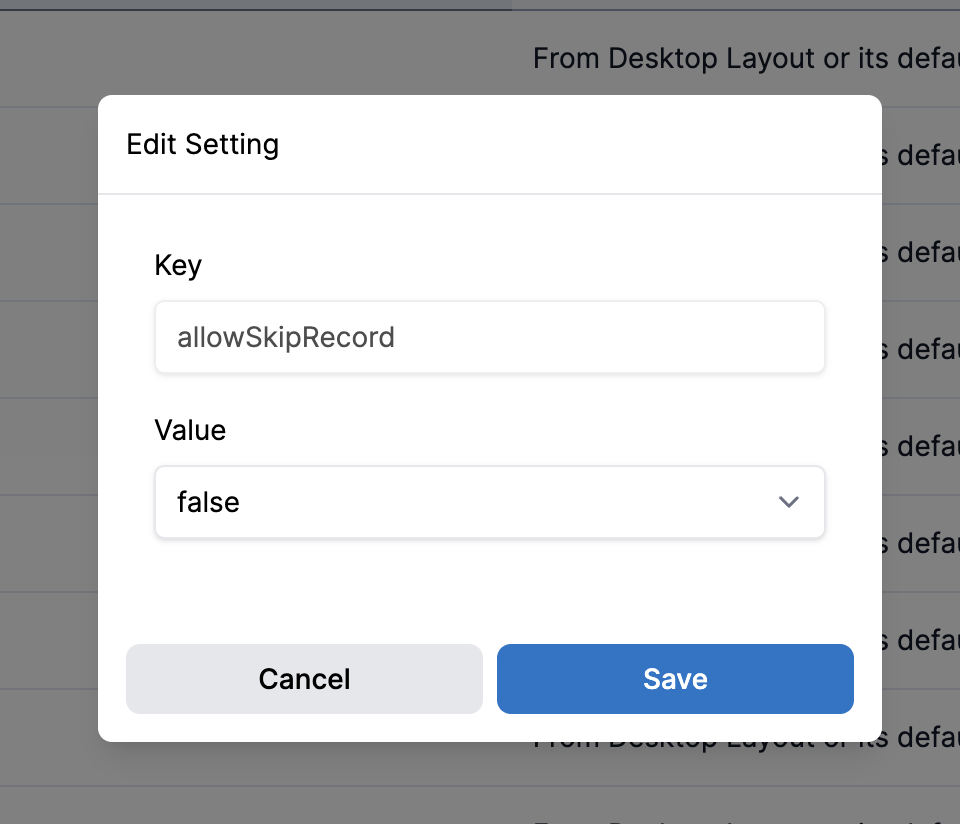
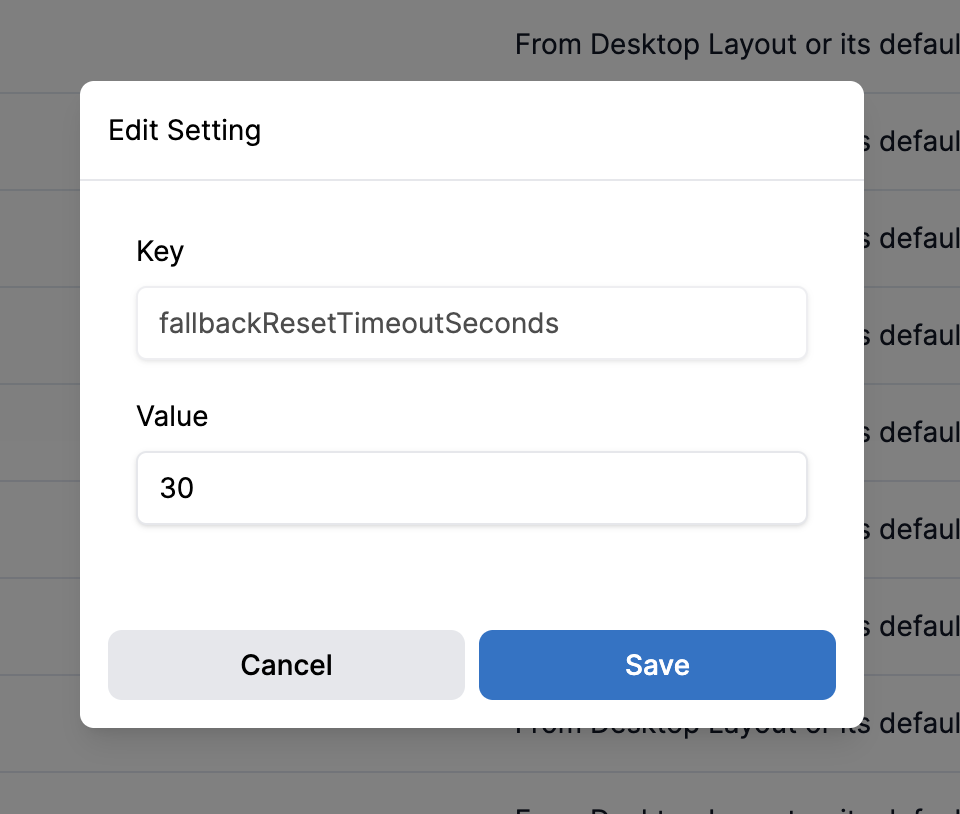
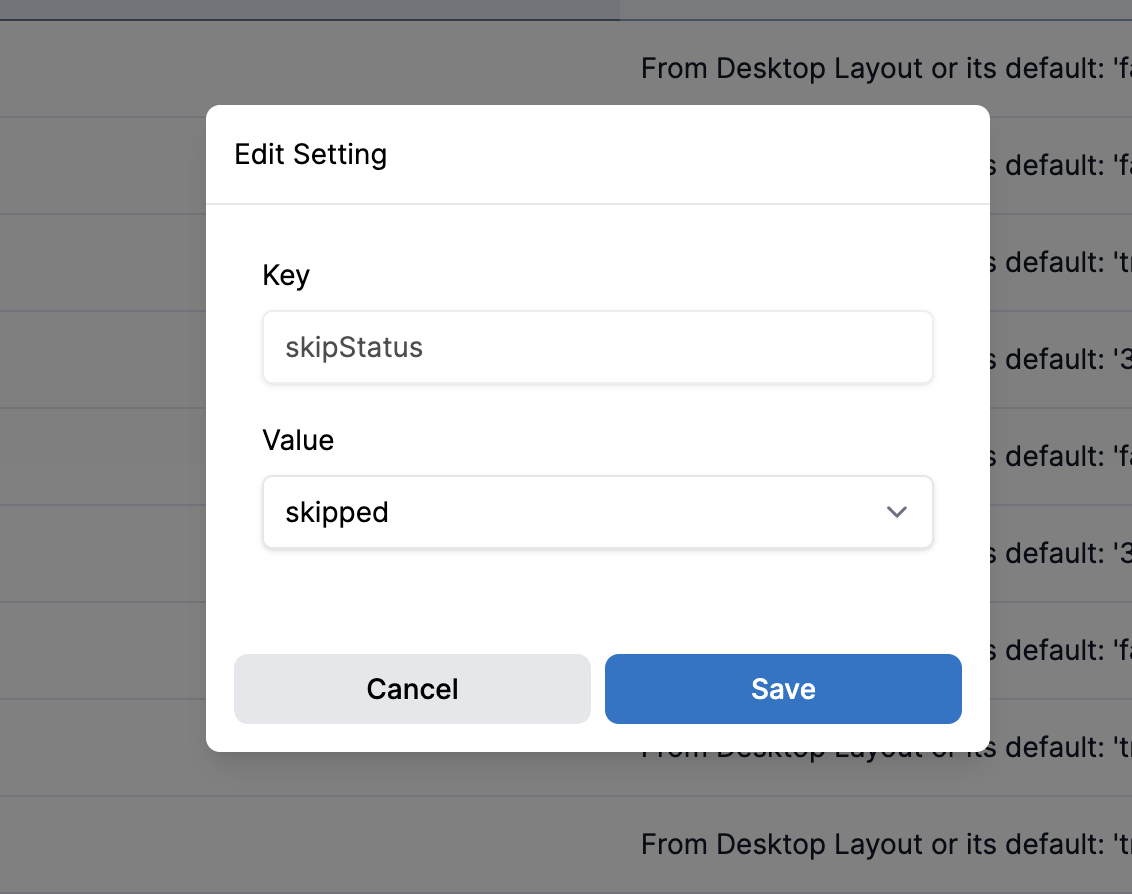
Update the value in the modal. The input matches the setting's value type:
- Boolean settings show a dropdown with true and false.
- Numeric settings show a number input.
- String settings show a text input.
-
Click Save.
The saved value becomes an override for the team. The row then shows the new value and a Reset to Default button.
Resetting a Team Setting to Its Default
Once a team setting has been overridden, a Reset to Default button appears in its row.
-
Click the Reset to Default button in the setting's row.
-
The stored override is removed. The row falls back to the Desktop Layout value or the shipped default, whichever applies.
The table value column shows whether a setting is an override or a fallback. An override displays just the raw value; a fallback displays text in the form From Desktop Layout or its default: '<value>'.
Available Team Settings
The controller exposes the following UI-safe settings. Defaults and behavior are defined by the Cloverhound Cloud Widget; this page only describes what appears on the team's Settings tab.
Widget
autoAnswerReservation— whether reservations are auto-answered.
Preview Widget
previewTimeSeconds— seconds to display a record before auto-dialing.allowSkipRecord— whether agents can skip a preview record.includesUnassignedRecords— whether unassigned records appear in the preview queue.showCustomerData— whether customer data is shown in the preview.autoNextRecord— whether the widget advances to the next record automatically.skipStatus— the status applied when a record is skipped.saveRecordLocallyEnabled— whether the current record is cached locally.synchronizeAfterConnectedEnabled— whether the widget synchronizes after the call connects.fallbackResetTimeoutSeconds— fallback timeout used when the widget cannot reach the server.
Callbacks
saveCallbacksAsPersonal— whether callbacks scheduled by this team are saved as personal callbacks.
For value semantics and how each setting interacts with the Desktop Layout, see the widget configuration reference linked from Introduction to Teams.
Related Pages
- Introduction to Teams — the Teams table, filtering, and the Desktop Layout / Team Setting precedence chain.
Application Team Settings let you override Cloverhound Cloud Widget defaults for a single team from that team's Settings tab, and reset individual overrides back to the Desktop Layout or shipped default when they are no longer needed.