Managing Call Notes
Call Notes let you attach free-text annotations to an individual call record so your team can capture context, follow-ups, or outcomes tied to that call. Notes live on the Call Details page and are opened from the Notes button.
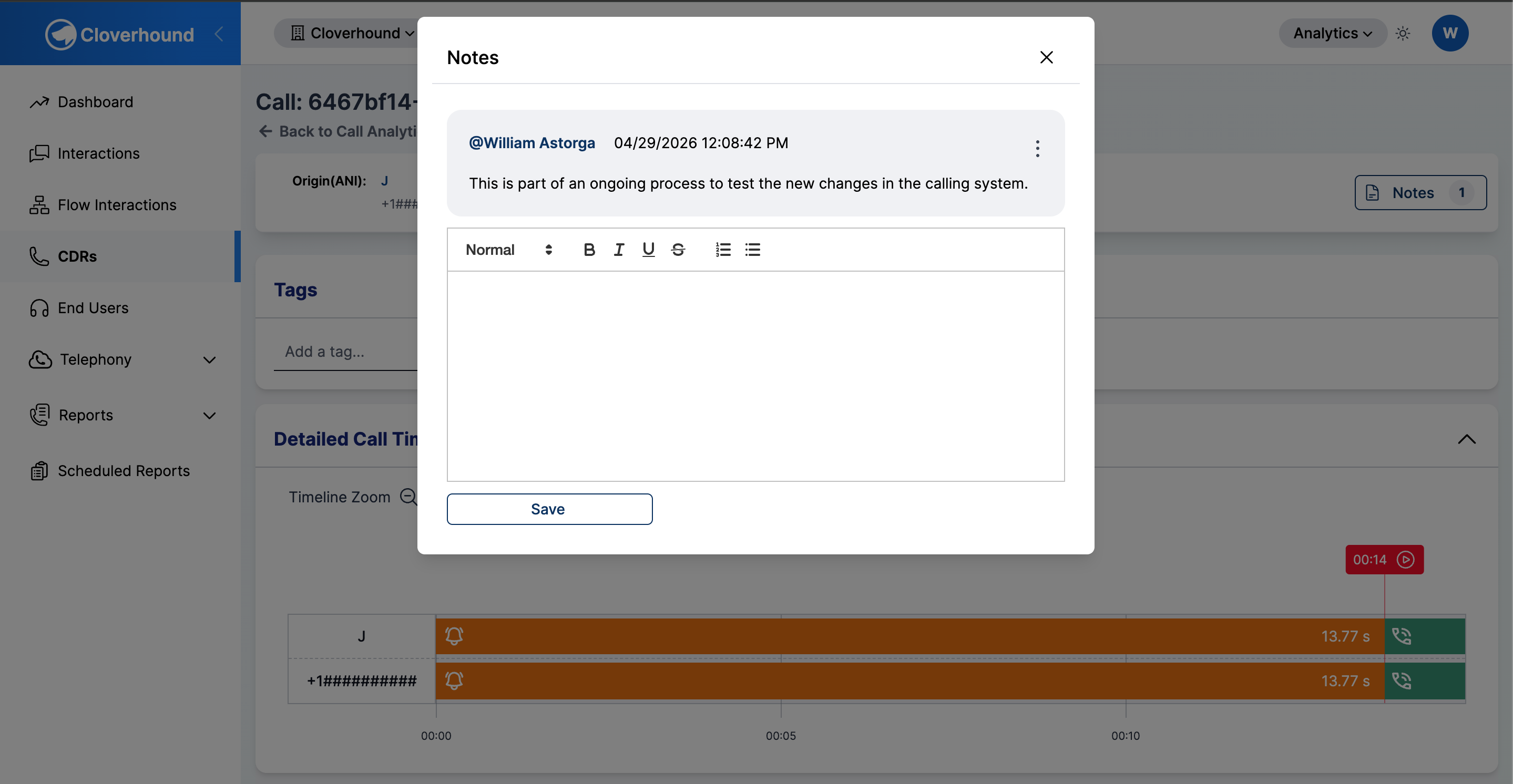
Each note shows its author, the date it was last updated, and rich-text content (headings, bold, italic, underline, strikethrough, and ordered or bulleted lists).
Accessing Call Notes
-
Navigate to the Calls / CDRs page in the Analytics module.
-
Select a call from the Calls Table to open its Call Details view.
-
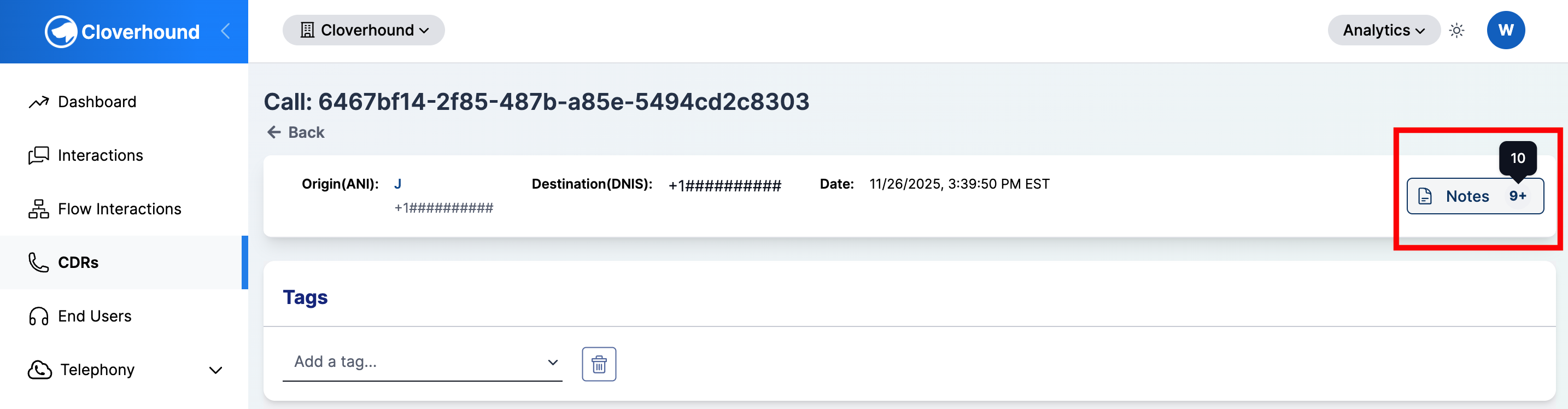
Click the Notes button at the top of the Call Details page. The number next to the icon is the current note count for the call. A count greater than nine is displayed as 9+; hover the badge to see the exact number.
-
The Notes modal opens and lists every note on the call, newest first.
Adding a Note
-
Click inside the editor at the bottom of the Notes modal.
-
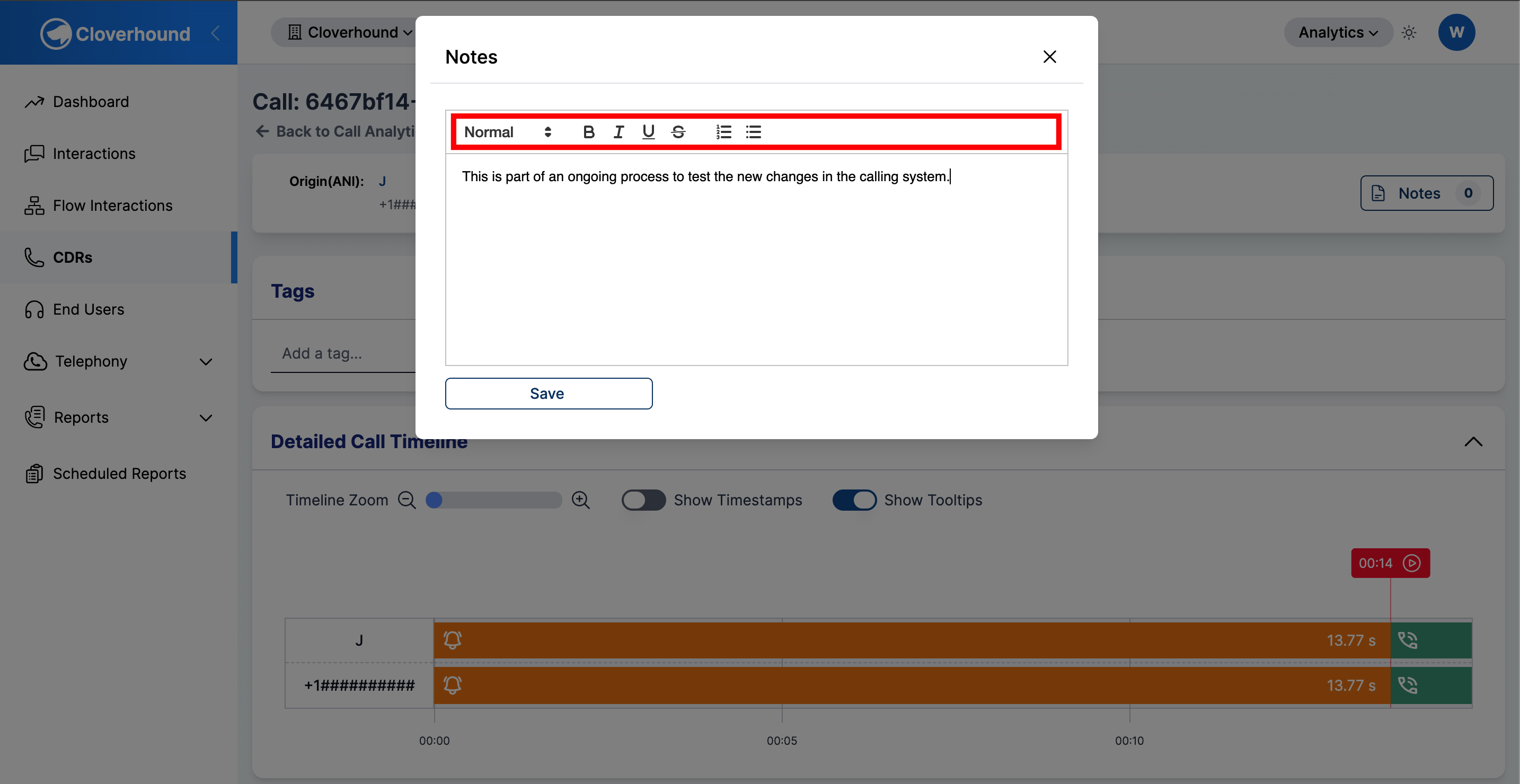
Type your note. Use the toolbar to format text:
- Headings (H1, H2, H3)
- Bold, italic, underline, and strikethrough
- Ordered and bulleted lists
-
Click the Save button below the editor.
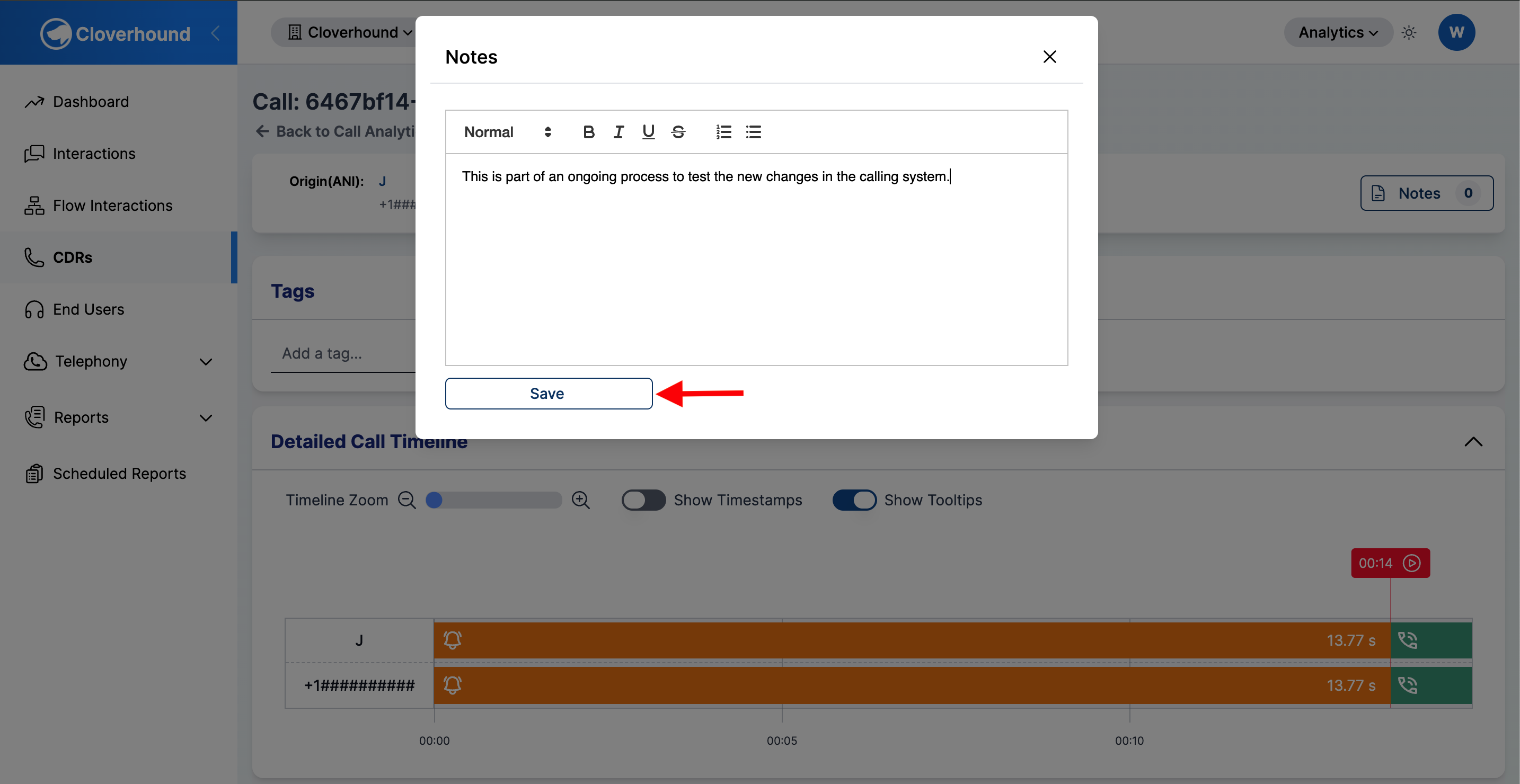
The new note appears at the top of the list and the editor clears.
The Save button is disabled for users whose role does not permit editing notes. See Who can edit notes.
Editing a Note
-
Locate the note you want to change in the list.
-
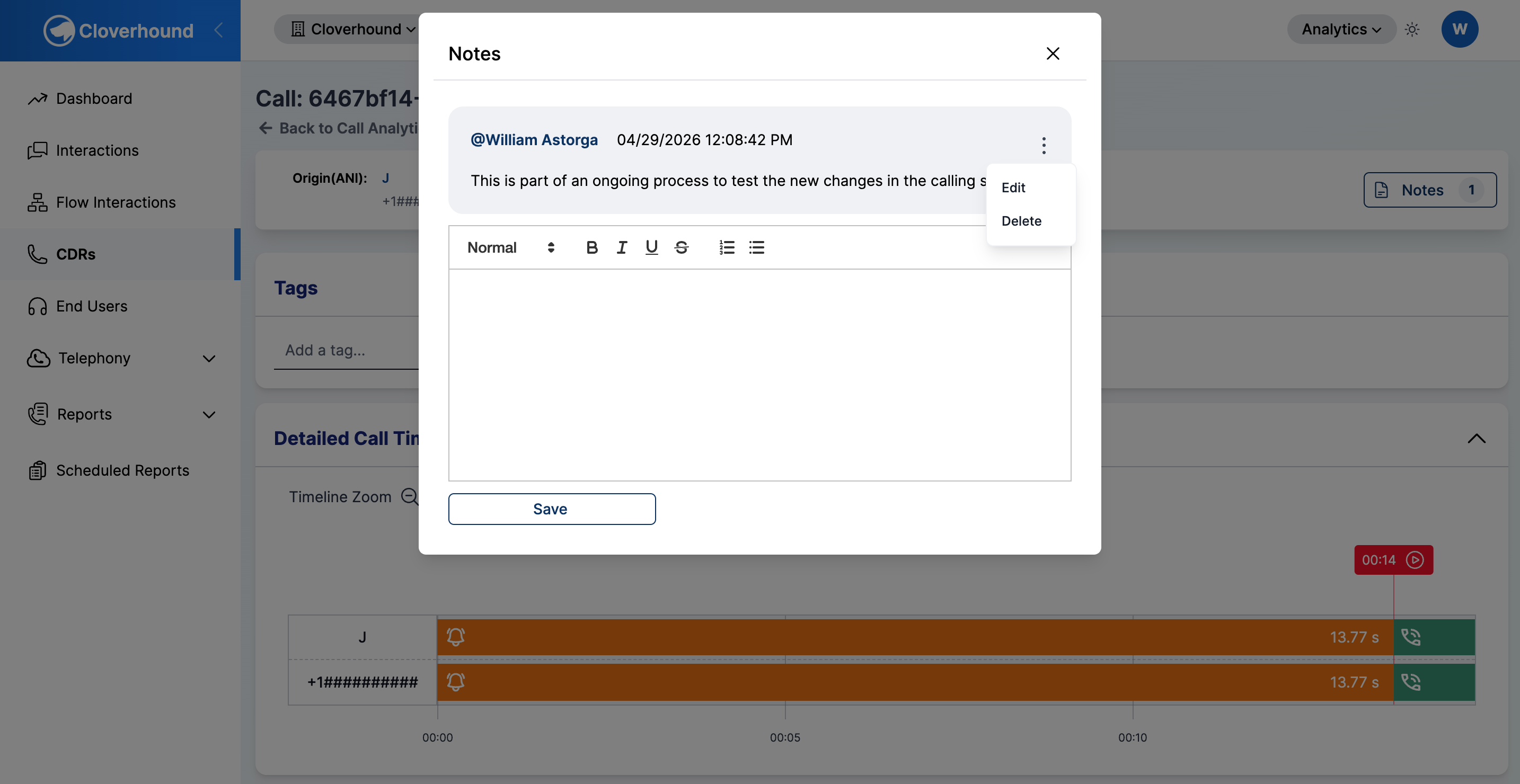
Click the kebab menu (three vertical dots) on the right side of the note.
-
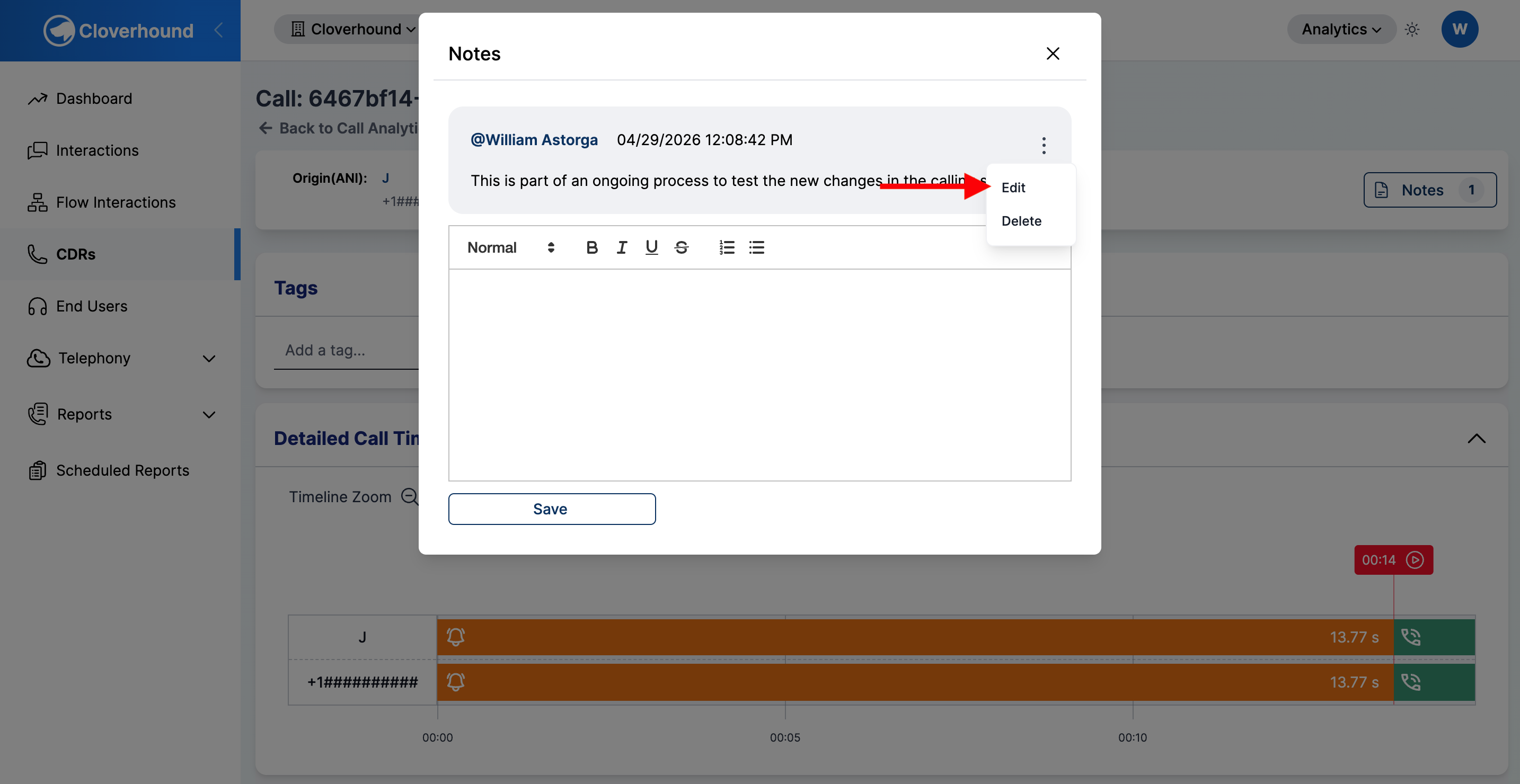
Click Edit. The note's content loads into the editor at the bottom of the modal.
-
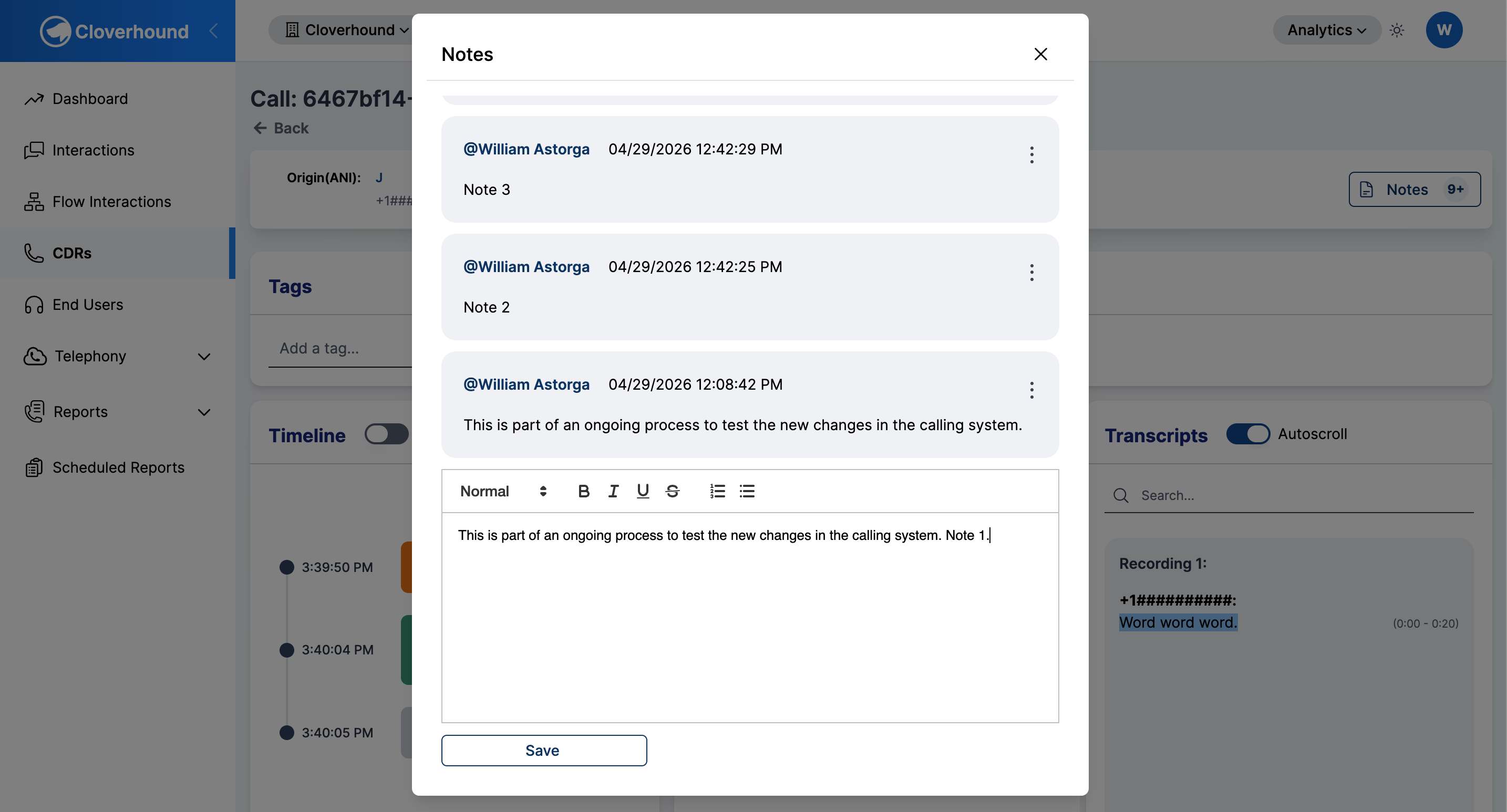
Update the content in the editor.
-
Click Save to apply your changes.
Deleting a Note
-
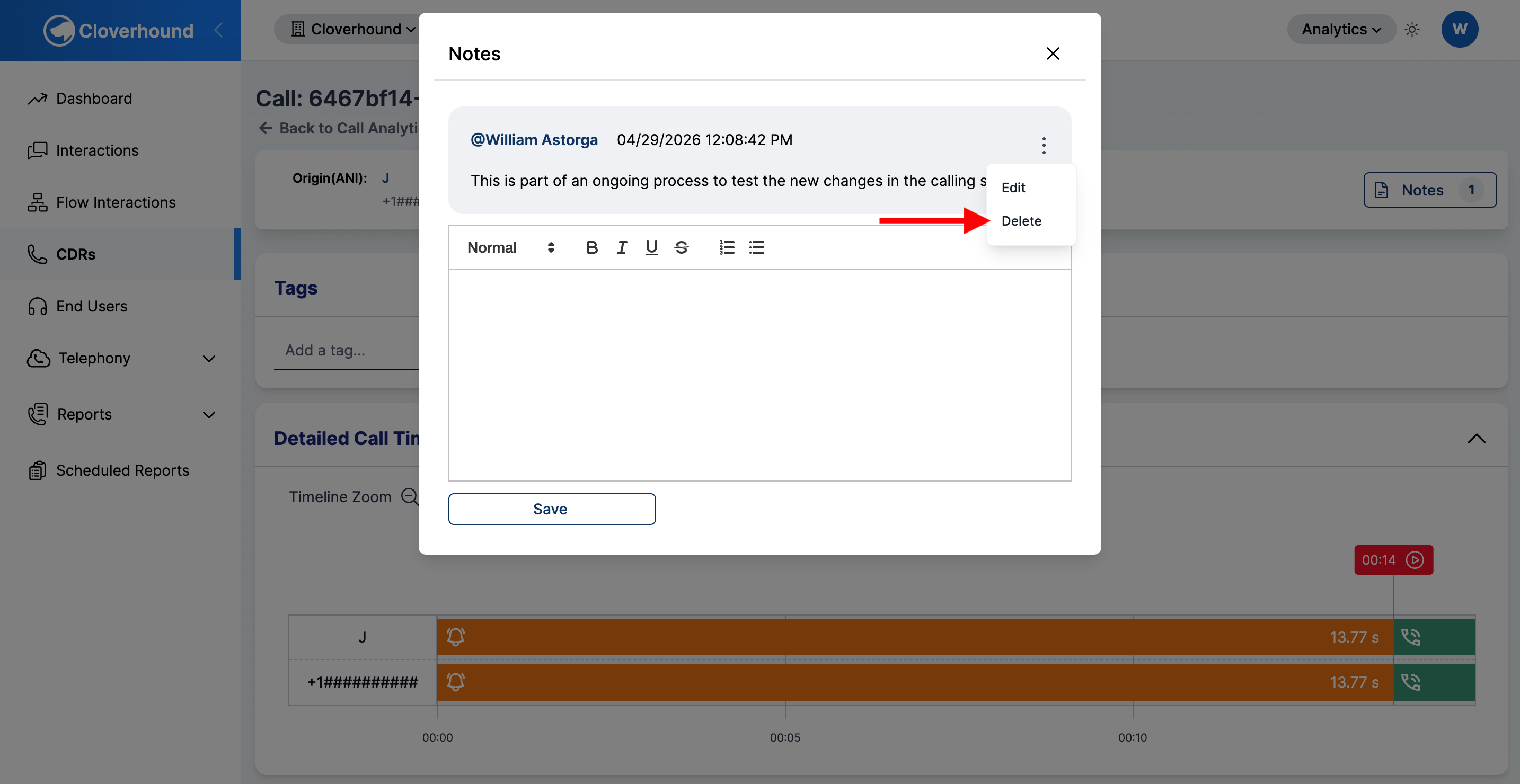
Click the kebab menu on the note you want to remove.
-
Click Delete.
-
Confirm the deletion in the browser prompt. Click OK to remove the note or Cancel to keep it.
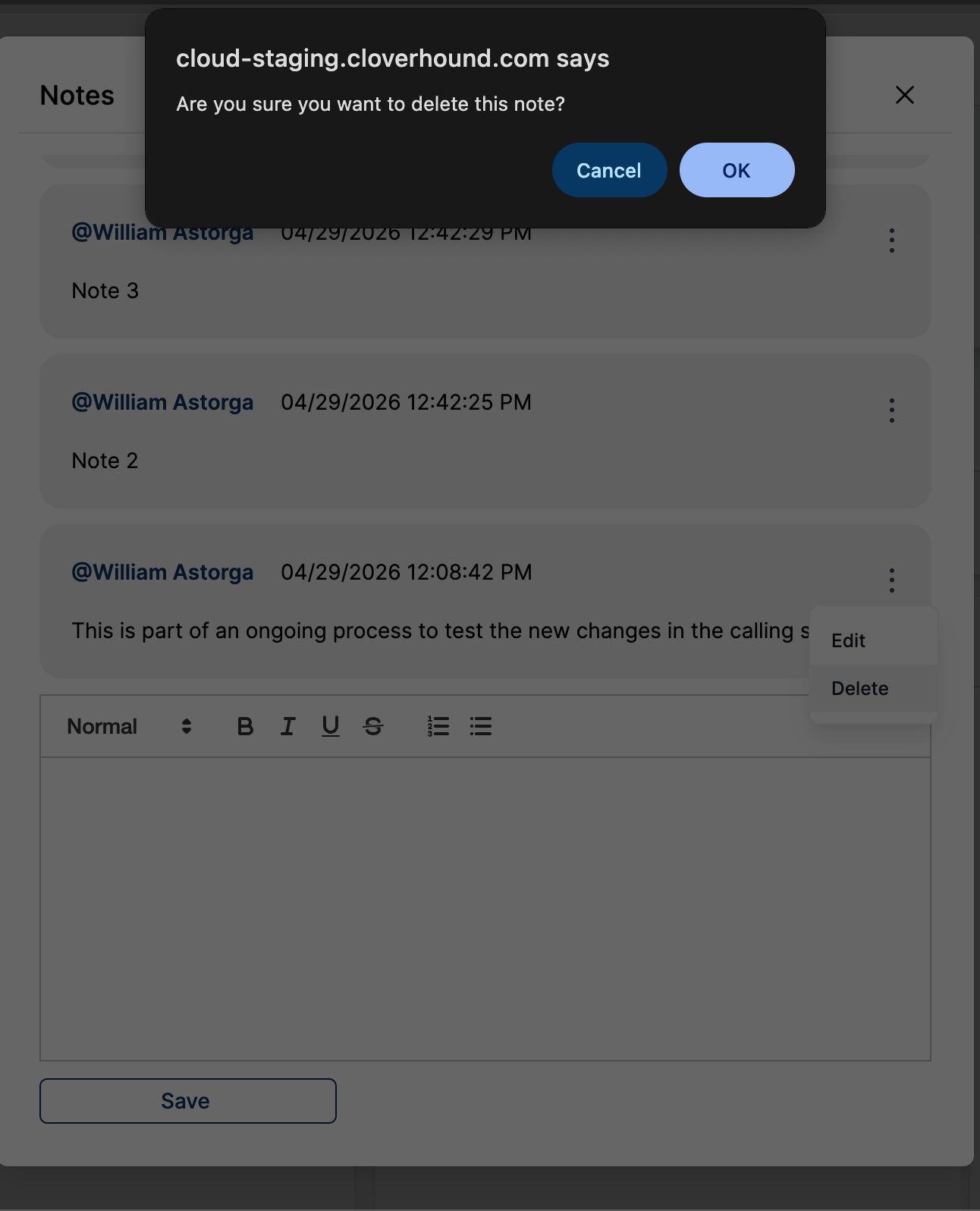
Deleting a note is permanent. There is no undo from the UI.
Who Can Edit Notes
Access to Call Notes depends on your role:
- Master admins and administrators can add, edit, and delete any note on a call, regardless of the original author.
- Supervisors can add new notes and edit or delete notes they authored themselves.
- Other roles can view notes but cannot add, edit, or delete them. The Save button and the kebab menu are disabled for these users.
If the author of a note is no longer in your organization, their name is still shown on the note so the audit trail remains intact.
With Call Notes, you can capture and manage free-text context on any call directly from the Call Details page.