Saving Filters
Saved filters let you store a combination of filter values on a table as a named preset, then reload that preset later instead of reconfiguring filters each time. Saved filters are scoped per user and per table, so your presets are not visible to other people in your organization and do not leak across tables.
This page describes how to save, load, and delete filter presets. For how to configure the filters themselves, see The Calls Table.
Where Saved Filters Are Available
Saved filters are available on most Analytics tables that expose a filter panel. Each table keeps its own set of presets, so a filter named This Week on the Calls page is separate from one with the same name on Interactions. Presets are tied to your user account, so other members of your organization do not see your saved filters.
Saving is supported on the following tables, among others:
- Calls (including the Calls tabs on End Users, Contacts, Workspaces, Hunt Groups, Call Queues, Auto Attendants, and Virtual Lines)
- Interactions and Flow Interactions
- Agent Sessions
- End Users, Contacts, Workspaces detail pages
- Dialer Results and Dialer Records
Some tables intentionally hide the Save Search and Saved Filters buttons. Notably, the Audit Logs table does not support saving filters, and neither do several summary and configuration tables (for example Call Summary, Hunt Group Summary, Call Queue Summary, Trunks, and Locations). If you do not see the Save Search button above the Apply button, saving is not supported on that table.
How Saved Filters Behave
- Preset scope. Each preset is stored with the table it was created on. Loading a preset on a different table does nothing, because that preset does not appear in that table's Saved Filters list.
- Filter compatibility. When you load a preset, only the filters that still exist on the current table are applied. If a filter was removed or renamed since you saved the preset, that part of the preset is silently skipped.
- No auto-apply on page load. Loading a saved filter requires selecting it from the Saved Filters dropdown; the table does not restore the last preset automatically when you return to the page.
Saving a Filter Configuration
-
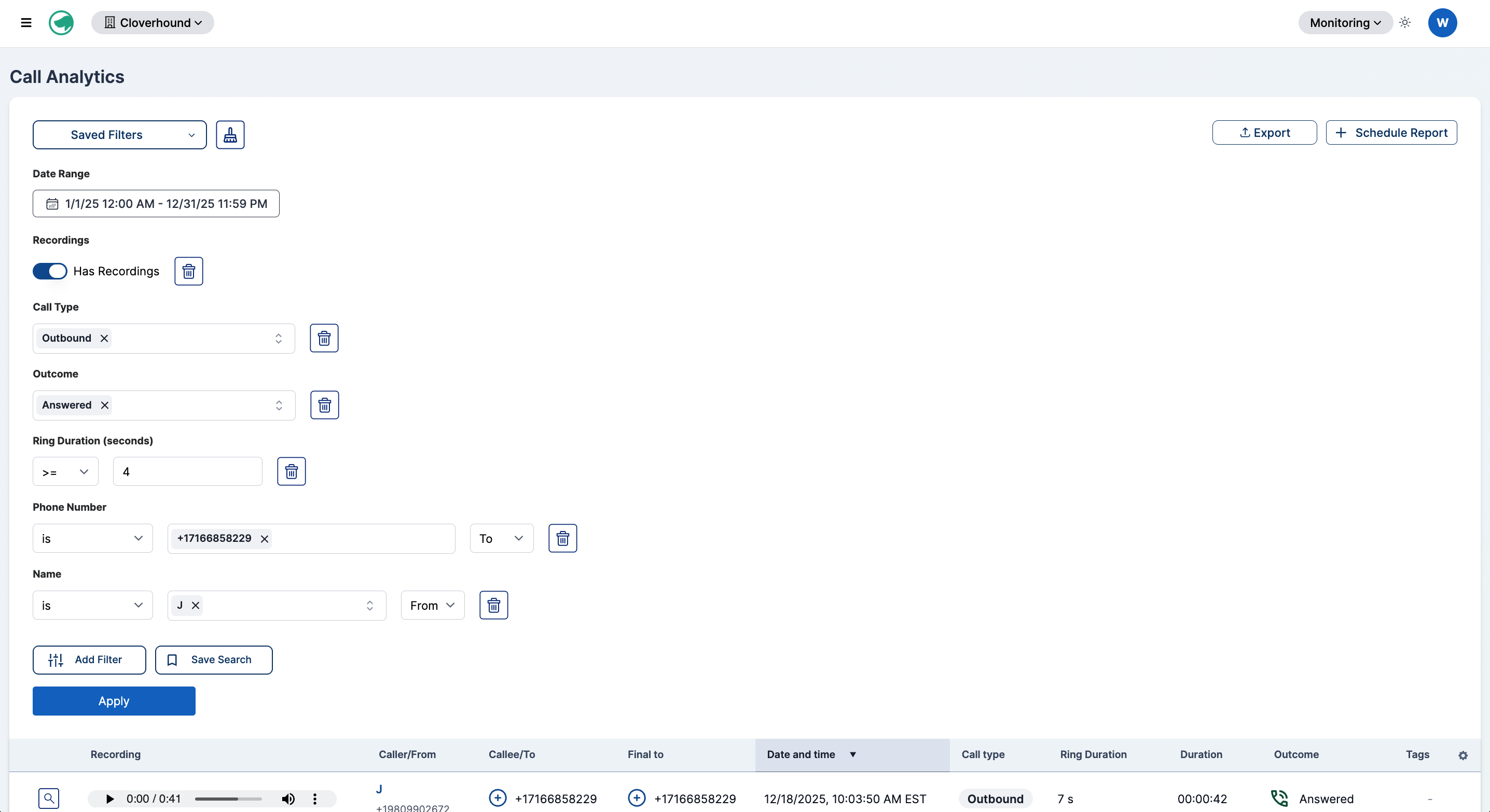
Configure your filters on the table as you normally would, then click Apply to confirm the results look correct.
-
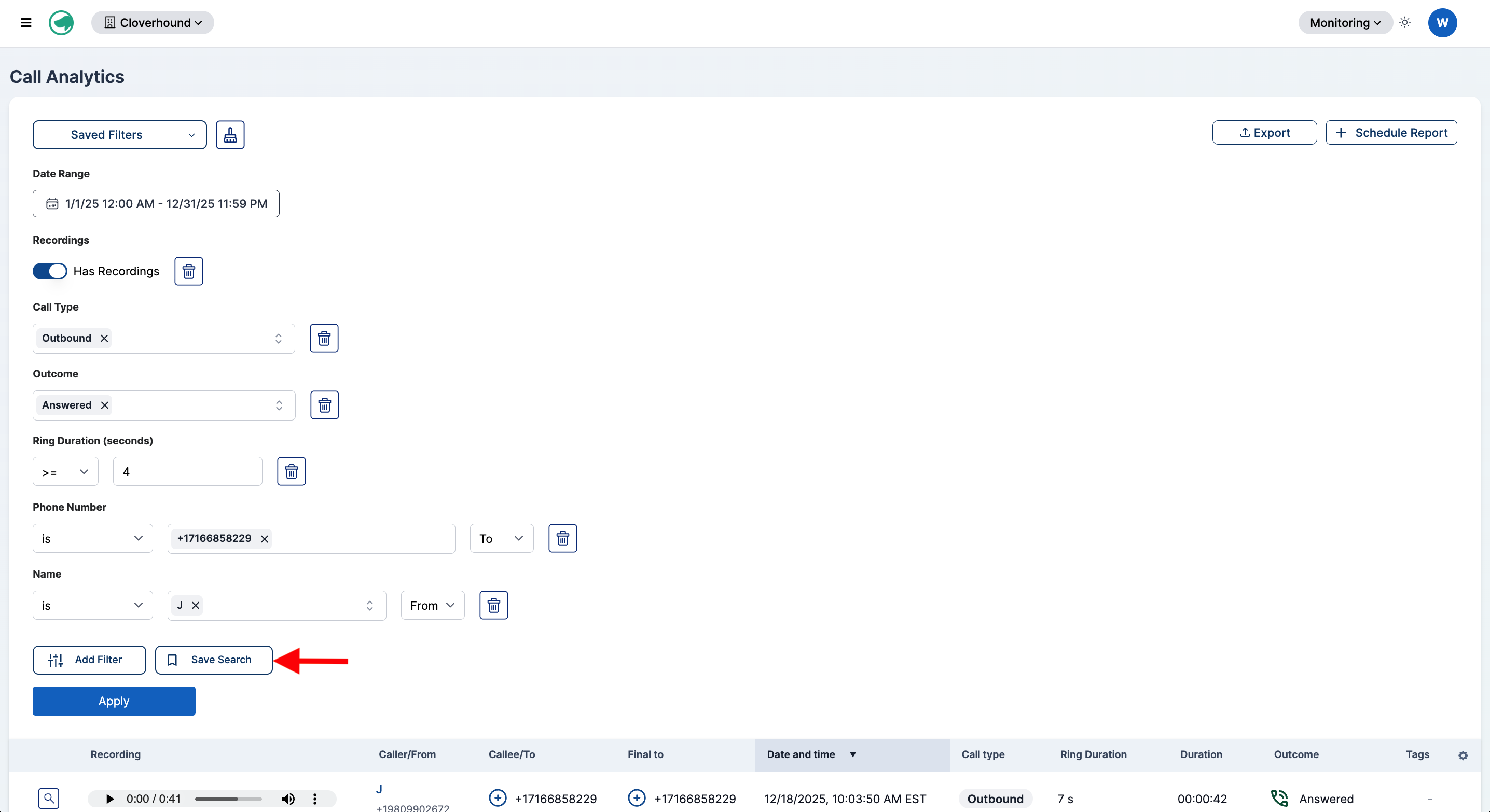
Click the Save Search button above the Apply button.
-
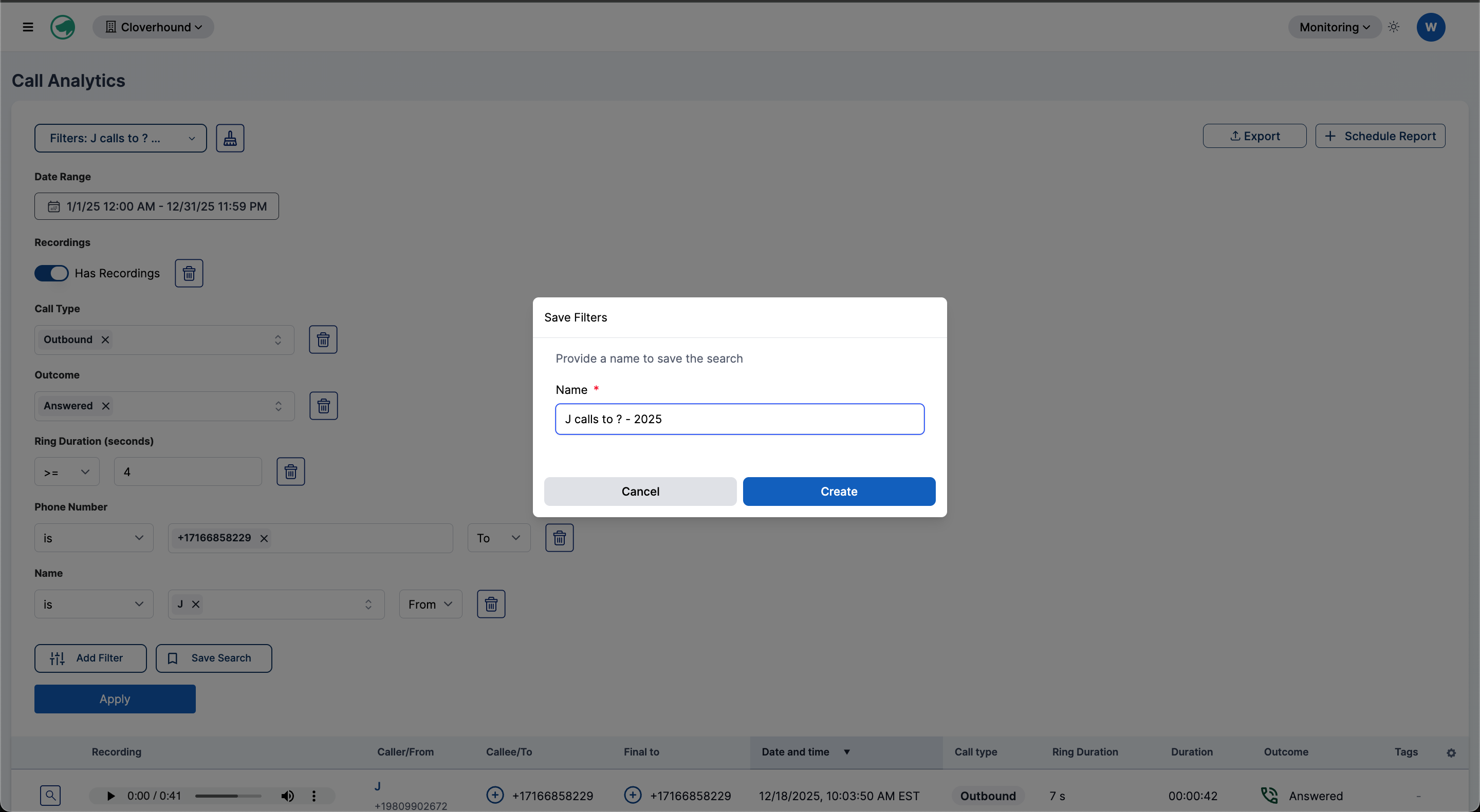
Enter a name for the preset in the Save Filters dialog.
 warning
If you enter a name that matches an existing saved filter on the same table, the previous preset is overwritten without a separate confirmation.
-
Click Create to store the preset.
Loading a Saved Filter
-
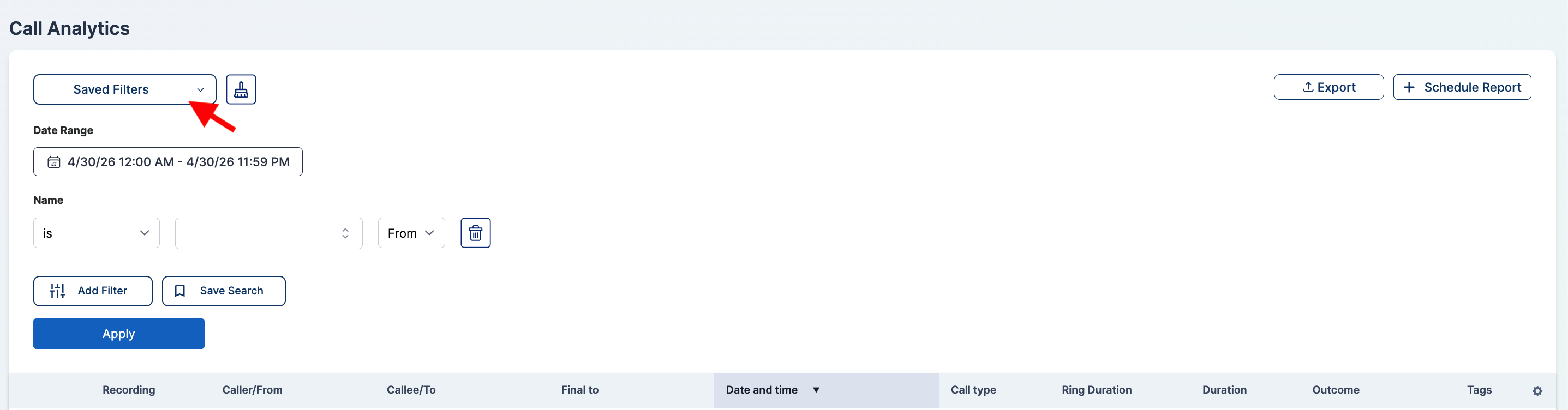
Click the Saved Filters dropdown above the filter panel.
-
Search for the preset by typing in the search field, or scroll through the list.
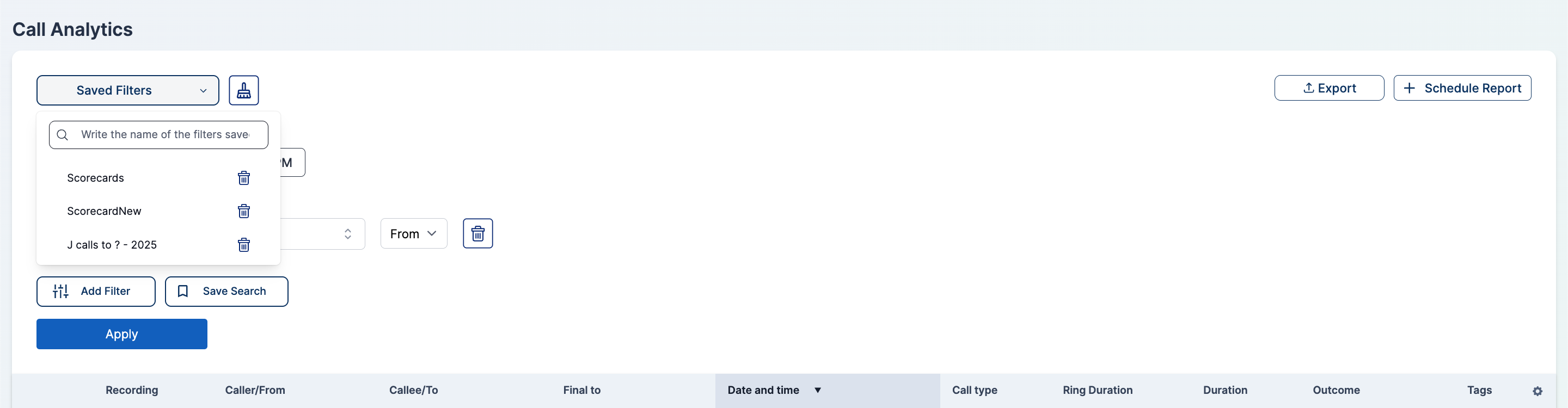
-
Click the preset name to load it. The filter panel updates to match the preset and the table refreshes with the saved criteria applied.
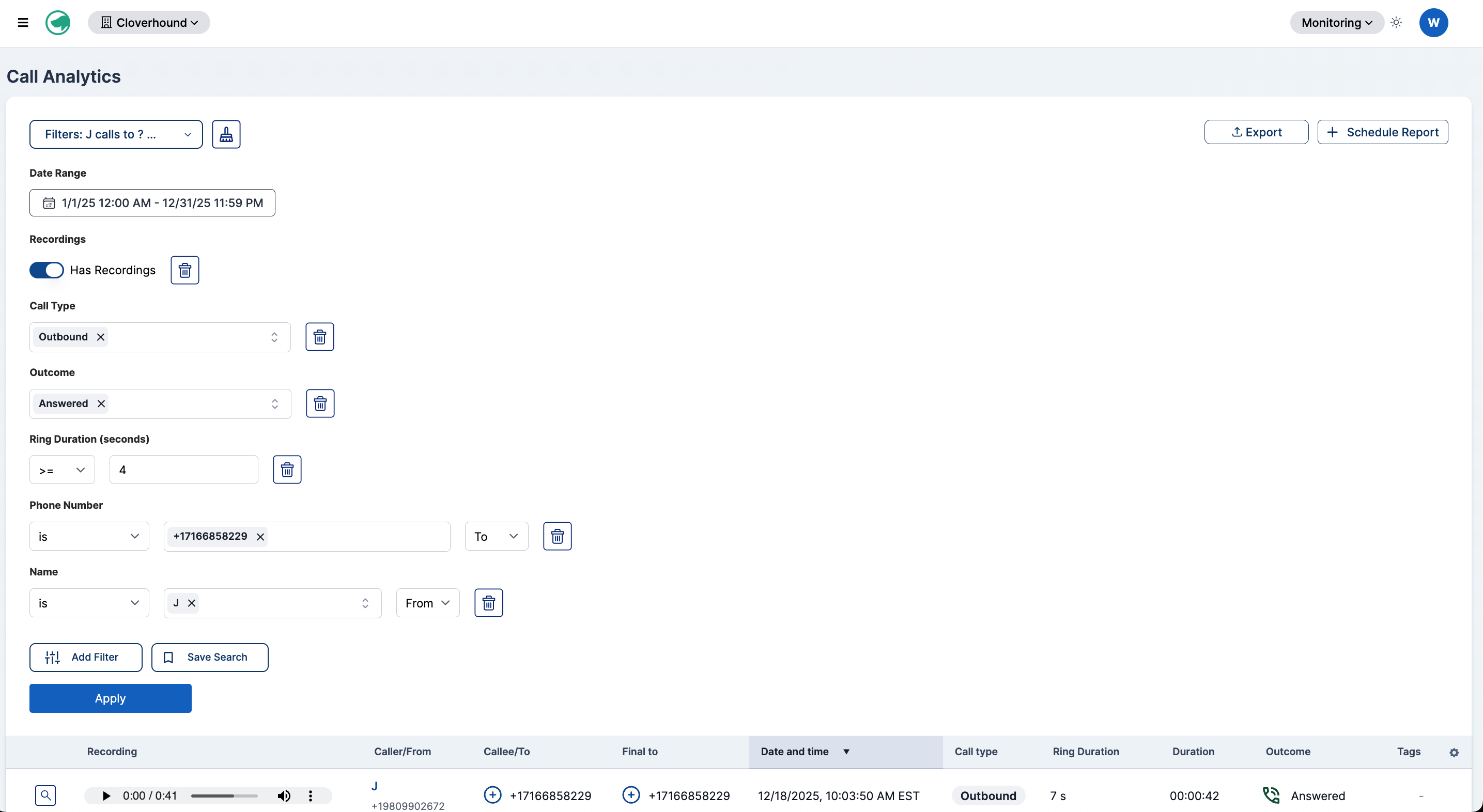
To stop using the loaded preset and return to an unnamed filter state, click the Clear saved search button (trash icon) next to the Saved Filters dropdown. This clears the preset selection but does not delete the saved preset.
Deleting a Saved Filter
-
Click the Saved Filters dropdown.
-
Locate the preset you want to remove, then click the Trash Icon next to its name.
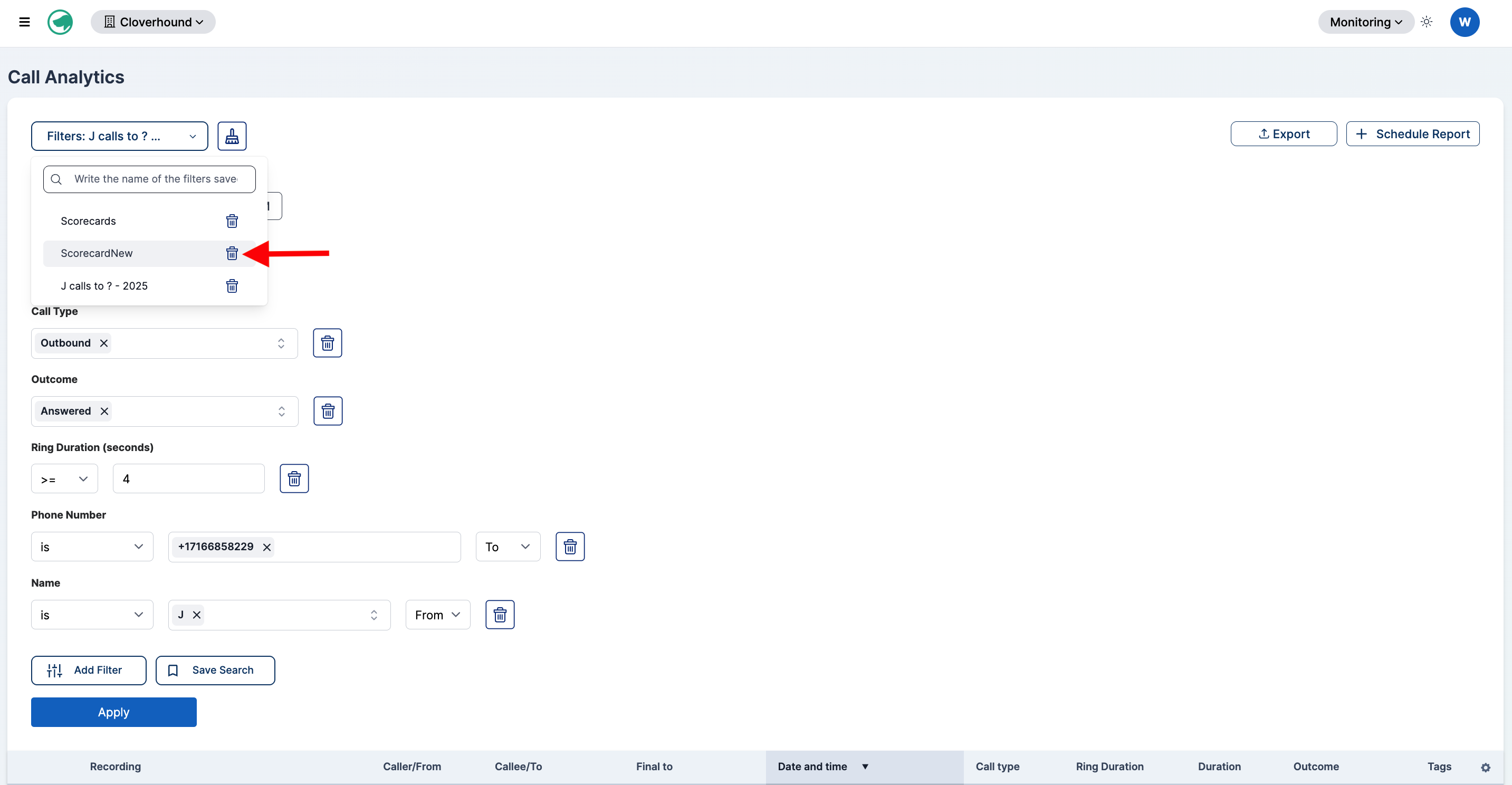
-
Confirm the deletion in the browser prompt by clicking OK. The preset is removed immediately and cannot be recovered.
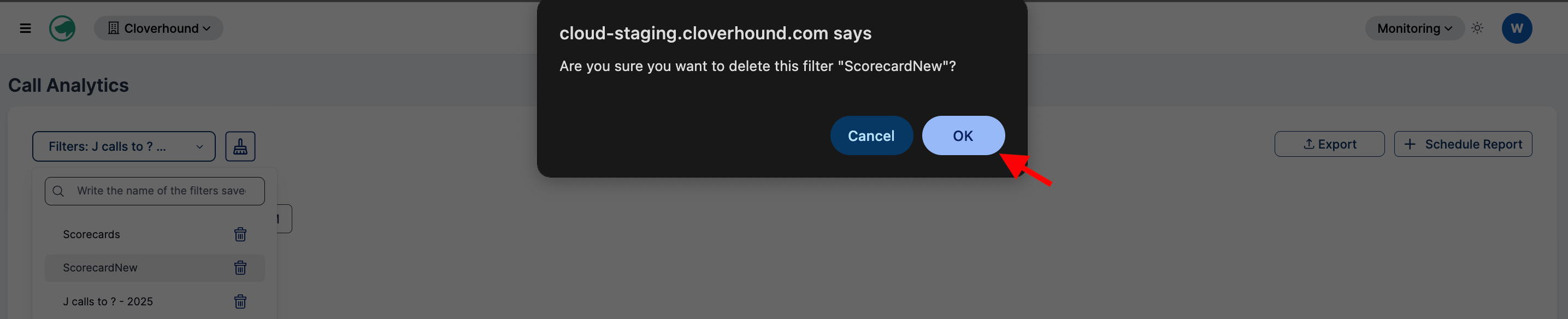 warning
Deletion is permanent. If you delete a preset by mistake, you need to recreate it from scratch.
With saved filters, you can keep a personal library of common queries, such as Missed calls this week or Outbound after-hours, and switch between them from the Saved Filters dropdown without rebuilding each filter every time.