Managing Scorecards
Scorecards let a supervisor or quality analyst score an individual call against a predefined template. Each scorecard captures answers to the template's questions, calculates a total score, and stores the evaluation alongside the call for later review. Scorecards are filled out and viewed from the Call Details page in the Calls section of the Analytics module.
Scorecards are gated by the option.scorecards_enabled setting. If the option is disabled for your organization, the Scorecards card does not appear on the Call Details page and the Scorecards filter does not appear on the Calls Table. An organization administrator can enable it under Admin > Settings.
Before you can score a call, an administrator must create at least one active Scorecard Template with its questions (fields) under Admin > Scorecard Templates.
Accessing the Scorecard Panel
-
Navigate to the Analytics module and open the Calls / CDRs page.
-
Click a call row to open the Call Details page.
-
Locate the Scorecards card on the left side of the Call Details page.
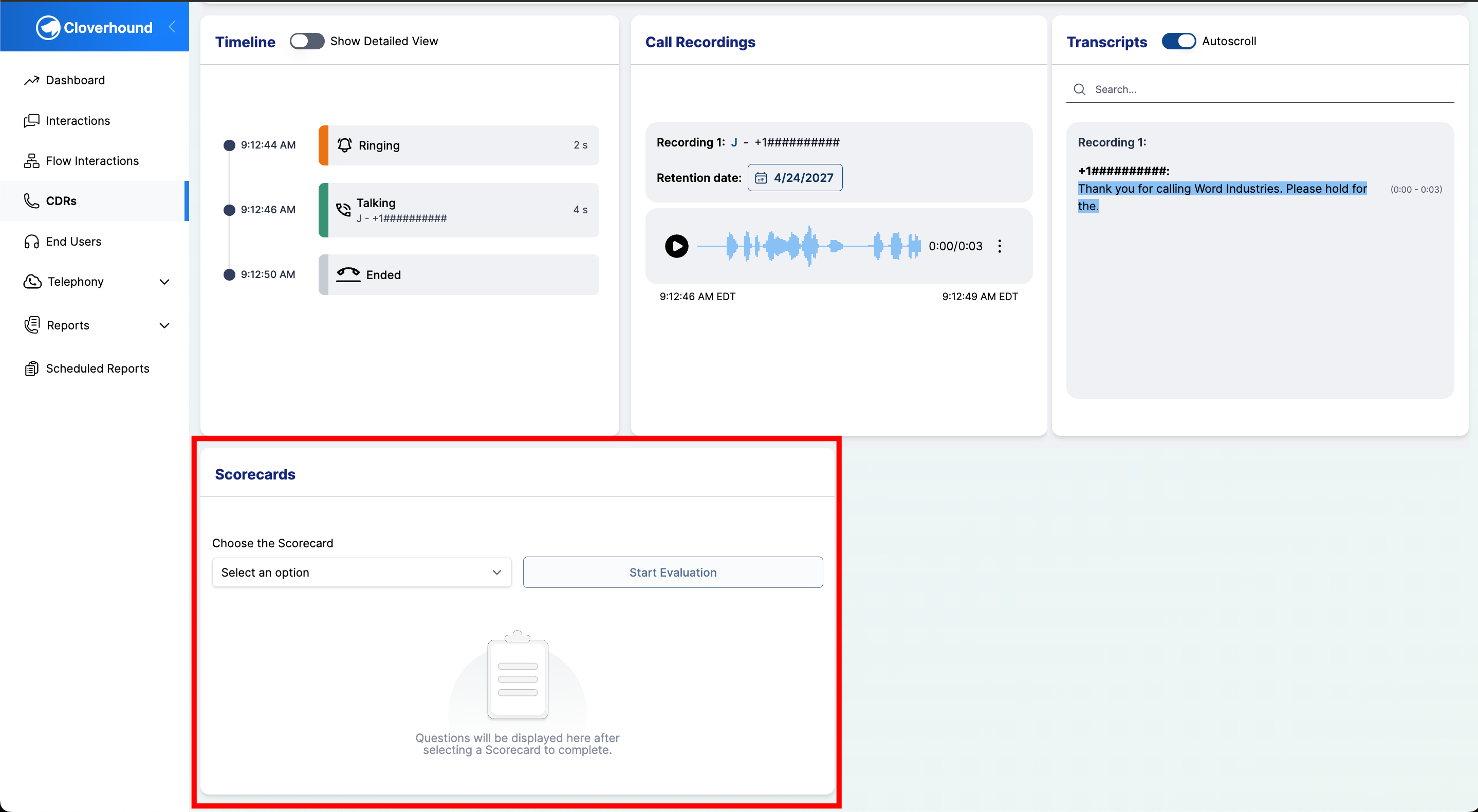
- If no scorecard has been submitted for this call, the card shows a template selector.
- If a scorecard already exists for this call, the card shows the completed evaluation with all answers and the score summary.
Starting a Scorecard from a Call
-
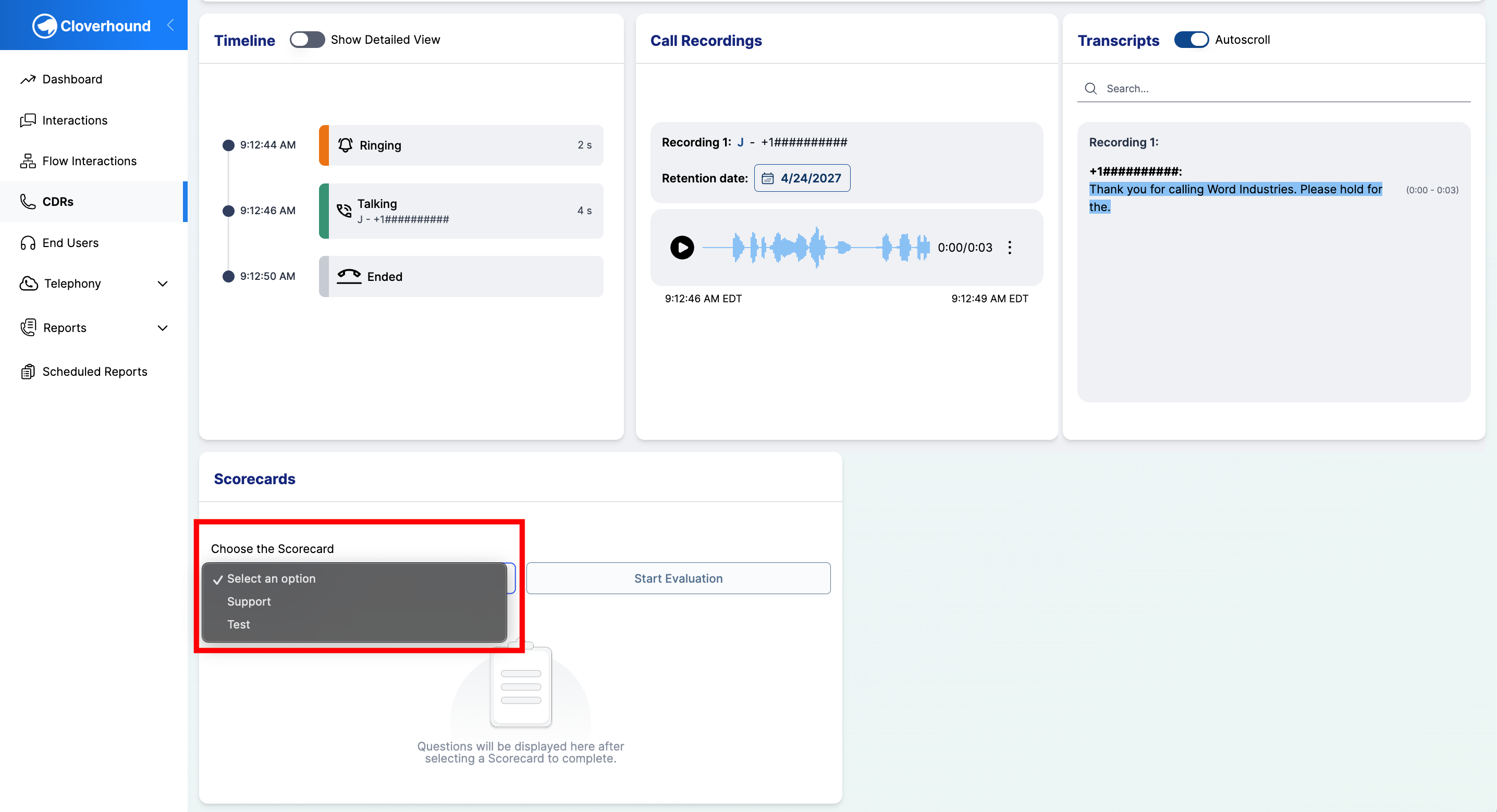
Choose a template from the Choose the Scorecard dropdown. Only templates marked active appear in the list.
-
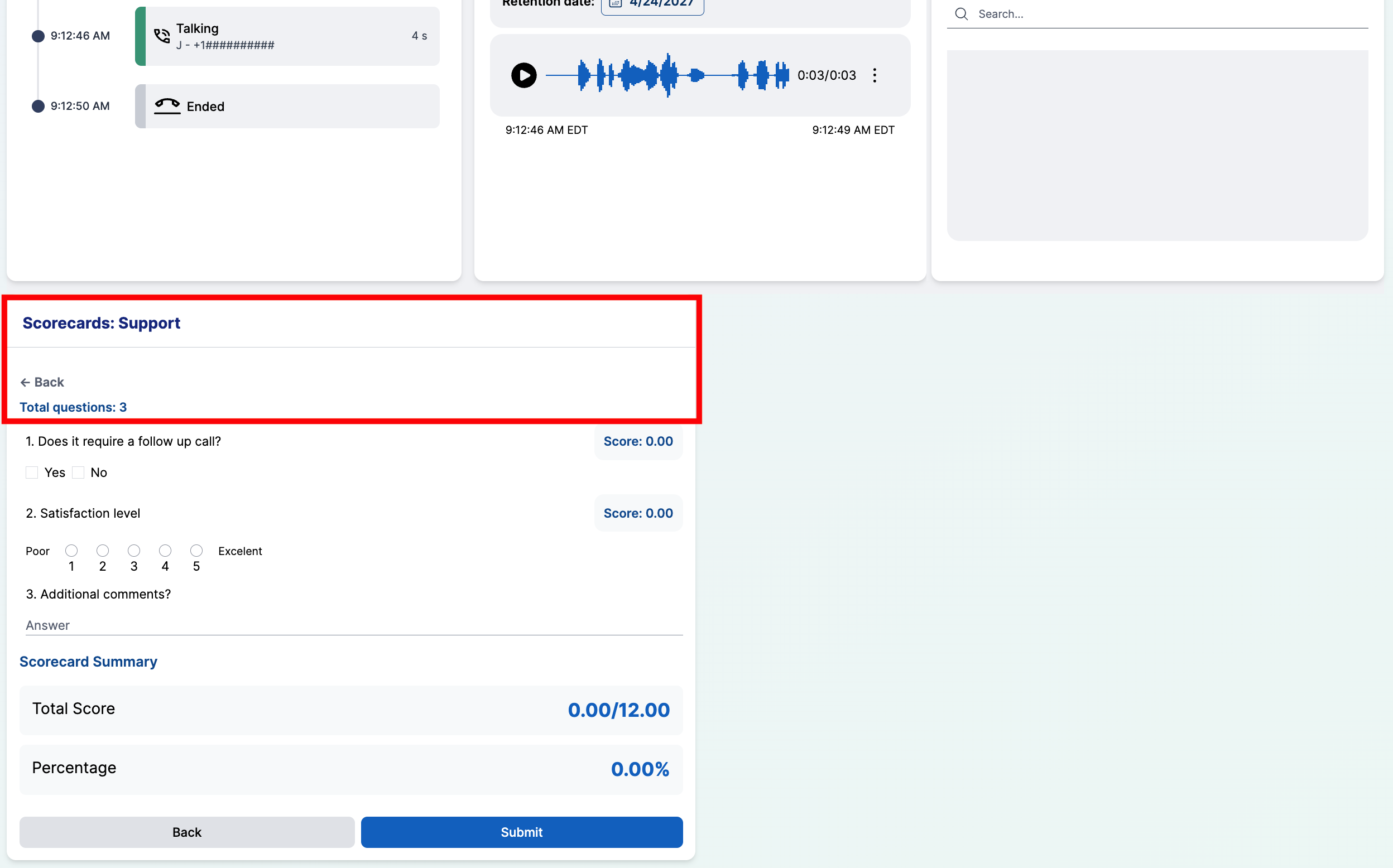
Click the Start Evaluation button. The button stays disabled until you pick a template.
-
Review the template name and total question count at the top of the panel, then answer each question.
If the dropdown is empty, no active scorecard templates exist for your organization. Ask an administrator to create one or activate an existing template before continuing.
Answering Questions
Each question is rendered based on its field type. Fill them out in any order.
-
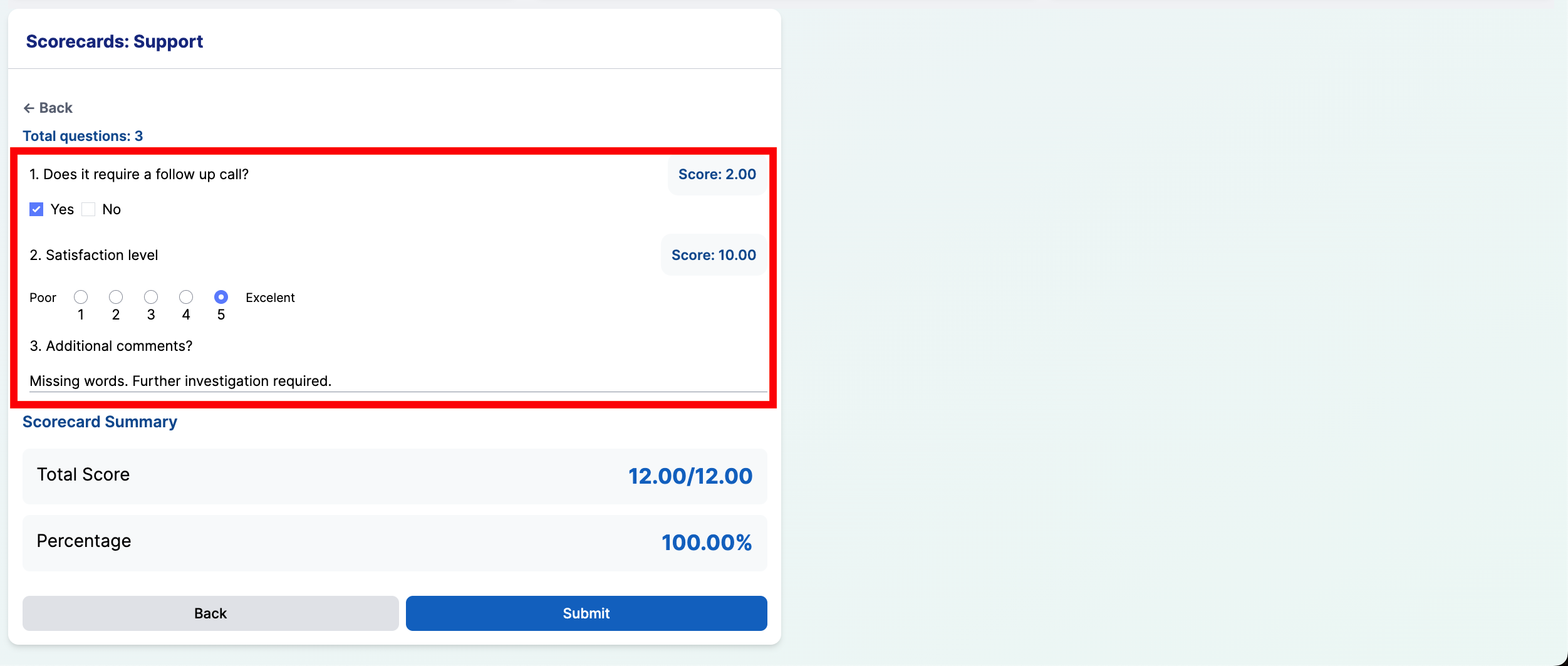
Answer each field according to its type:
- Text — type a free-form response in the input. Text fields do not contribute to the score.
- Boolean (Yes/No) — select either Yes or No. Selecting Yes awards the question's full weight; No awards zero. Click the same option again to clear the answer.
- Numeric Scale — select a radio button in the configured range (for example, 1 to 5). The score is the selected value times the question's weight, divided by the scale maximum.
-
Watch the per-question score update next to each question label as you answer.
-
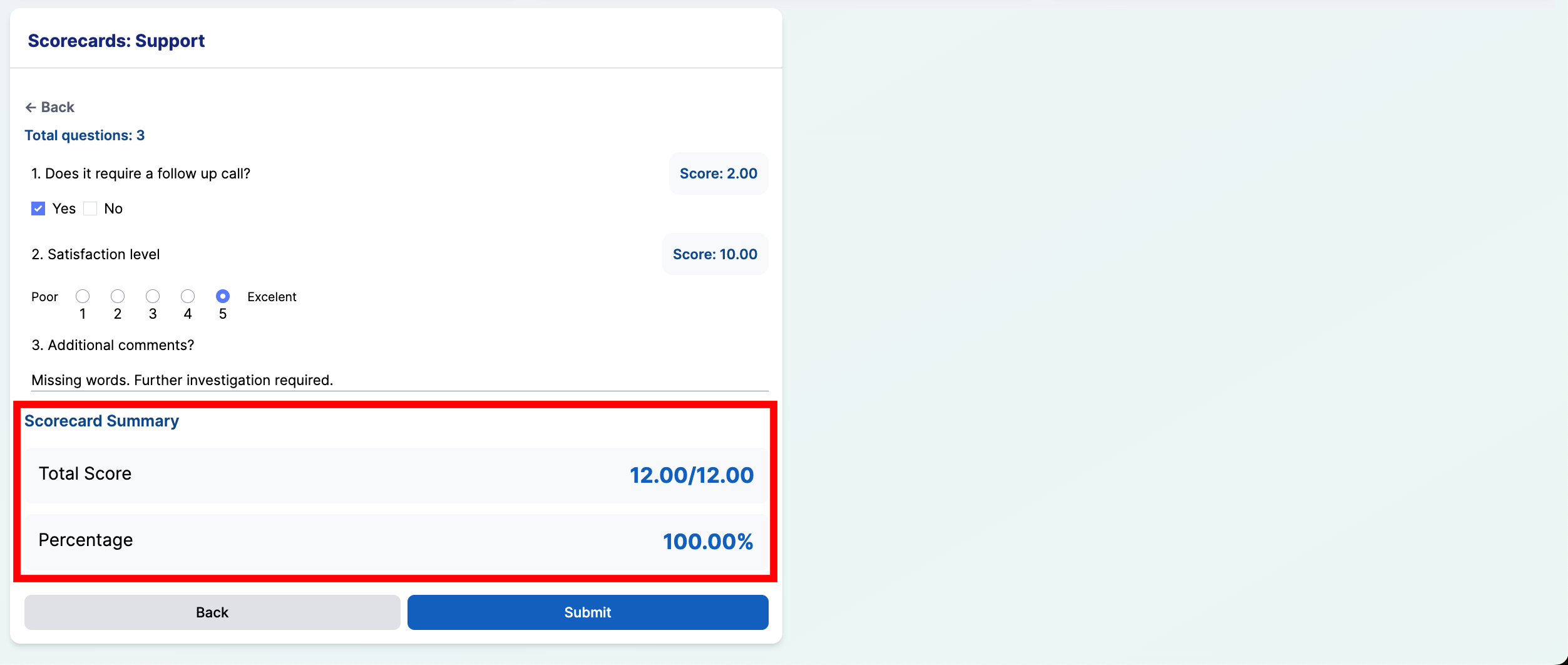
Review the running totals in the Scorecard Summary at the bottom of the form:
- Total Score — the sum of all question scores over the maximum possible score.
- Percentage — the total as a percent of the maximum.
Submitting a Scorecard
-
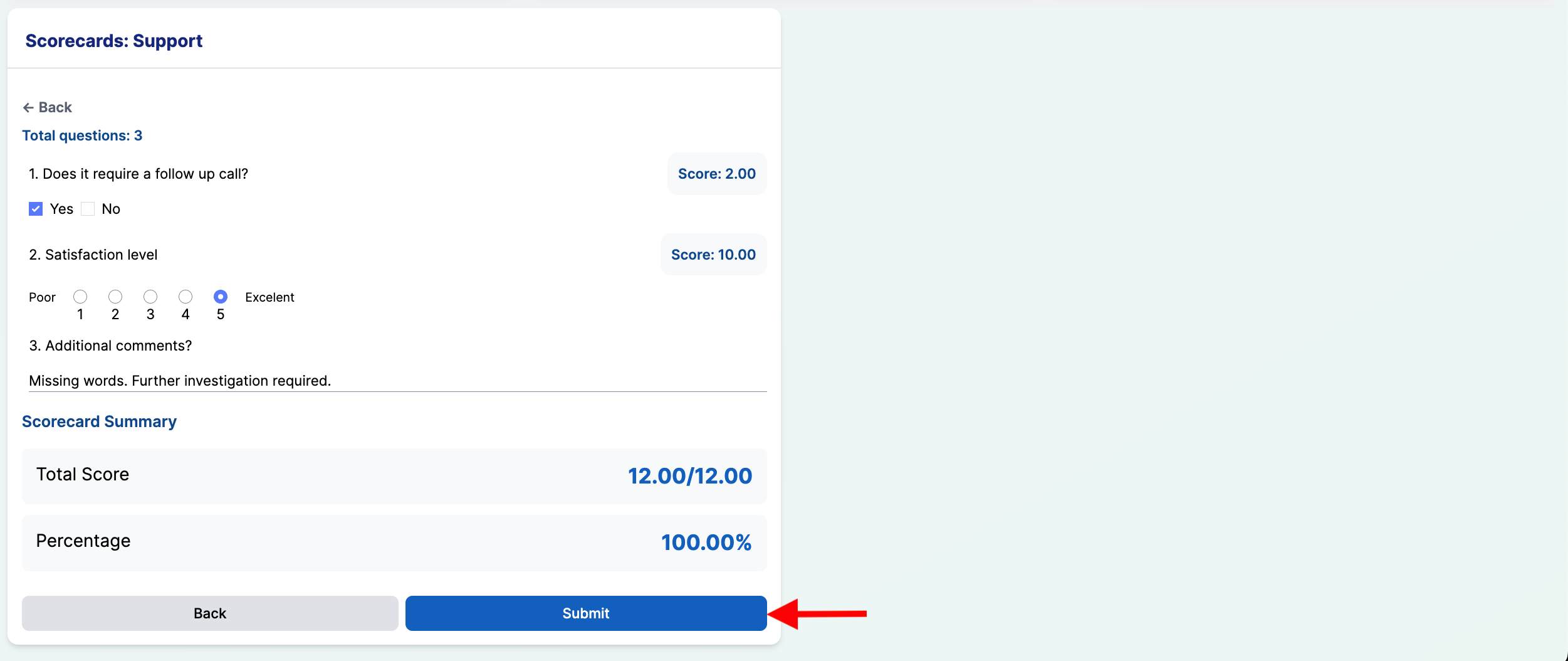
Click the Submit button at the bottom of the form.
-
Confirm the success toast. The panel reloads and now displays the submitted evaluation in read-only-ish mode (see Updating a Scorecard).
-
Click the Back button instead if you want to return to the template selector without saving. Any answers you entered are discarded.
Once a template has at least one scorecard submitted against it, Cloverhound Cloud locks the template so its questions and weights cannot be changed. This keeps historical scores comparable. Administrators must clone the template to continue evolving it.
Viewing a Past Scorecard
When a call already has a submitted scorecard, the Scorecards card on the Call Details page opens directly to that evaluation.
-
Open the Call Details page for the scored call.
-
Review the template name, total question count, each answer, and the Scorecard Summary at the bottom.
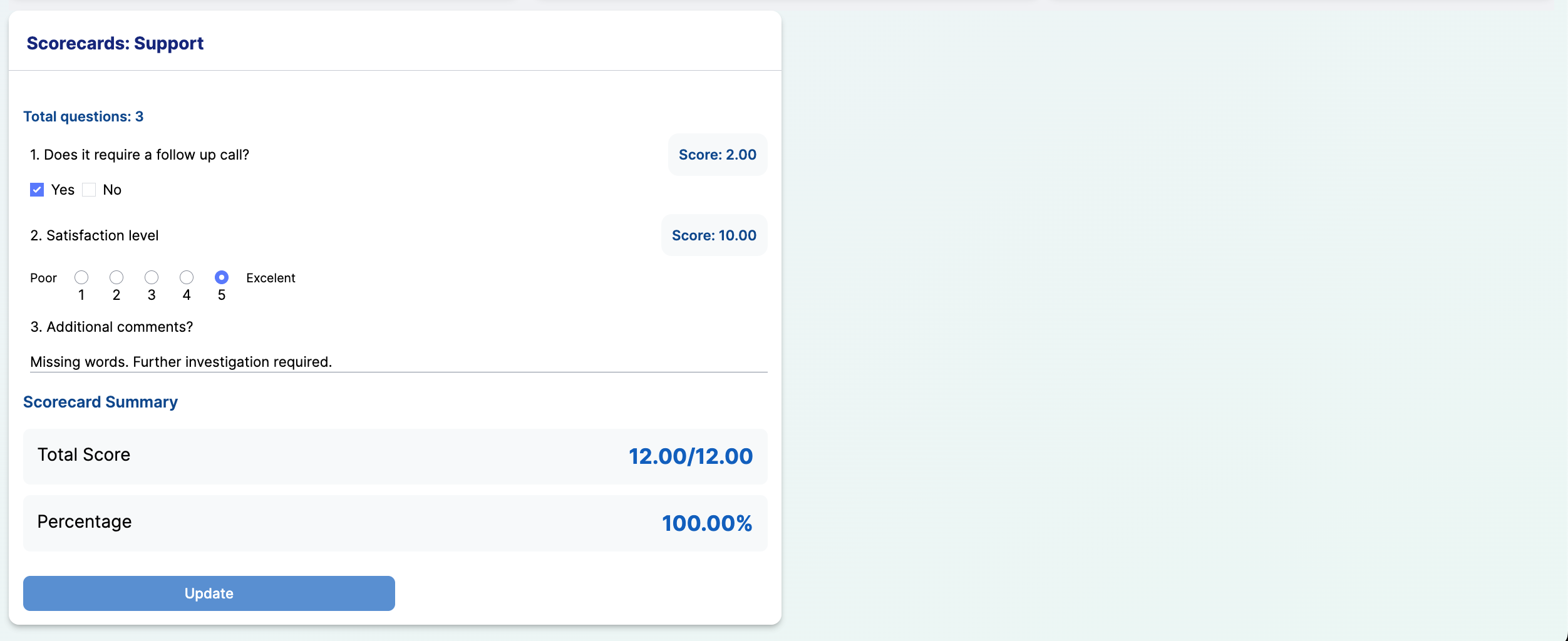
Each call can hold one scorecard. If a different template is needed, the scorecard must be edited by the original author.
Updating a Scorecard
The user who originally submitted the scorecard can revise its answers.
-
Open the Call Details page for the scored call.
-
Adjust any of the answers in the existing form. Scores update live.
-
Click the Update button to save your changes.
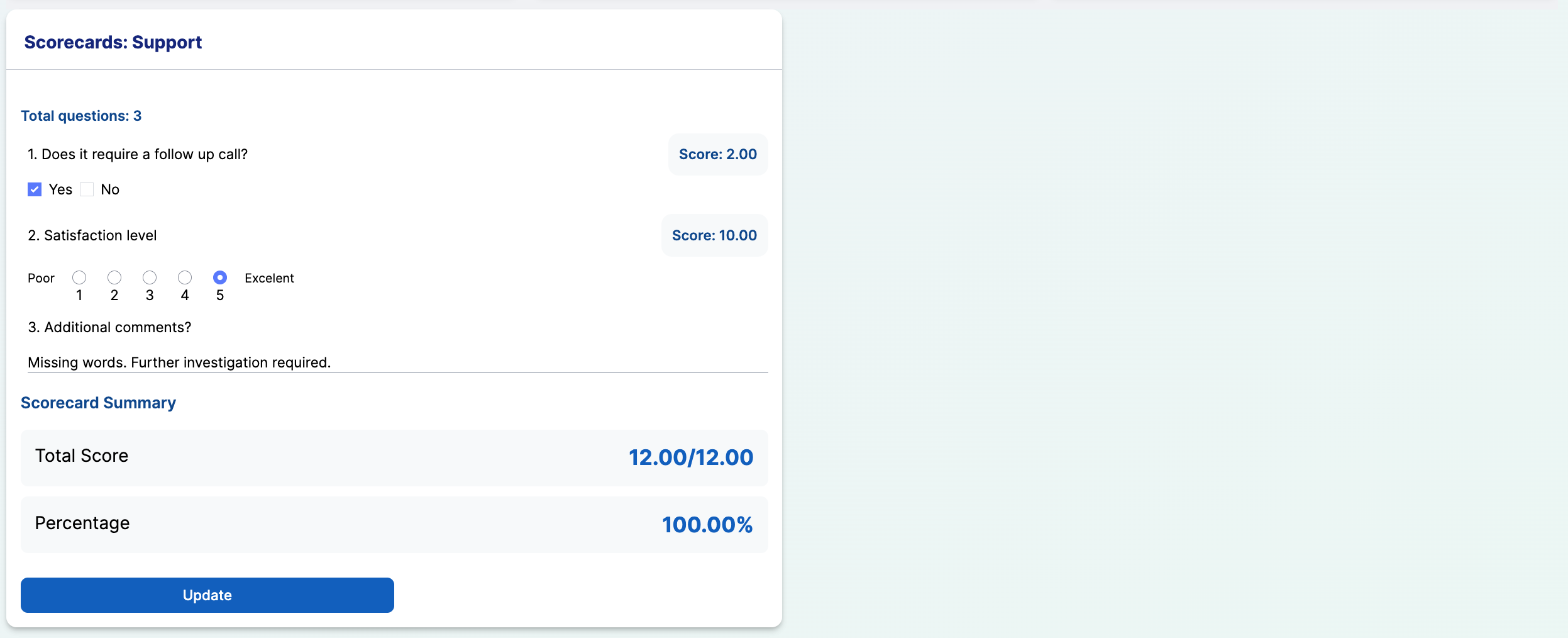
If you are not the user who originally submitted the scorecard, the Update button is disabled. Ask the original evaluator to make the change, or coordinate with an administrator.
Finding Scored Calls
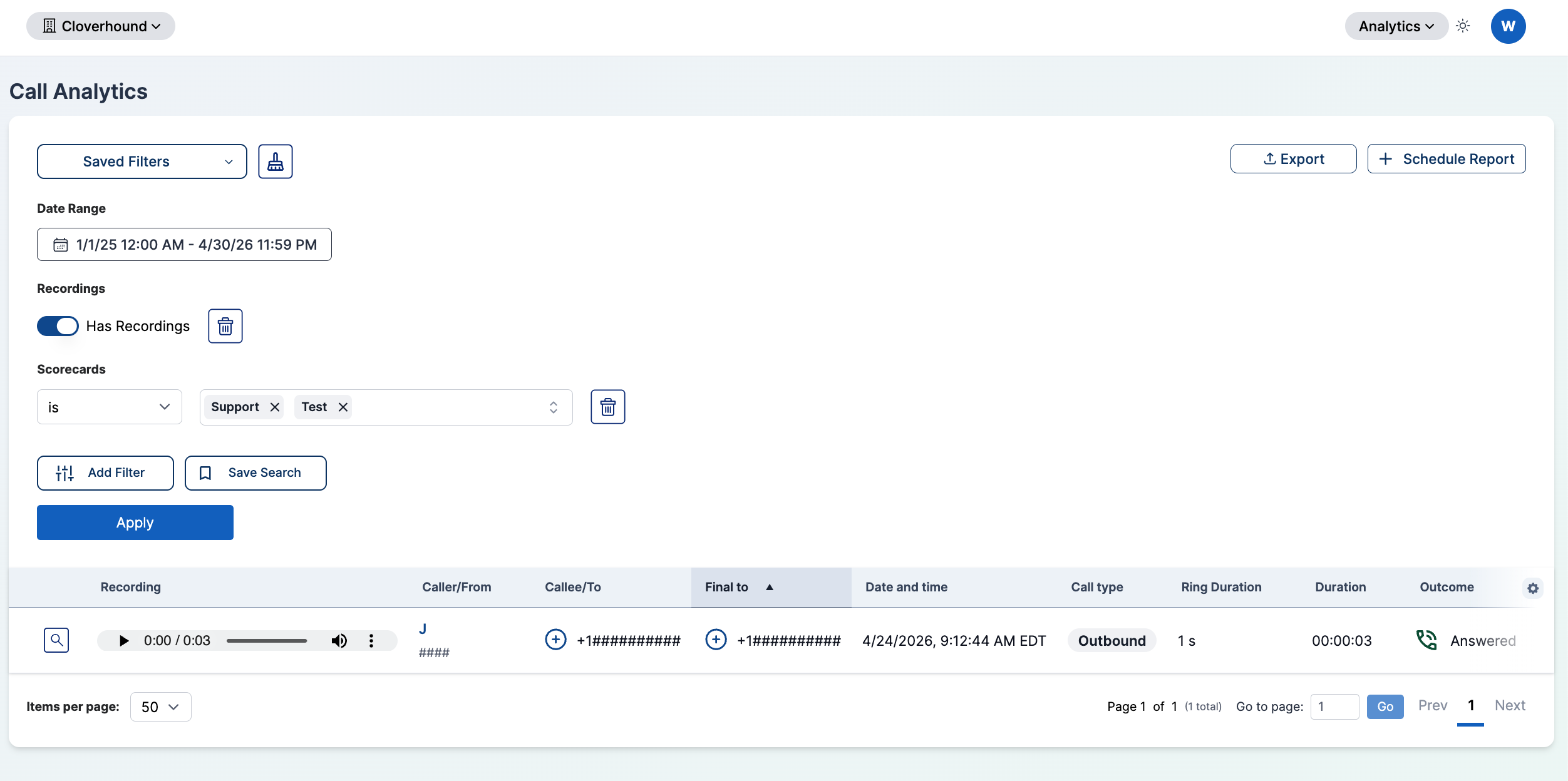
You can locate calls by the scorecard template used to evaluate them.
-
Navigate to the Calls / CDRs page.
-
Open the filter panel and select Scorecards.
-
Pick one or more template names. The Calls Table filters to calls scored with any of the selected templates.
With Scorecards enabled you can turn any call in the Calls Table into a structured quality evaluation, track scores against a locked template, and revisit completed evaluations directly from the call's detail page.