Managing Call Recordings
Call recording management in Cloverhound Cloud covers two things: the organization-wide retention policy that controls how long new recordings are kept, and the per-recording deletion date you can set from a call or interaction page. The organization-wide policy lives under the Admin module; the per-recording override lives on the Recordings section of any call or interaction that has at least one recording.
This page is for organization administrators who need to change either value. For a walkthrough of the Recordings player itself, see Call Details.
How Retention Works
When Cloverhound Cloud stores a new call recording, it reads the organization-level retention setting and writes a scheduled deletion date on the recording. The date is calculated as the recording's creation time plus the configured quantity and period (days, months, or years). Once a recording's scheduled deletion date passes, Cloverhound Cloud removes it.
You can change the organization-wide policy at any time. Changing the policy only affects recordings that are created or updated after the change; recordings that already have a scheduled deletion date keep it unless you override the date individually.
If the retention quantity is not set or is zero, Cloverhound Cloud does not assign a scheduled deletion date to new recordings.
Setting the Organization-Wide Retention Policy
The default retention policy is configured on the Settings page in the Admin module. Only organization administrators can change it.
-
Navigate to the Admin module and open the Settings page.
-
Select the Webex tab.
-
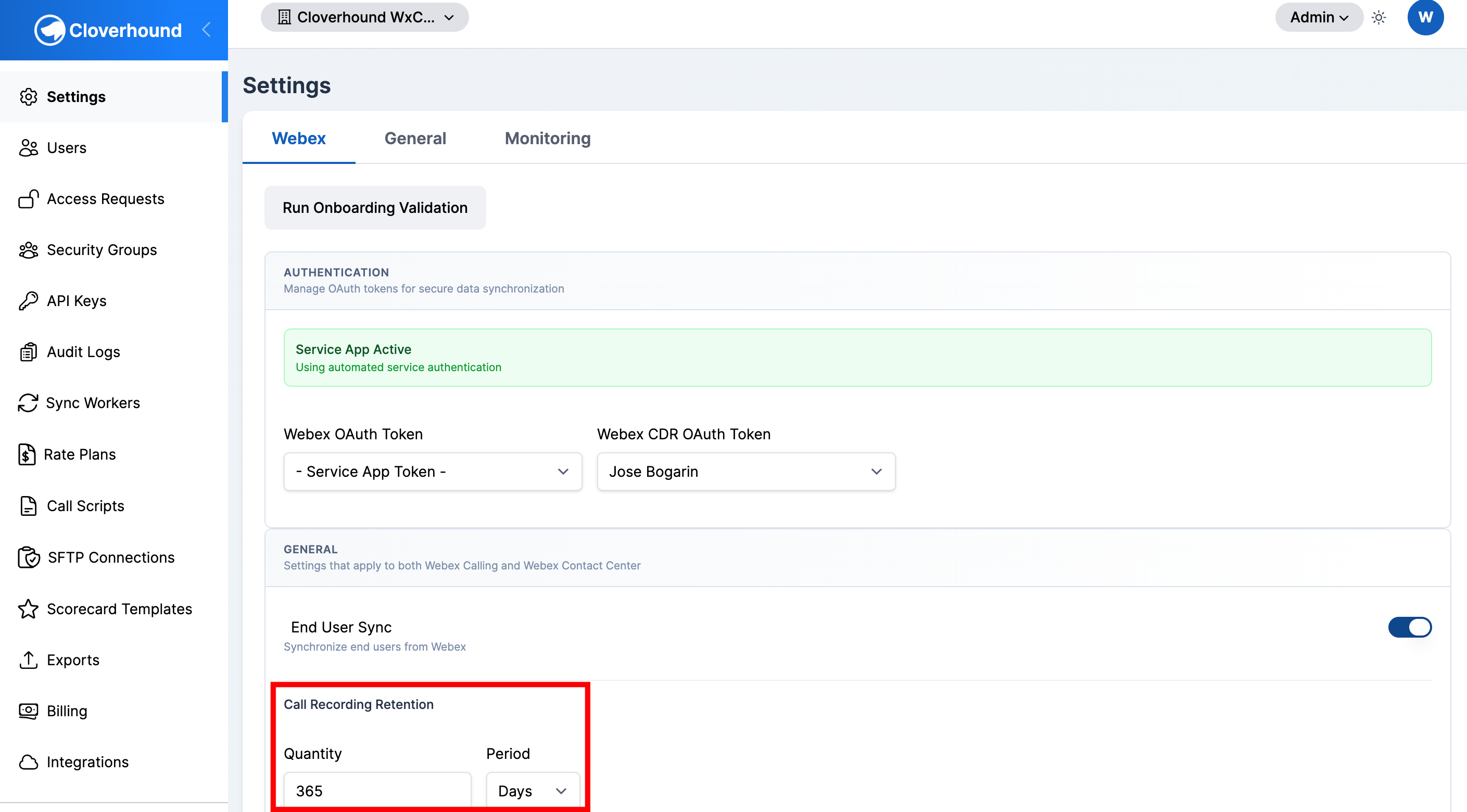
Locate the Call Recording Retention section under General section. Both relevant fields (Quantity and Period) are shown side by side.
-
Enter a value in the Quantity field. This is a positive integer.
-
Select a Period from the dropdown:
- Days
- Months
- Years
-
Click Save at the bottom of the tab to apply the change.
These settings are exposed on the Webex tab as call_recording.retention_quantity and call_recording.retention_period. Contact Cloverhound support if you need to change them outside the Webex tab.
If you clear the retention quantity or set it to zero, Cloverhound Cloud stops writing a scheduled deletion date on new recordings. Existing recordings keep whatever date they were assigned.
Overriding the Deletion Date for a Single Recording
Each recording on a call or interaction shows its own Retention date, and you can change it from the Recordings panel.
-
Navigate to the call or interaction that contains the recording:
- For a call, open the Calls / CDRs page in the Analytics module and click the call.
- For an interaction, open the Interactions page in the Analytics module and click the interaction.
-
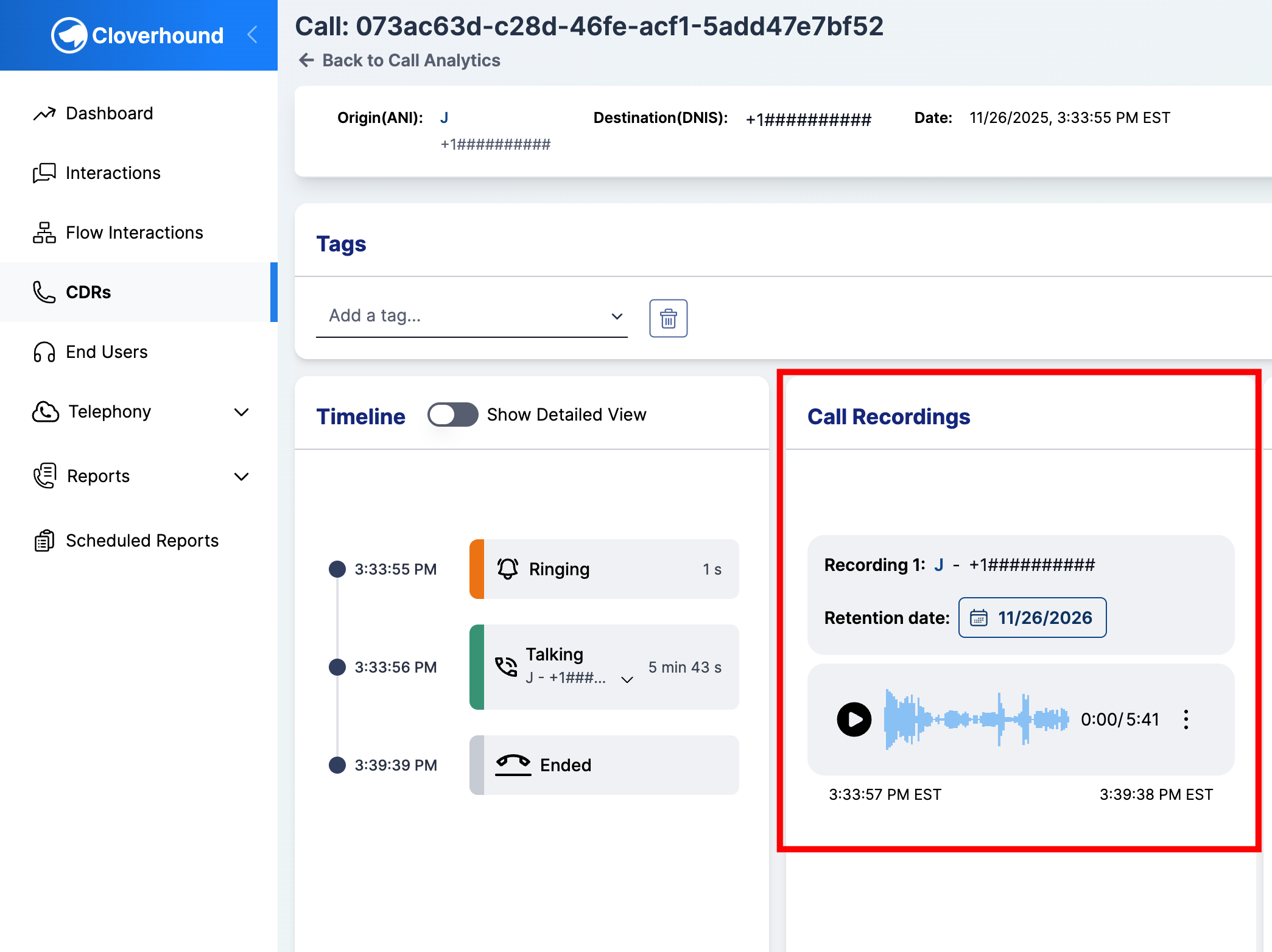
Scroll to the Call Recordings panel. Each Recording shows its number, the From and To parties separated by a dash -, and the current Retention date.
-
Click the Retention date field next to the recording you want to update. A date picker opens.
-
Select a new date. The earliest selectable date is today. Cloverhound Cloud saves the change immediately; there is no separate Save button.
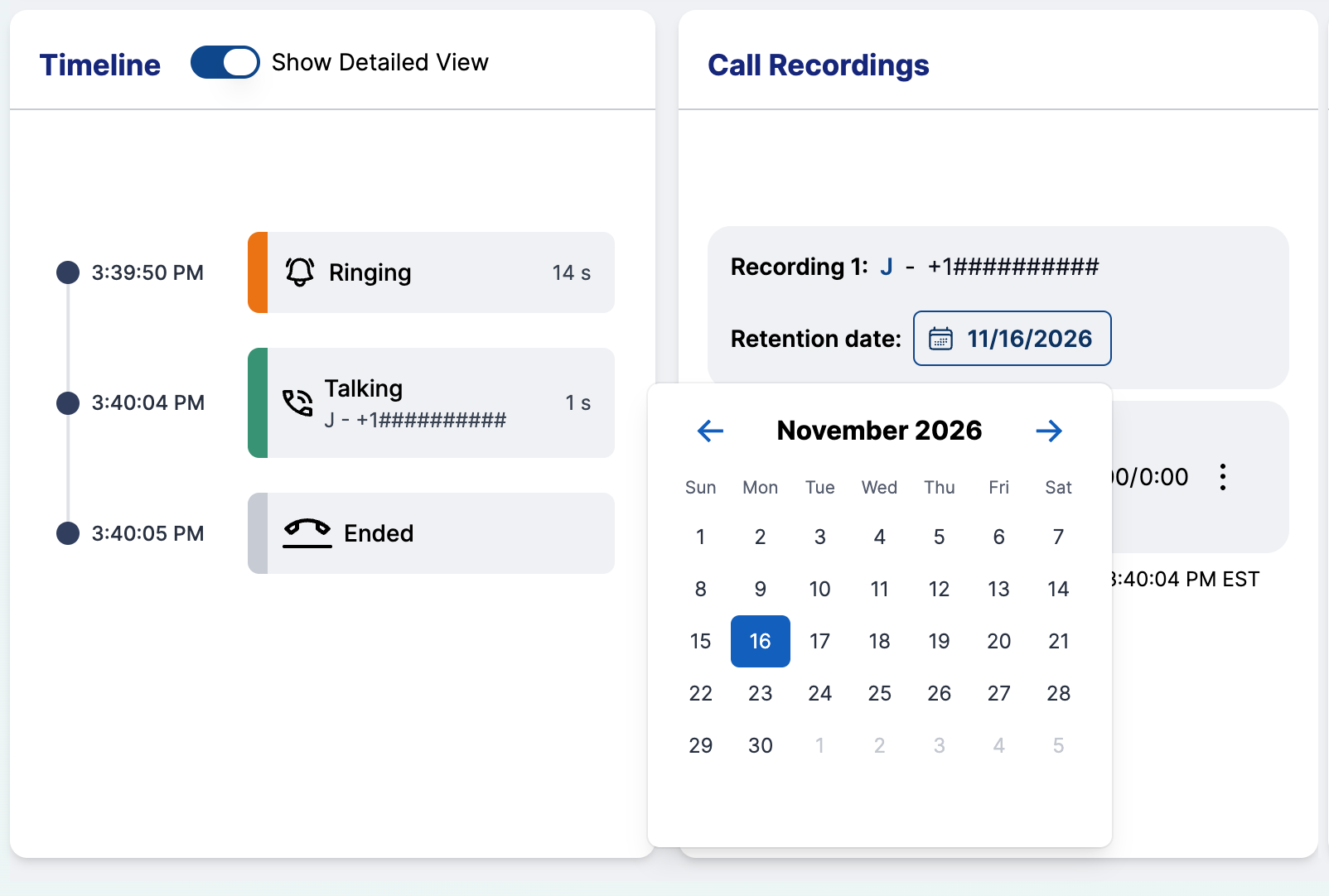
Setting a Retention date in the past or at today's date can cause the recording to be deleted on the next cleanup run. Pick a future date if you want to keep the recording.
Extending Retention for Multiple Recordings
Every recording on the page is editable independently. If a call has more than one recording, update each Retention date field separately.
When a Recording Has No Retention Date
If the Retention date field is empty, Cloverhound Cloud has no scheduled deletion for that recording. This usually happens when the organization-wide retention policy was not set at the time the recording was stored.
Pick a date from the field to assign one. The next cleanup run will respect the new value.
Controlling Whether Recordings Are Downloaded
Whether Cloverhound Cloud downloads a recording in the first place is controlled by two feed toggles, not by this page:
- Webex Calling Recording Feed — pulls recordings captured by Webex Calling.
- Webex Contact Center Recording Feed — pulls recordings captured by Webex Contact Center.
Both toggles live on the Admin Settings page under the Webex tab. If a feed is disabled, no new recordings appear on calls or interactions for that source, and there is nothing to retain. See Managing Settings for the full list of feed toggles.
Which individual calls, users, or queues are recorded is configured in Webex Control Hub, not in Cloverhound Cloud.
Where Other Recording Settings Appear
Cloverhound Cloud does not expose per-resource recording toggles for end users, virtual lines, workspaces, or call queues. The per-recording Retention date override described above is the only per-resource control available in Cloverhound Cloud. For context on the related resource pages, see:
- Introduction to End Users
- Introduction to Virtual Lines
- Webex Integration Overview — for the feed toggles that control whether Webex Calling and Webex Contact Center recordings are pulled into Cloverhound Cloud.
With the organization-wide retention policy set and per-recording overrides in hand, you control both the default lifetime of new recordings and the exact expiration date of any individual recording.