Managing Your Preferences
User preferences are personal settings that apply only to your account and override organization-level defaults for you alone. Any signed-in user has preferences, regardless of role. Today the only preference available is your personal time zone, which controls how times are displayed when you use pages that have been updated to respect it, and which time zone is pre-filled when you create a new scheduled report.
Accessing Your Preferences
-
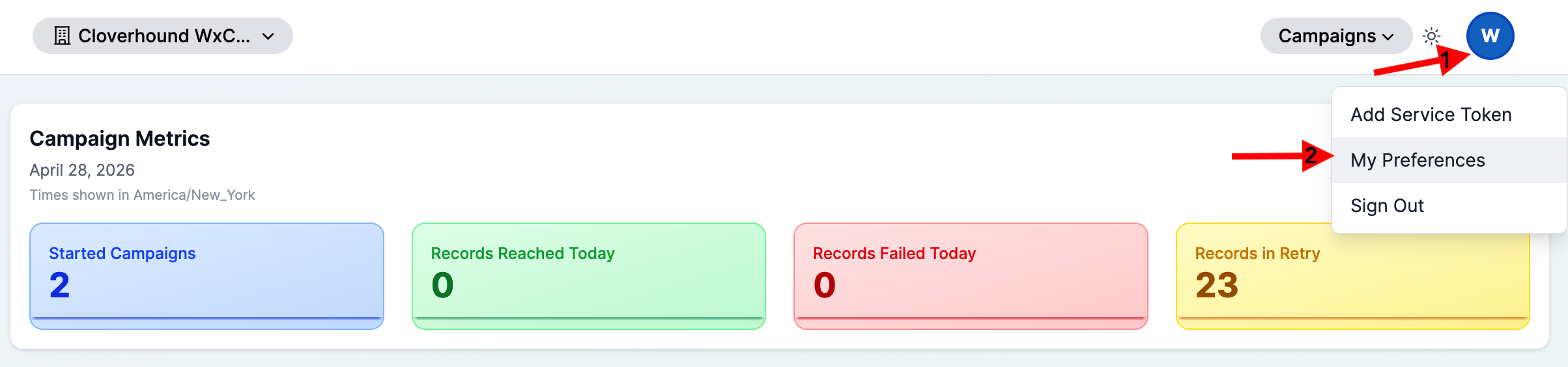
Click your user avatar in the top-right corner of any page inside an organization.
-
Click My Preferences in the dropdown.
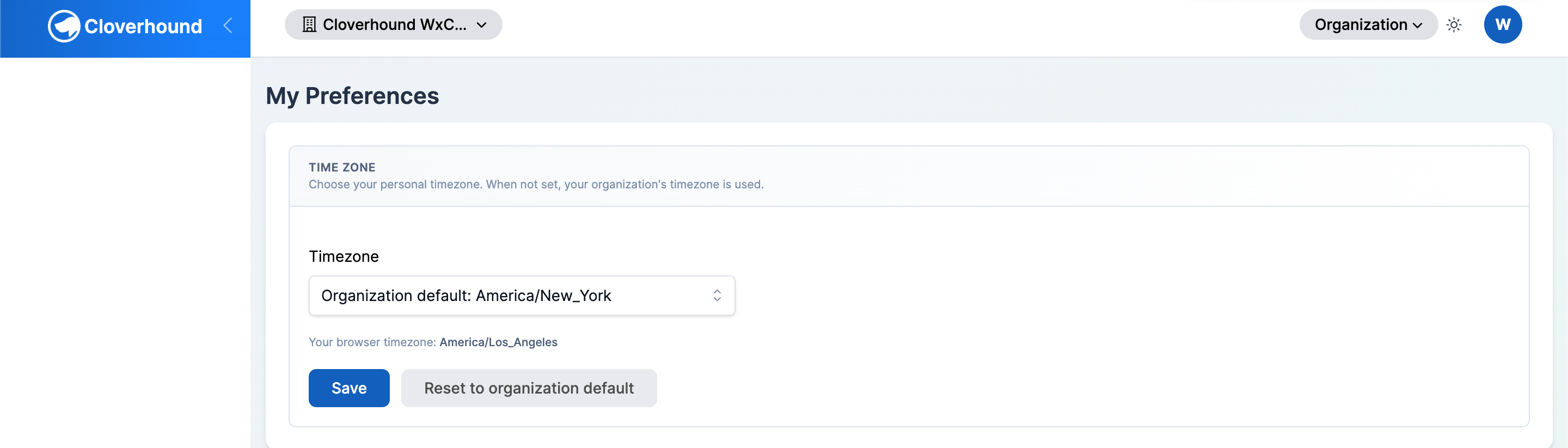
The My Preferences page opens. Each preference appears in its own section.
Setting Your Time Zone
The Time Zone section lets you choose the IANA time zone Cloverhound Cloud should use for your account. When no personal time zone is set, your organization's default time zone is used instead.
-
Locate the Time Zone section on the My Preferences page.
The section shows:
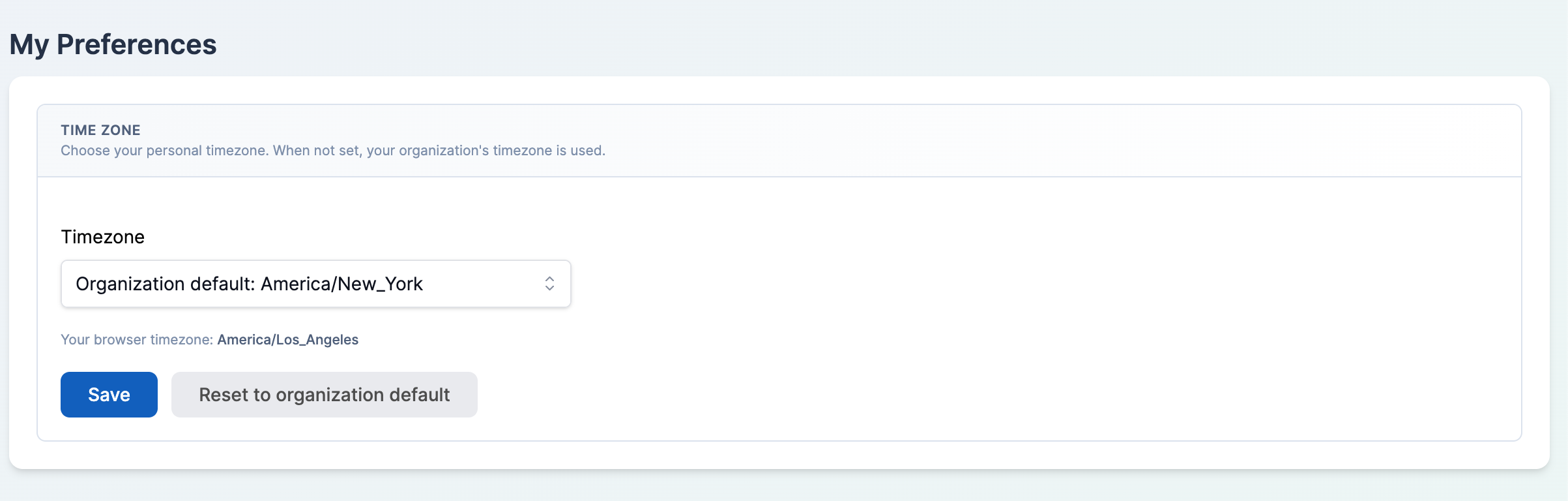
- A Timezone dropdown containing the list of IANA time zones supported by Cloverhound Cloud. When you have no personal time zone saved, the dropdown's placeholder reads
Organization default: <your org's time zone>. - Your detected browser time zone displayed beneath the dropdown, for reference.
- A Timezone dropdown containing the list of IANA time zones supported by Cloverhound Cloud. When you have no personal time zone saved, the dropdown's placeholder reads
-
Click the Timezone dropdown and select your time zone. You can type to filter the list. Each entry shows the IANA name and the current UTC offset (for example,
America/Los_Angeles (-07:00)).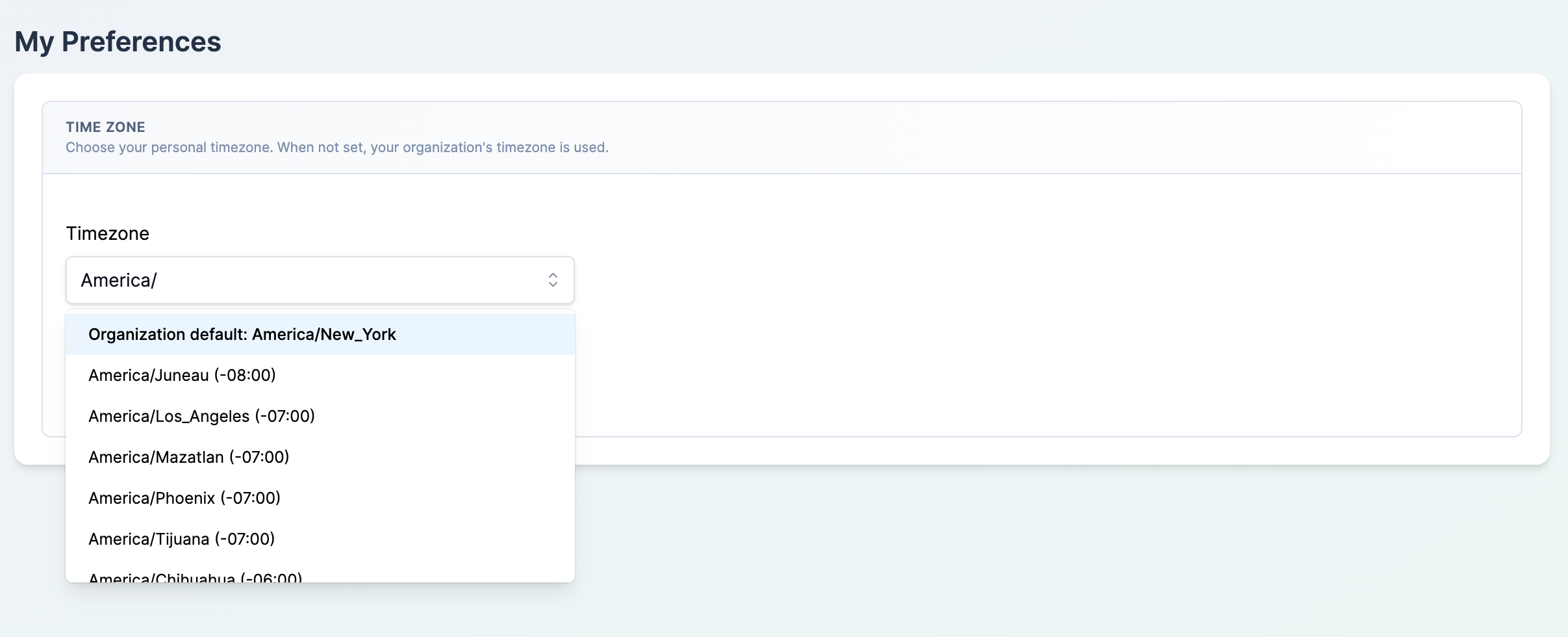
-
Click Save.
A success message appears at the top of the page. Your selection is stored on your account and applies on every device the next time you sign in.
Clearing Your Time Zone
To go back to using your organization's default time zone:
-
Click Reset to organization default in the Time Zone section.
The dropdown returns to its placeholder state (
Organization default: <your org's time zone>) and a success message confirms the change. The Reset to organization default button is only enabled when you currently have a personal time zone saved.
Where Your Time Zone Preference Is Used
Setting a personal time zone does not retroactively change every time displayed across Cloverhound Cloud. It affects:
- Pages that have been updated to honor user preferences. As pages in Analytics and other modules are migrated, they resolve times using your personal time zone first and fall back to the organization default when you have not set one.
- New scheduled reports you create. On the scheduled report form, the Timezone field is pre-filled with your personal time zone (or the organization default if you have none). The report generates and windows data using the time zone stored on the schedule when it was created. Changing your personal preference later does not change the time zone of reports that were already scheduled.
- Scheduled reports created by others. Their schedules keep the time zone the creator captured at creation time. If you edit a scheduled report whose stored time zone differs from your personal preference, the form shows a notice comparing the two values so you can confirm which one you want.
Times that are shown in an organization-wide context (for example, a helper that reads "Time is in organization timezone (...)") continue to use the organization's time zone regardless of your personal preference.
Recap
From the My Preferences page you can set and clear a personal IANA time zone, which Cloverhound Cloud uses in place of the organization default on pages and scheduled reports that honor user preferences.