Managing Sync Workers
Sync Workers are the background jobs that keep Cloverhound Cloud in sync with Webex Calling, Webex Contact Center, and other external systems. The Sync Workers page shows the status of every worker for your organization, how recently each one ran, and how often it succeeds, so you can confirm that data is flowing and spot problems early.
Use this page to:
- Check which sync jobs ran recently and whether they succeeded.
- Review success rates over the last several runs.
- Trigger a worker to run immediately (master administrators only).
Accessing Sync Workers
-
Navigate to the Admin module.
-
Open the Sync Workers page from the left sidebar.
-
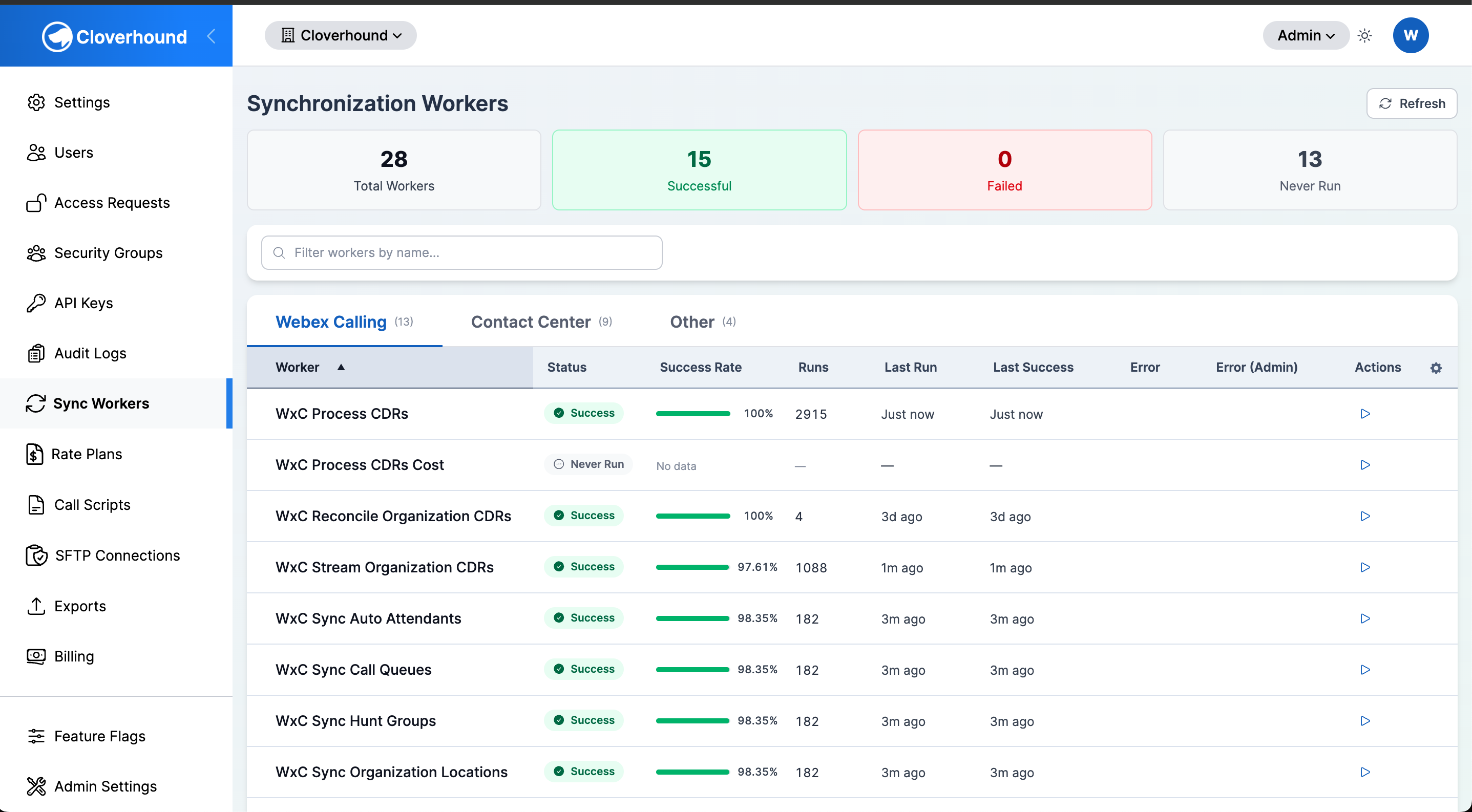
Review the page layout. The header shows the page title and a Refresh button that reloads worker data on demand.

Reading the Summary Cards
Four cards at the top of the page summarize the current state of every worker in your organization:
- Total Workers — The full count of sync workers configured for your organization.
- Successful — Workers whose most recent run finished successfully.
- Failed — Workers whose most recent run ended in an error. Investigate these first.
- Never Run — Workers that have no recorded runs yet. This is normal right after onboarding or for features you don't use.

Refreshing the Page
Click the Refresh button in the top right of the page to reload worker status without a full page reload. The arrow icon spins while the request is in flight. Refresh after triggering a manual run or after fixing an upstream configuration, since scheduled runs only update the page on the next load otherwise.

Browsing Workers by Category
Workers are grouped into three tabs:
- Webex Calling — Sync jobs for Webex Calling CDRs, users, locations, trunks, call queues, hunt groups, auto attendants, workspaces, virtual lines, and recordings.
- Contact Center — Sync jobs for Webex Contact Center tasks, task legs, flow interactions, dialer results, recordings, wrap-up codes, teams, and user profiles.
- Other — General-purpose jobs such as screen recording transcoding, dialer campaign status updates, and time-since-import rule processing.
Each tab label shows the total number of workers in that group. If any worker in the group has a failed last run, a red badge next to the label shows the failure count.
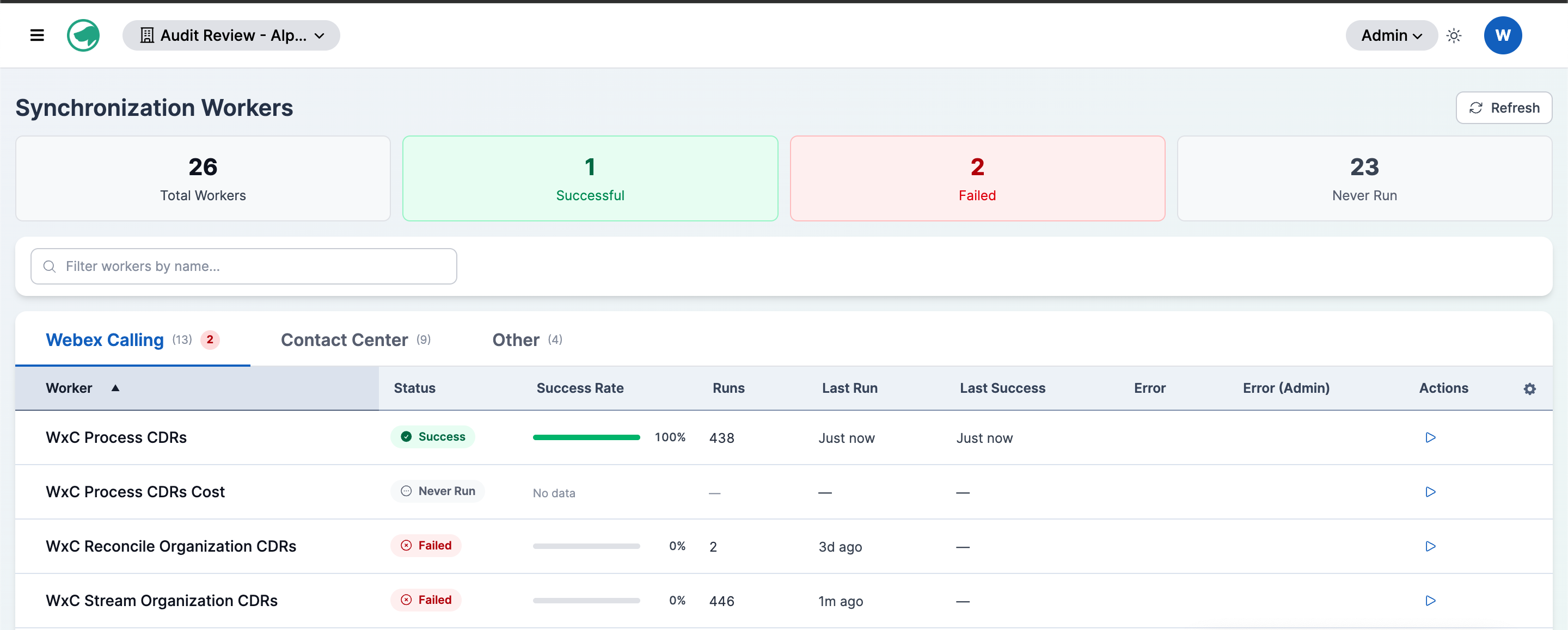
To narrow the list within a tab, type part of a worker's name into the Filter workers by name... search box. The table updates as you type.
What Each Group Covers
The workers inside each tab correspond to specific upstream data:
- Webex Calling workers keep CDRs (call detail records), cost data, users, virtual lines, workspaces, locations, trunks, call queues, hunt groups, auto attendants, and call recordings in sync with Webex Calling.
- Contact Center workers keep tasks, active tasks, task legs, flow interactions, dialer results, recordings, wrap-up codes, teams, and user profiles in sync with Webex Contact Center.
- Other covers platform maintenance jobs: screen recording transcoding, dialer campaign status updates, time-since-import rule processing, and dialer archive cleanup.
Understanding the Worker Table
Each row represents a single sync worker. The default columns are:
- Worker — The job's display name.
- Status — The outcome of the most recent run:
- Success — The run finished without errors.
- Failed — The run raised an error. See the Error column for details.
- Running — The run is currently in progress.
- Skipped — The run was intentionally skipped (for example, nothing to process).
- Never Run — No runs have been recorded yet.
- Success Rate — A colored bar showing the percentage of recent runs that succeeded. Green at 80% or higher, amber between 50% and 80%, red below 50%. Hover for the exact percentage and the number of runs used to calculate it.
- Runs — The total number of recorded runs. Hover to see the success-vs-failed breakdown.
- Last Run — Relative time of the most recent run (for example, "5m ago"). Hover for the exact timestamp.
- Last Success — Relative time of the most recent successful run. Use this to confirm that a currently failing worker was previously healthy.
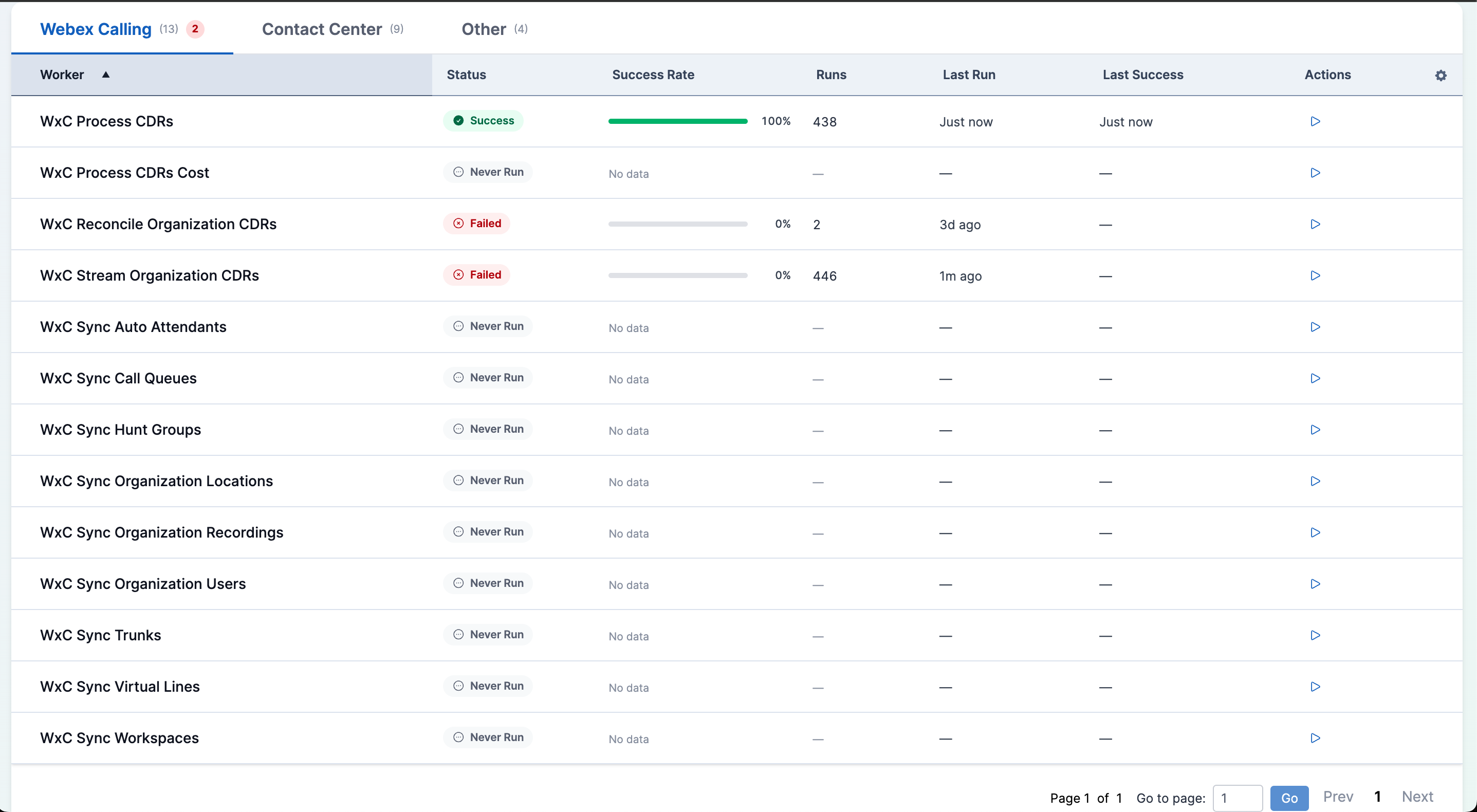
Click any column header to sort by that field; click again to reverse the sort order.
Viewing Error Details
The table includes an Error column that is hidden by default. To show it, open the column chooser in the table header and enable Error. The column displays the most recent public-facing error message for the worker; hover the text to read the full message.
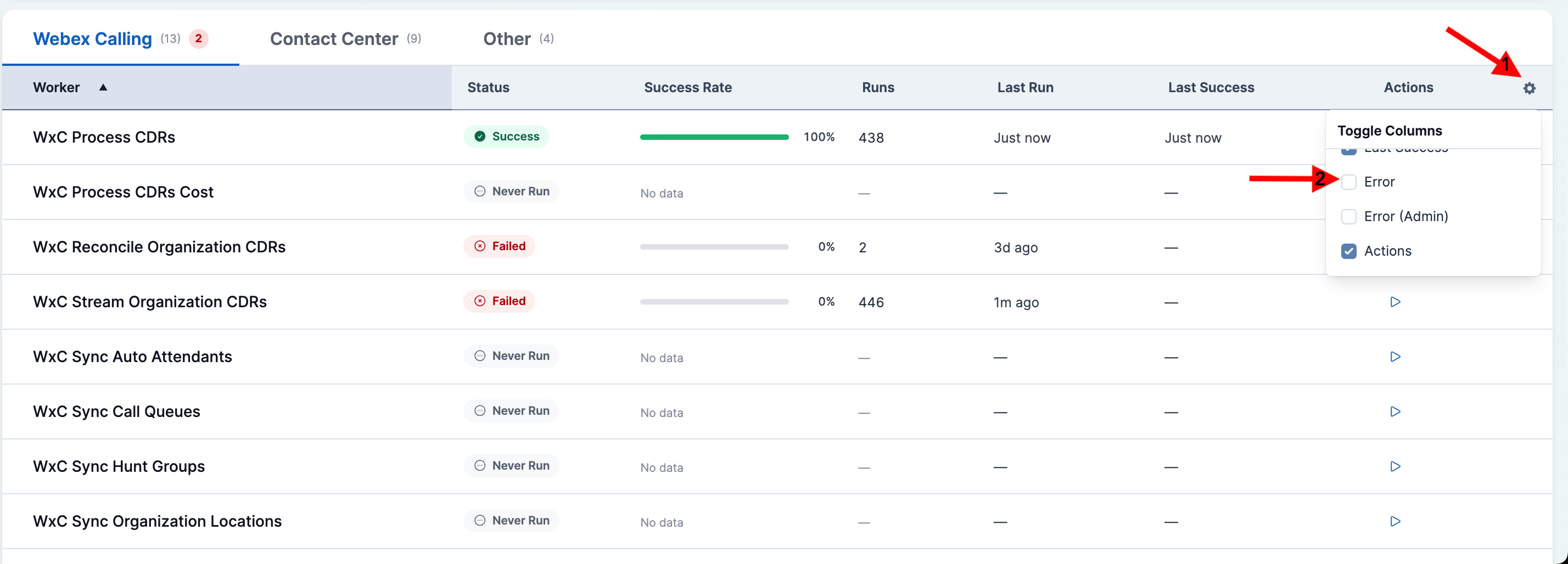
Master administrators additionally see an Error (Admin) column with internal diagnostic details that are not exposed to other roles.
If a worker's status is Failed but the Error column is empty, the underlying job did not record a message. Try running the worker manually and refresh the page to capture fresh error context.
With the Sync Workers page, you can confirm at a glance that background synchronization is healthy and drill into the specific worker that failed, and get more information needed to troubleshoot the issue