Managing Custom Fields
Custom Fields are user-defined attributes you attach to Entities or Groups managed in the Operations module. Custom fields are defined here, in Admin > Settings. Define a field once for your organization, and every entity or group gets an input for it on its edit form, so you can track the data that matters to your business without waiting for a schema change.
In this page you will learn how to:
- Reach the Custom Fields page from Settings.
- Create, edit, and delete custom field definitions.
- Manage the allowed options for a List field.
- Find where each custom field appears in the UI.
Accessing Custom Fields
-
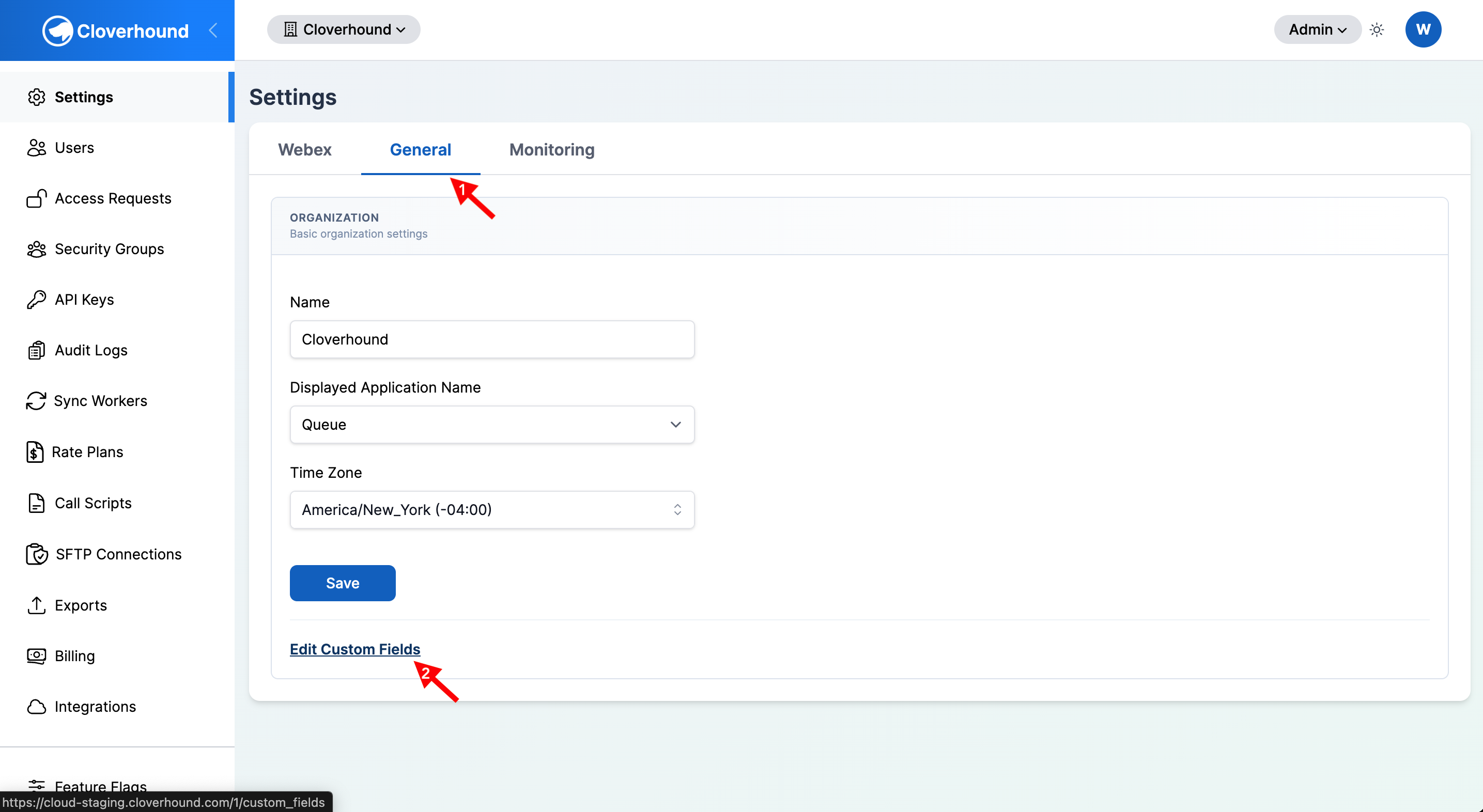
Navigate to the Settings page and open the General tab.
-
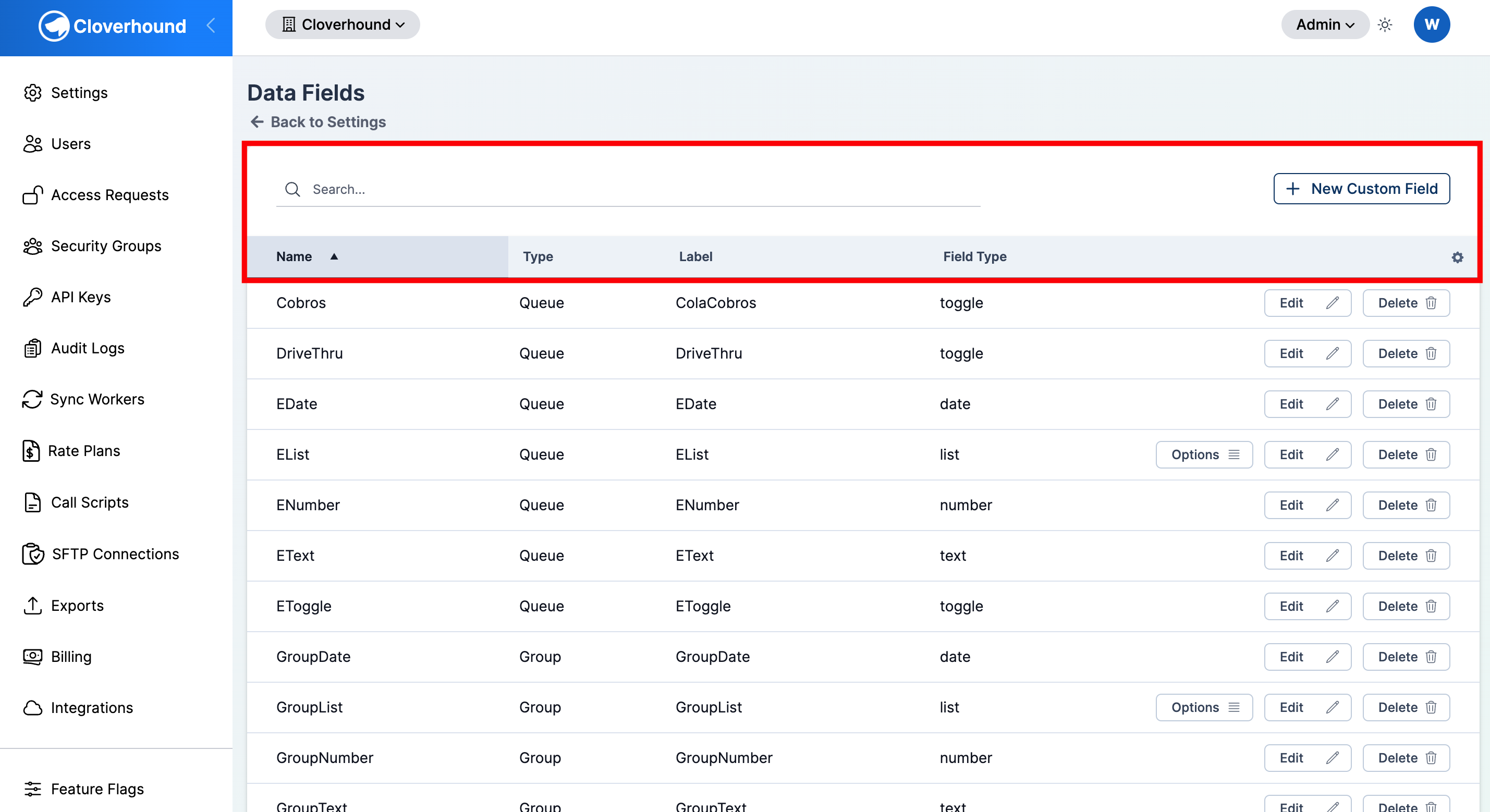
Click the Edit Custom Fields link in the Organization section. The Custom Fields page (titled Data Fields) opens with a table of every custom field defined for your organization.
-
Use the search bar to filter the list by field name, or click any column header to sort by Name, Type, Label, or Field Type.
Creating a Custom Field
-
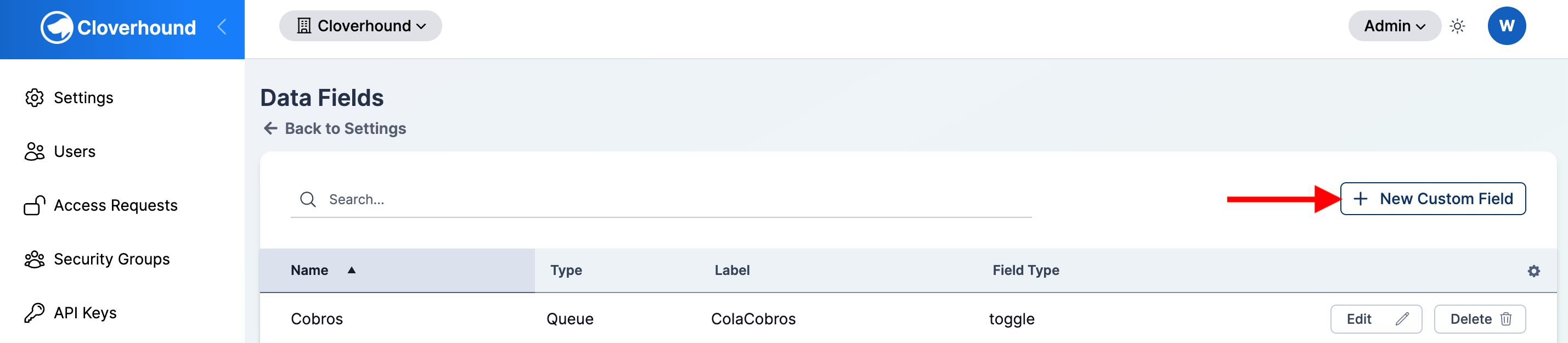
Click the New Custom Field button in the top-right corner of the page.
-
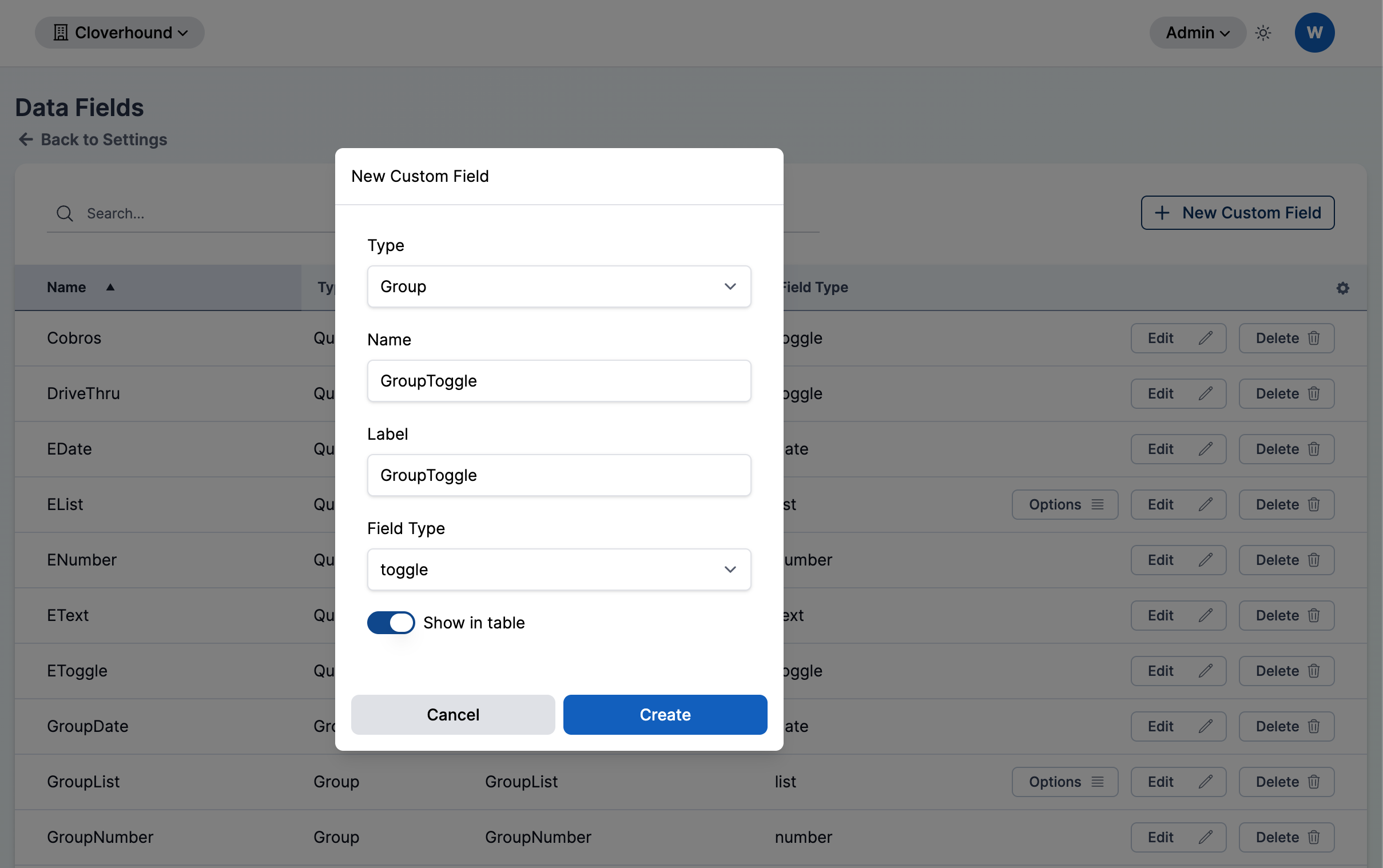
Fill out the form in the dialog that opens:
- Type — whether the field attaches to entities or to groups. Pick one of:
- Entity (labeled with your organization's configured entity name) — the field appears on every entity's Custom Fields tab.
- Group — the field appears on every group's edit form.
- Name — the internal identifier for the field. Must be unique within your organization for the selected Type.
- Label — the human-readable label shown next to the input on entity and group forms.
- Field Type — the input type. Pick one of:
- Text — a single-line text input.
- Number — a numeric input.
- Date — a date picker.
- Toggle — an on/off switch.
- List — a dropdown of values you define.
- Show in table — when enabled, the field appears as a column on the Entities or Groups index page.
- Type — whether the field attaches to entities or to groups. Pick one of:
-
Click Save. The new field appears in the table, and Cloverhound Cloud immediately adds it to every existing entity or group with a default value (empty text,
0for numbers,falsefor toggles, empty date, empty list).
Name and Type together must be unique. You can have an Entity custom field named region and a Group custom field named region at the same time, but not two Entity fields named region.
Managing List Options
Fields of type List accept a fixed set of values. You edit that set from the table, not from the main form.
-
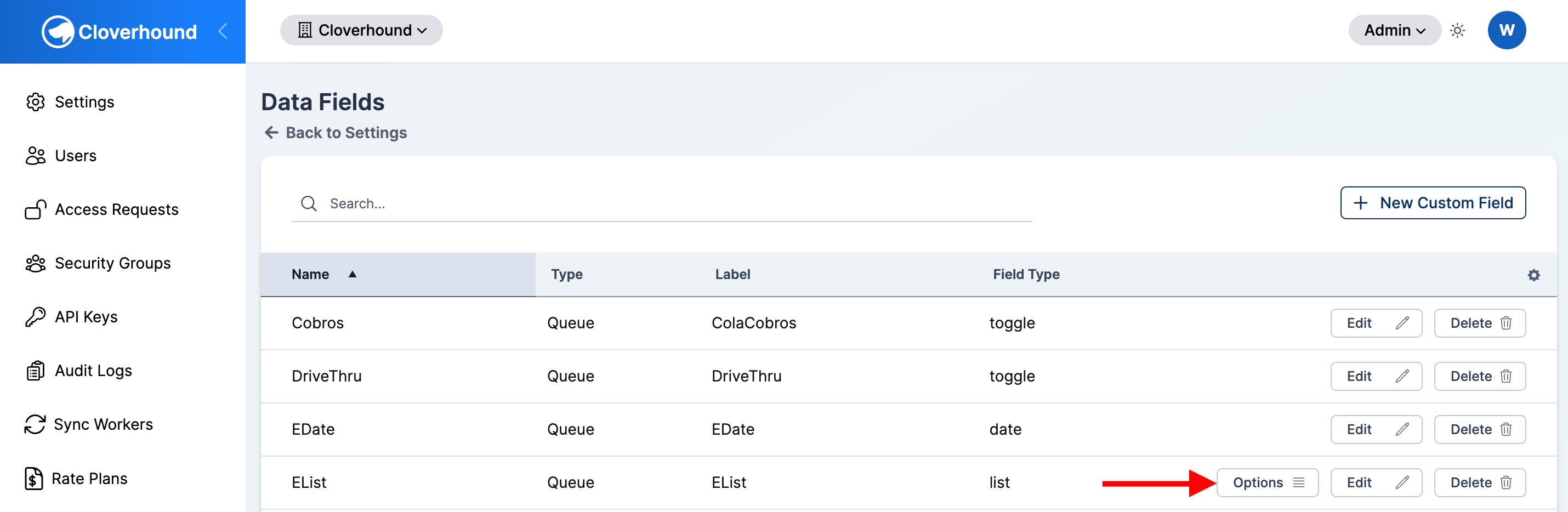
Locate the List field in the Custom Fields table.
-
Click the Options button on the field's row.
-
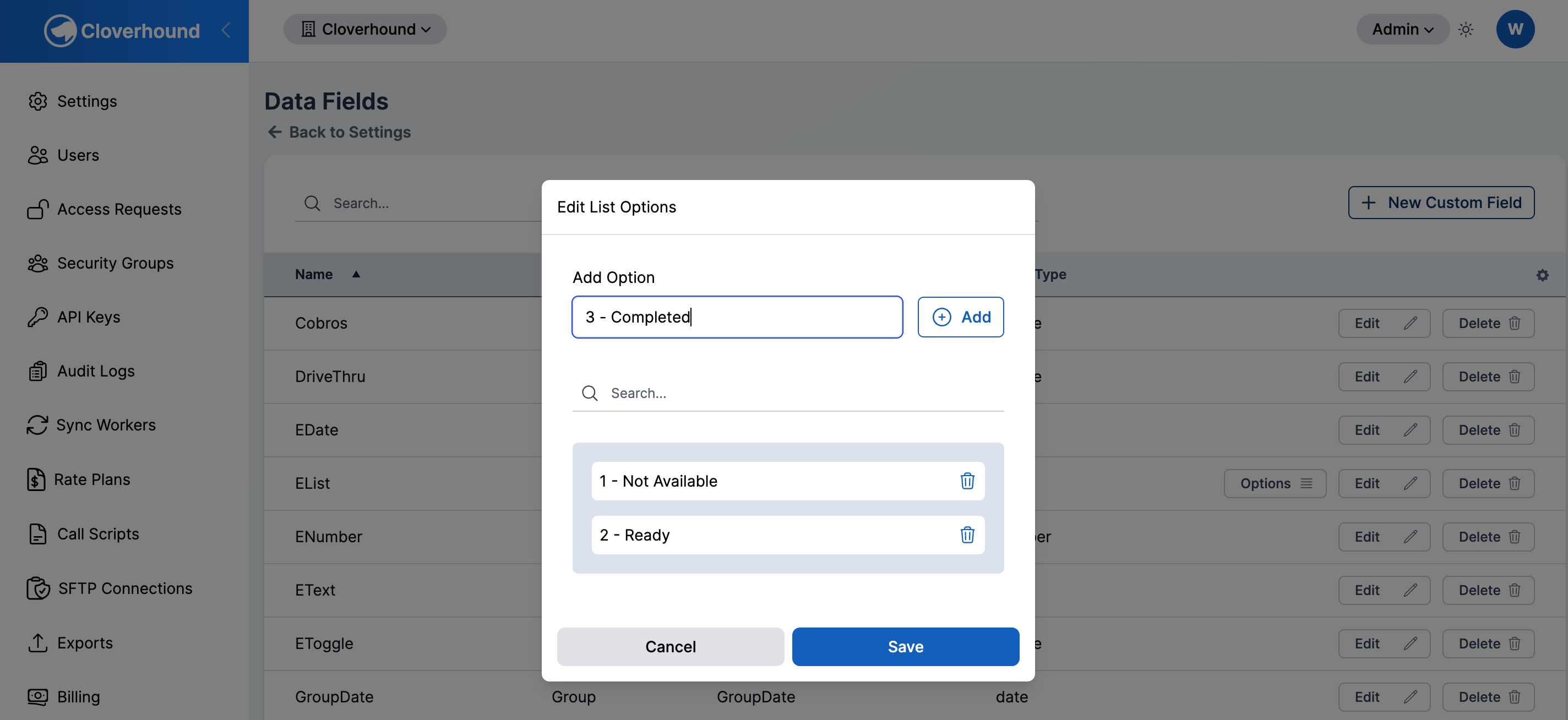
Add a value by typing it in the Add Option input and clicking Add. Duplicate values are rejected.
-
Delete a value by clicking the trash icon next to it.
-
Search longer lists with the search bar above the options.
-
Click Save to persist the change.
Editing a Custom Field
- Locate the field in the table, using search if needed.
- Click the Edit button on the field's row.
- Update any of Type, Name, Label, Field Type, or Show in table.
- Click Save to apply the changes.
Changing Field Type on a field that already has values does not convert existing data. Existing entity or group values for the field are kept as-is and may not render correctly under the new type. Prefer creating a new field when the semantics change.
Deleting a Custom Field
Only master admins see the Delete button.
- Locate the field in the table.
- Click the Delete button on the field's row.
- Confirm the prompt. Cloverhound Cloud removes the field from every entity or group in your organization.
Deleting a custom field is permanent and also removes every stored value for that field from every entity or group. There is no undo.
Where Custom Fields Appear
After a field is saved, it shows up in the places that match its Type:
- Entity fields render on the Custom Fields tab of each entity's detail page. The input matches the field type (text, number, date, toggle, or list dropdown).
- Group fields render in the group creation and edit form, below Name.
- Fields with Show in table enabled also appear as a column on the matching index page (Entities or Groups).
For Campaign-scoped fields (attached to dialer records instead of entities or groups), see Introduction to Campaign Data Fields in the Campaigns module.
With Custom Fields, you extend the data model for entities and groups to match your organization's vocabulary without leaving the UI, then collect those values on every entity or group you manage.