Managing Scorecard Templates
Scorecard Templates are reusable layouts of evaluation questions (Scorecard Fields) that your team uses to score calls for quality assurance. Each template defines the questions, question types, and weights that appear when someone fills out a scorecard against a call. Templates live in the Admin module.
Accessing Scorecard Templates
-
Navigate to the Admin module.
-
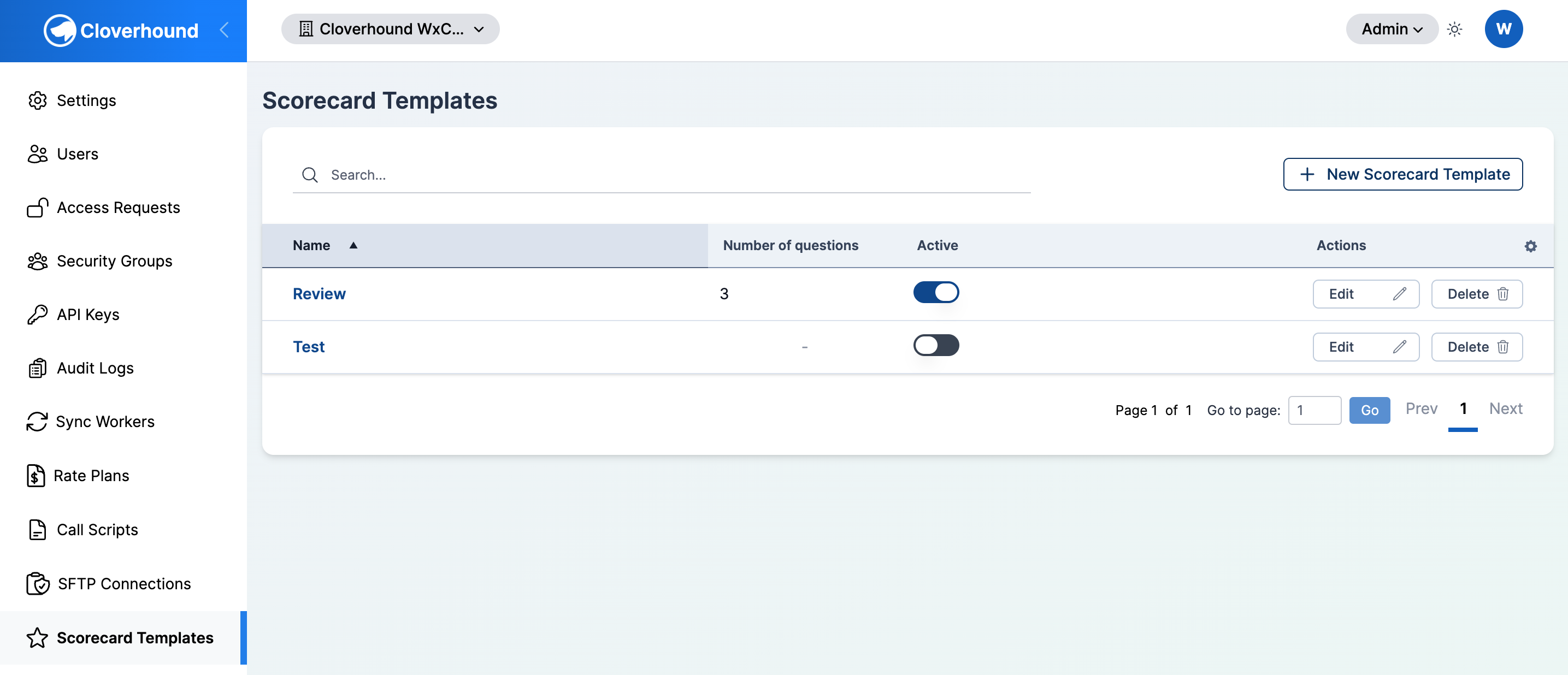
Open the Scorecard Templates page.
-
Use the search bar to find an existing template by name, or sort and paginate the table to locate it.
Creating a Scorecard Template
-
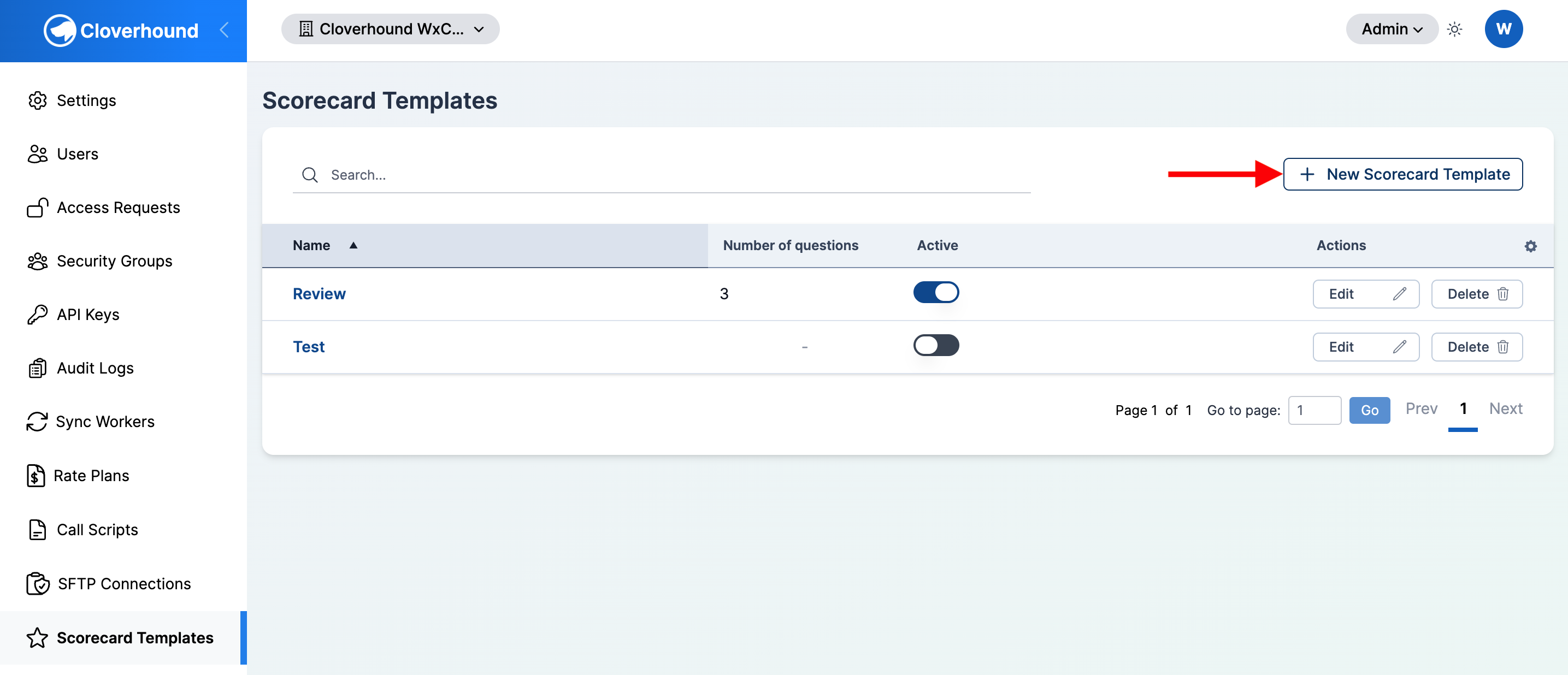
Click the + New Scorecard Template button in the top-right of the index page.
-
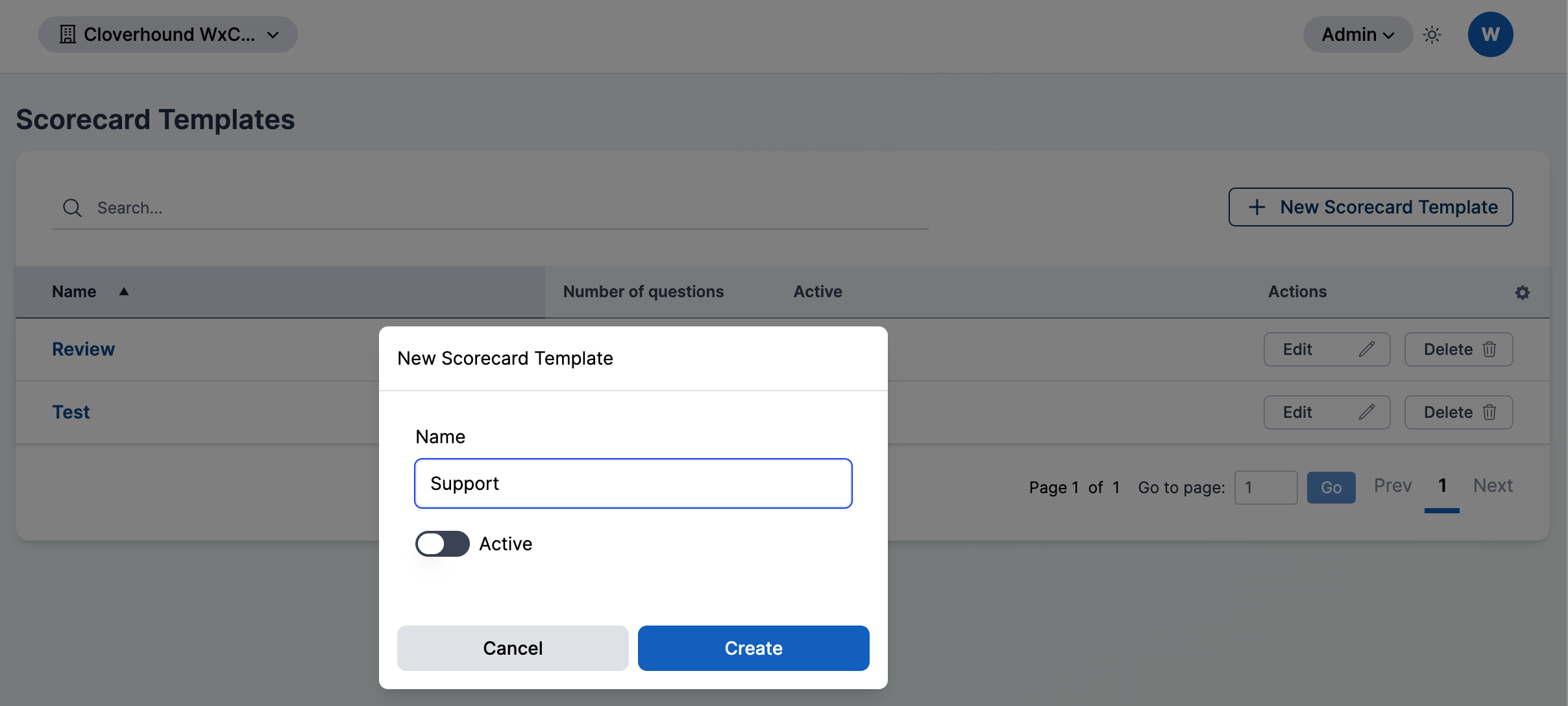
Fill out the form:
- Name — A unique name for the template within your organization.
- Active — Toggle on to make the template available for scoring calls. Inactive templates are hidden from the scorecard picker on the Calls/CDRs page.
-
Click Save. Cloverhound Cloud returns you to the Scorecard Templates index with the new template listed.
A new template starts with zero questions. Open the template and add at least one Scorecard Field before anyone can use it to score a call.
Adding and Editing Questions
Open a template by clicking its name in the Name column. The template show page lets you build and reorder the list of questions.
For full details on adding, editing, reordering, and removing questions, see Managing Scorecard Fields.
Activating and Deactivating a Template
Use the Active column in the index to control whether a template is available for scoring new calls.
-
Locate the template in the index.
-
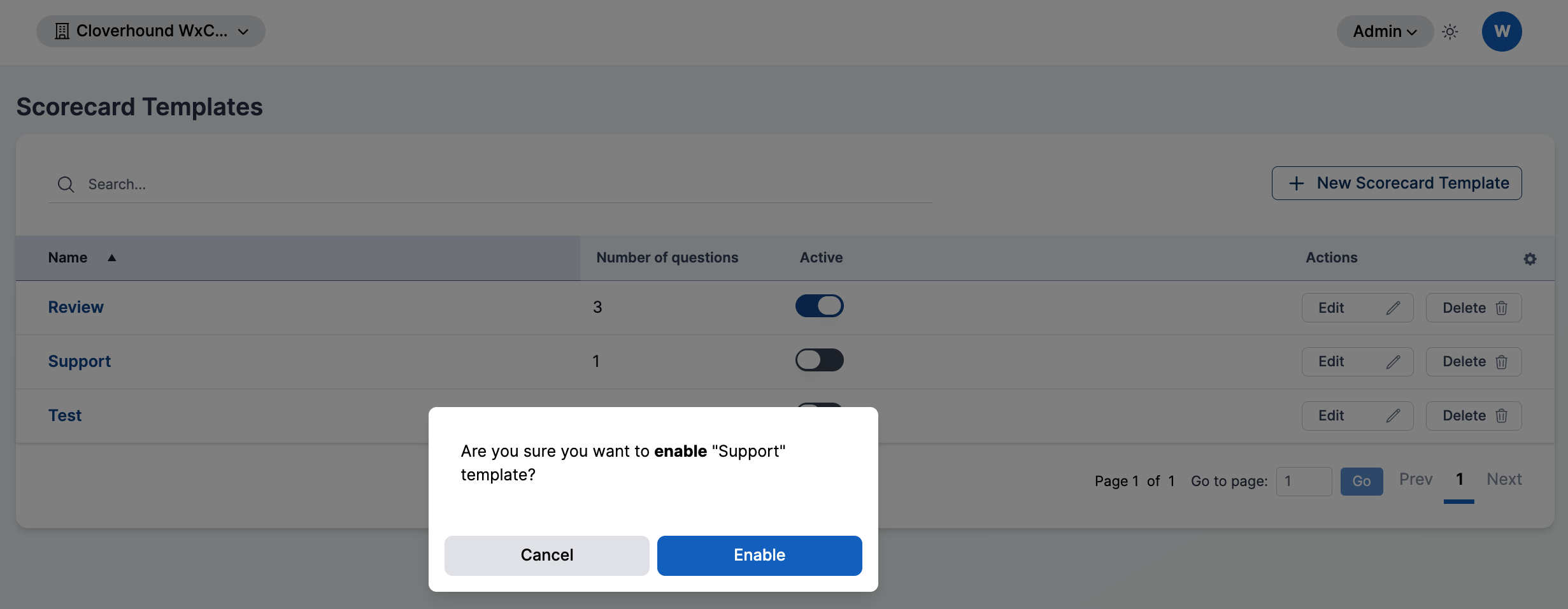
Click the Active toggle in the row.
-
Confirm the change in the dialog. Disabling a template hides it from the scorecard picker on calls but does not affect previously submitted scorecards.
Editing Template Details
- Click the Edit button in the Actions column for the template you want to update.
- Update the Name or Active fields.
- Click Save.
Locked Templates
A Scorecard Template becomes locked once it has been used to score a call. Locking preserves the integrity of previously submitted scorecards by preventing changes to the template's questions, weights, and ordering.
On a locked template you can still update the Name and Active toggle, but the question editor is read-only.
If you need a revised set of questions, the recommended workflow is:
- Rename the locked template to indicate it is retired (for example, append "— v1" or "— Retired").
- Deactivate the locked template so it no longer appears in the scorecard picker.
- Create a new template under the original name with the updated questions.
This way, historical scorecards remain tied to the original questions while evaluators start using the new template going forward.
Deleting a Template
- Click the Delete button in the Actions column for the template you want to remove.
- Confirm the deletion.
Deleting a template also deletes all of its questions. This cannot be undone. If the template has already been used to score calls, deactivate it instead.
With a template in place, your team can select it from the scorecards panel on any call and submit evaluations using the questions you defined.