Managing Scorecard Fields
Scorecard Fields are the individual questions that make up a Scorecard Template. Each field defines one criterion that an evaluator answers when scoring a call — for example, "Did the agent verify the caller's identity?" or "Rate the agent's tone on a scale of 1 to 5." You manage fields from the Scorecard Template detail page in the Admin module.
A single template can contain any number of fields. Fields are ordered, weighted, and typed, and they are saved together with the template rather than one at a time.
Field Types
Each question has one of three types. The type chosen determines the evaluator's input and whether the field counts toward the score.
- Text — a free-form text response. Always unscored (weight is locked to
0). Use for notes, comments, or qualitative feedback. - Boolean — a yes/no answer. Scored by weight.
- Numeric Scale — a whole number between a configurable Min and Max, with optional labels for each end of the scale. Scored by weight. The minimum must be non-negative and strictly less than the maximum.
Accessing Scorecard Fields
-
Navigate to the Admin module.
-
Open the Scorecard Templates page.
-
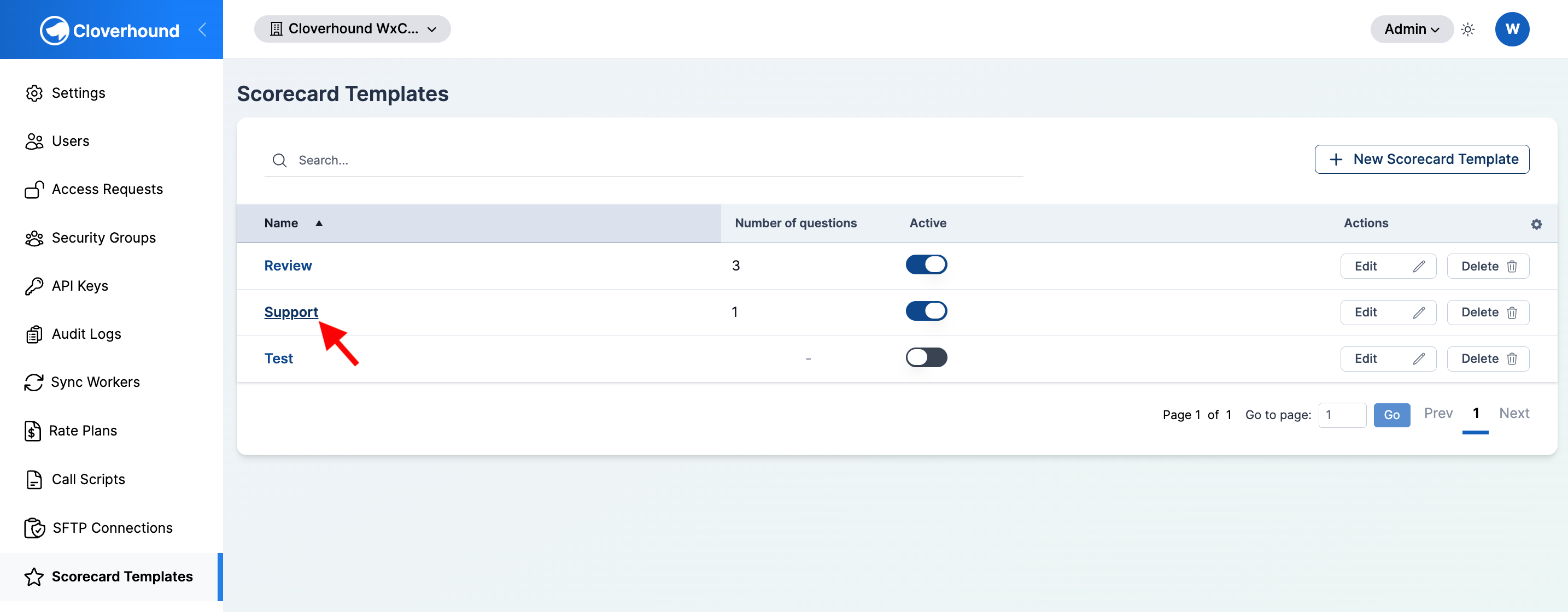
Click the name of a template to open its detail page.
-
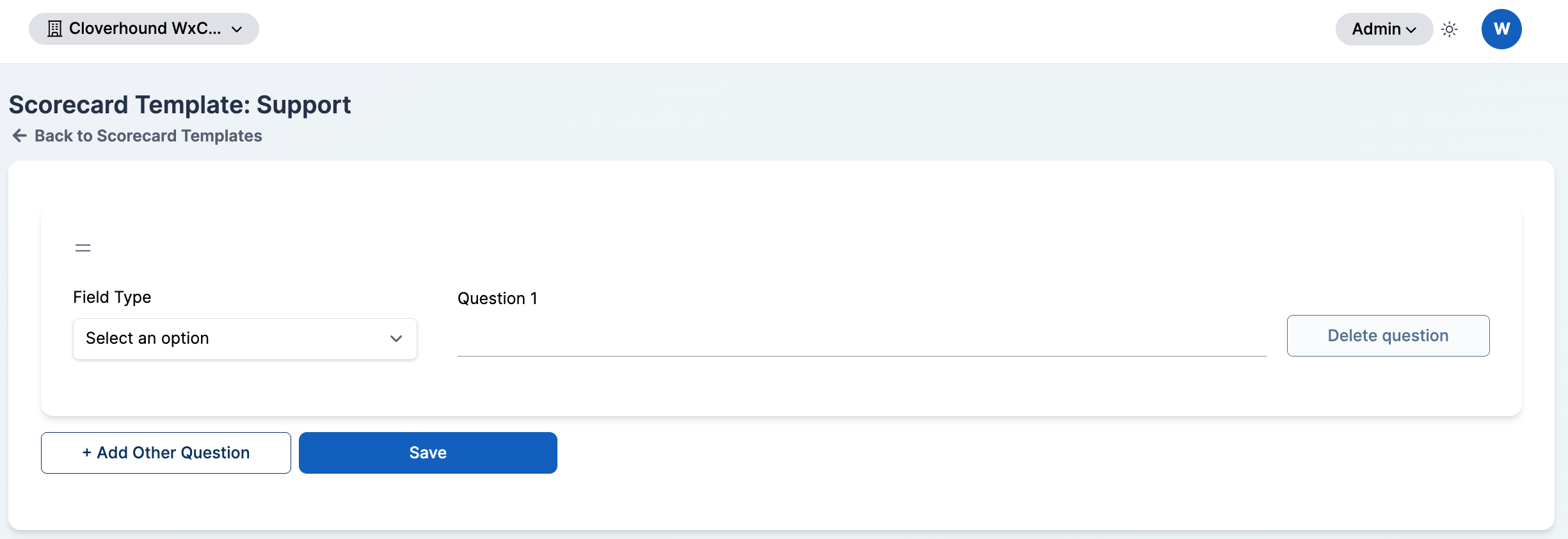
Locate the questions section on the template page. Each existing field is rendered as a card; new templates start with one empty field ready to configure.
Adding a Field
-
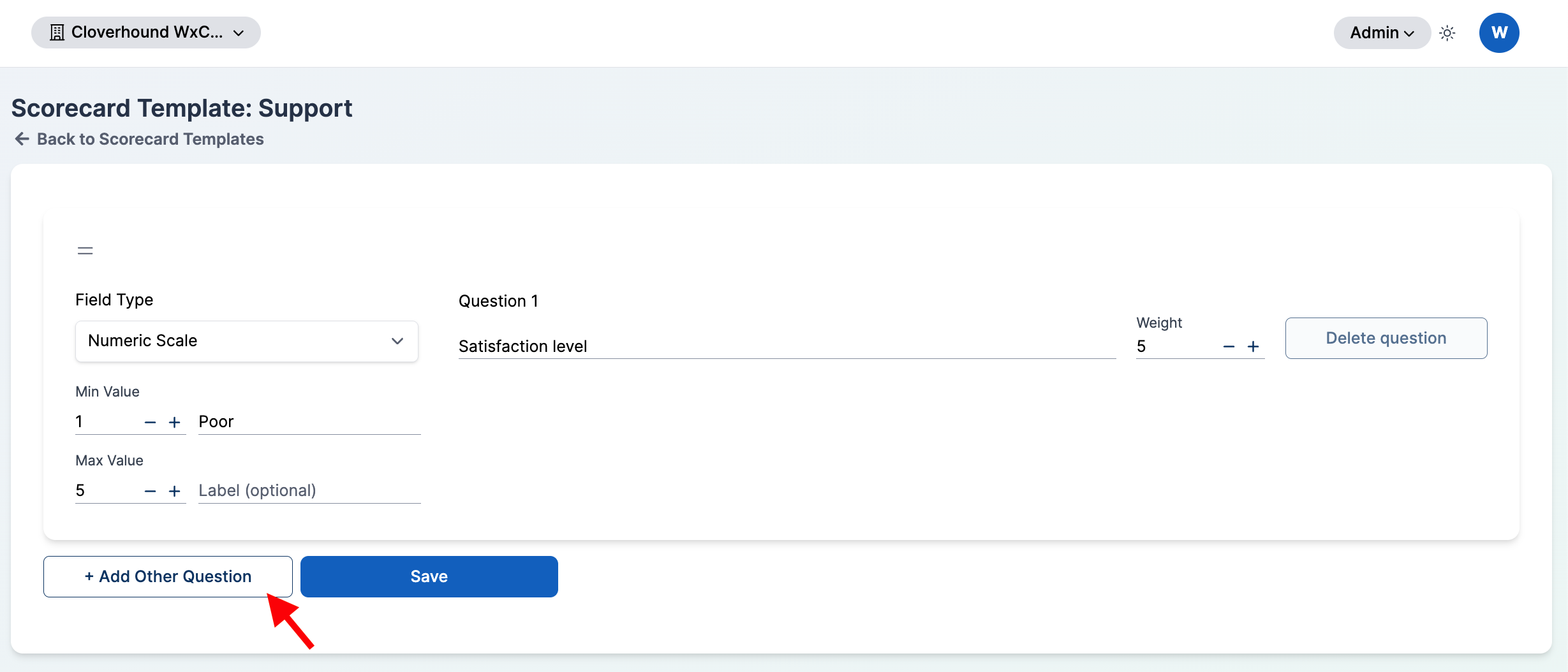
Click the + Add Other Question button below the last question card.
-
Fill out the new question card:
- Field Type — choose one of Text, Boolean, or Numeric Scale. This controls how the evaluator answers the question.
- Question — the prompt shown to the evaluator. Each question's label must be unique within the template.
- Weight — a positive number that determines how much this question contributes to the final score. Weight is disabled for Text fields (they are informational and always stored with a weight of
0).
-
Configure the type-specific options:
- For Text, no extra configuration is needed. The evaluator types a free-form response.
- For Boolean, no extra configuration is needed. The evaluator answers yes or no.
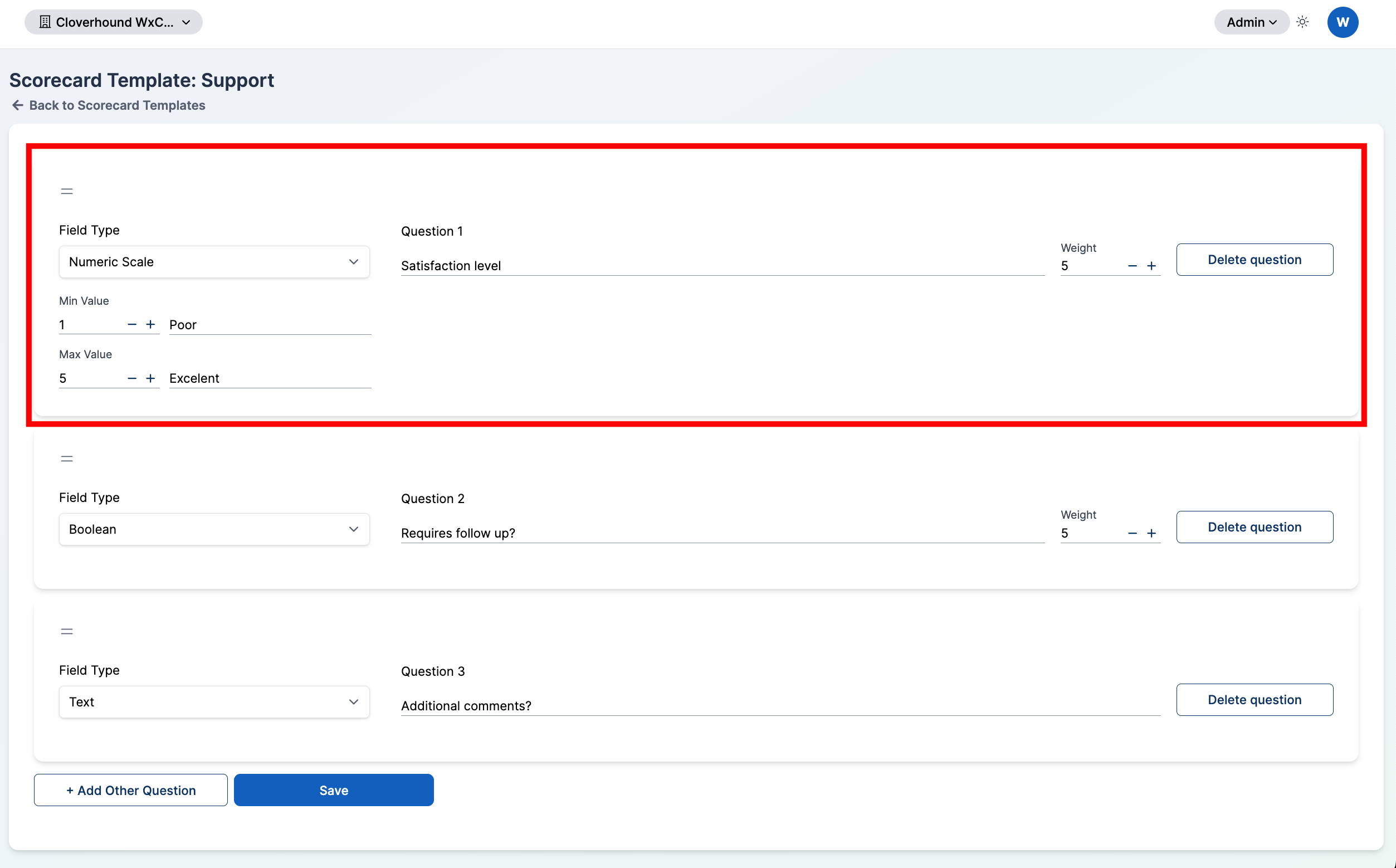
- For Numeric Scale, set the Min Value and Max Value, and optionally a label for each end of the scale:
- Use the minus and plus buttons, or type directly, to set Min Value (default
1). - Use the same controls to set Max Value (default
5). The maximum must be greater than the minimum, and the minimum cannot be negative. - Enter optional labels in the Label (optional) inputs next to each value — for example, "Poor" for min and "Excellent" for max.
- Use the minus and plus buttons, or type directly, to set Min Value (default
-
Click Save to persist every question on the template at once.
Editing Fields
All fields on a template are edited together on the same page.
-
Open the template from the Scorecard Templates list.
-
Update any question's Field Type, Question, Weight, or type-specific configuration.
-
Click Save.
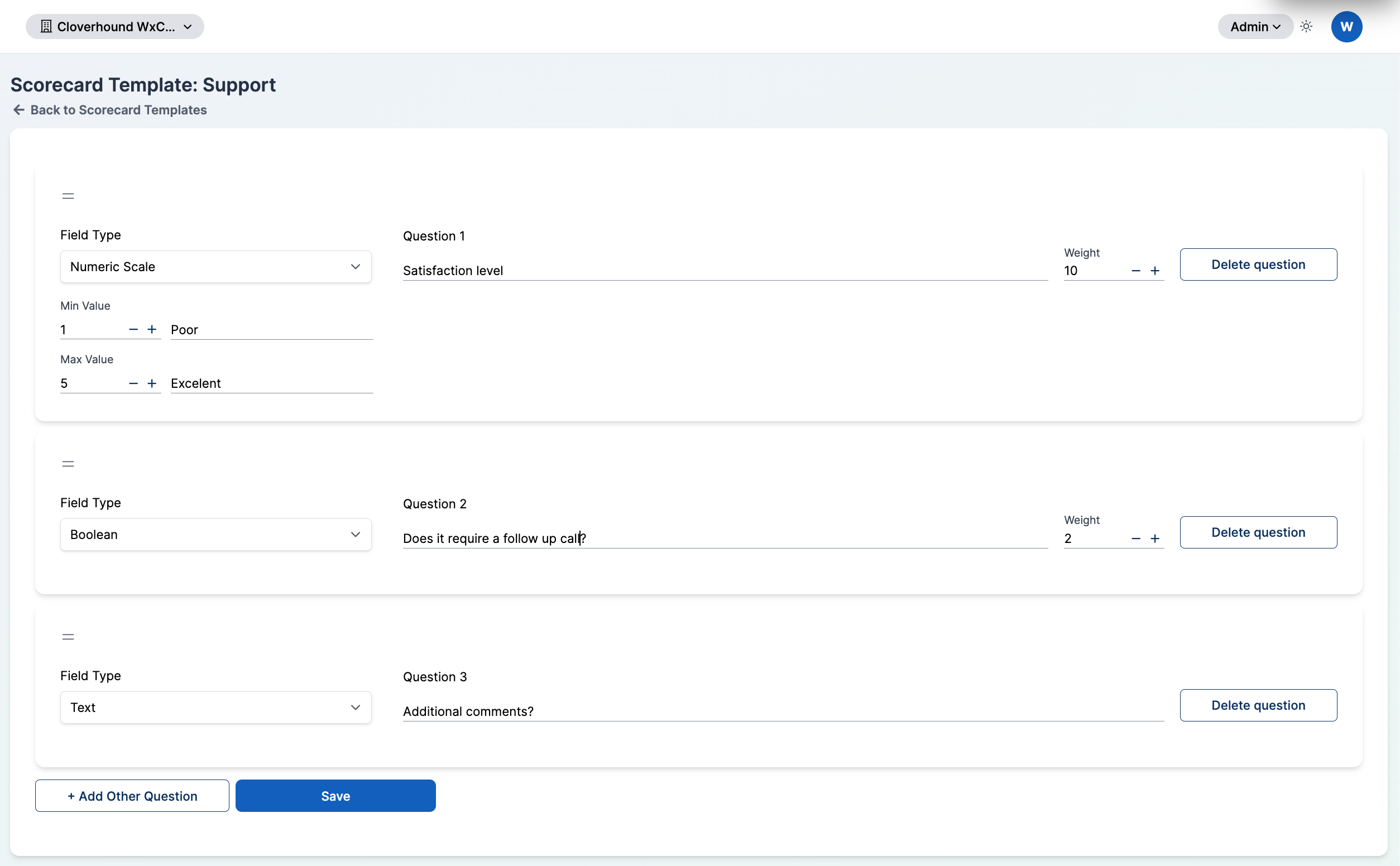
Saving the template performs a bulk update: Cloverhound Cloud replaces the stored set of fields with what is currently on the page. Fields you have removed from the page are deleted, existing fields are updated in place, and new cards are created. You do not need to save each question separately.
Field Weights
The Weight value determines how much a question contributes to the overall scorecard result relative to the other scored questions. Weights must be greater than zero for Boolean and Numeric Scale fields.
- Boolean and Numeric Scale fields default to a weight of
5. Increase or decrease the value with the plus/minus buttons, or type a number directly. - Text fields always have a weight of
0— the input is locked to0.0and the increment controls are disabled. Use Text fields for evaluator notes that do not contribute to a score.
Reordering Fields
Questions are shown to the evaluator in the order you set here.
-
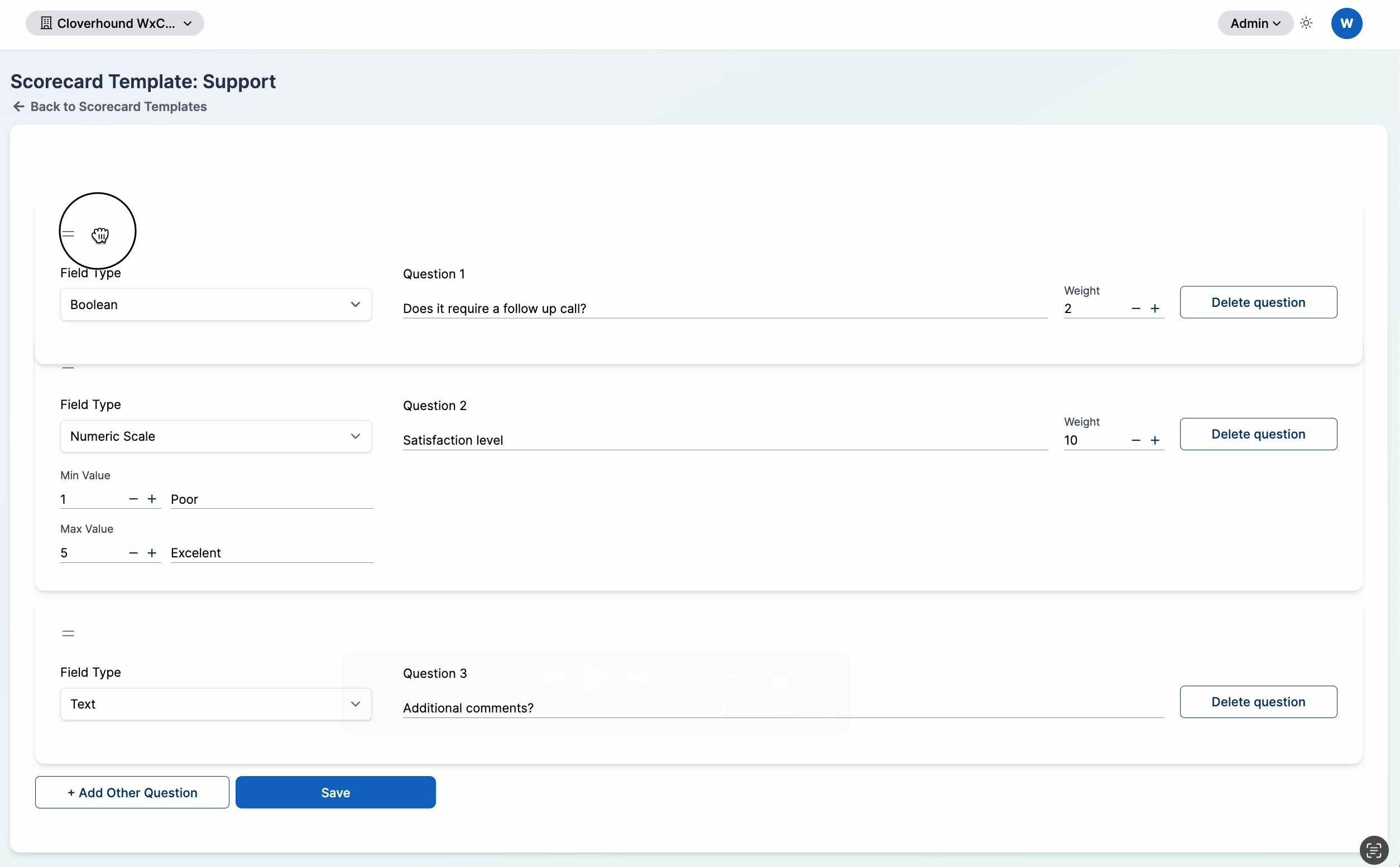
Grab the drag handle (the two-bar icon) at the top of a question card.
-
Drag the card up or down to its new position.
-
Click Save to persist the new order.
Removing a Field
-
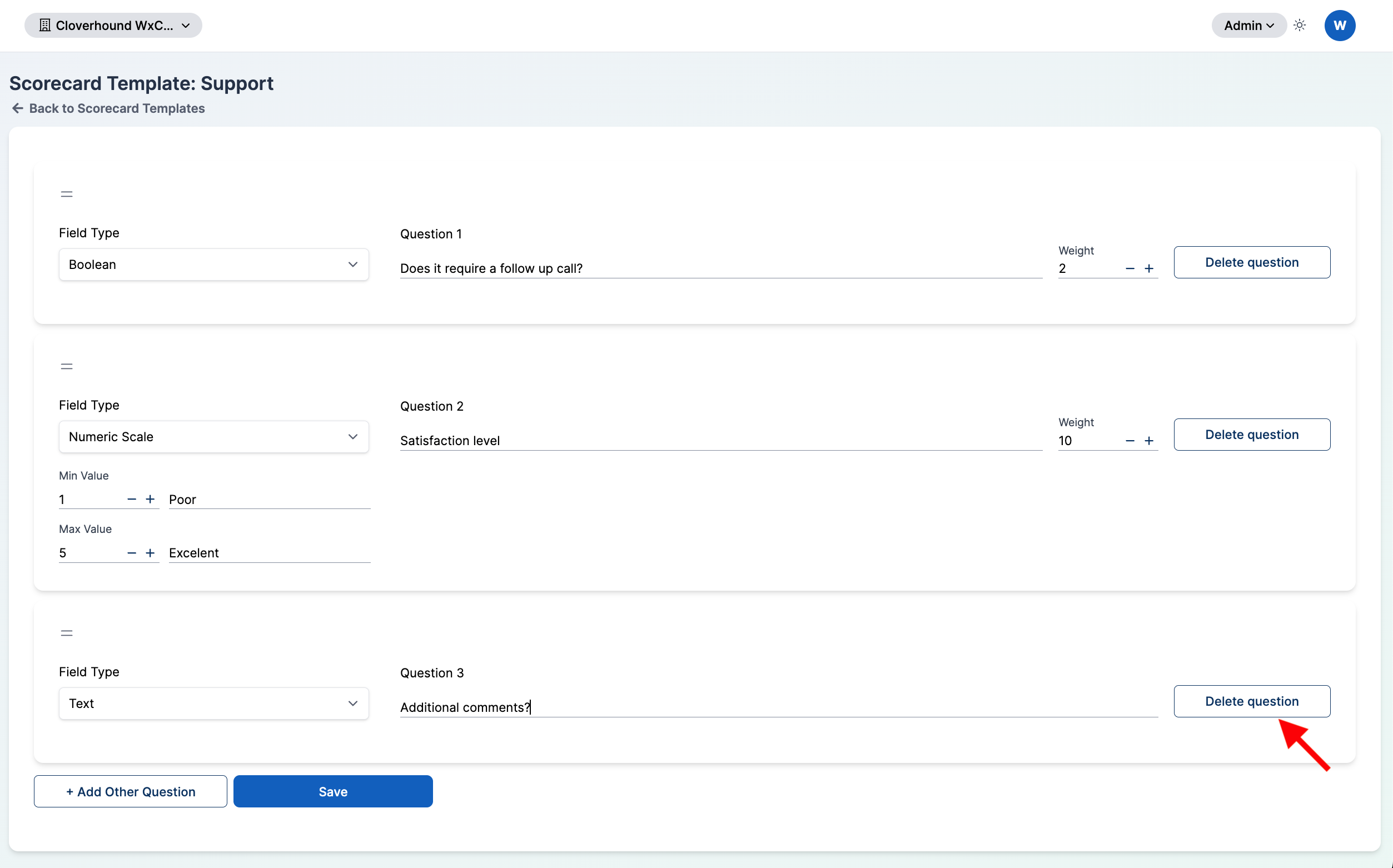
Click the Delete question button on the card you want to remove.
-
Click Save to commit the deletion.
A template must have at least one question — the Delete question button is disabled when only one card remains. Deleting a question and saving removes it permanently, along with any answers recorded against it in past evaluations.
Locked Templates
When a Scorecard Template is locked, its fields become read-only. All inputs, drag handles, + Add Other Question, Delete question, and Save are disabled. To change the fields, first unlock the template from the Scorecard Templates list.
You can now build, weight, reorder, and retire the questions that drive a scorecard evaluation.