Managing Salesforce Org Syncs
A Salesforce Org Sync is the organization-level connection that keeps a single Salesforce object (Contact or Lead) in sync with Cloverhound Cloud. Each Org Sync pairs one Salesforce object with one ingestion method — either Change Data Capture (CDC) for near real-time updates, or REST Polling on a fixed interval — and is the foundation that every per-campaign Data Source and Data Source Link builds on top of.
Org Syncs are configured from the Sync Settings modal on the Salesforce integration card. They share the single Salesforce OAuth token that your organization authorizes from the Integrations page.
Prerequisites
Before you can create or manage an Org Sync, your organization must have:
- The integrations feature flag enabled, so that the Integrations page is visible.
- A connected Salesforce account on the Integrations page. The Set up flow stores a Salesforce OAuth token that every Org Sync reuses.
- Enterprise Edition or higher in Salesforce if you plan to use the CDC (real-time) method. CDC also requires Change Data Capture to be turned on for each object in Salesforce Setup.
Org Syncs reuse the OAuth token stored under the salesforce.oauth_token_id application setting. Disconnecting Salesforce removes that token and stops every Org Sync until you reconnect.
Accessing Sync Settings
-
Navigate to the Admin module.
-
Open the Integrations page and locate the Salesforce card. The card must show the green Connected to Salesforce panel; if it shows Set up, connect Salesforce first.
-
Click the Sync Settings button.
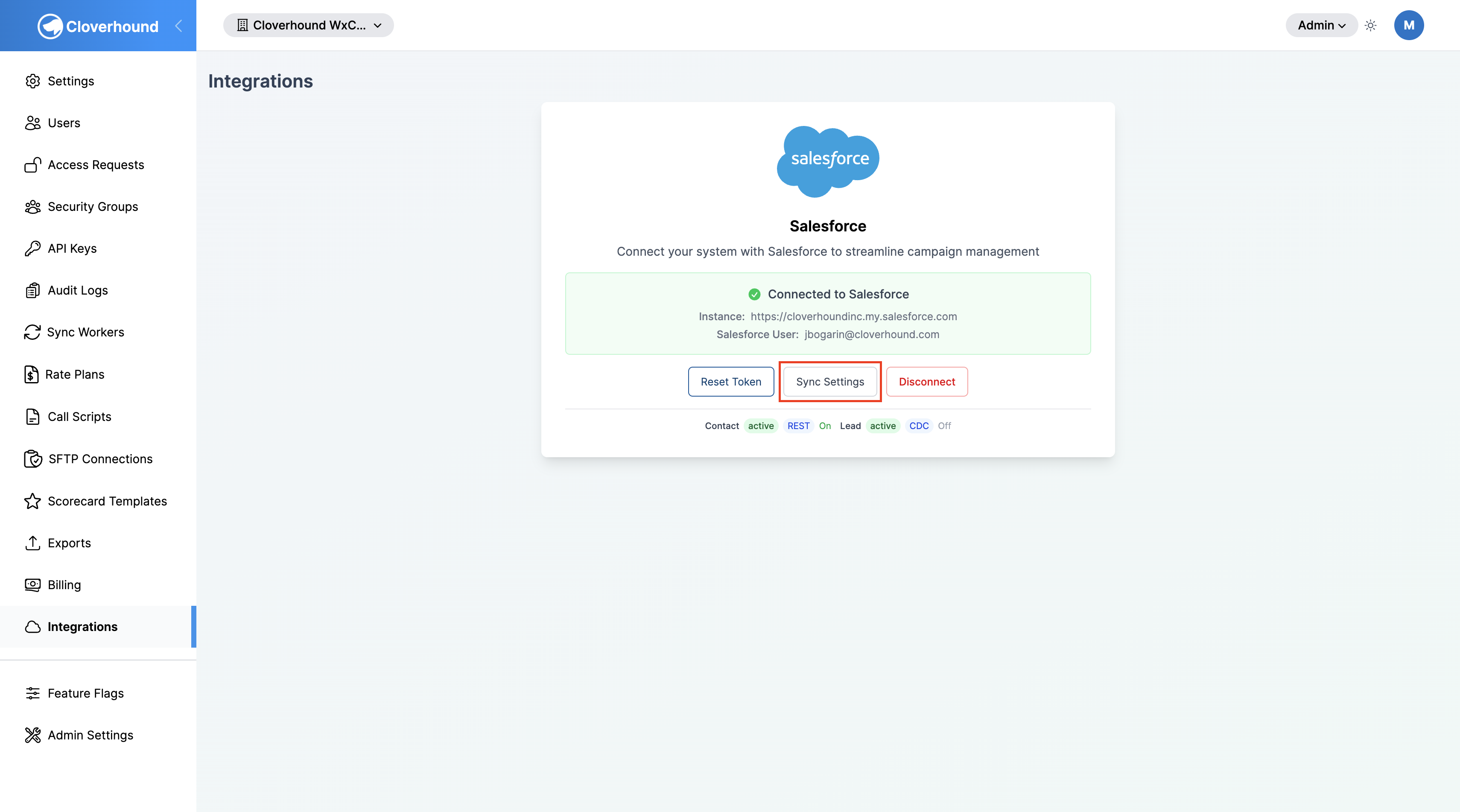
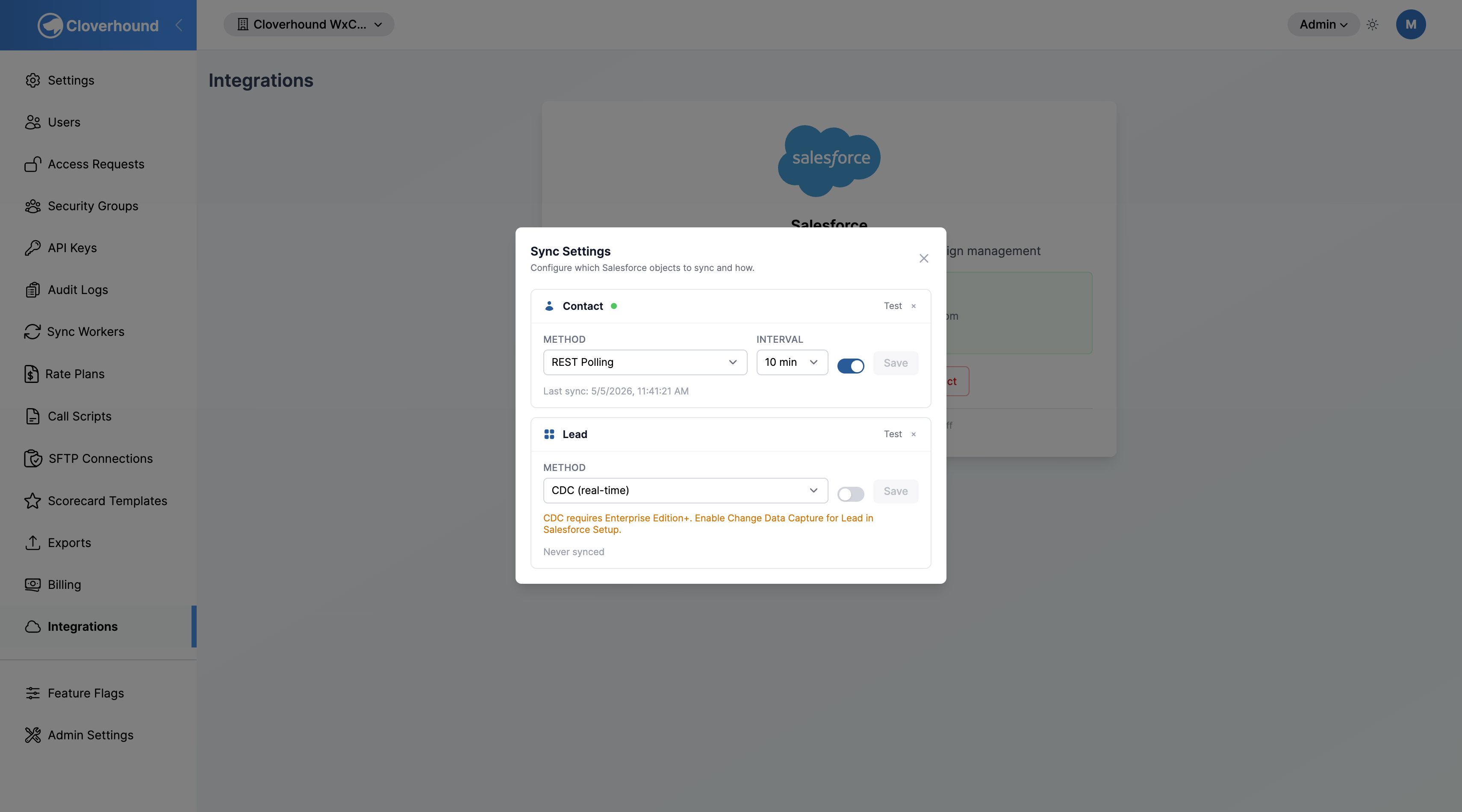
The Sync Settings modal opens and lists every Org Sync your organization has configured, one row per Salesforce object.
Adding a Salesforce Object
-
Click the object you want to sync — Contact or Lead — under Add object. Only objects that are not already configured appear.
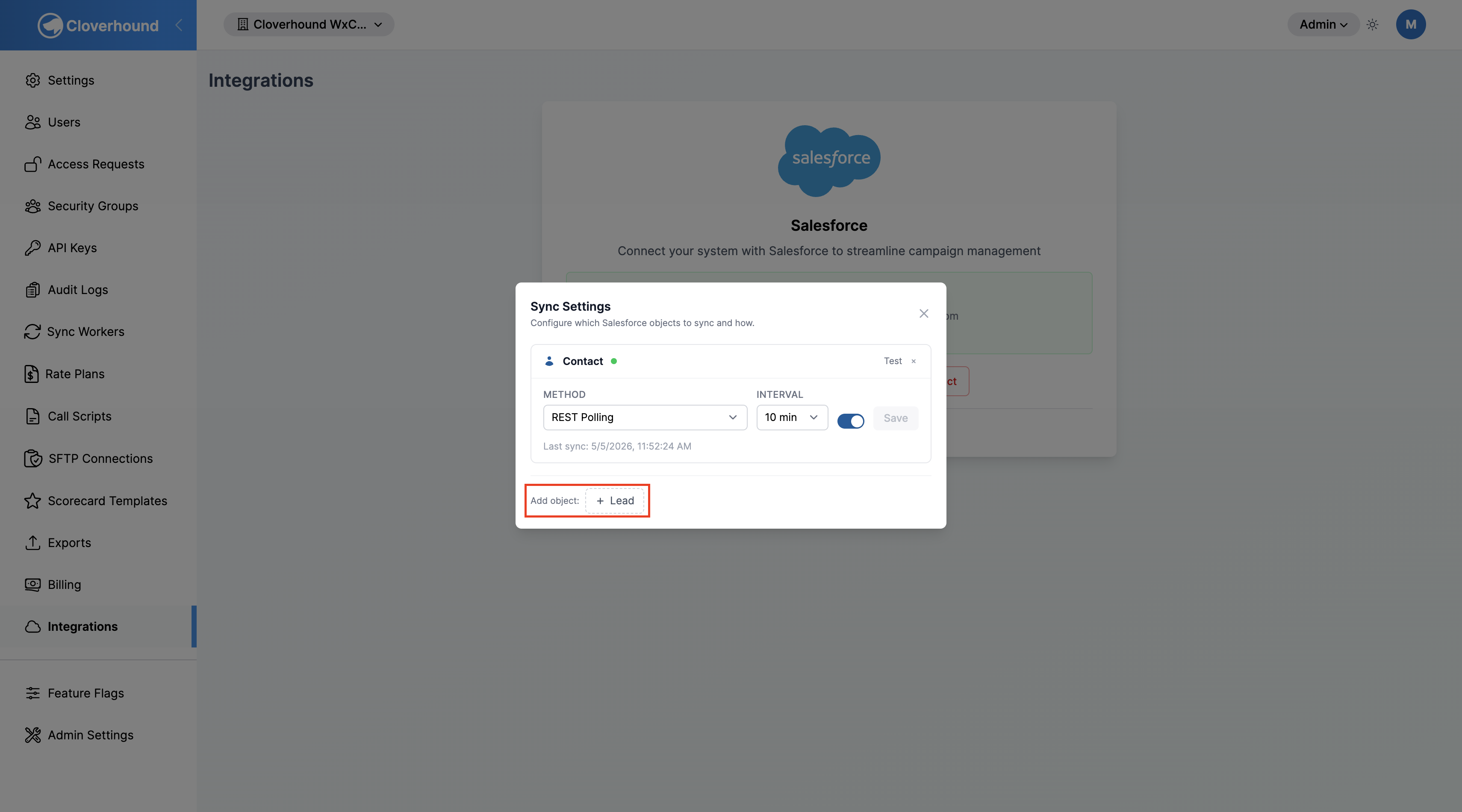
Cloverhound Cloud creates the Org Sync in the disabled state, using CDC (real-time) as the default method. Nothing is pulled from Salesforce yet.
-
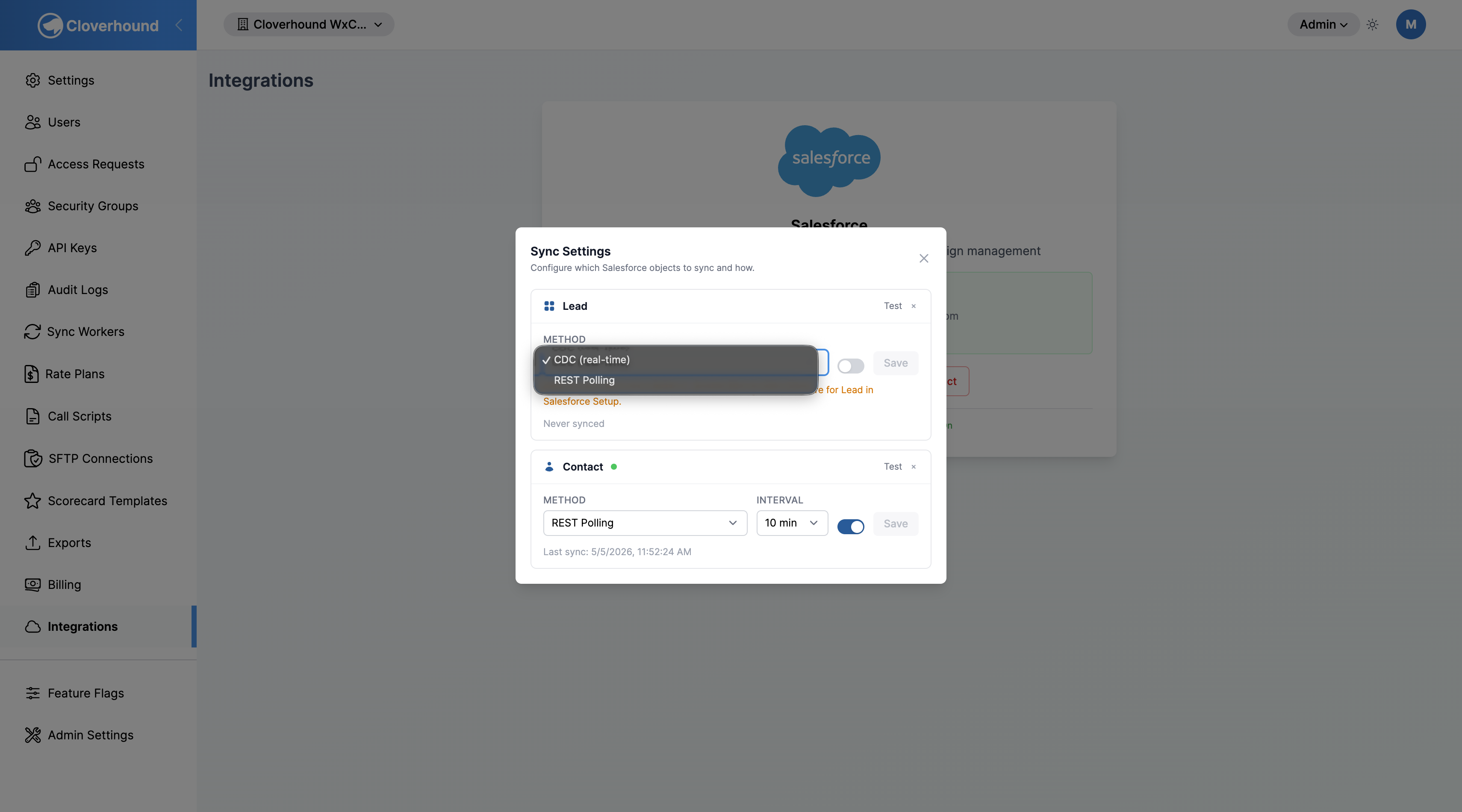
Choose a Method:
- CDC (real-time) — Cloverhound Cloud subscribes to the Salesforce Change Data Capture channel for the object (for example,
/data/ContactChangeEvent) and receives updates as they happen. - REST Polling — Cloverhound Cloud calls the Salesforce REST API on a fixed interval. Pick an Interval of 5 min, 10 min, 15 min, or 30 min.
- CDC (real-time) — Cloverhound Cloud subscribes to the Salesforce Change Data Capture channel for the object (for example,
-
Toggle the sync On using the enable switch.
-
Click Save.
CDC (real-time) requires Salesforce Enterprise Edition or higher, with Change Data Capture enabled for the object in Salesforce Setup. Cloverhound Cloud displays a reminder under the row whenever CDC is selected.
Testing the Connection
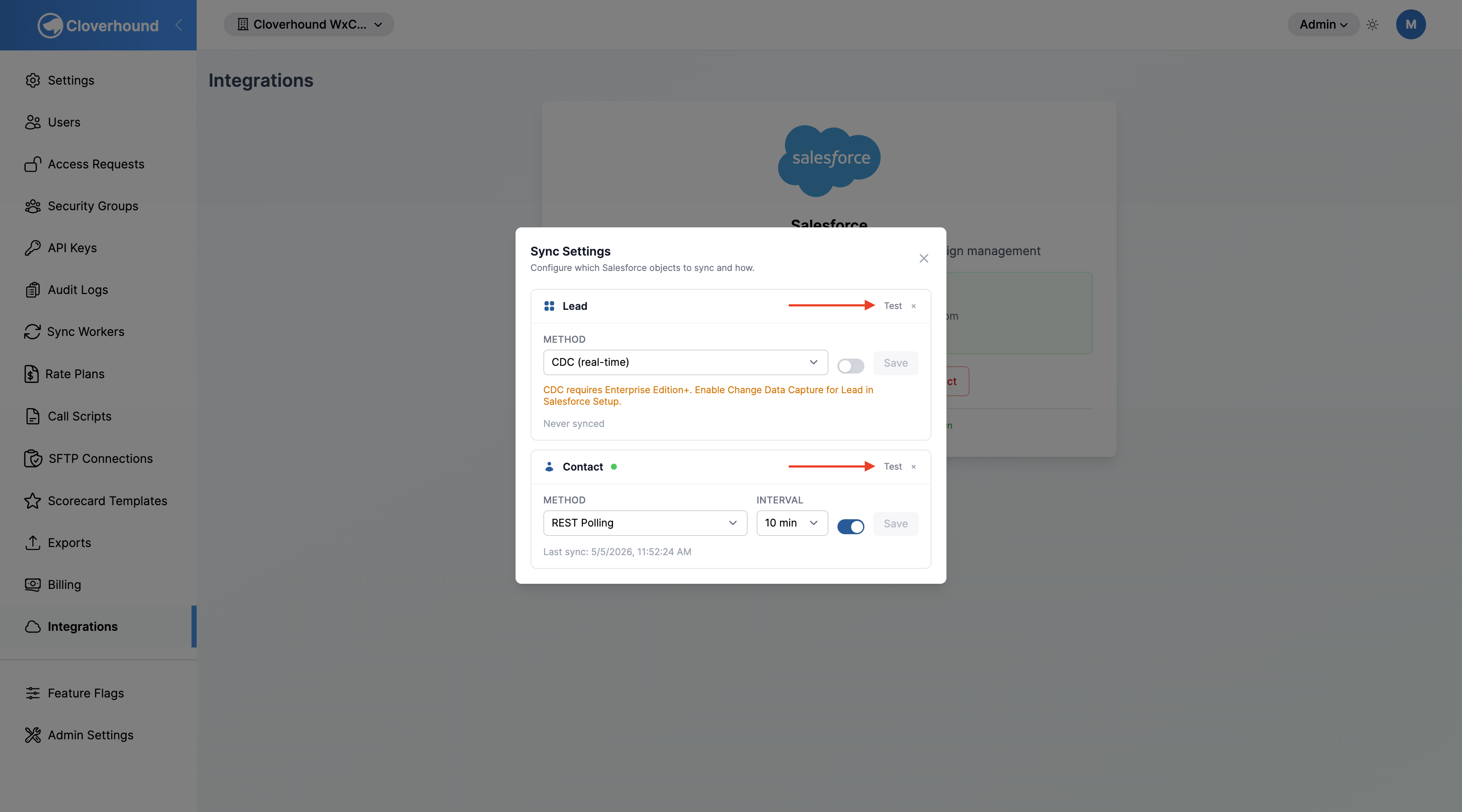
Use Test to confirm that Cloverhound Cloud can reach Salesforce with the current OAuth token and that the configured object is readable.
-
Click the Test link on the Org Sync row.
-
Read the browser alert. A successful test shows Connection successful; a failure shows the Salesforce error message (for example, an authentication or permission issue).
Test runs a minimal SELECT Id FROM <Object> LIMIT 1 query using the organization's stored Salesforce token. It does not modify any data.
Editing a Sync
You can change the method, the polling interval, and the enable state of an existing Org Sync at any time.
-
Open the Sync Settings modal.
-
Update any of the following on the object's row:
- Method — switch between CDC (real-time) and REST Polling. When switching to CDC, Cloverhound Cloud sets the channel to
/data/<Object>ChangeEventautomatically. - Interval — only appears when REST Polling is selected.
- Enable switch — toggles the sync on or off. Disabling an Org Sync pauses it immediately; re-enabling it resumes event processing.
- Method — switch between CDC (real-time) and REST Polling. When switching to CDC, Cloverhound Cloud sets the channel to
-
Click Save on that row.
The Salesforce object (Contact or Lead) of an existing Org Sync cannot be changed. To switch objects, remove the Org Sync and add a new one for the object you want.
Sync Status
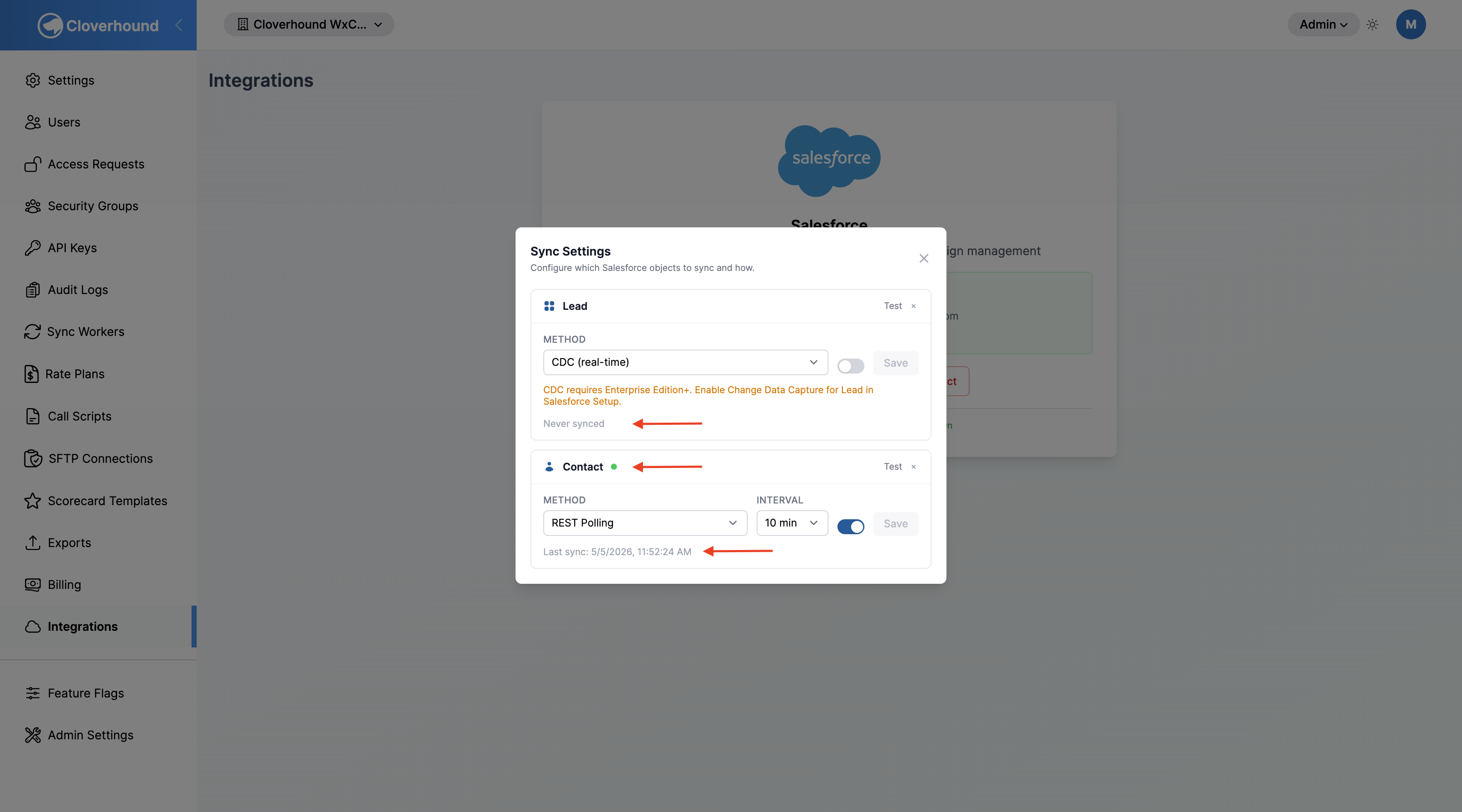
Each Org Sync row and the Integrations page status summary show the sync's current state:
- Active (green dot) — the sync is enabled and healthy. CDC syncs process events as they arrive; REST syncs run on their polling interval.
- Paused — you disabled the sync manually. Cloverhound Cloud is not consuming events or calling the REST API for this object.
- Error — the sync hit a fatal error (for example, an authentication failure or invalid configuration) and stopped.
- Circuit open — the sync failed five times in a row. Cloverhound Cloud stops calling Salesforce for up to one hour to give the integration time to recover. When a subsequent poll or event succeeds, the status returns to Active automatically.
Each row also shows the Last sync timestamp and a running total of errors when any have occurred. The row turns red and displays the most recent error message whenever the sync is in Error or Circuit open.
How Org Syncs Feed Campaigns
Org Syncs sit at the top of the Salesforce ingestion pipeline:
- An Org Sync for Contact or Lead ingests changes from Salesforce using the method you selected (CDC or REST Polling).
- Each Data Source is a filtered view of an Org Sync's object — for example, "US-based leads owned by the Sales team" — and defines which Salesforce fields Cloverhound Cloud reads.
- Each Data Source Link attaches a Data Source to a single campaign and maps Salesforce fields to that campaign's phone numbers and custom fields.
Cloverhound Cloud only fetches Salesforce fields that at least one Data Source needs. When you add or change the fields on a Data Source or its links, the next event or poll automatically picks up the updated field list — you do not need to reconfigure the Org Sync.
Removing a Sync
-
Open the Sync Settings modal.
-
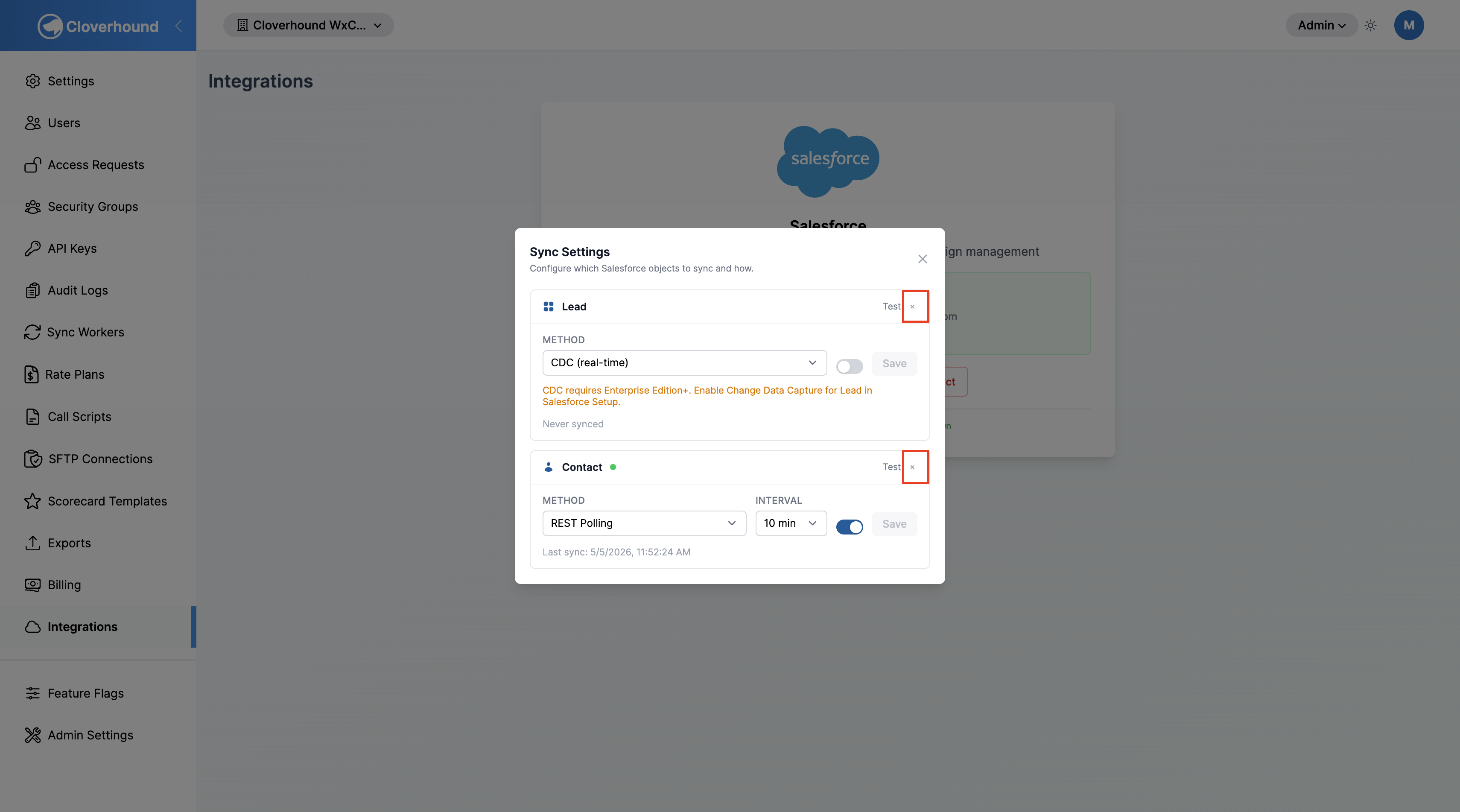
Click the remove (x) icon on the Org Sync row you want to delete.
-
Confirm the prompt "Remove
<Object>sync? This will also remove any data sources linked to this object."
Removing an Org Sync also deletes every Data Source that was built on it, and in turn every Data Source Link that referenced those Data Sources. Campaigns that were importing records from those links stop receiving Salesforce updates. Records already imported into campaigns remain in place.
Troubleshooting
- "No Salesforce OAuth token found" on Test. Your organization's Salesforce connection is missing or was disconnected. Reconnect on the Integrations page and try again.
- Sync status is Error after an authentication failure. Use Reset Token on the Integrations page to re-authorize Salesforce, then open the Sync Settings modal and verify the sync returns to Active on the next event or poll.
- Circuit open status. Fix the underlying Salesforce issue (bad credentials, object permissions, etc.), then wait up to one hour for Cloverhound Cloud to retry automatically. Use Test to verify connectivity, but note that a successful test does not reset the circuit — only a successful scheduled poll or CDC event clears the status back to Active.
With Org Syncs in place, you can build campaign-scoped Data Sources on top of each Salesforce object, and then link those Data Sources to individual campaigns from the campaign's Data Sources tab.