Managing OAuth Tokens
OAuth tokens let Cloverhound Cloud call external systems on your organization's behalf. When an admin signs in to an integration such as Webex or Salesforce, the authorization flow returns an access token and a refresh token that Cloverhound Cloud stores against your organization. Cloverhound Cloud then uses those tokens to synchronize users, pull call detail records, fetch recordings, and perform other integration work.
This page describes where OAuth tokens are surfaced in the admin UI, what the recorded fields mean, and how to remove a token when an integration needs to be re-authorized or disconnected.
You do not create OAuth tokens from this page. A token is created automatically when you complete an OAuth sign-in from the Settings or Integrations pages (for example, by clicking Set up on the Salesforce integration, or by running the Webex onboarding flow).
Where OAuth Tokens Appear in the Admin UI
OAuth tokens are not presented as a single standalone list. They are surfaced in the two places that use them:
- Settings > Webex tab — lists the Webex OAuth tokens available to your organization and lets you choose which one Cloverhound Cloud uses for Webex Calling and Webex Contact Center.
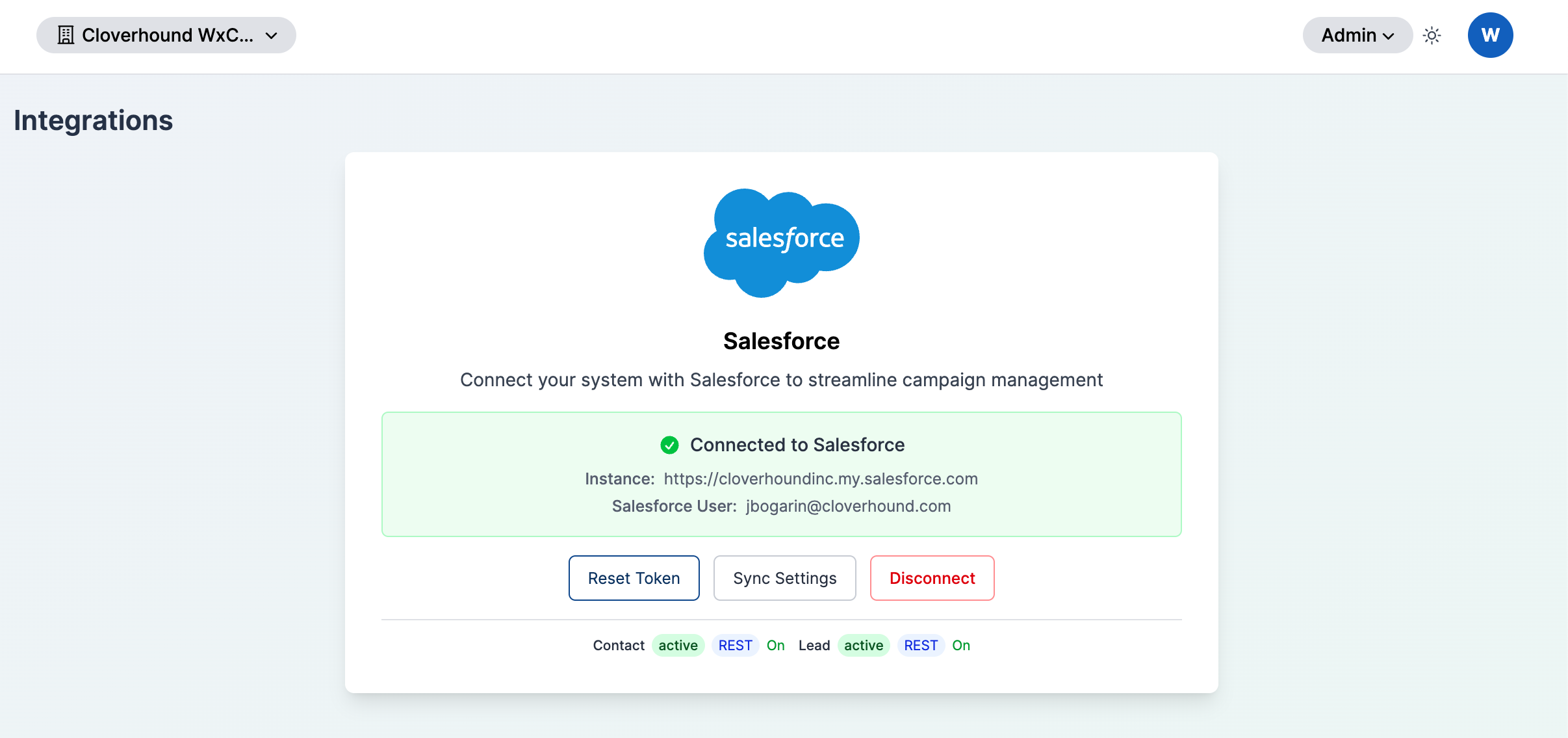
- Integrations page — shows the currently connected Salesforce OAuth token and lets you reset or disconnect it.
Cloverhound Cloud stores tokens for the following providers:
webex,webex_cc,webex_cc_partner— Webex user tokens for Webex Calling and Contact Centerwebex_service_admin,webex_service_app— Webex service app tokenssalesforce— Salesforce connected app tokens
Viewing Webex OAuth Tokens
-
Navigate to the Admin module.
-
Open the Settings page.
-
Select the Webex tab.
-
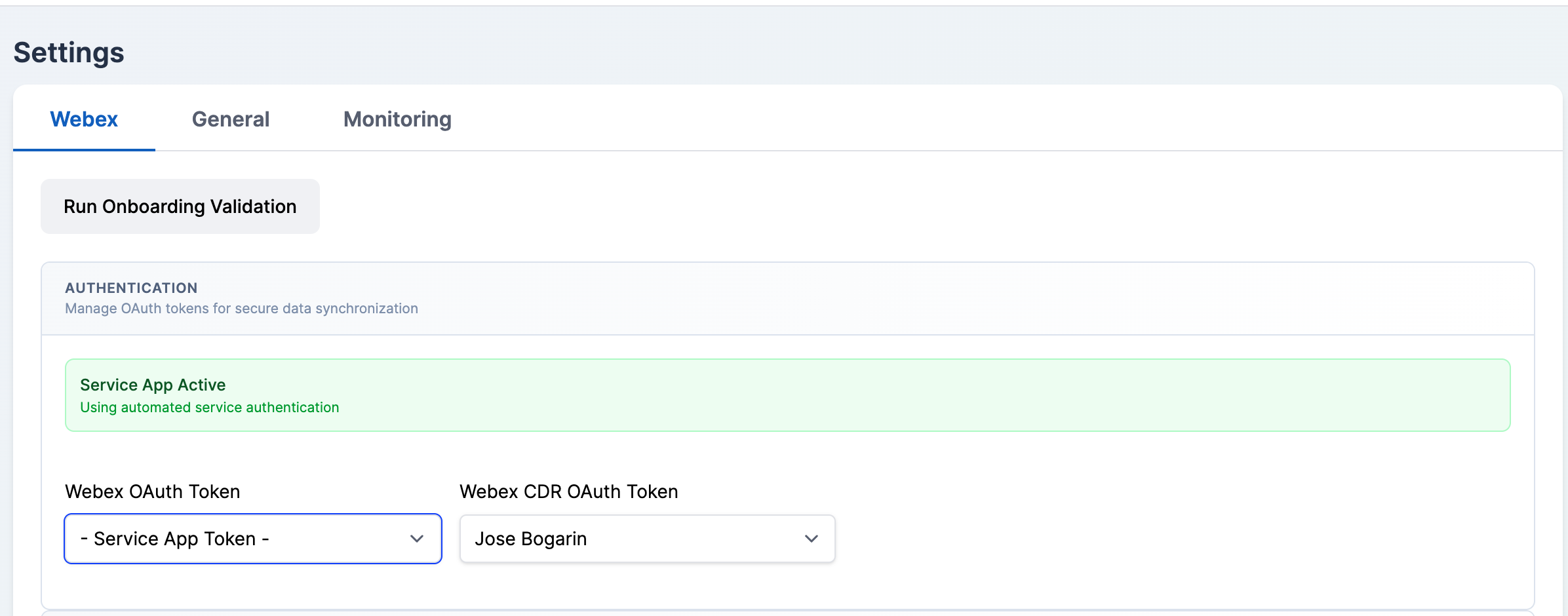
Locate the Authentication section. The Webex OAuth Token dropdown lists every Webex token available to your organization. Each entry is labeled with the full name of the user that completed the OAuth flow, or as - Service App Token - for tokens owned by a Webex service app.
-
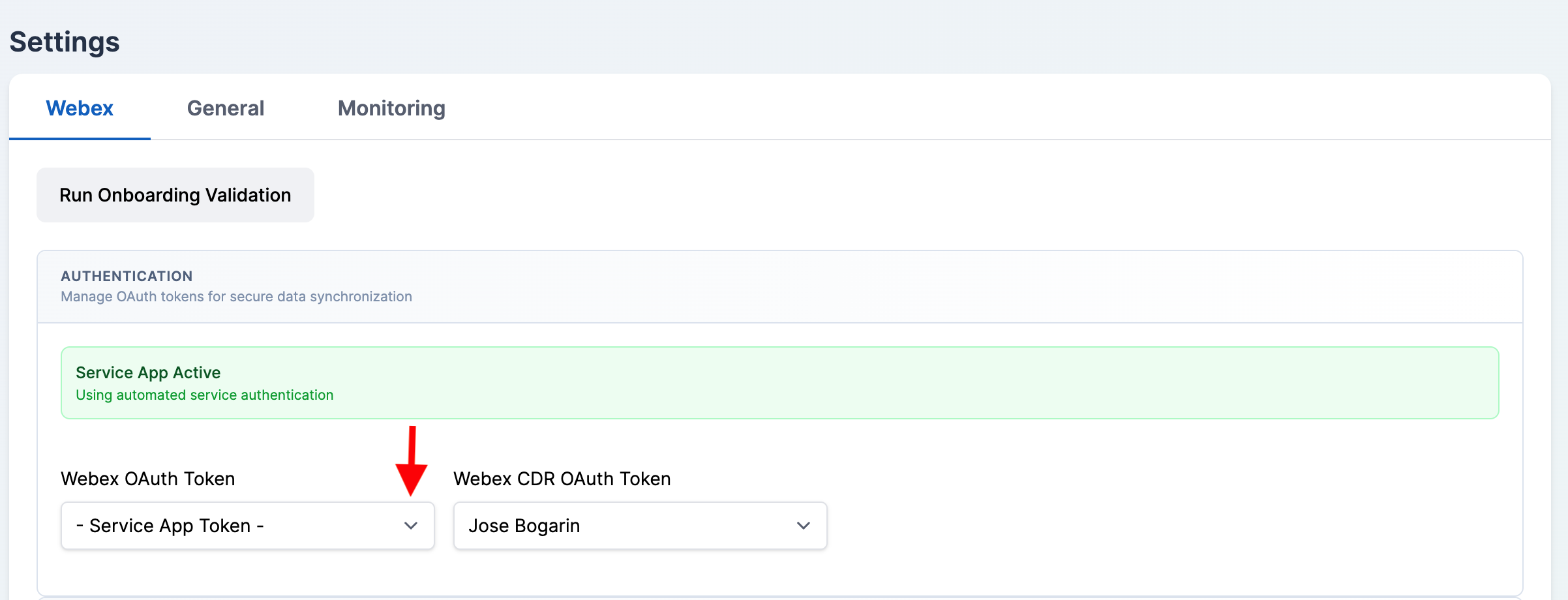
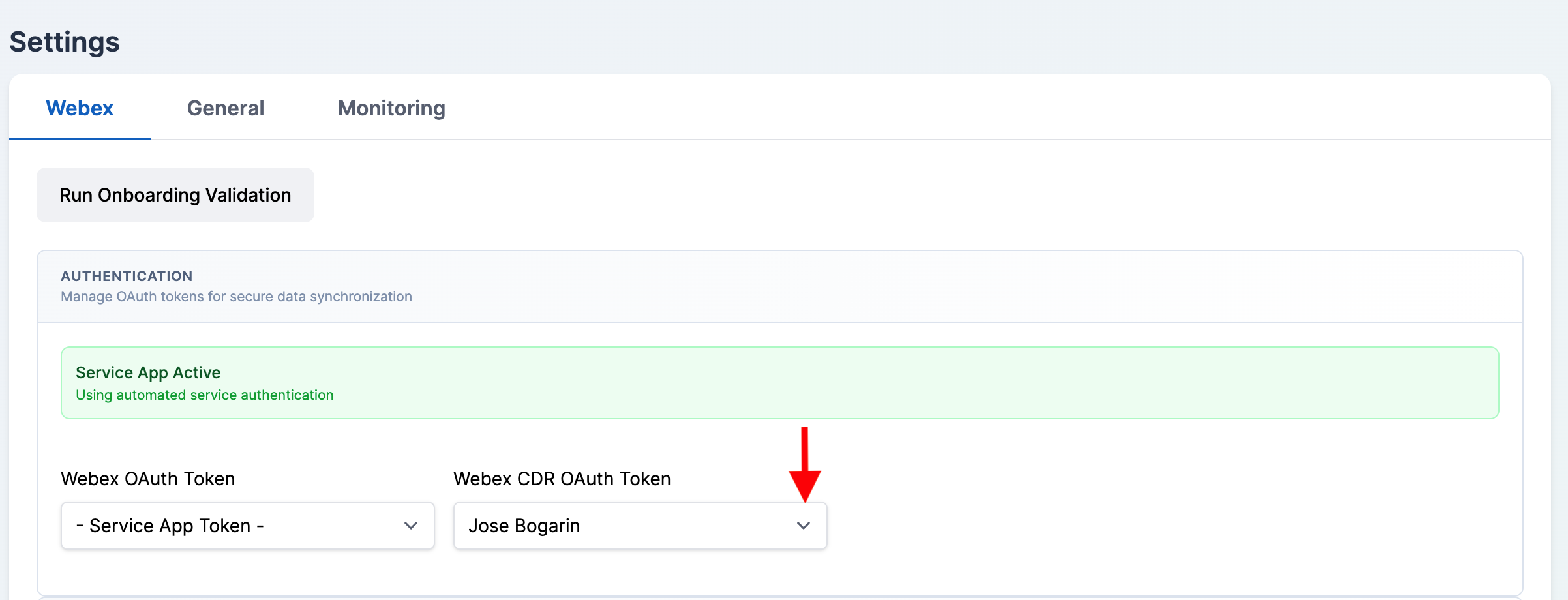
Use the Webex OAuth Token dropdown to choose which token Cloverhound Cloud uses for Webex Contact Center and, when applicable, for Webex Calling. When a service app token is selected, an additional Webex CDR OAuth Token dropdown appears so you can pick a user-based token for Call Detail Record synchronization.
-
Click Save to apply your selection.
Understanding Token Fields
When Cloverhound Cloud returns a token to the UI, the following fields are available for each entry:
- Provider — the external system this token authenticates against (
webex,webex_cc,webex_cc_partner,webex_service_admin,webex_service_app, orsalesforce). - User Type — how the token is scoped:
- regular — a user-based token created when a standard user signs in.
- partner — a token granted to a Webex partner user.
- service_app — a token granted to a Webex service app. Service app tokens are shown in dropdowns as - Service App Token - and are shared across the organization rather than tied to an individual user.
- User — the Cloverhound Cloud user that completed the OAuth flow. For service app tokens, this field is labeled Service App because no individual user owns the token.
- Extra — provider-specific metadata returned by the authorization server. For Salesforce, this includes the Salesforce username and instance URL shown on the Integrations page.
- Created At and Updated At — when the token was first stored and when it was last refreshed.
Access tokens and refresh tokens themselves are never shown in the UI.
Connecting Salesforce (Token Creation)
-
Navigate to the Admin module and open the Integrations page.
-
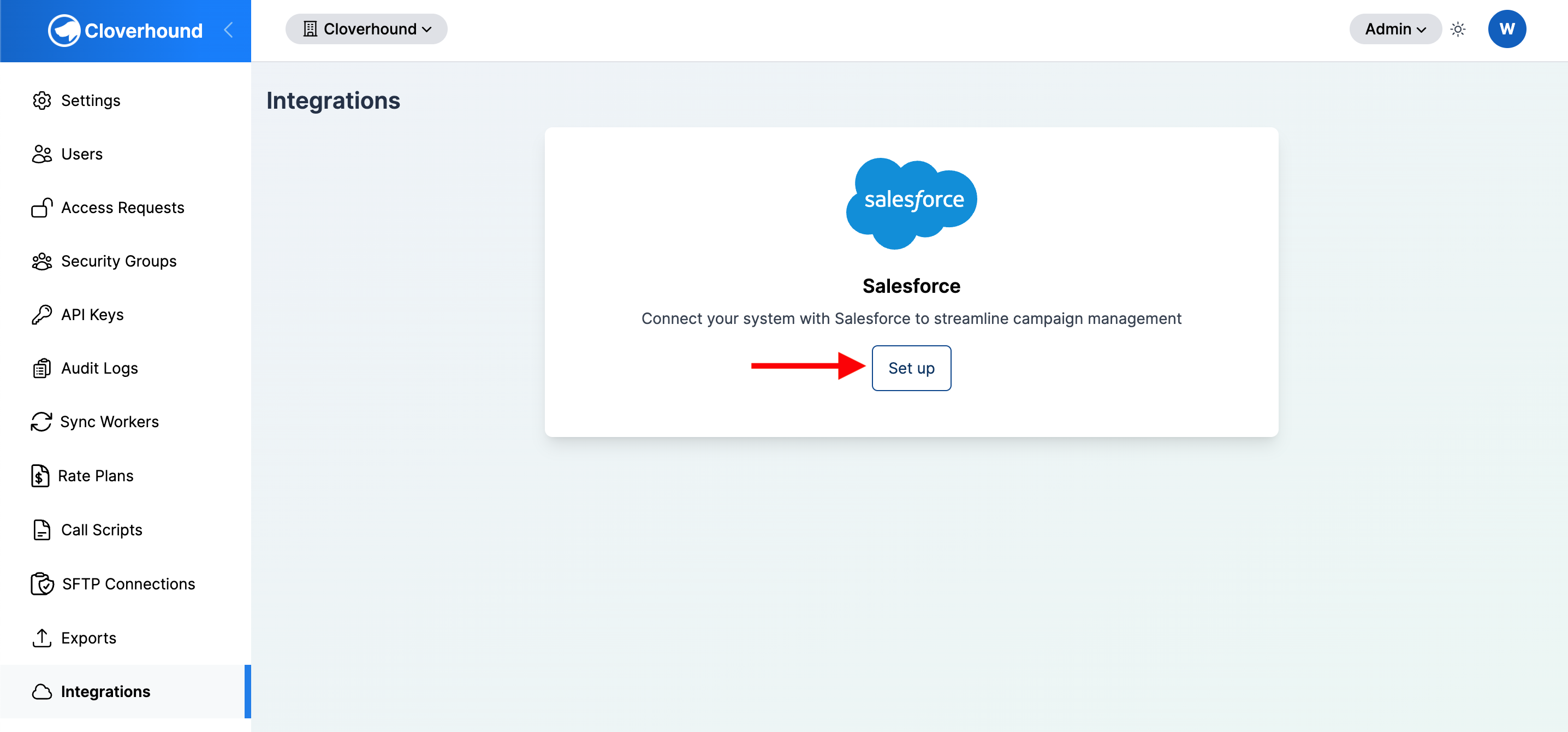
Click Set up on the Salesforce card.
-
Complete the Salesforce OAuth sign-in in the window that opens. After the flow completes, Cloverhound Cloud stores the returned OAuth token and the Integrations page shows the Connected to Salesforce panel with the Salesforce instance URL and username.
Resetting a Salesforce Token
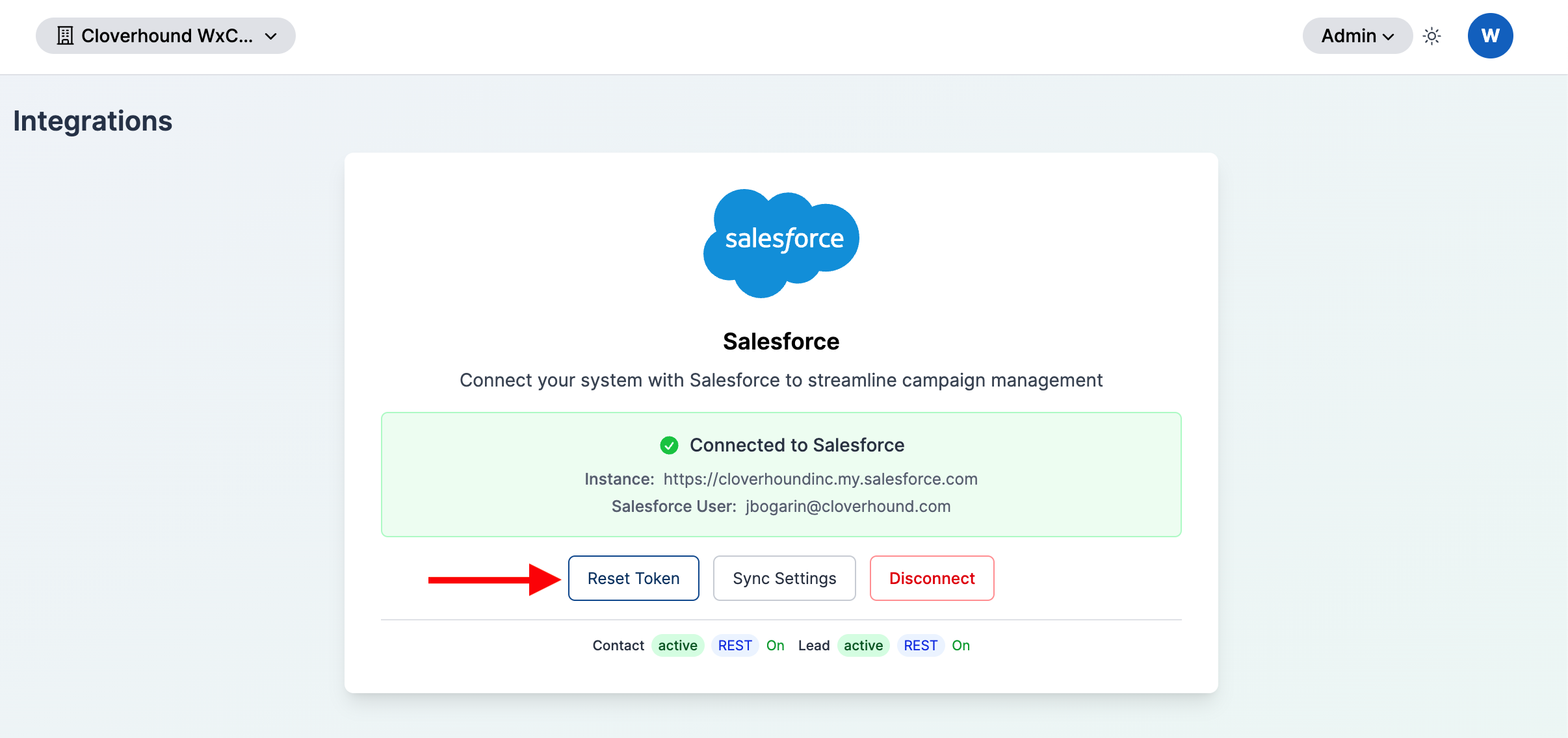
Use Reset Token when the existing Salesforce token is no longer valid (for example, because the Salesforce user's password changed or the connected app's permissions were altered) and you want to replace it without removing the integration.
-
Open the Integrations page.
-
Click Reset Token on the Salesforce card and complete the Salesforce OAuth sign-in again.
Revoking a Salesforce Token
Revoking the Salesforce token forces Salesforce to be re-authorized before Cloverhound Cloud can synchronize data again. In Cloverhound Cloud, the revoke is performed by disconnecting the integration from the Integrations page.
-
Open the Integrations page.
-
Click Disconnect on the Salesforce card.
-
Confirm the disconnect prompt.
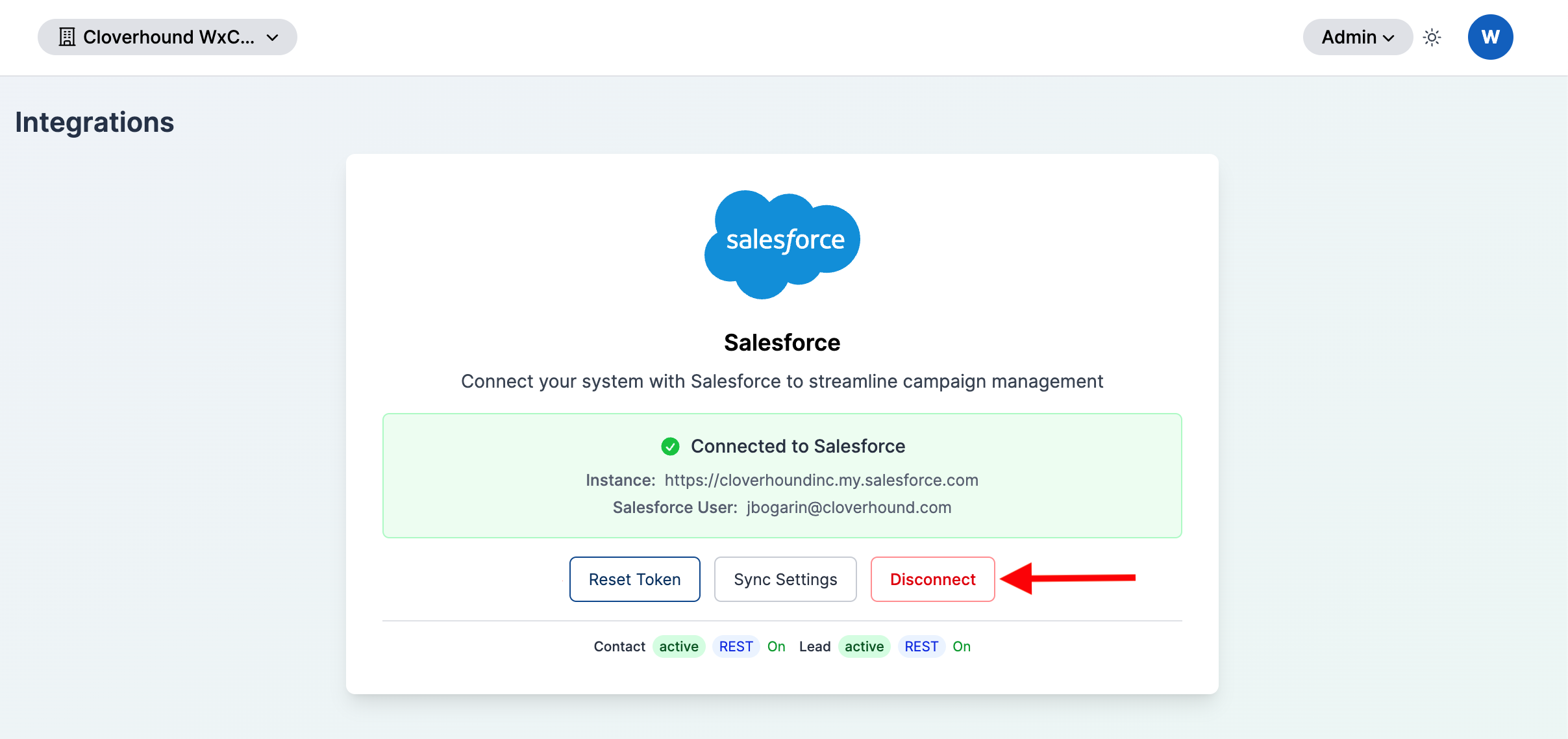
Disconnecting removes the stored Salesforce OAuth token, clears the salesforce.oauth_token_id application setting, and deletes the linked Salesforce account record. After disconnecting, Salesforce synchronization stops until a new token is created by running Set up again.
Disconnecting is immediate and cannot be undone from the UI. Any Salesforce org syncs that depend on the removed token will stop running until the integration is reconnected.
Refresh Behavior
Cloverhound Cloud refreshes Webex and Salesforce OAuth tokens in the background on a schedule, using the refresh token stored with each record. There is no manual Refresh action in the UI. If a token cannot be refreshed, the integration that depends on it will begin to fail, and you will need to re-authorize the integration from the Settings or Integrations page.
By reviewing OAuth tokens in the Settings > Webex tab and the Integrations page, you can confirm which credentials Cloverhound Cloud is using for each external system and remove a token to force re-authorization when one is no longer valid.