Managing Integrations
The Integrations page is where you connect Cloverhound Cloud to the external systems your organization uses, confirm that a connection is healthy, and disconnect an integration when you no longer need it. It lives in the Admin module and is available to organization administrators.
Today, the Integrations page surfaces a single integration:
- Salesforce — connects Cloverhound Cloud to your Salesforce org so that campaigns can import contacts and leads as data sources, and so that call activity can be synchronized back to Salesforce.
Webex connection settings (OAuth token selection, service app activation, and per-feature sync toggles) are not shown on this page. They live on the Settings page, under the Webex tab. For a summary of every OAuth token Cloverhound Cloud stores, see Managing OAuth Tokens.
Accessing Integrations
-
Navigate to the Admin module.
-
Open the Integrations page.
-
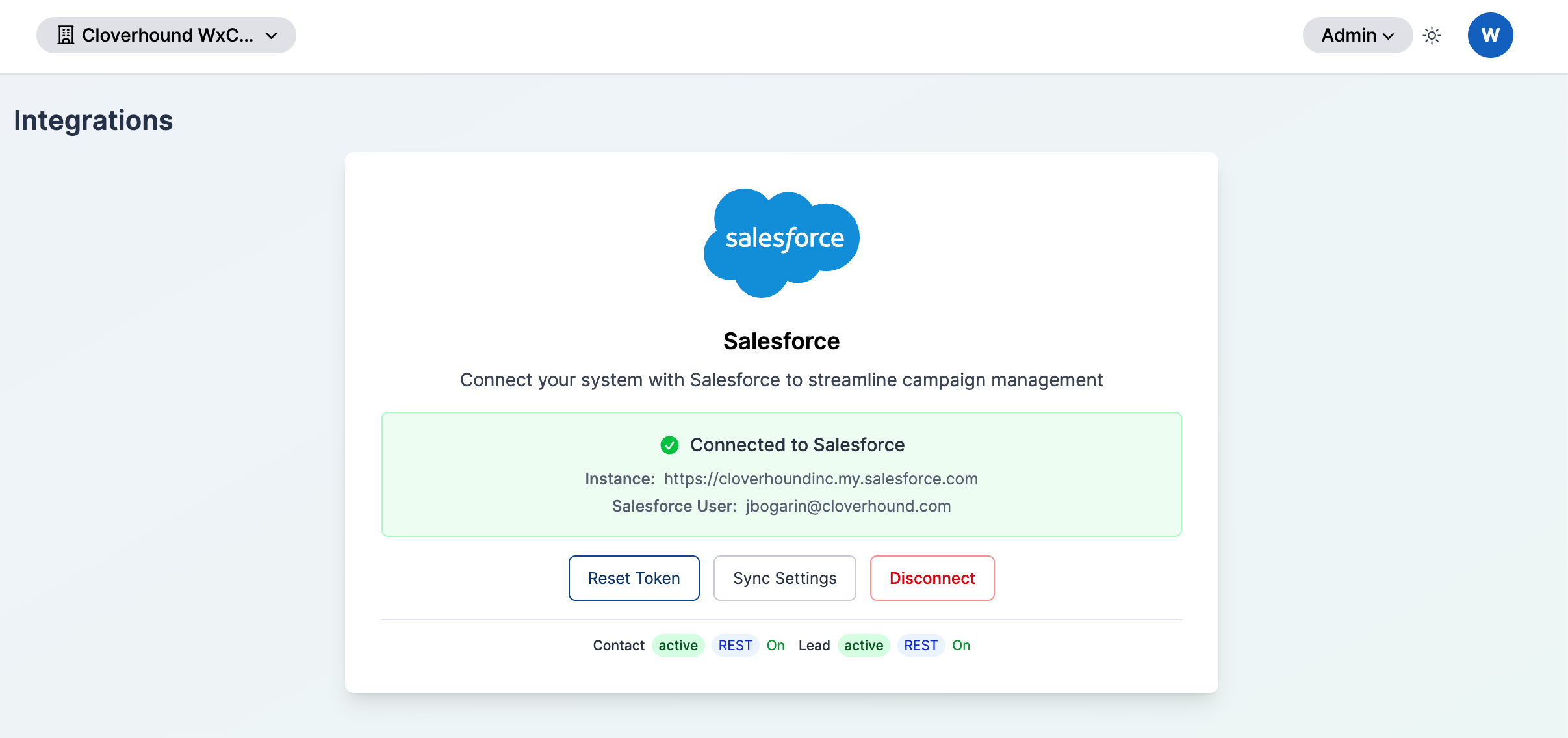
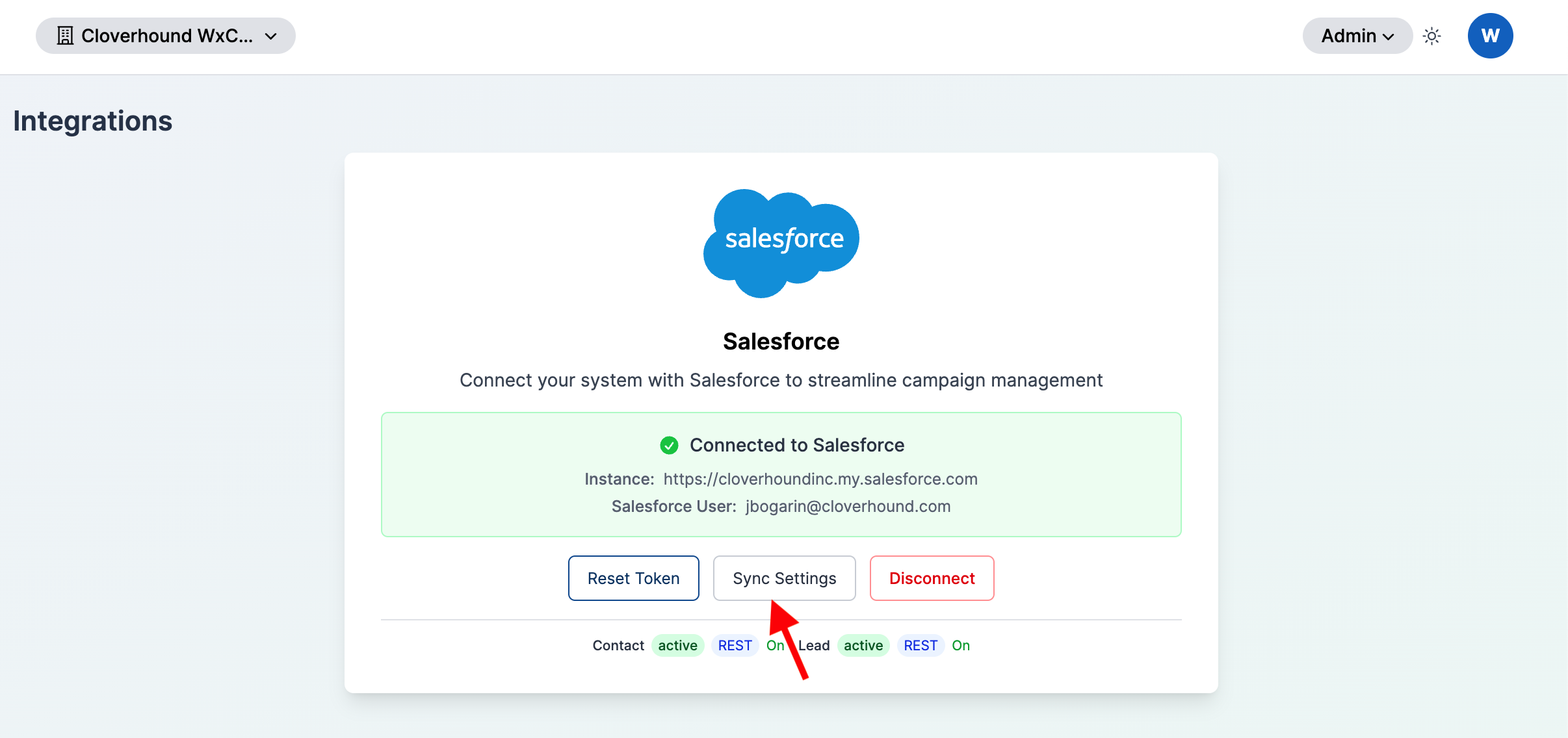
Locate the Salesforce card. Its state tells you whether Salesforce is currently connected:
- If you see a Set up button, Salesforce is not connected.
- If you see a green Connected to Salesforce panel, Salesforce is connected and Cloverhound Cloud has a valid OAuth token. The panel lists the Salesforce instance URL and the Salesforce username that authorized the connection, and exposes the Reset Token, Sync Settings, and Disconnect actions.
If the Integrations page is not visible in your organization, the integrations feature flag is disabled. Contact Cloverhound support to have it enabled.
Connecting Salesforce
-
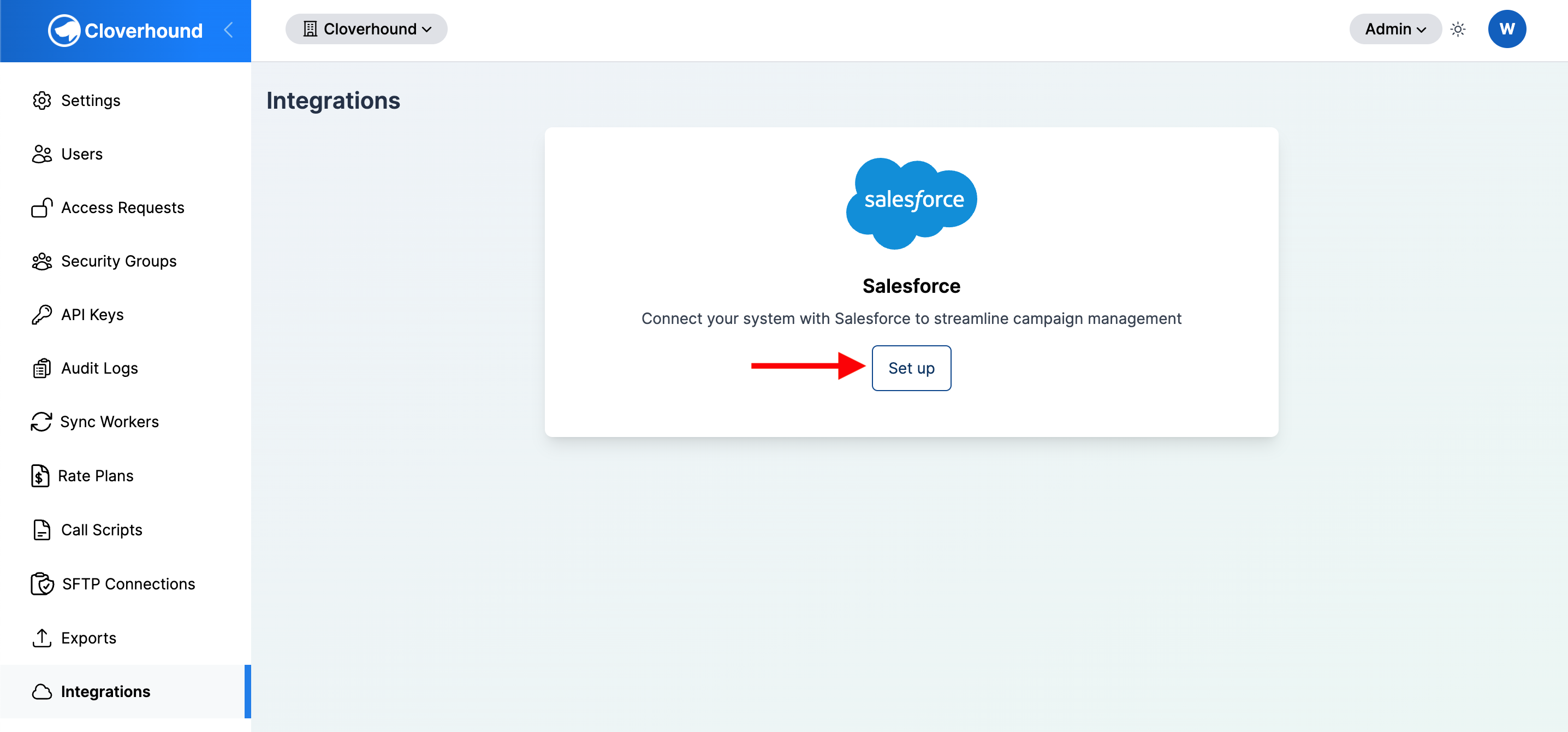
Click the Set up button on the Salesforce card.
-
Sign in to Salesforce in the window that opens and approve the requested permissions.
-
Wait for the Integrations page to reload. On success, the Salesforce card shows the Connected to Salesforce panel with the following details:
- Instance — the URL of the Salesforce instance the token was issued against.
- Salesforce User — the username of the Salesforce user that completed the sign-in.
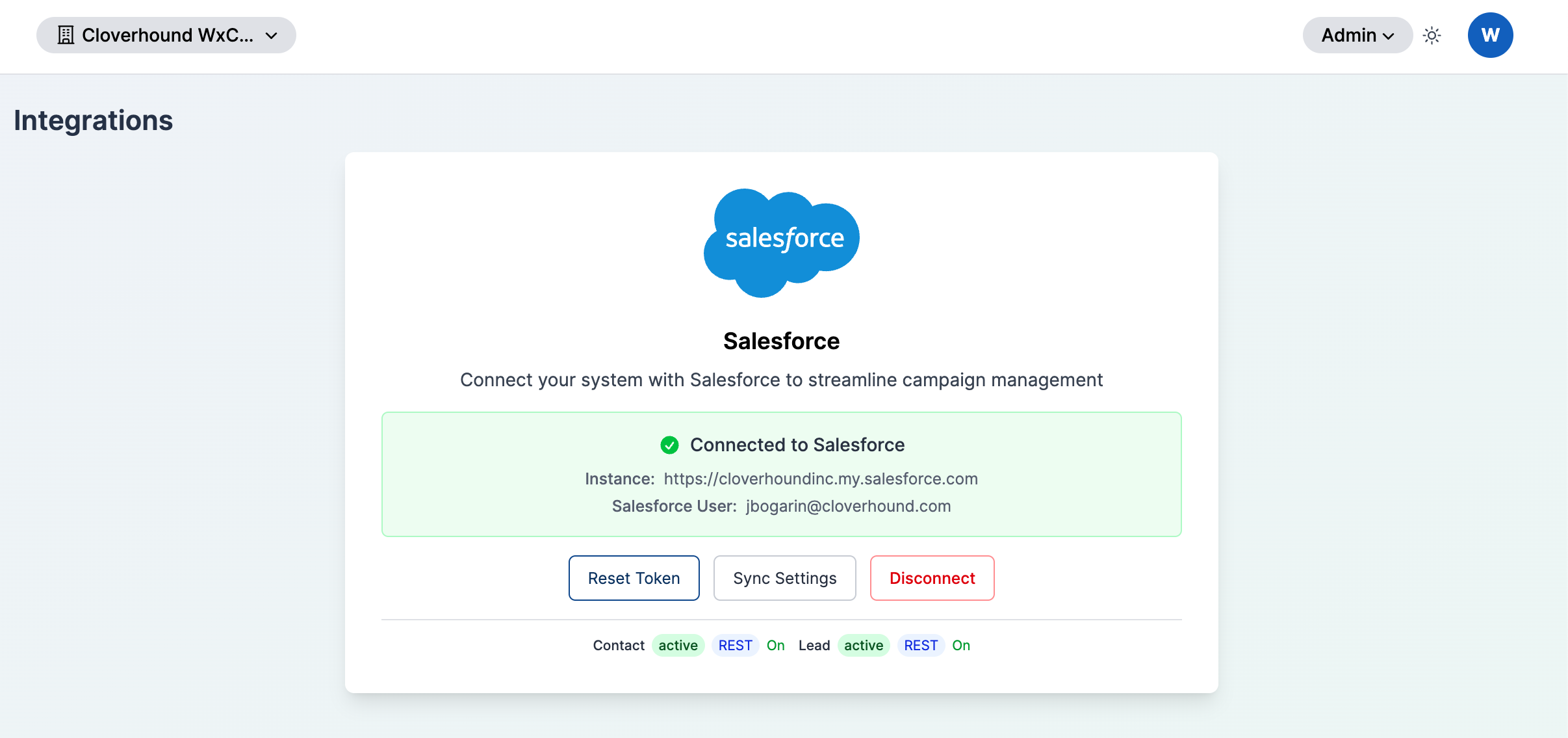
Once connected, Salesforce data sources become available in campaigns, and the Salesforce OAuth token appears under the salesforce provider in OAuth Tokens.
Resetting the Salesforce Token
Use Reset Token when the existing Salesforce OAuth token has stopped working (for example, because the Salesforce user's password changed, MFA was reset, or the connected app permissions were updated) and you want to re-authorize the same integration without removing its configuration.
-
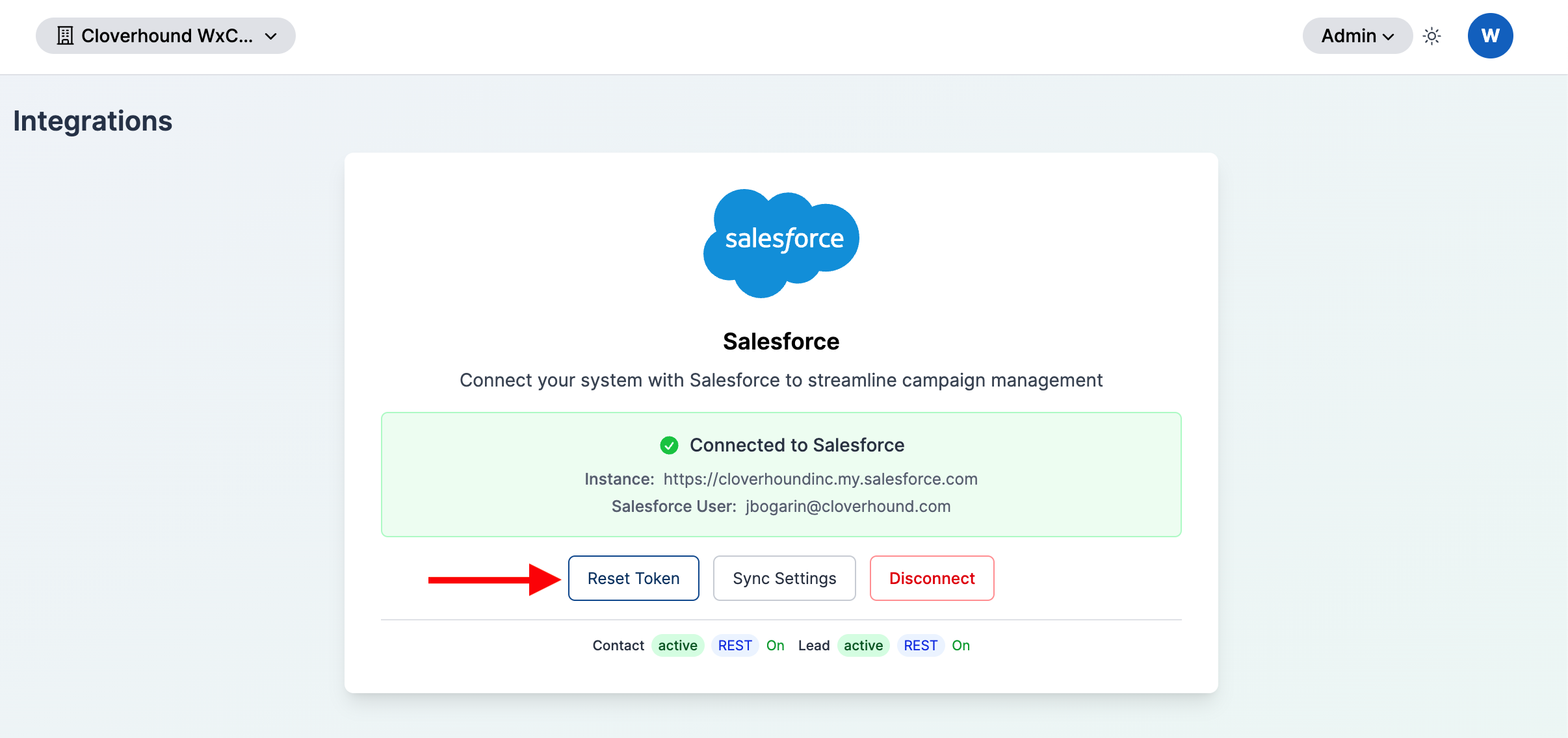
Click the Reset Token button on the Salesforce card.
-
Complete the Salesforce OAuth sign-in again. Cloverhound Cloud replaces the stored token with the new one and keeps your sync configuration intact.
Configuring Salesforce Object Syncs
The Sync Settings button opens a modal where you choose which Salesforce objects Cloverhound Cloud keeps in sync and how it fetches changes. Cloverhound Cloud currently supports Contact and Lead.
-
Click the Sync Settings button on the Salesforce card.
-
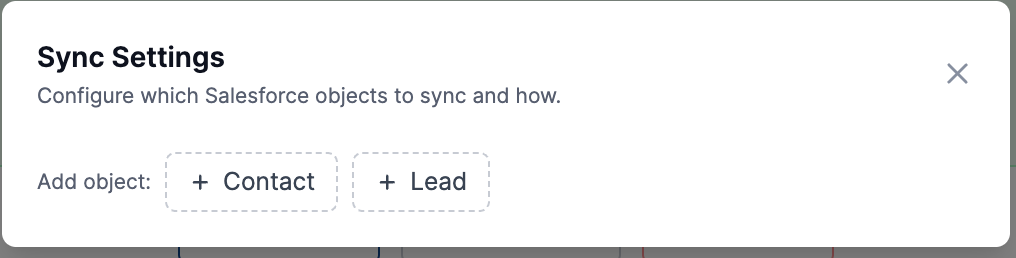
Add an object. In the modal, click the object you want to sync (Contact or Lead). Cloverhound Cloud creates a sync for that object in a disabled state.
-
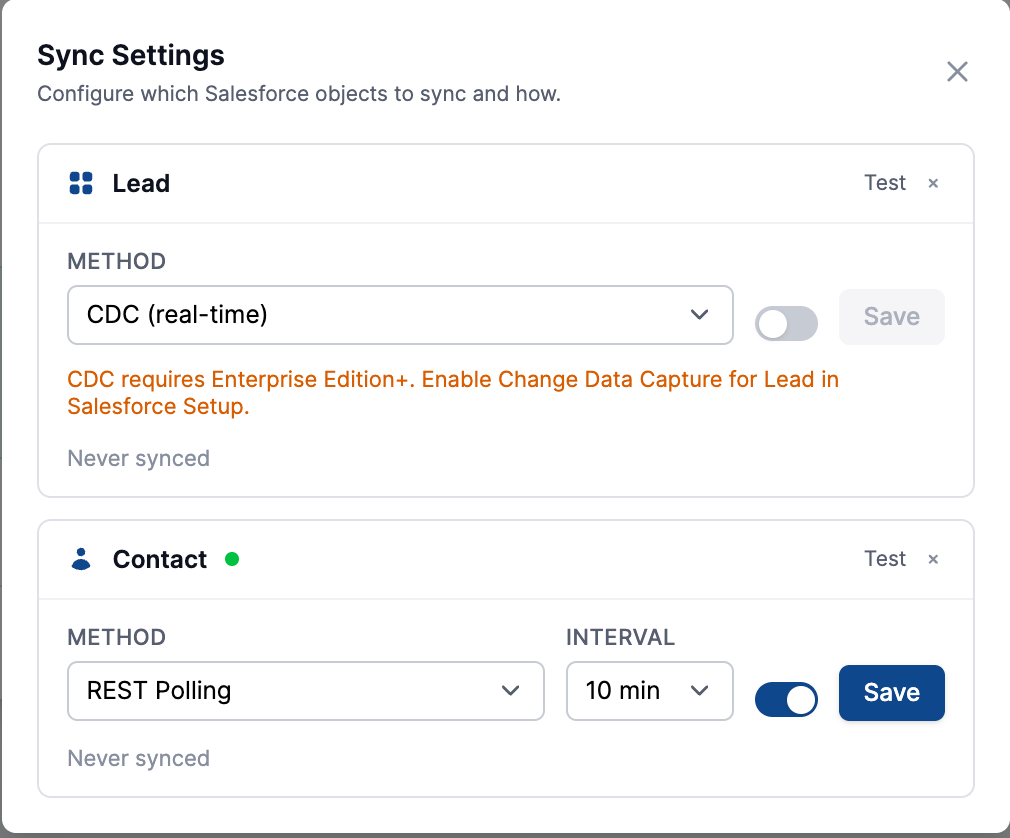
Choose a sync method:
- CDC (real-time) — Cloverhound Cloud subscribes to Salesforce Change Data Capture events. CDC requires Salesforce Enterprise Edition or higher and requires Change Data Capture to be enabled for the object in Salesforce Setup.
- REST Polling — Cloverhound Cloud polls the Salesforce REST API on an interval. Pick an Interval of 5, 10, 15, or 30 minutes.
-
Toggle the sync on with the enable switch.
-
Click Save for that object row.
-
Optional. Click Test to verify Cloverhound Cloud can reach Salesforce for that object. The test result is shown in a browser alert.
-
Optional. Click the remove icon on an object row to delete its sync. Removing a sync also removes any campaign data sources that are linked to that object.
Back on the Integrations page, the sync status summary below the buttons shows each configured object with:
- Object name — for example,
ContactorLead. - Status —
activewhen the sync is healthy,pausedwhen Cloverhound Cloud has paused it, or Error when the circuit breaker has tripped after repeated failures. - Method — CDC for Change Data Capture, or REST for REST polling.
- Enabled indicator — On when the toggle is enabled, Off otherwise.
A sync is created in the disabled state. After you choose a method and save, you must also toggle the sync On before Cloverhound Cloud begins pulling data.
Disconnecting Salesforce
Disconnecting removes the stored Salesforce OAuth token, clears the salesforce.oauth_token_id application setting, and deletes the linked Salesforce account record. After disconnecting, Salesforce data sources stop synchronizing until you run Set up again.
-
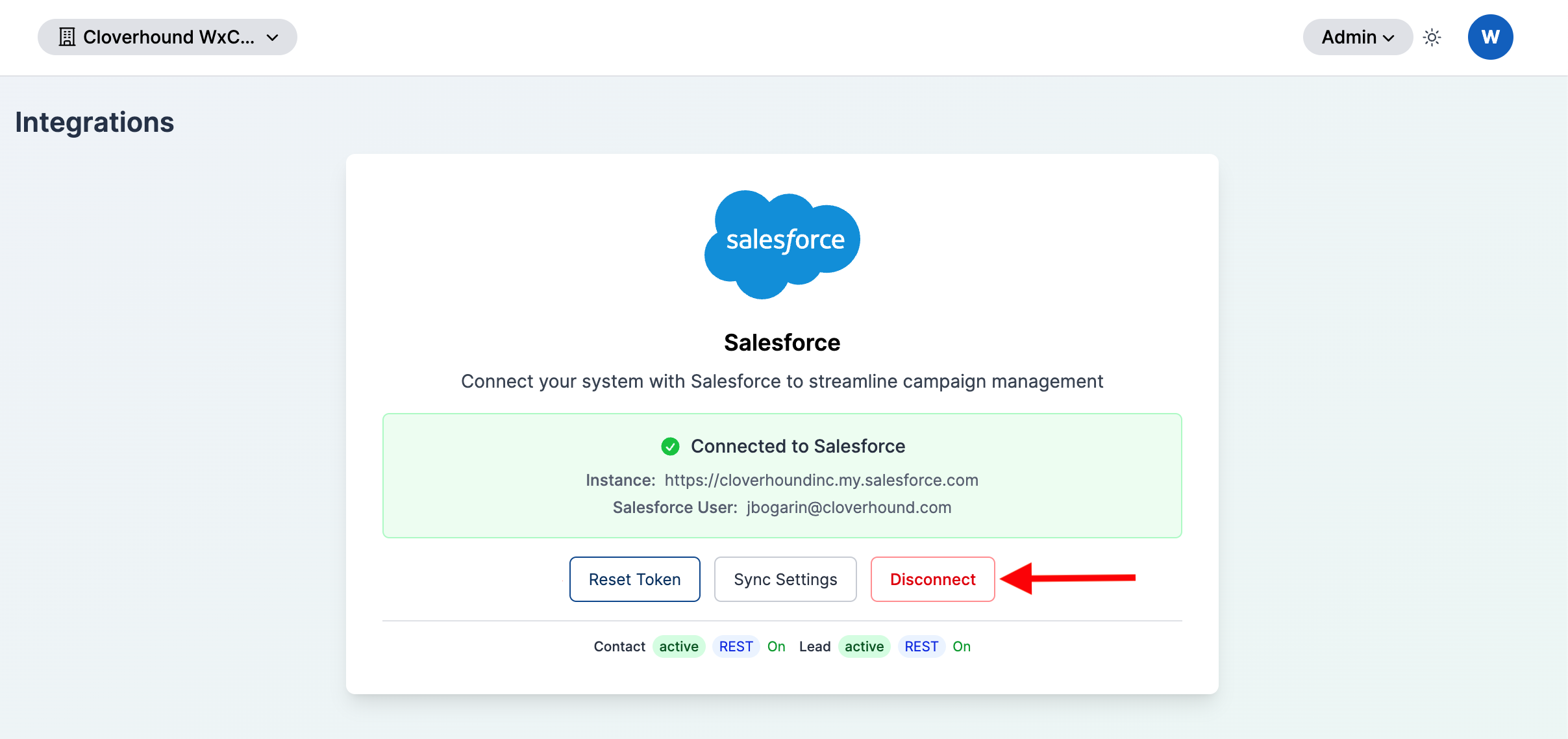
Click the Disconnect button on the Salesforce card.
-
Confirm the prompt "Are you sure you want to disconnect Salesforce?"
Disconnecting is immediate and cannot be undone from the UI. Any Salesforce object syncs and campaign data sources that depend on the removed token will stop running until you reconnect. Object sync configurations are preserved and will resume after you run Set up again.
With the Integrations page you can connect Cloverhound Cloud to Salesforce, confirm which Salesforce instance and user the connection is bound to, control which Salesforce objects are synchronized, and disconnect the integration when it is no longer needed.