Managing Call Scripts
Call scripts are ordered sets of talking points, questions, and follow-up branches that guide agents through a conversation. A script is a named container; each script is made up of nodes (also called steps) that the agent advances through on the Cloverhound Cloud Call Script widget inside the Webex Contact Center Agent Desktop.
Call scripts live under the Call Scripts page in the Admin module. This page covers creating, editing, enabling, and deleting the call script itself. For a walkthrough of how to author the individual nodes inside a script (content, options, branching), see the companion page on managing call script nodes.
Accessing Call Scripts
-
Navigate to the Admin module.
-
Open the Call Scripts page.
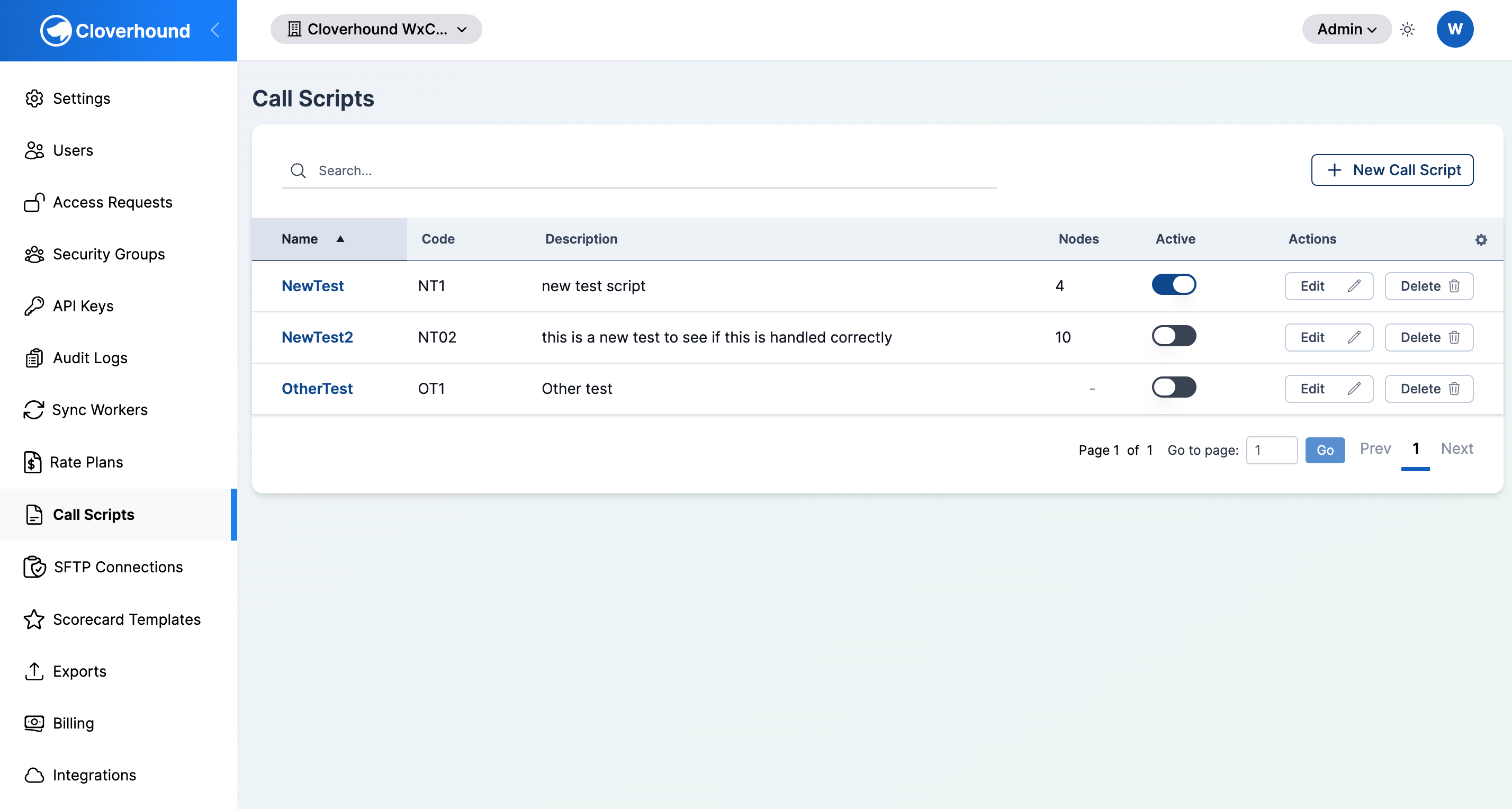
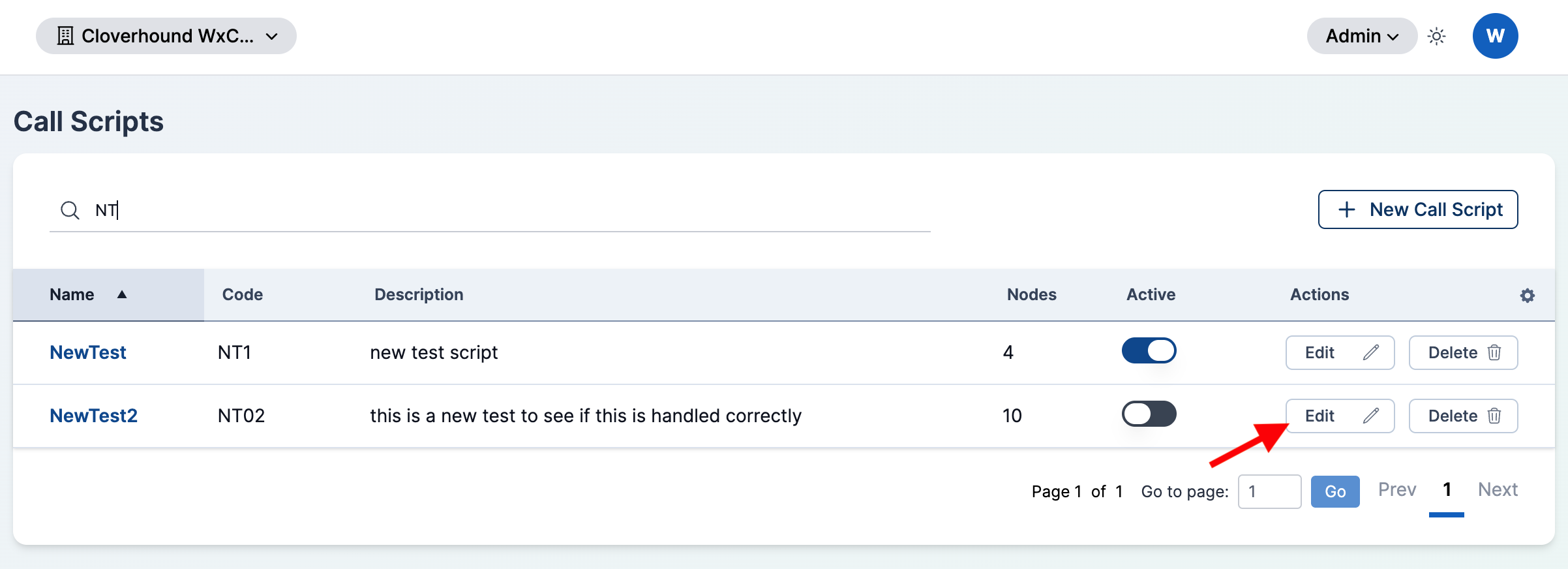
The page lists every call script in your organization with its name, code, description, node count, and whether it is currently active.
Creating a Call Script
-
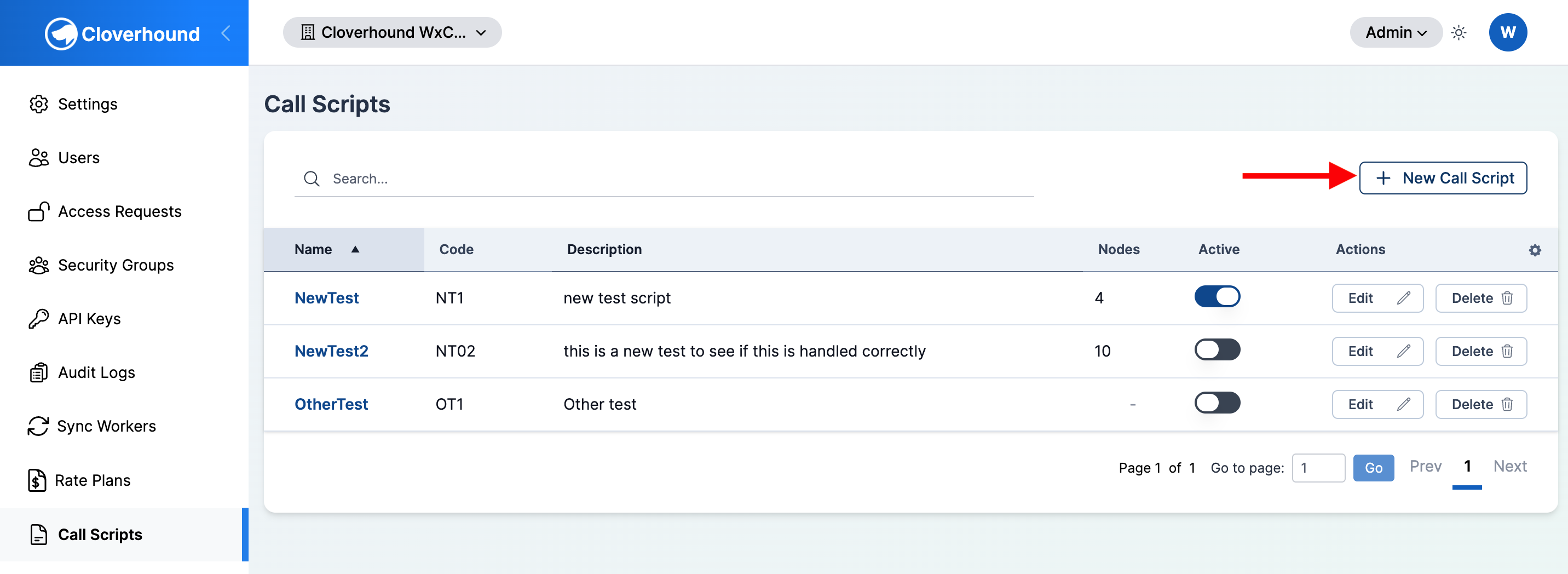
Click the + New Call Script button in the top-right corner of the page.
-
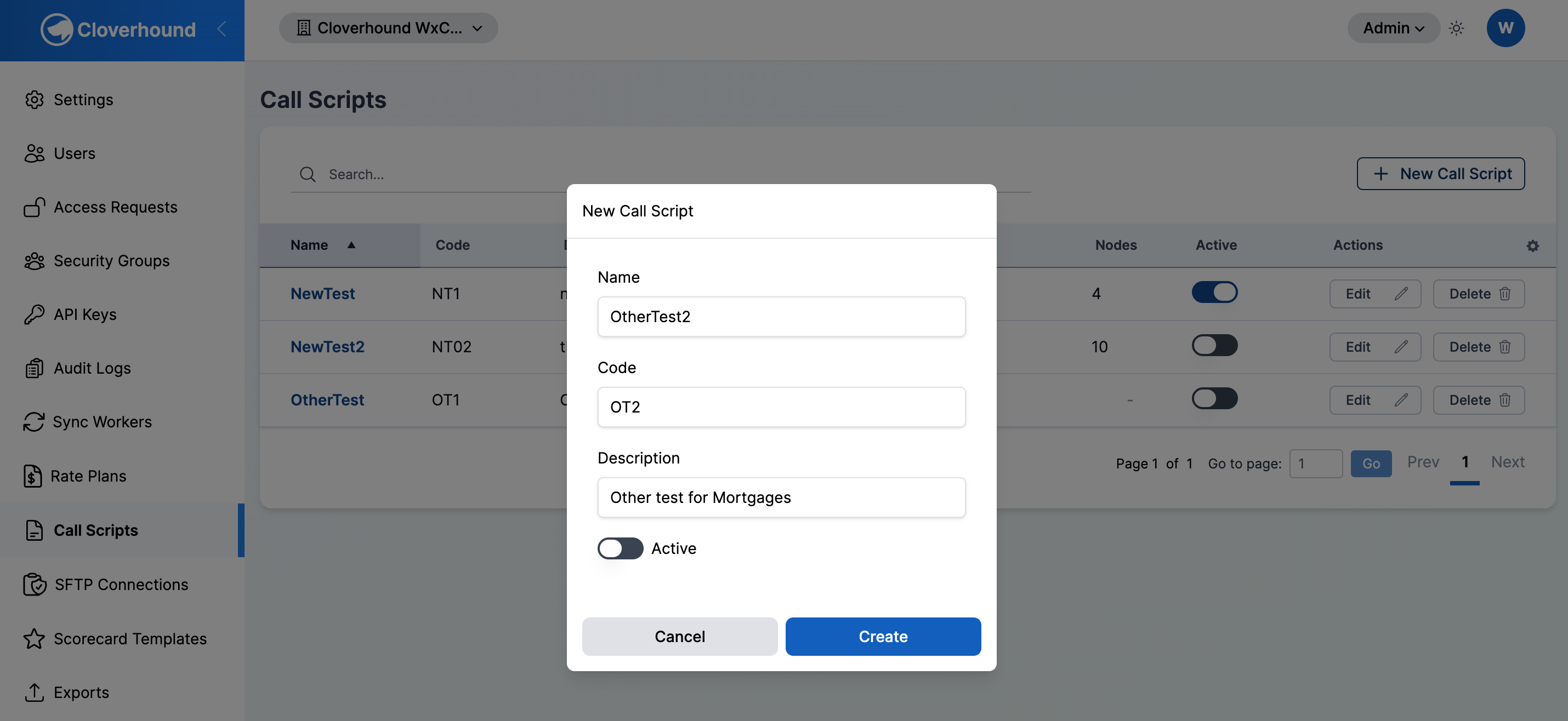
Fill out the form:
- Name — a human-readable name for the script (for example,
Mortgage Retention Outbound). Must be unique within your organization. - Code — the short identifier that the Webex Contact Center flow passes to the widget as the
CallScriptCodeCAD variable. Must be unique within your organization and can contain only letters, numbers, hyphens (-), and underscores (_). - Description — an optional note explaining what the script is for or which team uses it.
- Active — toggles whether the widget serves this script to agents. New scripts default to inactive so you can finish authoring nodes before the script goes live.
- Name — a human-readable name for the script (for example,
-
Click Save.
Cloverhound Cloud redirects you back to the call scripts list and shows a confirmation message. The new script starts with zero nodes; open it to add them.
The Code is how the script is looked up at call time. The Webex Contact Center flow must set the CallScriptCode CAD variable (case-sensitive) to this exact value so the widget can fetch the right script for the interaction.
Searching for a Call Script
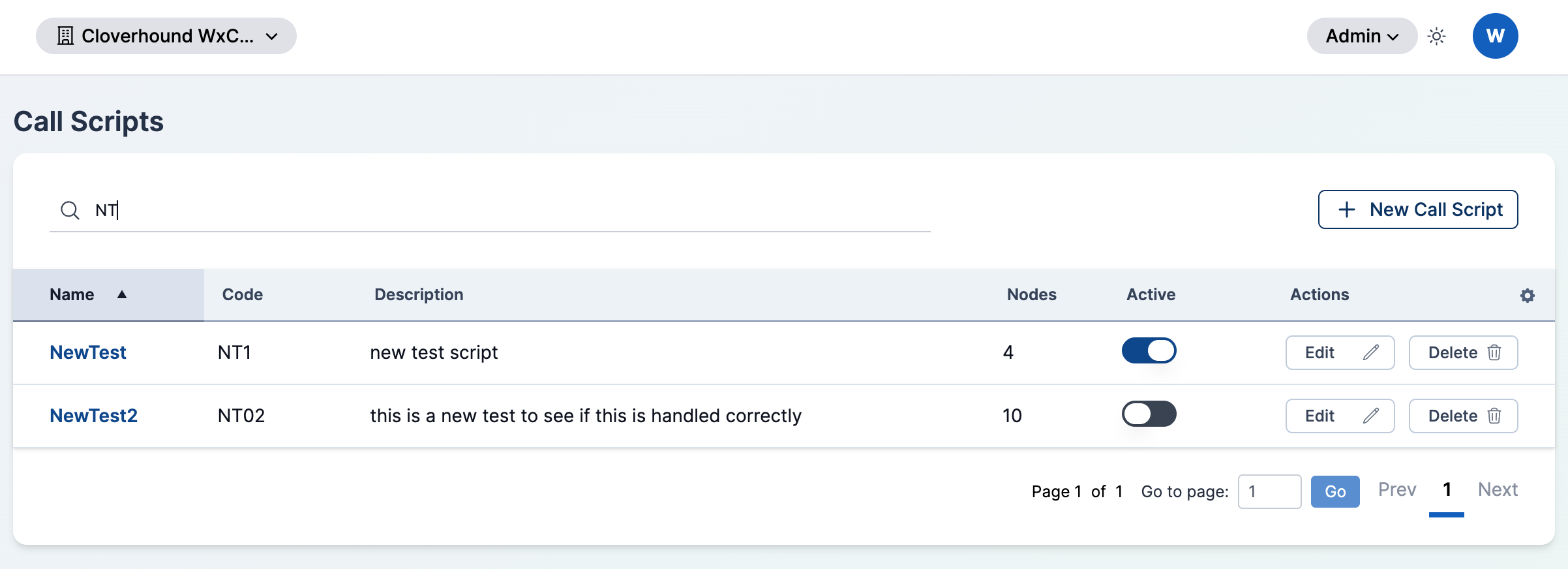
Use the search box above the table to filter the list by Name or Code as you type. The table updates in place; no page reload is needed.
Editing a Call Script
To change a script's name, code, description, or active state:
-
Locate the script in the list and click Edit on its row.
-
Update any of the fields. The same validation rules as the create form apply.
-
Click Save.
Editing these fields does not affect the nodes already defined inside the script.
Changing the Code of a script that is already wired into a Webex Contact Center flow will break the link. Agents will stop seeing the script until the flow is updated to pass the new code.
Enabling and Disabling a Script
The Active column has a toggle that controls whether the widget serves the script to agents.
-
Click the Active toggle on the script's row.
-
Confirm the action in the dialog (Cloverhound Cloud asks you to confirm enabling or disabling the script by name).
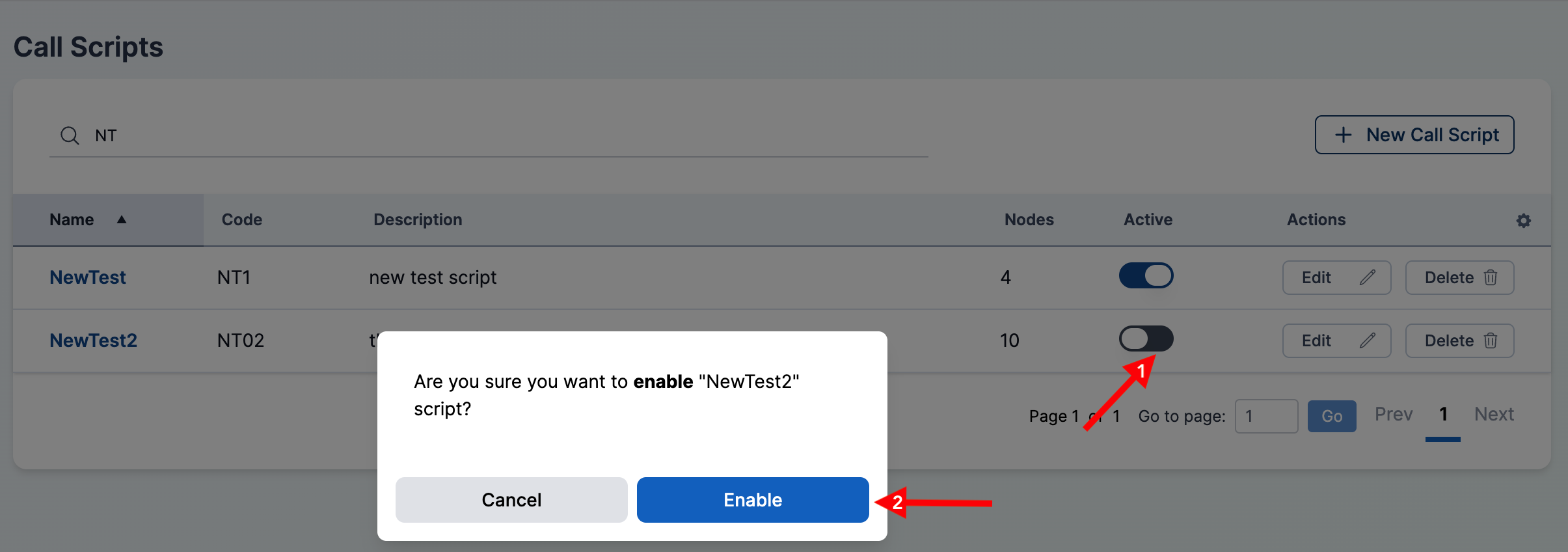
Disabling a script leaves its configuration and nodes intact; it simply hides the script from the widget until you enable it again. Use this to pause a script without losing work.
Authoring Script Nodes
The content that agents actually read is authored as a tree of nodes (also called steps) inside the script. Open a script by clicking its name in the list to reach the node editor.
For full details on adding, editing, branching, and deleting nodes, see Managing Call Script Nodes.
Assigning a Call Script to Agents
Call scripts are not assigned to teams or queues directly from the Admin module. Instead, the script is selected by the Webex Contact Center flow for each interaction, and Cloverhound Cloud's call script widget reads that selection from the call's CAD variables.
-
In your Webex Contact Center flow, set the
CallScriptCodeCall-Associated Data (CAD) variable on the interaction to the Code of the script you want to serve. -
Make sure the Cloverhound Cloud Call Script widget is configured in the agent's desktop layout. See Webex Contact Center Integration for the widget configuration block and the full list of widget properties.
-
When the interaction is offered to an agent, the widget reads the CAD variable, fetches the active script with that code, and displays its nodes in order.
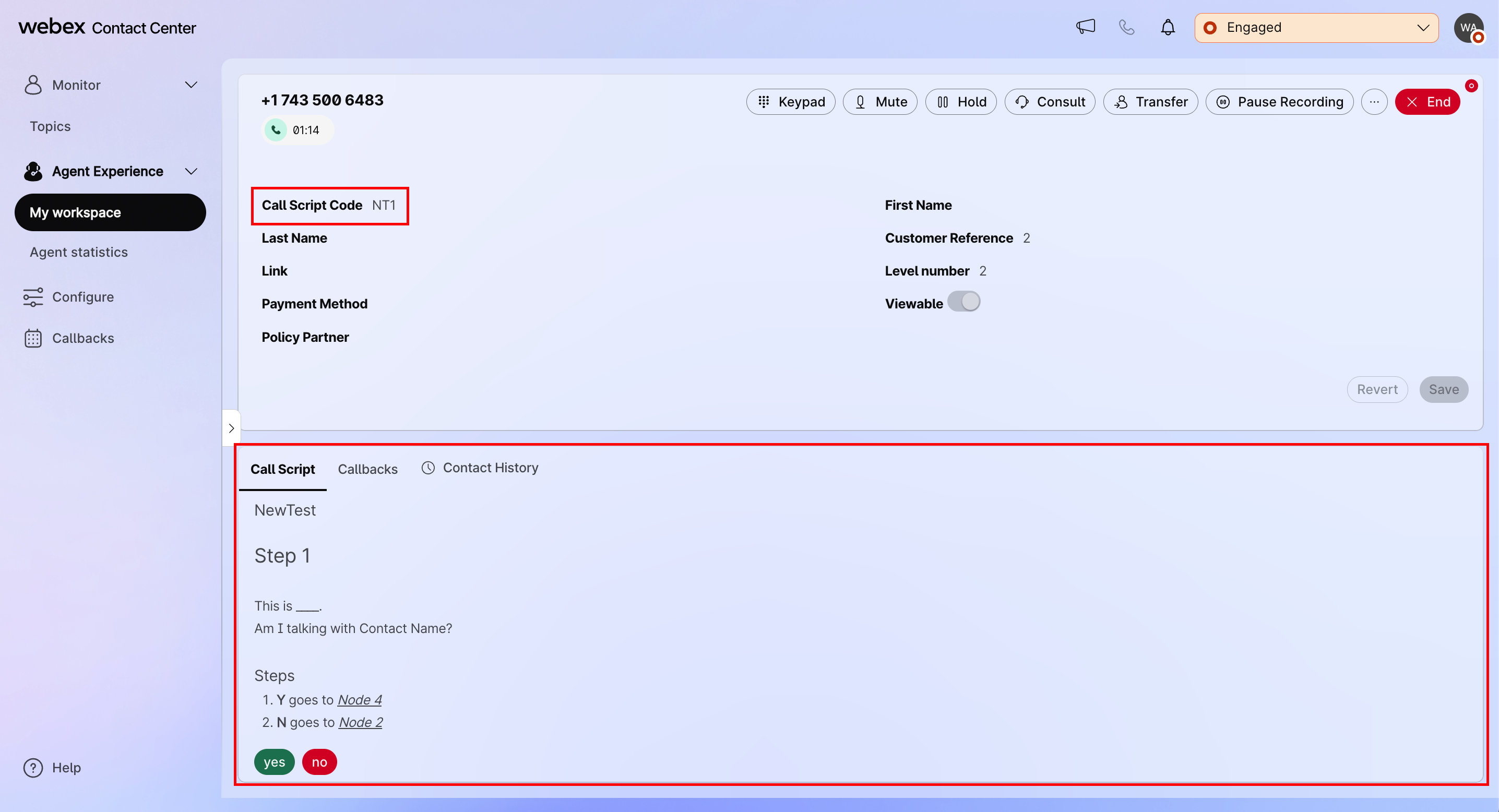
Because script selection is driven by the CAD variable, the same script can be used by as many teams, queues, or flows as you like — and a single team can serve different scripts depending on which flow routed the call.
If the widget cannot find an active script matching the CallScriptCode value for the current interaction, the widget stays empty. Check that the script's Active toggle is on and that the flow is sending the exact code (including case, hyphens, and underscores).
Cross-Organization Isolation
Scripts, nodes, and their codes are scoped to a single organization. An agent in organization A will never receive a script from organization B, even if the CAD variable happens to carry the same code. Name and code uniqueness is enforced within each organization, so two different organizations can reuse the same short codes without conflict.
Deleting a Call Script
- Locate the script in the list and click Delete on its row.
- Confirm the deletion in the dialog.
Deleting a call script also deletes every node inside it. Any Webex Contact Center flow that still references the script's code will leave agents with an empty widget until the flow is updated. Consider disabling the script with the Active toggle first if you only want to stop using it temporarily.
With the Call Scripts page, you can build and maintain the talking points your agents see on every call, keep them in sync with your Webex Contact Center flows, and enable or retire scripts without touching the flow configuration.