Audit Logs
Audit Logs record changes made to records in your organization so you can review platform activity for security and compliance. Each entry captures who performed an action, what object was changed, when it happened, and what fields were affected.
Accessing the Audit Log
-
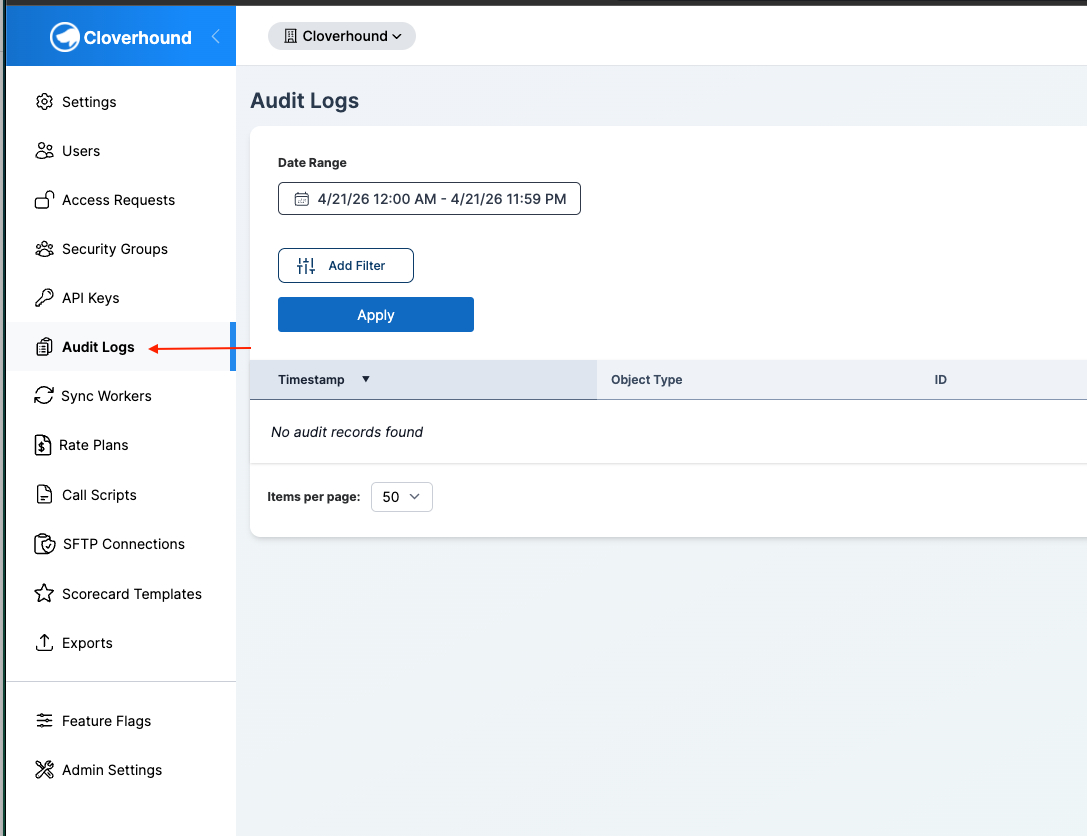
Navigate to the Admin module.
-
Open the Audit Logs page from the left navigation.
-
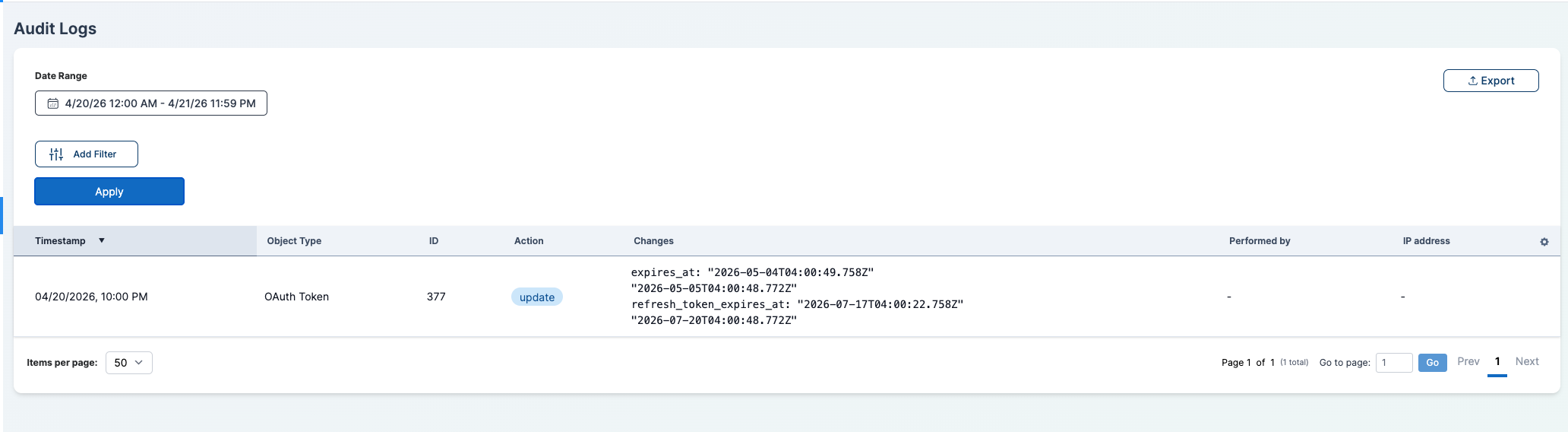
Locate the Audit Logs table on the page.
Viewing Audit Entries
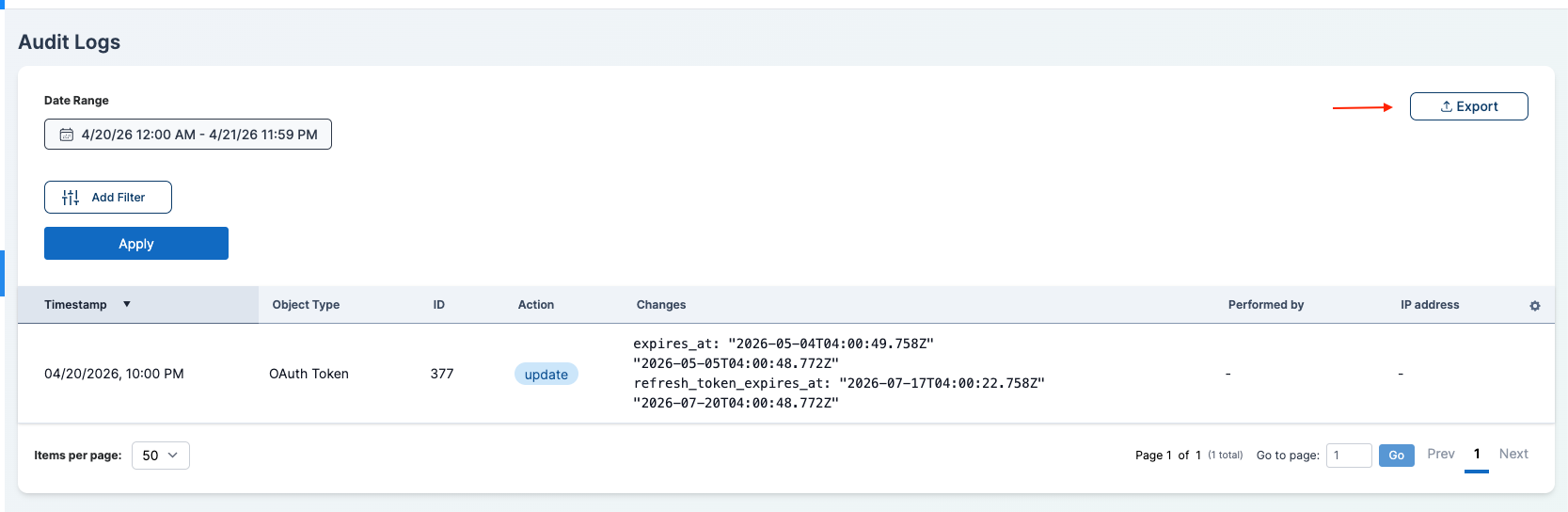
The Audit Logs table shows one row per recorded change. It includes the following columns:
-
Timestamp — Date and time the action was recorded.
-
Object Type — The type of record that was changed (for example, API Key, Security Group, End User). Some types link through to that record's page when a show page exists.
-
ID — The numeric ID of the changed record.
-
Action — The action performed on the record. Typical values are create, update, and destroy. The action is displayed as a colored pill.
-
Changes — The fields that were changed. For updates, each field is shown as
field: old value -> new value. -
Performed by — The email of the user who performed the action, when available.
-
IP address — The IP address the request was made from, when available.

Sorting and Pagination
- Click any column header to sort the table by that column. Click again to reverse the sort order.
- Use the pagination controls at the bottom of the table to move between pages, and the per-page dropdown to change how many rows are shown.
By default, the table is sorted by Timestamp in descending order (newest first).
Filtering Audit Entries
Filters appear on the left side of the page. Filters combine with the date range: only entries that match the date range and every filter are shown.
-
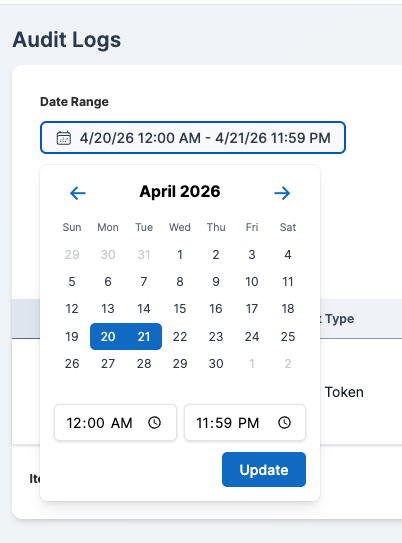
Set the Date Range. The Date Range filter is always visible and cannot be removed. Pick a start and end date and time.
-
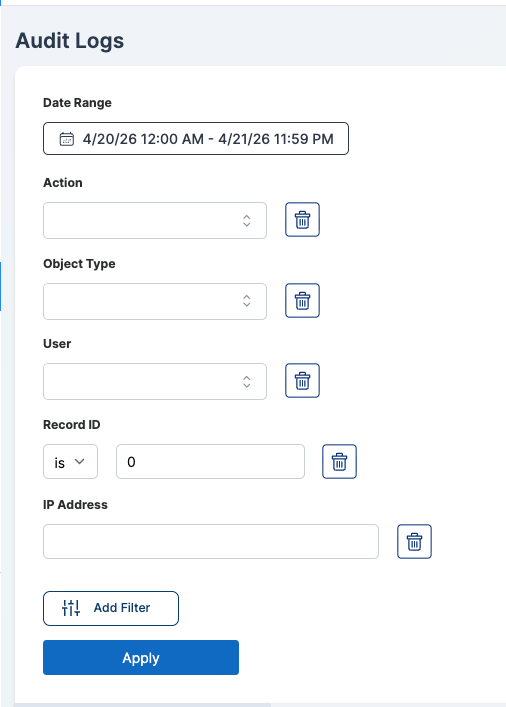
Add additional filters as needed:
- Action — Multi-select. Choose one or more actions (for example, create, update, destroy). Only actions that have been recorded for your organization appear.
- Object Type — Multi-select. Choose one or more record types (for example, API Key, Security Group). Only object types that have been recorded for your organization appear.
- User — Multi-select. Choose one or more users by email. The list includes users in your organization.
- Record ID — Number. Filter to entries for a specific record ID.
- IP Address — Text. Filter by the IP address the request was made from.
-
Click Apply to run the search. The table updates to show only matching entries.
The Action, Object Type, and User dropdowns show all values ever recorded for your organization, not just values within the current date range. This lets you filter to older records outside the selected date range.
Exporting the Audit Log
You can download the current filtered view of the Audit Log for offline review.
-
Click the Export button above the table.
-
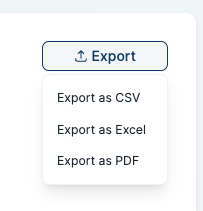
Choose a format:
- Export as CSV
- Export as Excel
- Export as PDF
-
The exported file uses the same filters, date range, and sort order that are currently applied to the table. The file name includes the date range you exported.
The export contains the same columns as the table: Timestamp, Object Type, Auditable ID, Action, Changes, Performed By, and IP Address. The Excel export includes a second sheet, Filters Applied, that lists the report name, date range, and filters used.
With the Audit Logs page, you can review who changed what in your organization, narrow the view to a specific user, object type, record, or IP address, and download the results for audit and compliance purposes.